
Translating text written in another language can sometimes be a challenge, especially when it involves printed or handwritten content visible only in a photo. Fortunately, simple tools and apps now exist to perform this task in just a few steps. This guide explains how to translate text from a photo into another language.
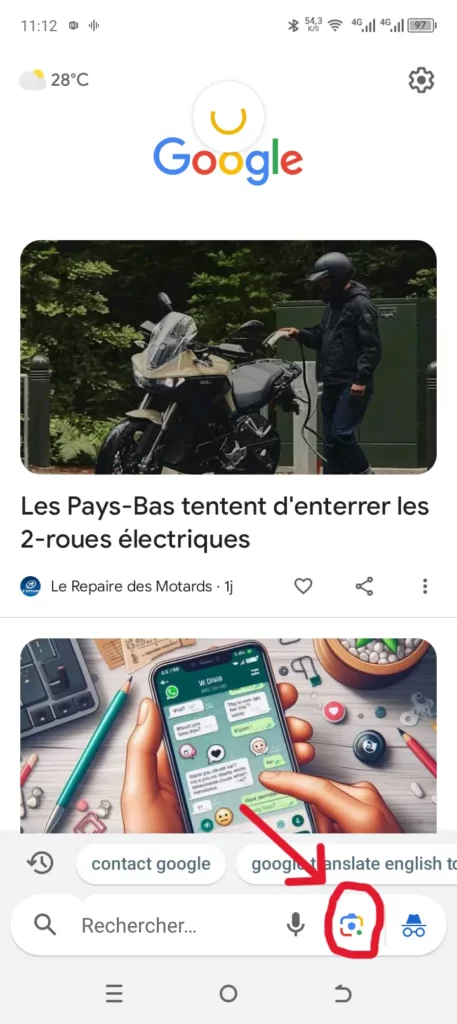
Step 1: Go to Google and click on the small camera icon on the homepage
To begin, open the Google app on your phone. On the homepage, you will notice a camera icon, usually located in the search bar. Click on this icon to access the image translation feature (Google Lens). This option allows you to take a photo or upload an existing image from your device to analyze and translate its content.
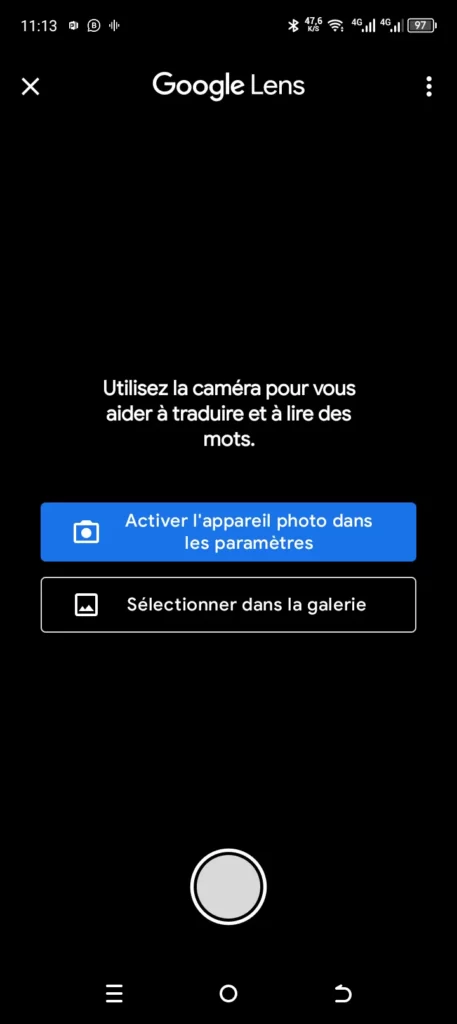
Step 2: Take a photo of the text or choose an existing image from your gallery
After clicking the camera icon, you will have the choice to take a photo directly or select an image already saved in your gallery. If you choose to take a new photo, ensure the text is well-lit and sharp to make recognition easier. If the image is already in your gallery, simply select it to move to the next step.
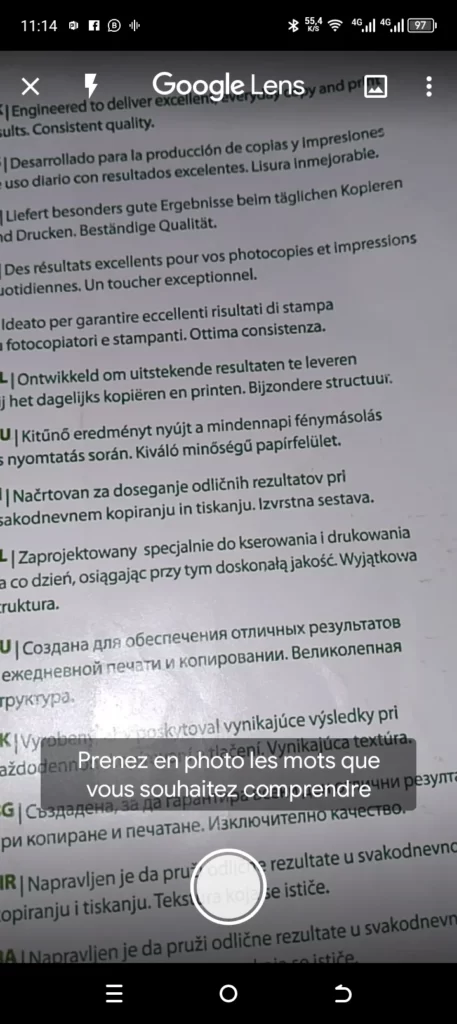
Step 3: The app will automatically detect the text in the image
Once the photo is taken or the image is chosen, Google will automatically detect the text within the image using its OCR (Optical Character Recognition) technology. The app will highlight the extracted text and allow you to select the translation languages. Choose the source language (the language of the original text) and the target language (the language you want the text translated into). This ensures the translation is accurate and tailored to your needs.
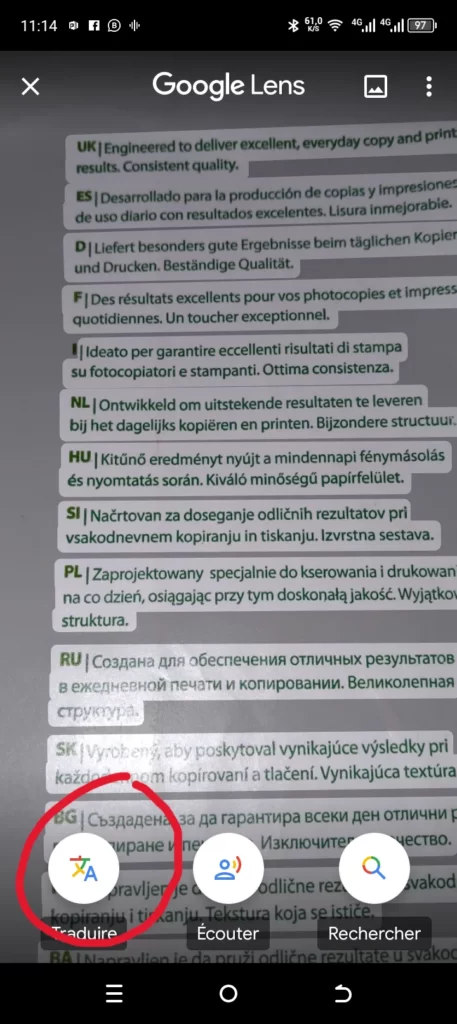
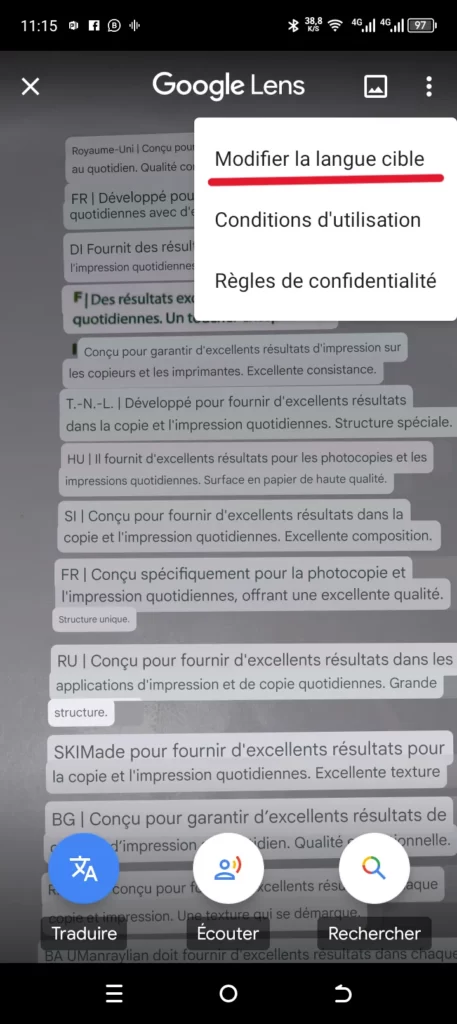
Step 4: Tap “Translate” to view the translated text
After setting the source and target languages, simply tap the Translate button at the bottom left. In an instant, Google will translate the text extracted from the image. You will then see the translated text in your chosen language, overlaid directly on your screen.
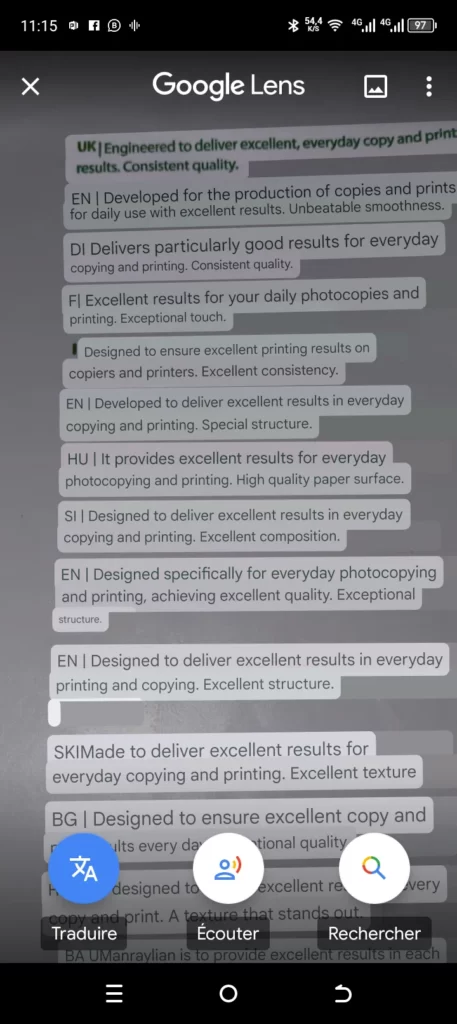
Translating text from a photo has become incredibly easy thanks to technological advancements. Whether you use an app, a website, or an integrated solution like Google, you can understand and translate almost any text in seconds.
Read also:
- How to unblock a Telegram account blocked by content filtering?
- How to resolve message sending and receiving issues on TikTok?
- How to recover deleted files on Android?
Share this content: