
Updated on October 28, 2026
This article contains affiliate links: if you buy through them, Wanda-techs earns a commission at no extra cost to you.
To hide a contact on Android without deleting it, don’t look for a “Hide” button: the Google help pages we checked don’t describe one. Three settings get you the same result. Show only one account in the Contacts app, store the contact in the Secure Folder of a Samsung Galaxy, or use the Private Space in Android 15.
Common symptoms and causes
- You look for a “Hide” checkbox in the contact’s page and can’t find it: the official Google pages we checked mention none.
- Contacts vanished from your address book although you never deleted them.
- Causes of these disappearances found in the official help pages: only one account is shown in Contacts, or contacts sit in the Samsung Secure Folder or in the Private Space.
Before you start
- Find out which account stores the contact (Google account, Samsung account, phone). Contacts in a Google account sync to every Android device signed in to that account.
- Private Space: Android 15 or later, on a phone not managed by a company or school, with no supervised Google account.
- Secure Folder: a compatible Samsung Galaxy and a Samsung account. Some older models are not compatible.
- Back up your contacts before touching the Secure Folder or the Private Space.
Warning: some steps in this guide erase data, so back up first. Uninstalling the Secure Folder or clearing its data deletes everything in it, contacts included. Deleting the Private Space erases its apps and their data with no backup.
Step 1: Hide a contact on Android by showing only one account
This method works in the Google Contacts app, the one on Pixel phones and many other Android phones. A contact saved in an account you don’t display drops out of the list without being deleted. Google presents this setting as a display choice, and it applies to a whole account, not to a single contact.
- Open the Contacts app.
- Tap your profile picture, at the top right.
- Tap Select account, then choose the account to display.
- To show only one group of contacts, tap the Label icon at the top of the screen and pick a label.
Only the contacts of the chosen account or label stay in the list. The others are still on the phone.
Good to know: the “Other contacts” that Gmail saves automatically when you exchange messages with someone don’t show on Android. They stay visible on a computer, in the left sidebar of Google Contacts. You can delete them there with More > Delete.
Step 2: Hide a contact on Samsung with the Secure Folder
The Secure Folder is a space protected by its own lock, built into compatible Samsung Galaxy phones. Samsung publishes its labels in English. The ones below may vary with your version of One UI.
Samsung’s page doesn’t detail how to add contacts to the folder. It only says the folder accepts its own Google or Samsung accounts, which sync its apps. Steps 6 and 7 rely on that.
- Open Settings > Security and privacy > More security settings > Secure Folder.
- Sign in to your Samsung account, then tap Continue and Agree.
- Choose a lock type and set it.
- Tap Done.
- Open the Secure Folder from its shortcut on the home screen or in the Apps screen.
- Add a Google or Samsung account inside the folder (a method Samsung doesn’t describe for contacts).
- If the folder’s Contacts app allows it, save the contacts to hide in that account: Samsung doesn’t describe this step.
- To hide the folder itself, go back to Settings > Security and privacy > More security settings > Secure Folder, turn off Add Secure Folder to Apps screen, then tap Hide.
Contacts added to the folder appear only when you open it with its lock.
According to user reports, some versions of Samsung Contacts offer More options > Move to Secure Folder on a contact’s page. Samsung describes this command for its apps without naming Contacts. Check on your phone.
Tip: if you forget the code, tap Forgot PIN and enter your Samsung account password. If you lost both the code and the password, contact Samsung support.
Warning: the next step erases data. Uninstalling the folder deletes everything in it, contacts included. Back up first.
- To remove the folder, open it, then tap More settings > Uninstall > Uninstall.
To keep a copy of your contacts and files before this step, a USB-C drive plugs straight into the phone.
SanDisk Ultra Dual Drive Go 128 GB, USB-C and USB-A flash drive
Plugs straight into a phone with a USB-C port and into a computer with USB-A. Handy for keeping a copy of your contacts, photos and files.
- AmazonSee at Amazon
Step 3: Android 15 and later, put the contact in the Private Space
The Private Space is a locked area of Android 15 where apps run separately. It has no contact-specific option. Use a Google account in it that is separate from your main account.
- Open Settings > Security and privacy > Privacy > Private space.
- Tap Set up, then OK.
- Sign in with a Google account separate from your main one, as Google recommends.
- Choose how the space opens: your screen lock or another one.
- Turn on Hide private space when locked.
- Choose the auto-lock: every time the phone locks, 5 minutes after the screen times out, or on restart.
When locked, the Private Space stops its apps. Apps installed there start from scratch: your existing contacts are not copied in. Google doesn’t describe adding contacts to the space, and using a Contacts app installed inside it with the separate account is a lead you should check on your phone.
Good to know: with the same Google account inside and outside, synced data, contacts included, stays visible outside the space. That’s why the account must be separate. Files, on the other hand, are added with + Add > Add files, as a copy or a move.
Warning: the next step erases data. Deleting the Private Space erases its apps and their data, with no backup.
- To remove the space, open Settings > Security and privacy > Privacy > Private space > Delete private space.
Third-party apps also promise to hide contacts. No official page describes them and we haven’t tested them. Check the permissions they ask for before handing them your contacts, and prefer the methods in steps 1 to 3.
Step 4: Show hidden contacts on Android
- In the Google Contacts app, tap the account at the top left, then All contacts.
- On a Samsung Galaxy, open the Secure Folder and look for the contact in its Contacts app.
- On Android 15 and later, open the Private Space with its lock and check whether it holds the contact.
- For a contact saved from Gmail, open Google Contacts on a computer, then Other contacts in the left sidebar.
The contacts of all your accounts reappear in the list.
For other causes of missing or duplicate contacts, see our guide to contact problems on Android and iPhone.
If nothing works
Is the contact still visible? Check which account it is saved in: as long as it’s in the displayed account, step 1 doesn’t hide it. Then move on to the Secure Folder or the Private Space rather than an unchecked app.
To hide the apps themselves, see how to hide apps with X Icon Changer.
Contact Samsung support if you lost both the Secure Folder code and the Samsung account password. For the Private Space, see Google’s Android help page. Have the phone model, the Android or One UI version and the address of the account involved at hand.
Protect your Android phone: our toolbox
A few products that help protect the contacts and accounts on your phone.
 Bitdefender Total Security 2026, 3 devices, 1 yearSecurity suite licence that protects PCs, Macs and Android phones against malware and phishing. It also covers a phone where private contacts are stored.AmazonSee at Amazon
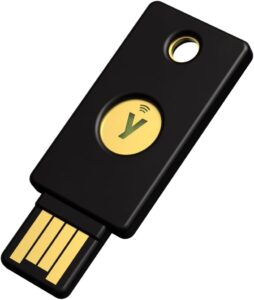 Yubico YubiKey 5 NFC, security keyPhysical key that confirms a sign-in to your Google account over NFC or USB. Protects the account that synchronises your contacts.AmazonSee at Amazon
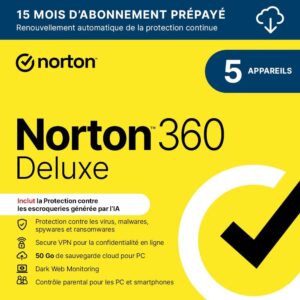 Norton 360 Deluxe 2026, 5 devices, 15 monthsSecurity suite licence for PCs, Macs, Android phones and iPhones, with a VPN and a password manager. A way to protect the accounts that hold your contacts.AmazonSee at Amazon
- UGREEN USB-C male to USB-A 3.0 female OTG adapterLets a phone with a USB-C port read a USB-A flash drive or card reader. Useful to copy a backup of your files to or from the phone.AmazonSee at Amazon
Frequently asked questions
Can you hide a contact on Android without deleting it?
Yes, but not with a dedicated button. You can show only one account in Contacts, or use the Secure Folder on a Samsung or the Private Space in Android 15. The contact stays saved, it just no longer appears in the main list.
How do you hide a contact on a Samsung?
Use the Secure Folder, Samsung’s protected space. Turn it on in Settings > Security and privacy > More security settings > Secure Folder, then try saving the contact to an account added inside the folder: Samsung doesn’t describe this procedure. You can also hide the folder’s icon.
How do you find a hidden contact on Android?
In Google Contacts, tap the account at the top left, then All contacts. If the contact isn’t there, open the Secure Folder on a Samsung or open the Private Space with its lock on Android 15. Contacts saved from Gmail are under Other contacts, in the desktop version of Google Contacts.
Why have some contacts disappeared from my address book?
Probably only one account is shown in the Contacts app. Go back to All contacts from the account at the top left. The missing contacts may also be in the Secure Folder or the Private Space, visible once you open them.
Share this content: