
Did you know that when you connect to public Wi-Fi, the risk of vulnerability is extremely high? Your devices could be subject to all kinds of cyberattacks. If you regularly use public hotspots, here are several professional tips to protect your PC on public Wi-Fi.
1. Secure Your Connection Using a VPN
Using a VPN (Virtual Private Network) is one of the most effective ways to protect your data. It encrypts your internet connection, making it unreadable to other users on the same network. To set up a VPN, you can either download a provider’s app or configure it manually:

- Manual Setup: You will need the server address, account name, password, and the VPN type provided by your service. Once validated, you can easily toggle the VPN from your system tray. Your connection will be secured with a masked IP address, hiding your real location from prying eyes.
2. Check for Strong Wi-Fi Encryption
To better protect a PC, prioritize networks using strong encryption protocols. Look for WPA3, which is currently the most secure standard. If unavailable, ensure it uses at least WPA2. To check if your computer supports WPA3:
- Press Win + R, type
cmd, and hit Enter. - Type
netsh wlan show driversand look for WPA3 or WPA2 under the supported protocols section.

Note: After connecting, go to Settings > Network & Internet > Wi-Fi. Click on the network “Properties” to confirm the security type being used.

3. Use a Non-Administrator User Account
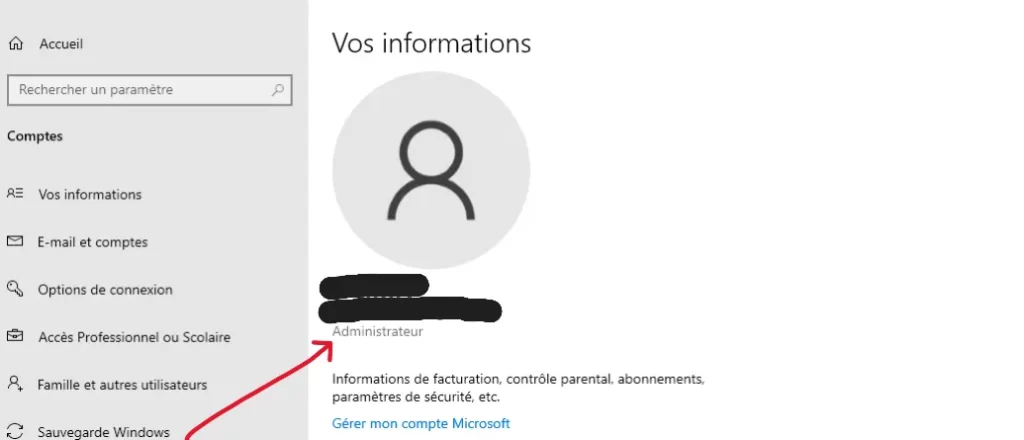
Logging into public Wi-Fi with an administrator account exposes your system to severe risks. If cybercriminals gain access, they could make deep changes to your OS. It is safer to use a Standard Account. Since these accounts have limited privileges, hackers cannot modify system-wide settings even if the account is compromised.
- Check account type: Go to Settings > Accounts. Under your email, check if it says “Administrator” or “Standard User”.
- Create a standard account: Go to Settings > Accounts > Other users.
4. Disable Network Discovery
When “Network Discovery” is active, your device can see other devices on the network, and they can see you. While useful for home file sharing, it’s a major risk on public Wi-Fi. To disable it: Go to Settings > Network & Internet > Advanced network settings > Advanced sharing settings. Under Public networks, toggle Network discovery to Off. This keeps your device hidden from others.
5. Enhance Security with Microsoft Defender
Windows Security provides built-in tools to block cyberattacks on public networks.
Active Firewall: Go to Windows Security > Firewall & network protection > Public network and ensure the Microsoft Defender Firewall is On.

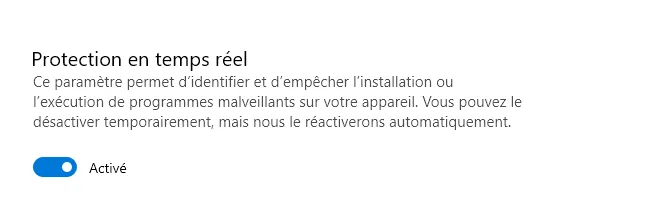
Real-time Protection: Ensure this is active under Virus & threat protection settings to block malware instantly.
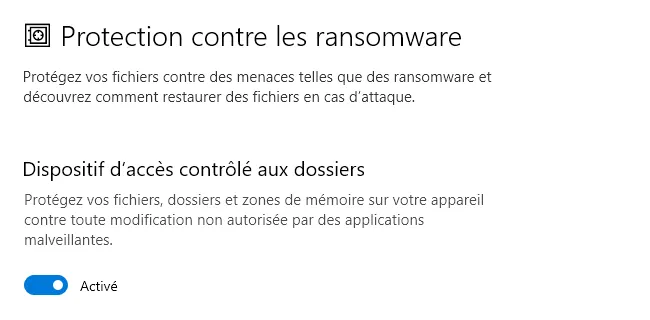
Controlled Folder Access: Protect your files against Ransomware by enabling this feature in the Ransomware protection settings.
SmartScreen: Enable Microsoft Defender SmartScreen in the “App & browser control” settings to identify and block phishing sites and suspicious apps.
6. “Forget” the Network After Use
Always “Forget” the network once your session is over. This prevents your PC from automatically reconnecting to an unsecure hotspot without your knowledge. How to do it: Go to Settings > Network & Internet > Wi-Fi > Manage known networks. Find the public network, and click Forget.

Final Verdict
While these tips significantly improve your safety, treat public Wi-Fi as a last resort. Stick to trusted networks (like libraries or schools) and always prioritize HTTPS websites by checking for the padlock icon in your browser’s address bar.
Read also:
- How to unblock a Telegram account restricted by content filtering.
- How to reset a forgotten Windows password: Effective methods to regain access.
Share this content: