

Have you ever encountered problems sending messages on TikTok or received an error message stating that your messages cannot be sent or received? This issue is becoming increasingly common and can be frustrating, especially if you use TikTok to stay in touch with friends or for professional reasons. In this article, we explain how to fix unsent messages on TikTok so you can get back to your conversations without a hitch.
Update to facilitate messaging on TikTok
If your application is not up to date, you may encounter issues sending and receiving messages on TikTok. To check if you are up to date, go to your App Store or Play Store and search for TikTok. If an update is available, install it and try TikTok again. However, if it only says “Open,” it means the app is already up to date and the problem lies elsewhere.
Check TikTok message settings
Your TikTok account might be configured not to receive or send messages. In this case, you will need to modify your privacy settings.
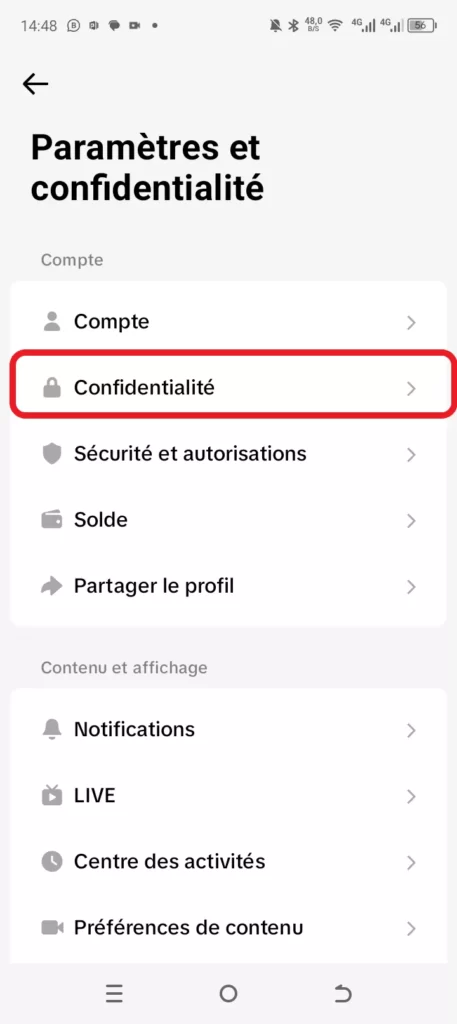
- Open TikTok and go to Settings and privacy > Privacy.
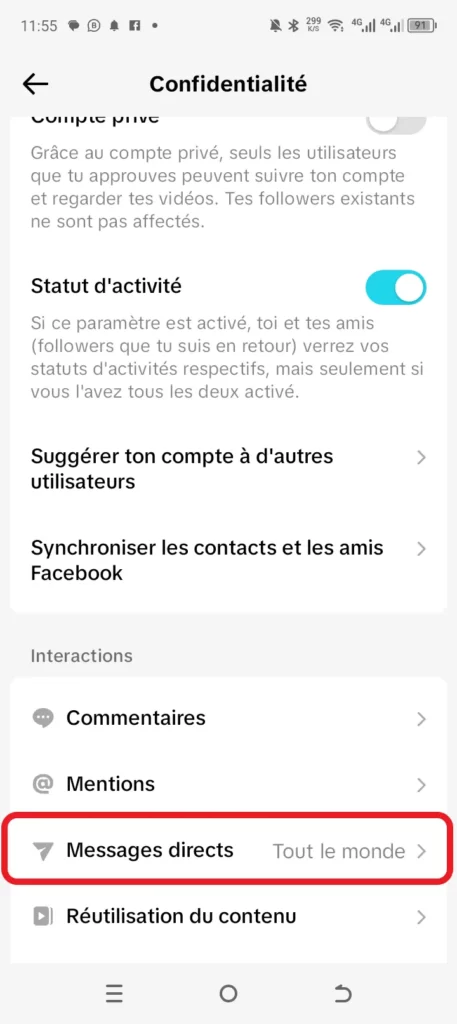
2. Scroll down to the Interactions section and click on Direct messages.
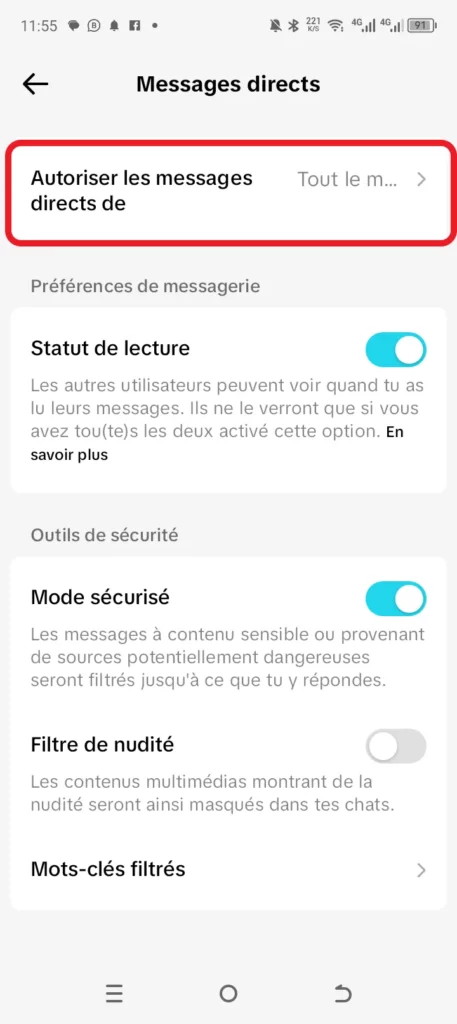
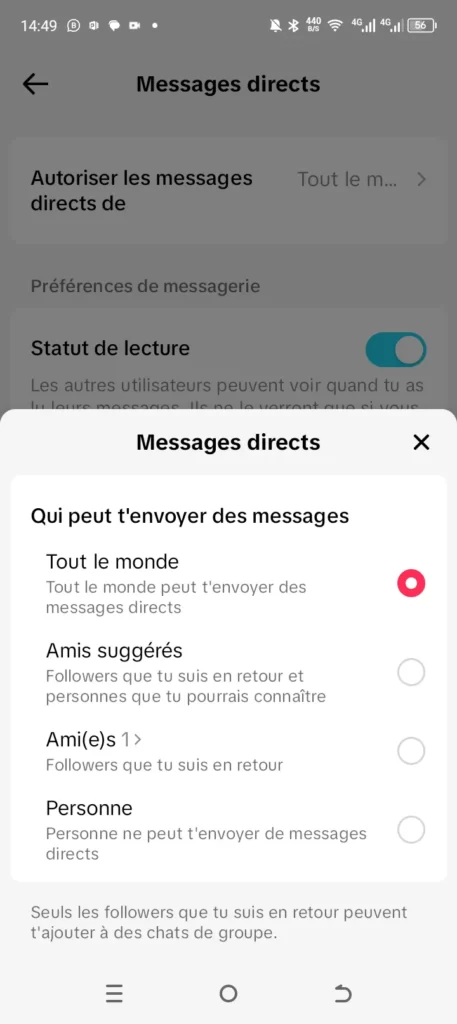
3. Change the permissions by selecting Everyone or Friends and restart the application.
Clear the cache to enable TikTok messaging
All applications collect cache in the background to remember your requests and improve loading times. This is also true for TikTok, and some issues are often caused by a corrupted cache.
- Go to Profile > Settings and privacy.
- Scroll down to Free up space and Clear cache.

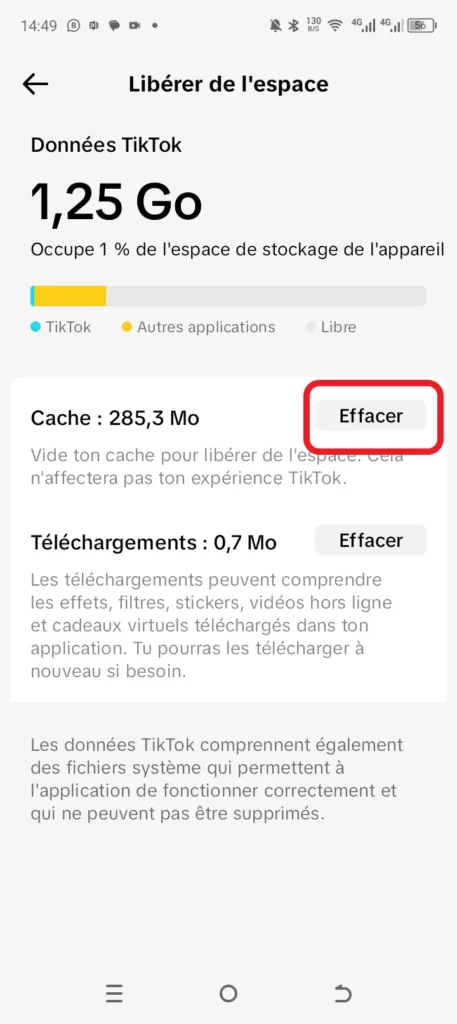
It is also possible to delete the TikTok cache from the app info menu:
1.Long-press the app icon and open App info.
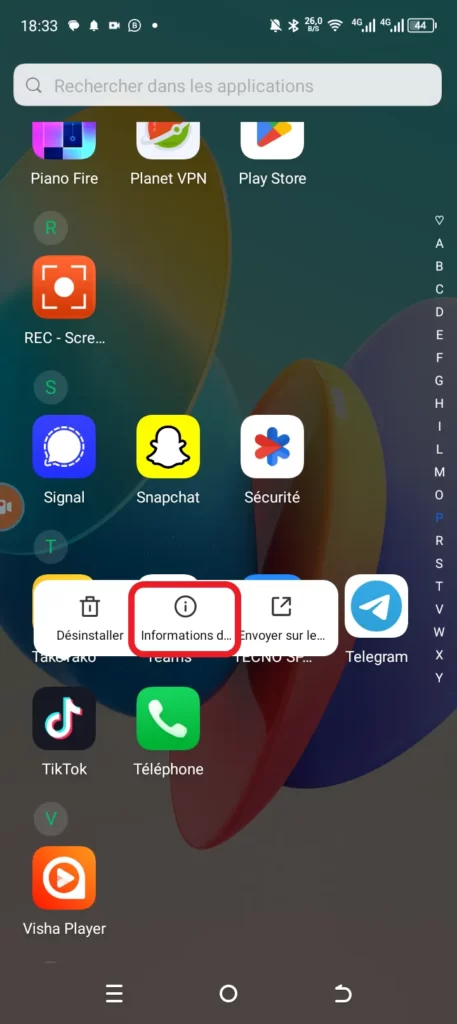
2. Click on Storage and cache, then Clear cache.


Uninstall and reinstall TikTok
Uninstalling an application allows you to solve most minor issues the app may have. Updates, temporary bug fixes, and cache cleaning are handled automatically.
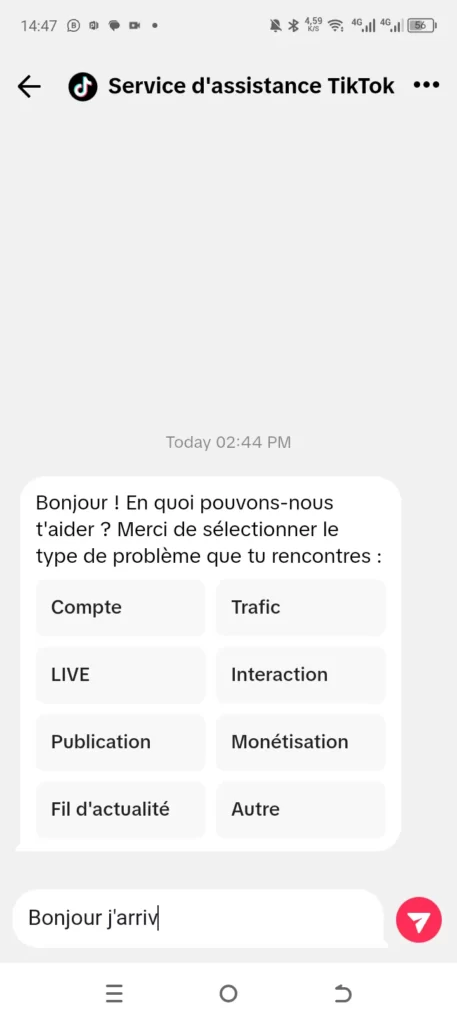
Contact support to resolve TikTok messaging issues
If the problem persists, it is best to contact TikTok support to find a solution.
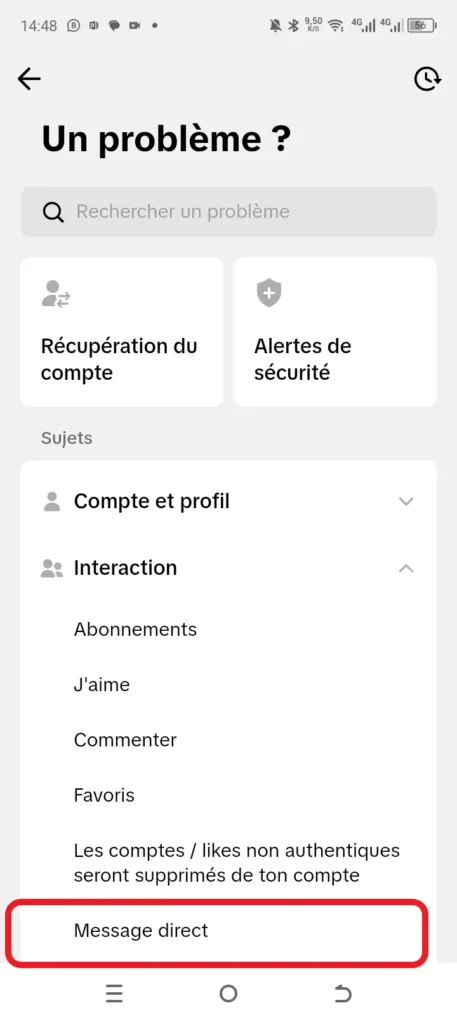
- Go to Settings and scroll down to the Support & About section. Click on Report a problem > Interaction > Direct message.
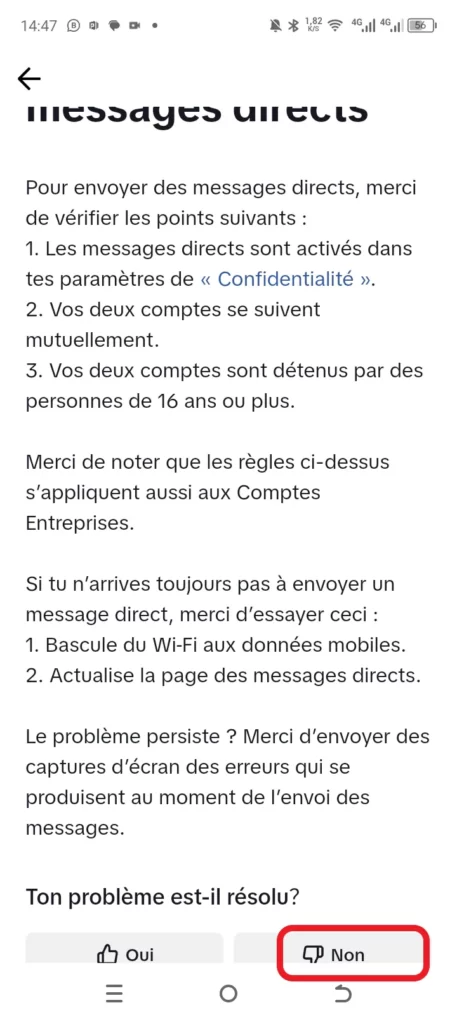
2. Click on Unable to send direct messages and click the No button to indicate that the problem was not resolved.

3. Then click on Need more help?. Enter a message explaining the problem and click the send arrow. You will need to wait until your issue is resolved.

While problems sending or receiving messages on TikTok can be frustrating, they are generally easy to fix with the right steps. However, make sure the recipient has not blocked you. Don’t hesitate to test these solutions to restore a smooth experience on the app.
Read also:
- Insufficient storage space on WhatsApp: How to free it up?
- Fixing WhatsApp call issues that aren’t working.
- How to recover your WhatsApp account?
Share this content: