

Is your WhatsApp crashing or preventing you from sending and receiving messages? The culprit is likely insufficient storage space. To get your app running smoothly again, follow these methods to free up space on WhatsApp.
Method 1: Delete Chat Files via Storage Manager
The more photos and videos you share, the faster your storage fills up. Fortunately, WhatsApp has a built-in tool to manage this.
- Tap the three dots (Menu) in the top right corner and open Settings.
- Go to Storage and data > Manage storage.
- Here, you can see exactly how much space WhatsApp is using.
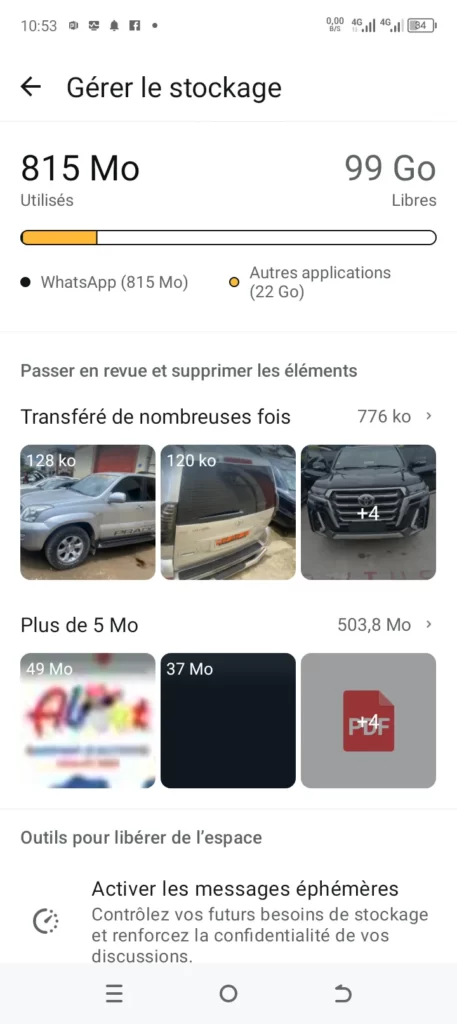
4. Select the “Larger than 5 MB” section to see the heaviest files. You can then select and delete the ones you no longer need.

Method 2: Enable Disappearing Messages
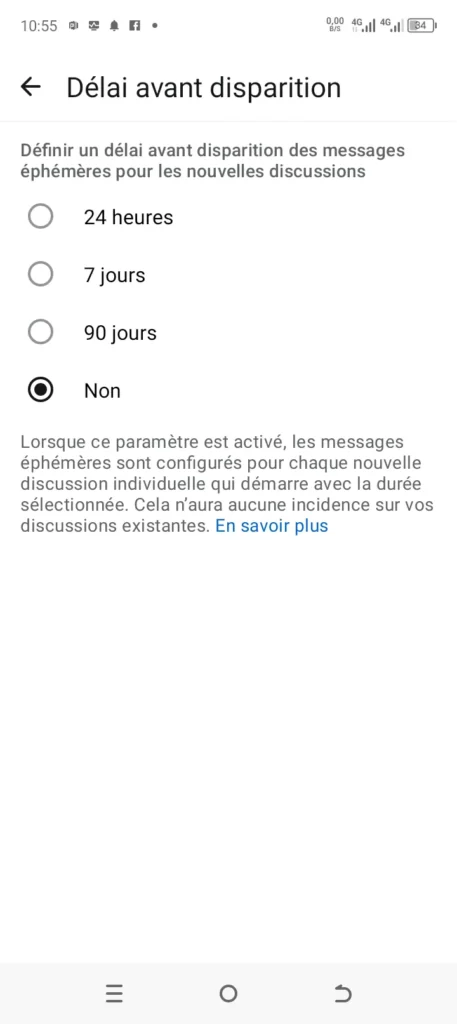
Disappearing messages help automate your storage management. By setting a specific duration (24 hours, 7 days, or 90 days), new chats will automatically vanish after that time. This does not affect your existing conversations.
- Go to Settings > Privacy.
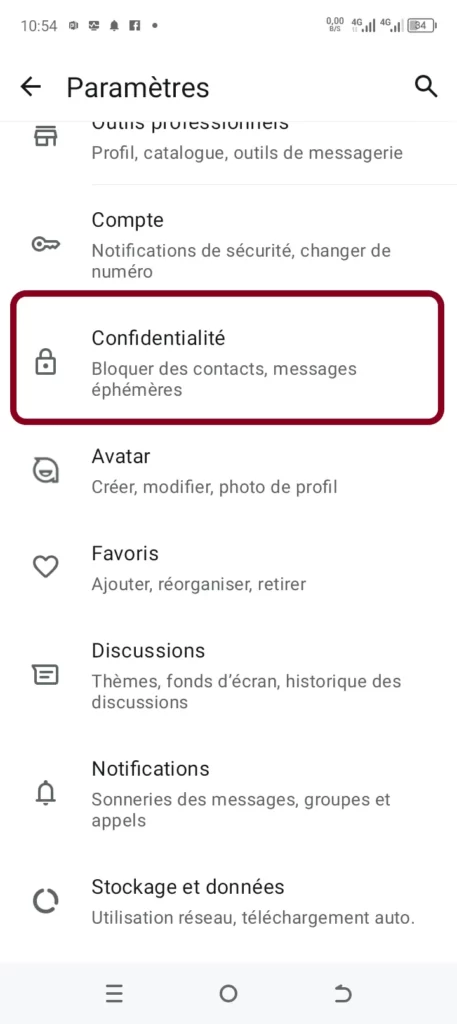
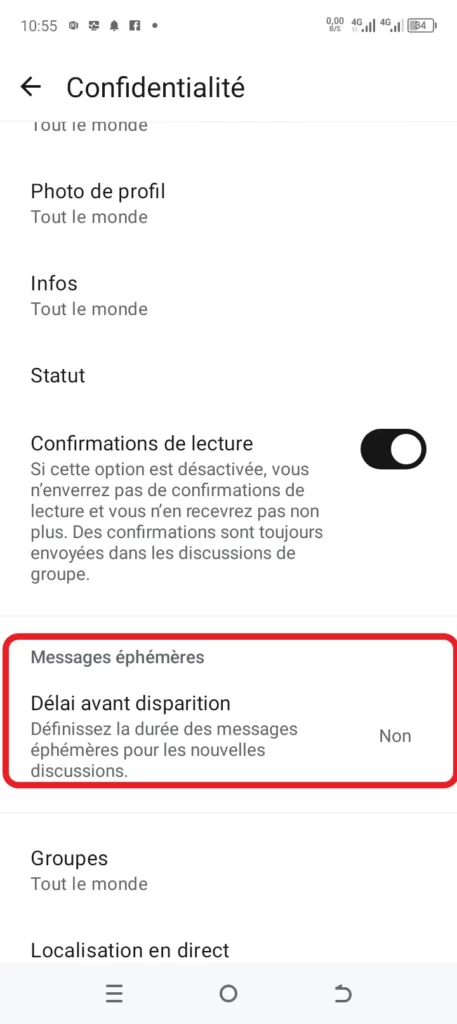
- Tap on Default message timer under the “Disappearing messages” section.
- Choose a duration for your new chats.
Method 3: Disable Automatic Media Downloads
Being in active groups often means media (audio, video, photos) downloads automatically without you realizing it. This is a primary cause of storage issues. To take control and only download what interests you:
- Go to Settings > Storage and data.
2. Look for the “Media auto-download” section.
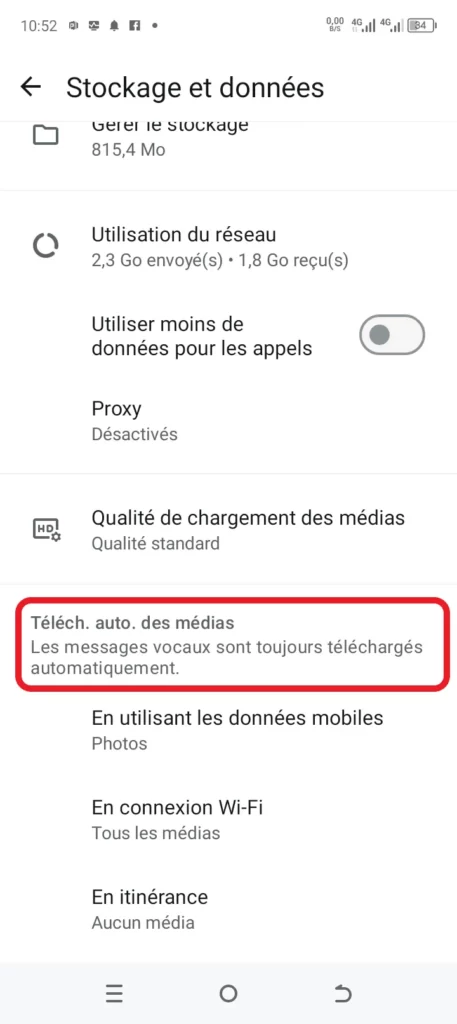

Adjust the settings for “When using mobile data” and “When connected on Wi-Fi” by unchecking the boxes for photos, audio, videos, and documents.
Note: Voice messages are always downloaded automatically by the system.
By using these methods, you can easily clear your WhatsApp storage and prevent the “Insufficient storage” error from returning.
Read also:
Share this content: