

This article contains affiliate links: if you buy through them, Wanda-techs earns a commission at no extra cost to you.
Is your Samsung tablet not charging, charging slowly or stopping short of 100%? Samsung looks at the charger and cable first: a non-original one can slow or block charging. Next come the USB-C port, the battery settings in One UI (Samsung’s interface for Android), your apps and the battery itself.
Common symptoms and causes
- Charging won’t start or is very slow: a non-original or worn charger or cable, or a cable that isn’t pushed in all the way.
- Fast charging doesn’t work: the tablet is plugged into a computer or a standard USB port.
- A moisture alert appears: charging stays blocked until the port is dry.
- Charging pauses or slows down: the tablet got too hot.
- Charging stops before 100%: battery protection is turned on.
- An app or the software is interfering with charging: Safe mode lets you check.
- The battery is worn out: the Samsung Members diagnostics rate it “Weak” or “Bad”.
Before you start
Menu names vary by model and One UI version. The Samsung help pages we checked cover Galaxy devices in general, not tablets specifically, so a label may differ on your Galaxy Tab.
Get a second original Samsung charger and cable to compare, a flashlight and a soft, clean cloth.
Warning: never puncture, bend or heat a lithium battery. A swollen battery won’t charge again and must go to a collection point, so work on a non-flammable surface.
Warning: a non-original charger can damage the tablet. Don’t heat the tablet to dry the port, either.
Warning: having the battery repaired or replaced by Samsung service may mean your data is wiped or the tablet is kept by the repair centre. Back up first with Samsung Cloud or Smart Switch: anything you haven’t backed up could be lost.
Warning: opening the device can void the warranty and costs it its certified water resistance, so check your warranty end date first. Out of warranty, you pay for the repair.
Solution 1: switch the cable, charger and power source
The cable and charger are the first suspects. They are also the easiest to rule out.
- Unplug the cable from the tablet.
- Plug it back in, pushing it firmly all the way into the port.
- Try another original Samsung charger and cable.
- Plug the charger into a wall socket rather than a computer or a standard USB port, where fast charging may not work.
Charging should resume with the new accessory. If it does, replace the faulty cable or charger with an original Samsung one.
To replace the accessory at fault, here are an original Samsung charger, a more powerful multi-port charger and a USB-C to USB-C cable from a well-known brand.
- Samsung 25 W USB-C wall charger (EP-TA800)Original Samsung charger with a USB-C output for fast charging of compatible Galaxy devices. A reliable reference to rule out a faulty charger.AmazonSee at Amazon
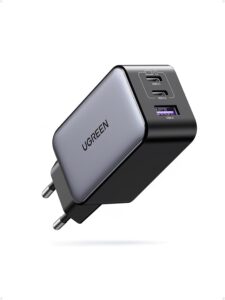 UGREEN Nexode 65 W wall charger (3 ports)Compact charger with three ports to charge a tablet, a phone and another device at once. Its 65 W output leaves headroom for fast charging.AmazonSee at Amazon
- Anker 310 USB-C to USB-C cable, 0.9 mShort USB-C to USB-C cable from a recognised brand, handy to replace a worn cable. Also useful to test whether the cable is the cause of a charging problem.AmazonSee at Amazon
Tip: a computer or a standard USB port can prevent fast charging. Run your tests on a wall socket, or the comparison won’t be fair.
Solution 2: inspect and dry the USB-C port
The USB-C port is the tablet’s charging socket. Dust, lint or moisture can stop it making contact.
- Turn off the tablet.
- Shine a flashlight into the USB-C port.
- If you see dust or lint, blow gently into the port.
- If a moisture alert appears, read the moisture detection notification.
- Gently shake the tablet to empty the port.
- Wipe the tablet with a soft, clean cloth.
- Leave it to dry in a ventilated spot, in cool air.
- Wait until the port is dry before plugging the charger back in, even if your model is water resistant.
- If the tablet is hot, let it cool down before charging it.
Once the port is clean and dry and the tablet has cooled, charging should start as soon as you plug in.

Solution 3: restart and update the tablet
A restart reboots the system. A software update comes before any further diagnosis.
- Press and hold the Side key and the Volume down key for a few seconds.
- Tap the restart option, then confirm.
- Once the tablet has restarted, open Settings > Software update > Download and install.
- Install the update if one is offered.
You can also restart from the Quick settings panel: tap the power icon, then the restart option. After the update, plug the charger back in: charging should start.
Solution 4: check battery protection and fast charging
Battery protection is a One UI setting. When it’s on, it can stop charging early or cap the maximum battery level.
- Open Settings > Battery > Battery protection.
- Turn the option off, or choose a different one.
- Open Settings > Battery > Charging settings.
- Turn on Fast charging.
- If your tablet supports wireless charging, turn on Fast wireless charging too.
The tablet should now charge past the level where it used to stop. The wireless option only applies to compatible models.
Solution 5: test the battery and your apps
Samsung Members is Samsung’s support app, and it can test the battery’s condition. Safe mode is a start-up mode that helps you spot a faulty app.
Good to know: the Samsung Members menu says “phone” even on a tablet. Names also vary by model.
Warning: uninstalling an app removes it from the tablet, so back up anything that matters before step 8.
- Open Samsung Members > Support > Phone diagnostics.
- Tap Get started.
- Tap the option to run all the tests (Test all), then find the “Battery status” icon.
- Read the battery result: “Normal”, “Weak” or “Bad”.
- Turn off the tablet.
- Turn it back on and hold the Volume down key during start-up until “Safe mode” appears at the bottom left of the screen.
- Plug in the charger and check whether the tablet charges.
- If charging resumes, uninstall the apps you installed recently.
- Open the notification panel and tap the “Safe mode is on” notification.
- Tap Turn off, then confirm to leave Safe mode.
On a model without a power button, open Quick settings, tap the power icon, then touch and hold the power off option until the Safe mode prompt appears. A “Bad” result means the battery’s lifespan is sharply reduced, so contact a Samsung service centre. With a “Normal” result and the faulty app removed, the tablet should charge again in normal mode.

If nothing works
You’ve tried another original charger and cable, the port is clean and dry, the tablet has restarted, battery protection is off and Safe mode changed nothing? The fault is then in the hardware: have the tablet examined at a Samsung service centre.
Check your coverage on Samsung’s warranty page. Out of warranty, authorised repair centres charge you for the work. An unauthorised workshop may fit non-original parts with no guarantee of quality.
A battery replacement takes about an hour on average. Before handing the tablet in, back up your data with Samsung Cloud or Smart Switch and turn off any screen locks.
Is another device giving you the same trouble? See our guides for a phone that won’t charge and a laptop that won’t charge.
Take better care of your Samsung tablet: our toolbox
A good charger, a reliable cable and a backup battery help prevent everyday charging problems.
- Samsung 25 W USB-C wall charger (EP-TA800)Original Samsung charger with a USB-C output for fast charging of compatible Galaxy devices. A reliable reference to rule out a faulty charger.AmazonSee at Amazon
- Anker 310 USB-C to USB-C cable, 0.9 mShort USB-C to USB-C cable from a recognised brand, handy to replace a worn cable. Also useful to test whether the cable is the cause of a charging problem.AmazonSee at Amazon
- UGREEN Nexode 65 W wall charger (3 ports)Compact charger with three ports to charge a tablet, a phone and another device at once. Its 65 W output leaves headroom for fast charging.AmazonSee at Amazon
- Anker Nano power bank 10,000 mAh 45 W with retractable USB-C cablePortable battery with a built-in retractable USB-C cable to top up a tablet away from a socket. Handy as a backup when the wall charger is out of reach.AmazonSee at Amazon
- Belkin 4-outlet surge protector, 525 joules, 2 m, 2 USB portsPower strip with surge protection that shields chargers and devices from voltage spikes. Its two USB ports also free up a socket.AmazonSee at Amazon
Frequently asked questions
Why is my Samsung tablet not charging?
Samsung points first to a non-original charger or cable, a dirty or damp port, overheating and battery protection. A faulty app or a worn battery can also block charging. Work through these in the order of the solutions, from the cable to the battery diagnostics.
What if my Samsung tablet won’t charge or turn on?
First try another original Samsung charger and cable, pushed in firmly and plugged into a wall socket. Then check that the port is clean and dry, and let the tablet cool down if it’s hot. The Samsung help pages we checked give no charging time for a completely flat tablet; if nothing changes, have it examined at a Samsung service centre.
Why won’t my Samsung tablet charge past 80% or 85%?
Battery protection is the first thing to check: when it’s on, it can stop charging early or cap the maximum level. Open Settings > Battery > Battery protection, then turn the option off or choose a different one.
How do I clean the charging port on a Samsung tablet?
Turn off the tablet, shine a flashlight into the port and, if you see debris, blow into it gently. Samsung’s help pages don’t recommend putting any tool into the port. After a moisture alert, gently shake the tablet, wipe it with a soft cloth and let it dry in cool air before charging.
Share this content: