

Updated on November 10, 2026
This article contains affiliate links: if you buy through them, Wanda-techs earns a commission at no extra cost to you.
A blue screen on Windows 11 or 10 is a stop error: Windows halts on purpose to avoid damaging the system or your data, then restarts. According to Microsoft’s analysis, about 70% of these crashes come from a third-party driver, the small piece of software that makes a component work.
Common symptoms and causes
- The screen turns blue, shows a stop code, then the PC restarts.
- The stop code, for example
DRIVER_IRQL_NOT_LESS_OR_EQUAL(0xD1), names the type of error. The message sometimes names the driver file behind it. - Microsoft puts the cause at a third-party driver in 70% of cases, hardware in 10% and Microsoft’s own code in 5%. The remaining 15% cannot be explained because the memory was too corrupted to analyze.
- Known triggers: hardware, a driver, software or an update installed recently, damaged system files, disk errors, faulty memory, a nearly full disk or malware.
- Ordinary apps are rarely the cause of the crash.
Before you start
- Write down the stop code and the file name shown on screen.
- Unplug any devices you added recently.
- Back up your personal files to an external drive or online storage.
- On Windows 10, keep the name and password of a local administrator account to hand: the recovery tools ask for them. On Windows 11 most of them do not, but encrypted files stay unreadable without the volume’s recovery key.
- Have a Windows recovery USB drive ready in case the recovery environment does not start.
Tip: if the PC restarts too fast for you to read the code, find it in the Windows event logs.
Warning: resetting the PC, restoring a system image and the chkdsk /r command can erase or change data. Back up first. System Restore keeps your personal files, but removes the apps and drivers installed after the restore point.
Warning: opening the PC to test or replace a memory module can void the warranty, on some laptops in particular. Check when your warranty ends first.
Solution 1: undo the last hardware or software change
Microsoft recommends going back to the last state that worked. Start with whatever changed just before the first blue screen.
- Unplug or remove the hardware added just before the first blue screen, then restart.
- Uninstall the driver, service or app installed just before the first error.
- If you want to keep that software, download its latest version from the publisher’s website and install it.
For a driver that was updated recently, Microsoft also advises rolling back to its previous version.
Expected result: the PC starts and runs without another blue screen.
Solution 2: repair from the Windows Recovery Environment (WinRE)
WinRE, the Windows Recovery Environment, is a startup mode that gathers the repair tools. It comes preinstalled on Windows 10 and 11. It opens by itself after two failed startups in a row, or two unexpected shutdowns or restarts within two minutes of booting, and then runs Automatic Repair.
If Windows still opens, start Advanced startup from the settings:
- Windows 10: Settings > Update & Security > Recovery;
- Windows 11: Settings > System > Recovery.
Then click Restart now next to Advanced startup, and carry on from step 2. Otherwise, start from the sign-in screen.
- Click the power icon on the sign-in screen, hold the Shift key and click Restart.
- On Windows 10, enter the name and password of the local administrator account when WinRE asks for them.
- On the Choose an option screen, click Troubleshoot.
- Click Advanced options.
Expected result: the Advanced options screen appears with the repair tools. From there, go on to Safe Mode (solution 3) or System Restore (“If nothing works”).
If WinRE will not open at all, the boot sector may be damaged. Start from a recovery USB drive instead, and if the PC does not see it, follow our guide on a USB drive not recognized on Windows.
To create that recovery drive, you need a USB stick.

SanDisk Ultra Dual Drive Go 128 GB, USB-C and USB-A flash drive
USB key with two connectors, for a computer or a phone. Handy for carrying files or a software update.
- AmazonSee at Amazon
Good to know: some manufacturers add a recovery key or button that opens these tools directly. Your PC’s documentation will say.
Solution 3: boot into Safe Mode and update the driver
Microsoft recommends Safe Mode when the error happens at startup: it lets you disable the faulty driver.
- On the Choose an option screen in WinRE, click Troubleshoot > Advanced options > Startup Settings.
- Click Restart.
- Press
4orF4for Safe Mode, or5orF5for Safe Mode with Networking, which lets you download a driver. - In Device Manager, disable the driver named in the error message.
- Download the update for that driver from the website of the component’s or the PC’s manufacturer, then install it.
- Restart normally and watch how stable the PC is.
Tip: the stop code points to the right driver. VIDEO_TDR_TIMEOUT_DETECTED (0x117) and VIDEO_ENGINE_TIMEOUT_DETECTED (0x141) point to the graphics driver. DRIVER_IRQL_NOT_LESS_OR_EQUAL (0xD1) signals an outdated driver, such as the network adapter’s.
Expected result: no more blue screens at startup or in use. If no update is available, leave the driver disabled and see whether the crashes stop.
Solution 4: repair system files and check the disk and memory
sfc (System File Checker) quickly checks the Windows files. DISM runs a deeper scan and repairs the component store, the reserve of files Windows draws its repairs from.
- Open Command Prompt.
- Type
sfc /scannow, then press Enter. - Type
Dism /Online /Cleanup-Image /ScanHealthand wait for the scan to finish, which takes several minutes. - Type
Dism /Online /Cleanup-Image /CheckHealthto find out whether the image is healthy, repairable or not repairable. - If it is repairable, type
Dism /Online /Cleanup-Image /RestoreHealth. Keep the PC online: DISM downloads its repair files from Windows Update.
If a command answers with an access denied message, see our article on system error 5 “access denied”.
Warning: the next step, chkdsk /r, can change or destroy data stored on damaged sectors. Back up your files before you run it.
- Type
chkdsk /f /rto detect and fix disk errors. - If the disk being scanned is the system disk, restart the PC: the scan starts on reboot.
- Run hardware and memory tests, as Microsoft recommends.

Without Command Prompt, right-click the drive, then choose Properties > Tools > Check. chkdsk also works from the Command Prompt in WinRE.
Expected result: CheckHealth reports a healthy image and chkdsk no longer reports errors.
Good to know: a persistent NTFS_FILE_SYSTEM (0x24) code points to bad sectors. Run the disk manufacturer’s diagnostic tool.
If nothing works
From WinRE, System Restore takes the Windows files and settings back to an earlier point without touching your personal files. On Windows 11, a point-in-time restore can also go back up to three days.
Warning: depending on the option you choose, a reset can erase your files, so back up first. Microsoft says Reset this PC can repair Windows while keeping your data and settings. Restoring a system image, on the other hand, replaces all current programs, settings and files.
To keep your files safe before any reset, here are three external drives to compare.
 SanDisk Extreme Portable SSD 1 TBA fast pocket-sized external drive for keeping backups and exported archives. Shock-resistant and compatible with computers and many phones over USB-C.AmazonSee at Amazon
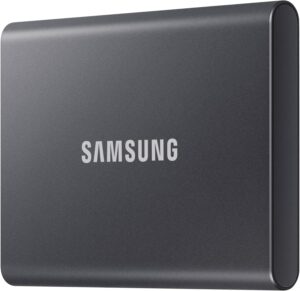 Samsung T7 1 TB external SSDFast, rugged pocket SSD to keep an offline copy of your site files and database at home. Unplugged, it is out of an attacker's reach.AmazonSee at Amazon
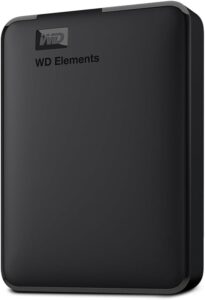 WD Elements 4 TB external hard driveStores a full copy of your files and settings before a risky operation such as a network reset or a system update. Connects by USB with no extra power supply.AmazonSee at Amazon
If the blue screen comes back after Safe Mode, the driver rollback, sfc, DISM, chkdsk and System Restore, or if the PC no longer even boots from the USB drive, the fault is probably in the hardware (memory or disk). Stop there and contact the manufacturer’s support or a repair shop. If the computer no longer responds at all, read our guide on a computer that won’t turn on.
Have these to hand:
- the PC’s serial number and purchase date;
- the Windows version (10 or 11);
- the stop code and file name you noted;
- the dump files in the
%SystemRoot%\Minidumpfolder, where Windows saves the memory dumps of stop errors.
Take better care of your PC: our toolbox
These products help protect Windows, open the PC safely and limit power cuts.
 Bitdefender Total Security 2026, 3 devices, 1 yearSecurity suite for Windows, Mac, Android and iPhone. It helps protect accounts and files on your phone.AmazonSee at Amazon
- SanDisk Ultra Dual Drive Go 128 GB, USB-C and USB-A flash driveUSB key with two connectors, for a computer or a phone. Handy for carrying files or a software update.AmazonSee at Amazon
- iFixit Moray precision screwdriver set (32 bits)This case holds 32 precision bits, including Phillips and Torx, to open the battery cover and other small devices. The hardened steel helps avoid damaging the screws.AmazonSee at Amazon
- Belkin 4-outlet surge protector, 525 joules, 2 m, 2 USB portsPower strip with surge protection that shields chargers and devices from voltage spikes. Its two USB ports also free up a socket.AmazonSee at Amazon
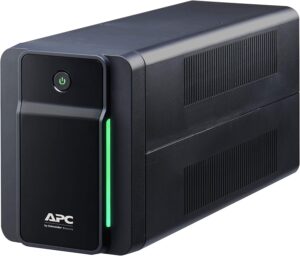 APC Back-UPS 750VA BX750MI, UPSProtects the router, NAS or small office server against outages and surges, long enough for a backup or a clean shutdown.AmazonSee at Amazon
Frequently asked questions
How do I fix a blue screen on Windows 11?
Undo the last change first: remove added hardware, uninstall the recent driver or software, or roll a recently updated driver back to its previous version. If the error continues, boot into Safe Mode to update the driver named in the message. Then run sfc /scannow, DISM and chkdsk, and System Restore as a last resort.
What does the stop code on the blue screen mean?
The stop code names the type of error that forced Windows to halt, for example SYSTEM_SERVICE_EXCEPTION or 0xD1. Microsoft advises searching for that code to find known fixes. Windows also saves the crash details in the %SystemRoot%\Minidump folder, which is useful to a technician.
Can a Windows update cause a blue screen?
Yes, a recent update is one of the changes that can come before a blue screen. According to Microsoft, its own code accounts for only about 5% of cases, far behind third-party drivers. Uninstall the driver or software installed just before, or run System Restore, then reinstall cumulative updates once the PC is stable.
How do I start Windows in Safe Mode after a blue screen?
Open the recovery environment, for example by holding Shift while you click Restart, or let it open by itself after two failed startups. Choose Troubleshoot > Advanced options > Startup Settings > Restart. Finally, press 4 or F4, or 5 or F5 to keep networking.
Share this content: