

This article contains affiliate links: if you buy through them, Wanda-techs earns a commission at no extra cost to you.
A Windows 11 black screen on startup, with or without a mouse cursor, leaves you stuck before the desktop even though the PC is clearly on. Microsoft ties this symptom to the connection with the display, the graphics driver, Windows Explorer or a recent update. The first tests take two minutes; a reset, as a last resort, takes 30 minutes to 2 hours.
Common symptoms and causes
- Black screen with nothing at all: the connection with the display (cable, input, external monitor), the display mode, or a graphics driver that fails to wake the screen.
- Black screen with a cursor: Windows Explorer (
explorer.exe, the program that draws the desktop) did not start or crashed. - Windows 11 black screen after an update: a Windows or graphics driver update is to blame. Microsoft then suggests rolling back to the previous driver or restoring the system.
- The PC does not power on at all: that is a different problem, covered in our guide to a laptop or desktop that won’t turn on.
Before you start
- Keep a keyboard plugged in: the shortcuts and the recovery environment are driven from the keyboard.
- If your drive is encrypted with BitLocker (the encryption built into Windows), have its recovery key ready: the recovery tools ask for it. You can find it at account.microsoft.com, or in your work account on a company PC.
- Quick machine recovery, which can repair startup on its own, and point-in-time restore only exist from Windows 11 24H2.
Warning: solution 5 and the “If nothing works” section can erase data. A system restore or point-in-time restore removes the apps and settings added after the chosen point. Resetting the PC deletes your apps and settings; cloud rebuild and a recovery drive also erase your personal files.
If Windows still starts, even in safe mode, back up your files before going that far.
To reach recovery when the screen stays black, Microsoft has you force the PC off several times in a row. Its page says nothing about the risks of repeated forced shutdowns. Keep them for when solutions 1 to 3 have failed.
Solution 1: check the display, the cables and the display mode
- Make sure the PC is plugged in or its battery is charged.
- On a desktop PC, make sure the monitor is on and firmly connected to the PC.
- Reseat the HDMI, DisplayPort or VGA cable firmly.
- Try another cable or another monitor.
- On a laptop, unplug external displays and peripherals.
- Press Windows + P, then P, then Enter to change the projection mode.
If the picture was going to the wrong output or the connection was at fault, the picture should come back.

Tip: on an external monitor, also check the selected input with its buttons (HDMI 1, HDMI 2, DisplayPort). Set to the wrong input, it stays black even though the PC is working.
If the cable is the culprit, here are two replacement cables, one HDMI and one DisplayPort.
- Belkin Ultra High Speed HDMI 2.1 cable, 2 mCarries 4K and 8K picture and sound between a box, console or soundbar and the TV. A worn or bent cable can cause a black screen.AmazonSee at Amazon
- UGREEN VESA-certified DisplayPort 1.4 cable, 2 mConnects a PC to a DisplayPort monitor at 4K or higher. A spare cable lets you rule out a faulty connection.AmazonSee at Amazon
Solution 2: wake the graphics driver with Windows + Ctrl + Shift + B
- Press Windows + Ctrl + Shift + B at the same time, even if the screen is black.
A beep or a brief screen flicker means the graphics driver has been reset. The picture should then come back.
No beep and no picture? Go to solution 3 if the cursor shows up, otherwise to solution 4.
Solution 3: black screen with a cursor, restart Windows Explorer
- Press Ctrl + Alt + Delete to open the security screen.
- Click Task Manager.
- In the list, find Windows Explorer.
- Right-click it, then click Restart.
- If Windows Explorer is not listed, click File > Run new task.
- Type
explorer.exe, then press Enter.
The desktop should reappear.
Tip: the Ctrl + Shift + Esc shortcut opens Task Manager directly, without going through the security screen.
Solution 4: boot into safe mode and fix the graphics driver
Safe mode starts Windows with a minimum of drivers. You open it from the Windows Recovery Environment (WinRE), the “Choose an option” screen. Several failed startups in a row also lead there on their own.
- If Windows still shows Settings, open Settings > System > Recovery > Advanced startup > Restart now, then skip to step 5.
- Otherwise, hold the power button for 10 seconds to force the PC off.
- Turn the PC back on.
- Repeat steps 2 and 3 two or three times, until recovery mode appears.
- On the Choose an option screen, click Troubleshoot > Advanced options > Startup Settings > Restart.
- After the restart, press 4 or F4 to choose Enable Safe Mode, or F5 for Enable Safe Mode with Networking if you need to download a driver.
- In safe mode, open Device Manager.
- Expand Display adapters, then right-click your graphics card.
- If the black screen began after an update, click Roll Back Driver; otherwise, click Update driver.
Then restart the PC normally: Windows should load all the way to the desktop.
Tip: if the PC keeps restarting in safe mode, press Windows + R, type msconfig, open the Boot tab and clear Safe boot.
Solution 5: uninstall the latest update or restore the system
Open the recovery environment as in steps 1 to 4 of solution 4. Start by removing the latest update: your files, apps and settings are kept.
- On the Choose an option screen, click Troubleshoot > Advanced options > Uninstall Updates.
- Uninstall the latest update.
To stop the update from coming back, follow our guide to uninstalling and blocking a faulty Windows update. Dell PCs have their own guide: black screen or shutdown after update KB5101650.
Warning: the next step removes the apps and settings added after the restore point you choose. Your personal files are kept.
- Click Troubleshoot > Advanced options > System Restore.
- Choose a restore point from before the problem began.
After the restart, Windows should show the display it had before the problem.
Good to know: on Windows 11 24H2 and later, the point-in-time restore option rolls the whole PC back to an automatic restore point. Only the changes made after that point are lost. Going back to the previous version of Windows is only possible within 10 days of a version upgrade.
If nothing works
Run Startup Repair before any reset.
- On the Choose an option screen, click Troubleshoot > Advanced options > Startup Repair, then Restart.
The tool looks for and fixes missing or damaged system files, the boot configuration (BCD, MBR), incompatible drivers and registry errors. If it can’t fix anything, it shows a report.

Warning: the next step erases data. Resetting this PC deletes all your apps and settings, even if you keep your personal files; choosing to remove everything also erases your files. Back them up first if safe mode works.
- Click Troubleshoot > Reset this PC.
- Choose to keep your personal files or remove everything.
Cloud rebuild and a recovery drive erase your personal files, apps and settings. Reinstalling from a USB installation drive lets you keep files and apps, files only, or nothing. Allow about 30 minutes to 2 hours for these recovery options.
To reinstall Windows or create a recovery drive, you need a USB drive of at least 16 GB; here is one that plugs into both USB-A and USB-C.

SanDisk Ultra Dual Drive Go 128 GB, USB-C and USB-A flash drive
USB key with two connectors, for a computer or a phone. Handy for carrying files or a software update.
- AmazonSee at Amazon
Is the screen still black even in the BIOS (the settings screen shown before Windows), or with another monitor? Suspect the hardware: cable, monitor, graphics card or memory. Contact your PC maker’s support or a repair shop.
Before handing the PC over, back up your data and keep your BitLocker recovery key within reach.
Protect your Windows PC: our toolbox
A backup, some protection and a few tools mean you won’t face a black screen without a safety net again.
 SanDisk Extreme Portable SSD 1 TBA fast pocket-sized external drive for keeping backups and exported archives. Shock-resistant and compatible with computers and many phones over USB-C.AmazonSee at Amazon
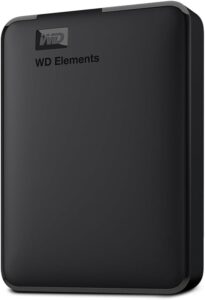 WD Elements 4 TB external hard driveStores a full copy of your files and settings before a risky operation such as a network reset or a system update. Connects by USB with no extra power supply.AmazonSee at Amazon
 Bitdefender Total Security 2026, 3 devices, 1 yearSecurity suite for Windows, Mac, Android and iPhone. It helps protect accounts and files on your phone.AmazonSee at Amazon
- Belkin 4-outlet surge protector, 525 joules, 2 m, 2 USB portsPower strip with surge protection that shields chargers and devices from voltage spikes. Its two USB ports also free up a socket.AmazonSee at Amazon
- iFixit Mako precision screwdriver set, 64 bitsA precision driver with an aluminium handle and 64 bits, including the flat blade to open a key case. The magnetic case keeps the screws together so none gets lost.AmazonSee at Amazon
Frequently asked questions
Why does my Windows 11 PC start on a black screen?
Microsoft lists several leads: the connection with the display, the graphics driver, Windows Explorer when the cursor stays visible, or a Windows or graphics driver update. Test the cable first, then the Windows + Ctrl + Shift + B shortcut. If the problem began after an update, go to solutions 4 and 5.
How do you wake the screen with Windows + Ctrl + Shift + B?
Press all four keys at the same time, even on a black screen. A beep or a flicker confirms the graphics driver was reset. According to an unofficial source, the shortcut restarts the graphics subsystem without touching the driver files, and it has existed since Windows Vista.
How do you start Windows 11 in safe mode when the screen is black?
Go through the recovery environment: hold the power button for 10 seconds, turn the PC back on and repeat two or three times. On the Choose an option screen, open Troubleshoot > Advanced options > Startup Settings > Restart, then press 4 or F4. If safe mode then comes back at every startup, clear Safe boot in msconfig, on the Boot tab.
How do you uninstall an update that causes a black screen?
From the recovery environment, open Troubleshoot > Advanced options > Uninstall Updates. Your files, apps and settings are kept: only the update is removed. On Windows 11 24H2 and later, point-in-time restore is another option, but it undoes the changes made after the chosen point.
Black screen with a cursor: what should you do?
Restart Windows Explorer from Task Manager, opened with Ctrl + Shift + Esc. Right-click Windows Explorer, then click Restart. If it is not in the list, launch explorer.exe through File > Run new task.
Share this content: