

This article contains affiliate links: if you buy through them, Wanda-techs earns a commission at no extra cost to you.
Windows Update stuck at 0%, at 100% or on “checking for updates”: the download or install stops moving. Check the internet connection and the free disk space first. Next come the Windows Update cache and the system files, either of which can be damaged.
Common symptoms and causes
- The progress bar stays at 0% or 100%.
- The download sits on pending and never starts.
- Progress stops somewhere between 51% and 99%.
- The search for updates spins forever.
- The PC freezes during the restart that finishes the install.
Several causes are possible: an unstable connection, a full disk, damaged system files. Or a corrupted update cache, the SoftwareDistribution folder, where Windows keeps downloaded updates.
Does Windows show an error code? Follow our guide to fix a Windows 11 update error instead.
Before you start
- An administrator account on the PC.
- Free disk space: 16 GB for 32-bit Windows, 20 GB for 64-bit Windows.
- Stable power and a stable internet connection. Keep a laptop plugged in.
- A recent backup of your personal files.
Warning: some steps in this guide erase data or put it at risk. Back up your personal files before you begin. Each step involved says what will be lost: the Windows Update cache (solution 4), files on the C: drive if chkdsk hits an error (solution 5), your personal files during a reinstall (last resort).
Warning: do not cut the power while an update installation screen is showing. Doing so can damage your data and Windows.
Solution 1: Windows Update stuck at 0% or 100%, restart and check
- Restart the PC.
- Check that the internet connection works.
- Check the free space on the
C:drive: 16 GB for 32-bit, 20 GB for 64-bit. - Unplug storage devices, docking stations and any accessories you don’t need.
- Open Start > Settings > Time & language > Date & time.
- Turn on automatic time and time zone settings.
- If the time is still wrong, click Sync now.
- Run the search again with Start > Settings > Windows Update > Check for updates.
The progress bar should move again.

Good to know: between 51% and 99%, the wait depends on your connection and the size of the update. If the bar no longer moves, run the search again or go to solution 2.
Tip: on a PC with a small drive, Microsoft says a USB drive can supply the missing space. Also update the drivers of your third-party devices from the manufacturer’s website.
If you are short on space, a 128 GB USB-C and USB-A drive can make up the difference.

SanDisk Ultra Dual Drive Go 128 GB, USB-C and USB-A flash drive
USB key with two connectors, for a computer or a phone. Handy for carrying files or a software update.
- AmazonSee at Amazon
Solution 2: run the Windows Update troubleshooter
The troubleshooter is a tool built into Windows. It looks for Windows Update blockages and fixes them.
On Windows 11:
- Follow Start > Settings > System > Troubleshoot > Other troubleshooters > Windows Update > Run.
- Then run the search again with Start > Settings > Windows Update > Check for updates.
On Windows 10:
- Follow Start > Settings > Update & Security > Troubleshoot > Additional troubleshooters > Windows Update > Run the troubleshooter.
- Then search for updates again.
The search should complete and the update should resume.
Tip: the same troubleshooter also opens from the Get Help app, at aka.ms/GetHelp-WindowsUpdateTroubleshooter.
Solution 3: pause, then resume updates
On Windows 11:
- Open Settings > Windows Update > Pause updates and pick a duration.
- Resume updates from the same page.
- Check that your connection is not set as metered: on a metered connection, some updates do not install automatically.
- Run the search again with Start > Settings > Windows Update > Check for updates.
- Restart with Start > Power > Update and restart.
On Windows 10:
- Open Settings > Update & Security > Windows Update and pause updates for 7 days.
- Resume updates from the same page.
- Search for updates again.
The download should start again.
Good to know: once the maximum pause is reached, Windows asks you to install the latest updates before you can pause again. On Windows 10, Advanced options lets you pick a resume date.
Solution 4: reset the Windows Update components
This solution stops the Windows Update service (wuauserv) and the background transfer service (bits). It then resets the update cache.
Microsoft describes two methods. Follow one or the other: the first empties the folder, the second renames it and keeps a copy.
Warning: step 5 of the simple method erases data. You lose the contents of the C:\Windows\SoftwareDistribution folder, which means the update files already downloaded. Back up your personal files first.
Simple method:
- Press
Win+R. - Type
services.mscand confirm. - Right-click Windows Update, then click Stop.
- Open the
C:\Windows\SoftwareDistributionfolder in File Explorer. - Delete everything inside it.
- Go back to the services, right-click Windows Update, then click Start.
Command method, typed one at a time, in order. It also renames the catroot2 folder:
- Open Command Prompt as administrator.
- Type
net stop bitsand confirm. - Type
net stop wuauservand confirm. - Type
ren %systemroot%\softwaredistribution softwaredistribution.bakand confirm. - Type
ren %systemroot%\system32\catroot2 catroot2.bakand confirm. - Type
net start bitsand confirm. - Type
net start wuauservand confirm. - Restart the PC.
Then search for updates again. It should complete without getting stuck.
Solution 5: repair system files with DISM and sfc
DISM repairs the Windows image, the base the system uses to restore its files. sfc then checks the system files one by one.
- Open Command Prompt as administrator.
- Type
DISM.exe /Online /Cleanup-image /Restorehealthand confirm. - If no success message appears, run the same command again.
- Type
sfc /scannowand confirm. - Wait until the scan reaches 100%.
- Run Windows Update again with Start > Settings > Windows Update > Check for updates.

Optionally, check the disk with chkdsk.
Warning: the next step can cause data loss. chkdsk /f repairs the C: drive, and files on that drive can be lost if it hits an error. Back up first.
- Type
chkdsk /f C:and confirm. - Accept the restart if Windows asks for it.
The search for updates should then complete.
Before the risky steps, copy your personal files to an external drive. Here are two portable SSDs to compare.
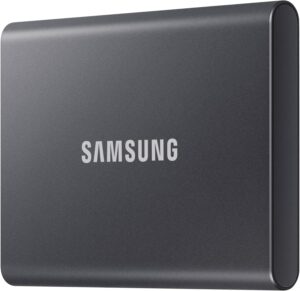 Samsung T7 1 TB external SSDFast, rugged pocket SSD to keep an offline copy of your site files and database at home. Unplugged, it is out of an attacker's reach.AmazonSee at Amazon
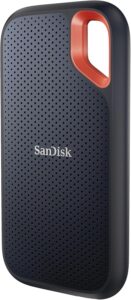 SanDisk Extreme Portable SSD 1 TBA fast pocket-sized external drive for keeping backups and exported archives. Shock-resistant and compatible with computers and many phones over USB-C.AmazonSee at Amazon
If nothing works
The troubleshooter, the component reset, DISM and sfc all fail? Two options remain. Start Windows in safe mode and run the update again, or temporarily turn off your third-party antivirus, run the update again, then turn it back on.
As a last resort, Microsoft suggests reinstalling Windows with its download tool.
Warning: a reinstall can erase data, including your personal files. Back up first.
You can also contact Microsoft support at support.microsoft.com/contactus.
Does the PC no longer start after the update? Follow our guide PC stuck at startup after a Windows 11 update. If it has become slow, see Slow PC and 100% disk after a Windows 11 update.
Protect your Windows PC: our selection
An external backup, a USB drive and reliable protection make updates less risky.
- Samsung T7 1 TB external SSDFast, rugged pocket SSD to keep an offline copy of your site files and database at home. Unplugged, it is out of an attacker's reach.AmazonSee at Amazon
- SanDisk Extreme Portable SSD 1 TBA fast pocket-sized external drive for keeping backups and exported archives. Shock-resistant and compatible with computers and many phones over USB-C.AmazonSee at Amazon
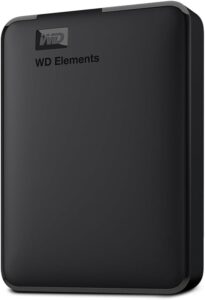 WD Elements 4 TB external hard driveStores a full copy of your files and settings before a risky operation such as a network reset or a system update. Connects by USB with no extra power supply.AmazonSee at Amazon
- SanDisk Ultra Dual Drive Go 128 GB, USB-C and USB-A flash driveUSB key with two connectors, for a computer or a phone. Handy for carrying files or a software update.AmazonSee at Amazon
 Bitdefender Total Security 2026, 3 devices, 1 yearSecurity suite for Windows, Mac, Android and iPhone. It helps protect accounts and files on your phone.AmazonSee at Amazon
- Belkin 4-outlet surge protector, 525 joules, 2 m, 2 USB portsPower strip with surge protection that shields chargers and devices from voltage spikes. Its two USB ports also free up a socket.AmazonSee at Amazon
Frequently asked questions
How long can a Windows 11 update take?
Microsoft gives no fixed time: it depends on your connection and the size of the update. If the bar stays frozen between 51% and 99%, run the update search or the troubleshooter again. At 0% or 100%, restart the PC and check the connection and the free disk space.
Can you turn off the PC during a stuck update?
Not during the installation screen: cutting the power then can damage your data and Windows. If the update is stuck at 0% or 100% in Windows Update, restart the PC from within Windows. Keep a laptop plugged in.
How do you restart Windows Update when it stays stuck at 0%?
Restart the PC, then check the internet connection and the free space. Run the search again with Start > Settings > Windows Update > Check for updates. If nothing moves, run the Windows Update troubleshooter.
How do you empty the SoftwareDistribution folder?
Stop the Windows Update service in services.msc, delete the contents of C:\Windows\SoftwareDistribution, then restart the service. You lose the update files already downloaded. The command method renames the folder to softwaredistribution.bak instead of emptying it.
What if the Windows 11 update is stuck at restart?
A restart is needed to finish the installation. Windows starts it by itself when the PC is idle, or offers to schedule it outside your active hours. Keep a laptop plugged in during this step.
Share this content: