
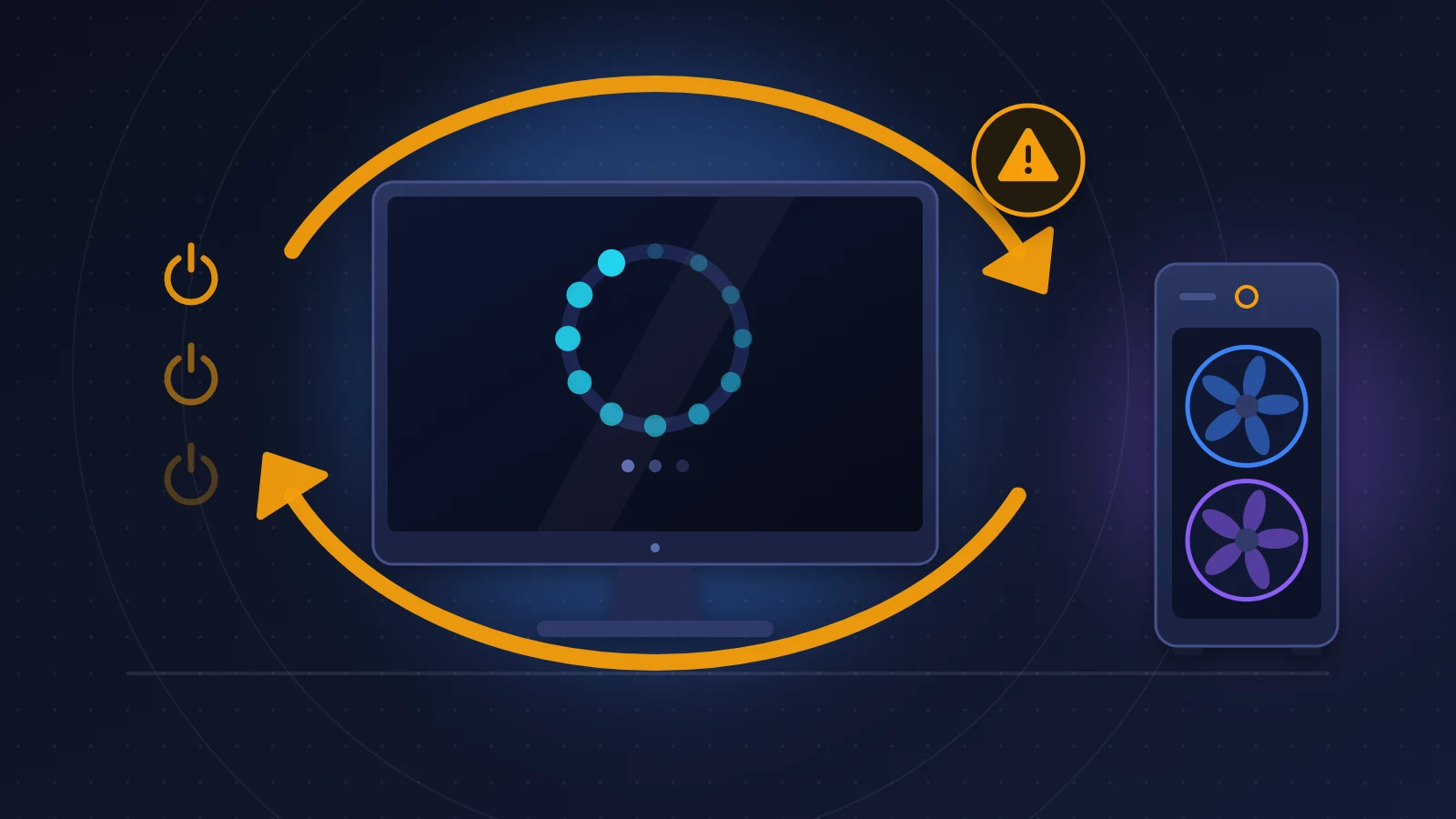
Windows 11 won’t boot after update? The PC can almost always be repaired without reinstalling, provided you know at which point it freezes. If the Windows loading circle appears before the crash, the update is to blame, and uninstalling it from the recovery environment settles most cases. If the screen stays on the manufacturer’s logo (ASUS, MSI, Gigabyte, Dell and so on) without ever showing Windows, the problem lies in the BIOS or the hardware, and the Windows tools will not change a thing.
At a glance: the quick fix
- Unplug everything connected by USB except the keyboard and mouse, then restart.
- Cut the startup twice in a row with the power button: on the third power-on, Windows opens its recovery environment.
- Go to Troubleshoot > Advanced options > Uninstall Updates > Uninstall latest quality update.
- If the screen never gets past the motherboard logo, go straight to fix 8 (resetting the BIOS).
- Keep your BitLocker recovery key within reach: it is requested at several steps.
Recognizing the problem
The symptoms do not all look alike, and that is what throws people off.
The boot loop: the logo appears, the dots spin, the screen goes black, and it all starts again.
The error screen: “Your device ran into a problem and needs to restart”, with a stop code. UNMOUNTABLE_BOOT_VOLUME comes up often after a botched update.
The freeze on the manufacturer’s logo: the ASUS, ROG or other splash screen stays put, with no loading circle underneath.
The startup that completes, but badly: File Explorer showing large gray rectangles before the folders load, a search box that does nothing, a shutdown that drags on for several minutes.
Several of these patterns have been described by users after preview update KB5124010, among others. One of them recounts a labored startup, the removal of the update, then a machine frozen on the ASUS logo and a full reinstall. Both families of failure can therefore follow one another on the same PC.
Why Windows 11 won’t boot after update
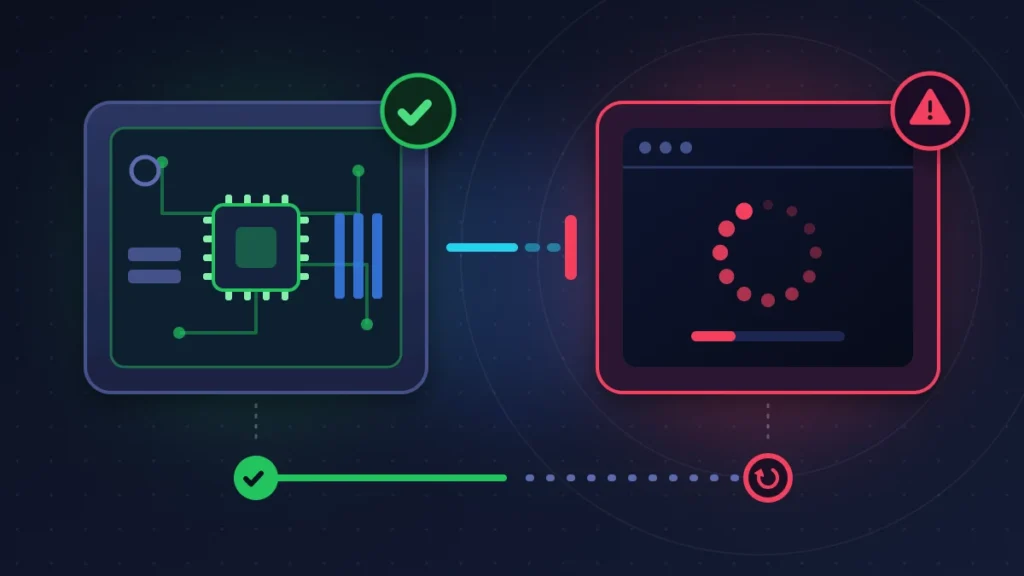
Startup happens in two stages. First the motherboard firmware (the BIOS, or UEFI in its modern form) tests the hardware and looks for a bootable drive: that is the manufacturer-logo phase. It then hands over to Windows Boot Manager, which loads the kernel and the drivers: that is the spinning-circle phase.
A cumulative update mostly touches the second phase. If the installation is interrupted, or if it piles onto an earlier installation that was already damaged, Windows can no longer find a consistent state. Microsoft acknowledged this mechanism for update KB5074109: the machines hit by the UNMOUNTABLE_BOOT_VOLUME error had previously gone through a failed installation that was left pending.
The first phase can be affected too, though less often. Windows Update sometimes delivers items that are written to the firmware, such as Secure Boot certificates. A forced shutdown at that moment, or an old BIOS, can leave the machine stuck before Windows. A drive nearing the end of its life can also give out right then, by pure coincidence.
Before you start
Find your BitLocker recovery key: many Windows 11 PCs are encrypted without their owner ever having asked for it. It is 48 digits long and is usually stored in the Microsoft account, at account.microsoft.com/devices/recoverykey, which you can open from a phone. Without it, several repair tools refuse to work.
Never cut the power during a “Working on updates” or “Undoing changes” screen.
If you have a second computer, prepare a Windows 11 installation USB drive (8 GB minimum) with Microsoft’s Media Creation Tool.
Fix 1: unplug peripherals and wait
Try this first, at no risk whatsoever. Turn the PC off by holding down the power button, then remove USB sticks, external drives, printer, controller and hub. Keep the keyboard, the mouse and a single display. Power back on.
A connected storage device can hijack the boot order, and ASUS puts this step at the top of its procedure for screens frozen on the logo. The manufacturer also notes that after a BIOS update or a memory change, the motherboard stays on the logo for five to ten minutes while it retrains the RAM.
Fix 2: force the recovery environment (WinRE)
WinRE is a small rescue system stored on a separate partition. To trigger it:
1. Interrupt the startup
Turn the PC on. As soon as the logo with the spinning dots appears, hold the power button until the machine shuts off.
2. Do it a second time
Same maneuver on the next startup.
3. Let the third startup run
The “Automatic Repair” screen appears, then an “Advanced options” button leads to the blue “Choose an option” menu.
If the PC is connected by Ethernet cable, give it a few minutes: Quick machine recovery in Windows 11 contacts Microsoft and applies a fix when one exists for a known failure.
A common trap: if the spinning dots never appear, this method does not work. Go to fix 8, or use the USB drive (fix 9).
Fix 3: uninstall the latest quality update
This is the repair that succeeds most often. In WinRE, follow Troubleshoot > Advanced options > Uninstall Updates > Uninstall latest quality update. Choose your account, enter the password (or the BitLocker key if it is requested), then confirm.
The operation takes five to twenty minutes. Your files and your software are not touched. The other button, for feature updates, is only useful after a move to a new major version of Windows.
As soon as the desktop appears, open Settings > Windows Update and click “Pause updates”, otherwise the same patch will come straight back. If the uninstall fails, run it once more, then move on.
Fix 4: start in Safe Mode
Safe Mode starts Windows with the bare minimum of drivers. It is useful when the uninstall from WinRE has failed or a driver is under suspicion.
Path: Troubleshoot > Advanced options > Startup Settings > Restart. On the numbered screen, press 4 for Safe Mode, or 5 for Safe Mode with Networking.
Once on the desktop, open Settings > Windows Update > Update history > Uninstall updates and remove the most recent one. If the graphics driver has just been replaced, roll it back in Device Manager (Properties > Driver > Roll Back Driver). If Safe Mode loops as well, no third-party driver is involved.
Fix 5: Startup Repair and System Restore
Two automatic tools, with no risk to your data, under Troubleshoot > Advanced options.
Startup Repair checks the boot files and repairs them. It often fails, which at least rules out one cause.
System Restore takes the system files and the registry back to a point saved before the update. Your documents stay in place; software installed since then is removed. The limitation: system protection is not turned on everywhere, and the list of restore points is sometimes empty.
Fix 6: remove the package and repair files from the command line
For those who are not put off by the command prompt. Open Troubleshoot > Advanced options > Command Prompt.
1. Find the letter of the Windows drive
In WinRE, the Windows partition is not always called C:. Type dir C:\ then dir D:\ until you see the Windows and Users folders, and adjust the commands accordingly. If the drive is locked by BitLocker:
manage-bde -unlock C: -RecoveryPassword YOUR-48-DIGIT-KEY2. Revert pending operations
DISM /Image:C:\ /Cleanup-Image /RevertPendingActionsThis command undoes an installation that stopped halfway. Restart and test.
3. Remove the faulty package
DISM /Image:C:\ /Get-PackagesFind the package with an install-pending state, or the most recent one by its date. Copy its full name, then:
DISM /Image:C:\ /Remove-Package /PackageName:FULL_PACKAGE_NAME4. Check the system files and the disk
sfc /scannow /offbootdir=C:\ /offwindir=C:\Windows
chkdsk C: /f /r
chkdsk with /r can run for hours on a large hard drive. If it reports bad sectors, back up your data before attempting anything else.
Fix 7: rebuild the boot files (BCD)
Reserve this for messages along the lines of “The Boot Configuration Data for your PC is missing or contains errors” and for black screens with a blinking cursor. The BCD is the small store that tells the machine where Windows is. On a UEFI PC, recreate it with bcdboot from the WinRE command prompt:
diskpart
list vol
Find the small FAT32 volume of roughly 100 to 300 MB (the EFI system partition) and note its number, then:
select vol N
assign letter=S
exit
bcdboot C:\Windows /s S: /f UEFI
On an older machine in legacy BIOS mode, Microsoft documents the sequence bootrec /fixmbr, bootrec /fixboot, bootrec /scanos, bootrec /rebuildbcd. On UEFI PCs, bootrec /fixboot commonly returns “Access is denied”: there is no point insisting, bcdboot does the job. Reread every drive letter before pressing Enter: a mistake writes the files to the wrong place.
Fix 8: stuck on the logo before Windows, reset the BIOS
You are here if the manufacturer’s screen stays frozen with no sign of Windows at all. Fixes 2 to 7 do not apply at this stage.
1. Try to enter the BIOS
Tap Delete (or F2 on a laptop) as soon as you power on. If the BIOS opens, load the default settings with F5 and save with F10. Check that your SSD is in the list of drives: if it is missing, the failure is hardware.
2. Check Fast Boot, CSM and Secure Boot
In the ASUS BIOS, switch to Advanced Mode with F7, open the Boot tab and set Fast Boot to Disabled. This setting is not Windows fast startup: it skips part of the hardware initialization. Windows 11 boots in UEFI mode: if CSM (compatibility with the legacy mode) has switched itself on, the drive is no longer seen as bootable, so set it back to Disabled. For Secure Boot, ASUS provides a way to reinstall the factory keys under Boot > Secure Boot > Key Management.
3. Clear the CMOS
If the BIOS cannot be reached, wipe its configuration memory. With the PC off and the power cable unplugged, press the CLR_CMOS button for five to ten seconds if there is one, or short the two CLRTC pins with a screwdriver for the same length of time. Failing that, remove the coin cell battery. On restart, press F1, then F5 and F10.
Be warned: every setting goes back to its default (memory profile, boot order, storage mode), and BitLocker often asks for its key on the next startup.
4. Reflash the BIOS with BIOS FlashBack
On ASUS boards that have it, this feature rewrites the firmware without the PC having to boot. Copy the BIOS file, renamed with the BIOSRenamer utility, onto a FAT32 USB stick, plug it into the FlashBack port and hold the button for three seconds. The light blinks, then goes out after eight minutes at most. If it stays solidly lit, the flash has failed. Do not cut the power in the meantime.
Fix 9: the Windows installation USB drive
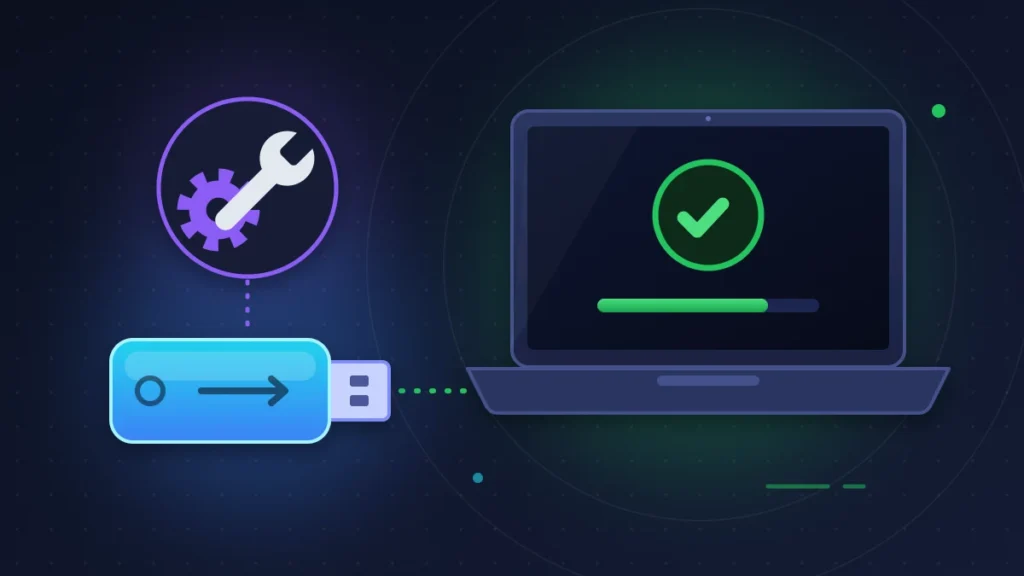
It comes into play when WinRE no longer starts. Boot from the drive (F8 on ASUS, F11 on MSI, F12 on Gigabyte and Dell for the boot menu), choose the language, then click “Repair your computer” instead of installing. You get all the tools from fixes 3 to 7.
If nothing helps, Troubleshoot > Reset this PC > Keep my files reinstalls Windows while keeping your documents. Software has to be installed again.
When the PC boots but crawls: slow File Explorer, endless shutdown
The desktop appears, but everything drags. Proceed in this order.
Start with a true restart. With fast startup, “Shut down” hibernates the kernel, and a shaky state survives from one session to the next. Click Restart, or hold Shift while clicking Shut down.
Next, turn off fast startup: search for “Choose a power plan”, then Choose what the power button does > Change settings that are currently unavailable, and clear “Turn on fast startup”.
Clear the File Explorer history: three-dot button > Options, Privacy section, Clear button. Then restart the process from Task Manager (Ctrl + Shift + Esc, right-click Windows Explorer > Restart).
Isolate a misbehaving service with a clean boot: Win + R, msconfig, Services tab, check “Hide all Microsoft services”, then “Disable all”. If the slowness stops, turn services back on half at a time to find the culprit, often a third-party antivirus or a motherboard utility.
Finally, repair the system files from an administrator Terminal with DISM /Online /Cleanup-Image /RestoreHealth, then sfc /scannow. As a last resort, uninstall the update from the Windows Update history.
Summary table
| Symptom | Likely cause | Fix to try |
|---|---|---|
| Manufacturer logo frozen, no Windows circle | Firmware, USB device, Fast Boot, drive not detected | Fix 1, then fix 8 |
| Windows circle, then restart in a loop | Update applied incorrectly | Fixes 2 and 3 |
| UNMOUNTABLE_BOOT_VOLUME screen | Update piled onto an earlier failure, damaged drive | Fix 3, then fix 6 |
| BCD missing, blinking cursor | Damaged boot files | Fix 7 |
| Blue BitLocker screen asking for a key | Change detected in the firmware or the boot process | Enter the 48-digit key |
| Slow File Explorer, long shutdown | Corrupted hibernated state, third-party service, cache | Section “When the PC boots but crawls” |
If nothing works
Rescue your data first. In the WinRE command prompt, type notepad, then File > Open: that window works as a file browser and lets you copy your folders to an external drive.
A clean installation from the USB drive resolves any software failure. If the drive does not show up in the installer, the hardware is at fault.
With the manufacturer’s or retailer’s support, be precise. State at which moment the screen freezes (before or after the loading circle), the stop code, the KB number of the update, the BIOS version and what you have already tried. A PC under warranty that does not get past the logo after a Clear CMOS has a hardware fault.
Keeping it from happening again
Do not install preview updates on a work machine. They are optional: leave “Get the latest updates as soon as they’re available” turned off in Windows Update.
Check under Settings > System > Recovery that Quick machine recovery is on, and turn on system protection for C: so that you have restore points. Write the BitLocker key down somewhere other than on the PC. And when an update is installing, let it finish: many broken startups begin with a forced shutdown during the configuration screen.
Frequently asked questions
How long should I wait before deciding the PC is stuck?
On the “Working on updates” screen, up to an hour with a hard drive, twenty minutes with an SSD. On the manufacturer’s logo, ten minutes is enough.
Does uninstalling the update delete my files?
No. Only the system components brought in by the patch are removed.
I do not have my BitLocker key. What can I do?
Sign in from another device to the Microsoft account used on the PC. For a work computer, ask the IT department. Microsoft cannot recreate it: without it, the only option left is reinstalling and losing the data.
Why won’t WinRE open after three forced shutdowns?
The freeze occurs before Windows, or the recovery partition is damaged. Use an installation USB drive.
The “Windows 11 won’t boot after update” scenario almost always ends with a working PC, as long as you treat the right phase of the startup. If your case is different, give the machine model, the update number and what the screen shows in the comments.
Share this content: