

The Windows 11 update error can occur for several reasons, such as corrupted files, connectivity issues, or conflicts with third-party software. This error often prevents the system from updating correctly, which can affect the performance, security, and stability of the computer. Therefore, it is essential to fix it in order to benefit from the latest features and patches. In this article, we will present several detailed solutions to resolve the update error in Windows 11.
Types of Windows 11 Update Errors
Before presenting the solutions, it is important to understand the different types of update errors in Windows 11. This will help you identify the cause of the problem.
Here are the most common error codes encountered:
- 0x80070002: Indicates issues related to corruption or missing files.
- 0x8007000d: Usually occurs due to conflicts with language packs during the update installation.
- 0x80072ee7: Network issues preventing Windows Update from connecting to Microsoft servers.
- 0x8007000e: Caused by insufficient system resources to complete the update.
- 0x80072efd: Similar to error 0x80072ee7, it is also related to network connectivity problems.
- 0x8024401c: Indicates a problem with the Windows Update service.
- 0x8024500c: Signals that Windows Update cannot be installed due to corrupted system files.
What Causes Windows 11 Update Errors?
These issues can manifest for various reasons, including:
- Insufficient disk space: When your system lacks adequate disk space, updates cannot be downloaded or installed.
- Incorrect date, time, and time zone settings: Inconsistencies in system time settings can disrupt the update process.
- Corrupted update components: Damaged or missing system files related to Windows Update can hinder installation.
- Problems with the Windows Update service: Issues with the Windows Update service, such as malfunction, can lead to update errors.
- Network and Internet connectivity issues: Poor network connectivity, including DNS resolution problems, can prevent updates from downloading.
- Pending updates: Sometimes, pending updates can block the installation of new updates.
List of Solutions:
- Solution 1: Check Disk Space
- Solution 2: Check Date, Time, and Time Zone
- Solution 3: Run the Windows Update Troubleshooter
- Solution 4: Restart the Windows Update Service
- Solution 5: Clear the SoftwareDistribution Folder
- Solution 6: Run SFC and DISM Commands
Solution 1: Check Disk Space
Step 1: Open File Explorer
- Press Windows + E to open File Explorer.
- Click on “This PC” in the left panel.

Step 2: Check Available Space
- Check the free space on the system drive (usually C:).

- If space is insufficient, free up space by deleting unnecessary files or applications.
Step 3: Use the Disk Cleanup Tool
- Type “Disk Cleanup” in the Windows search bar and click on the icon to open the tool.
- Choose your system drive from the dropdown menu and click OK.
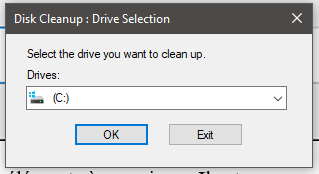
- Check the boxes for the items to delete. It is recommended to select everything to maximize space clearance.
- Click OK and wait for the cleanup to finish.
Solution 2: Check the Date, Time, and Time Zone
Step 1: Open Settings
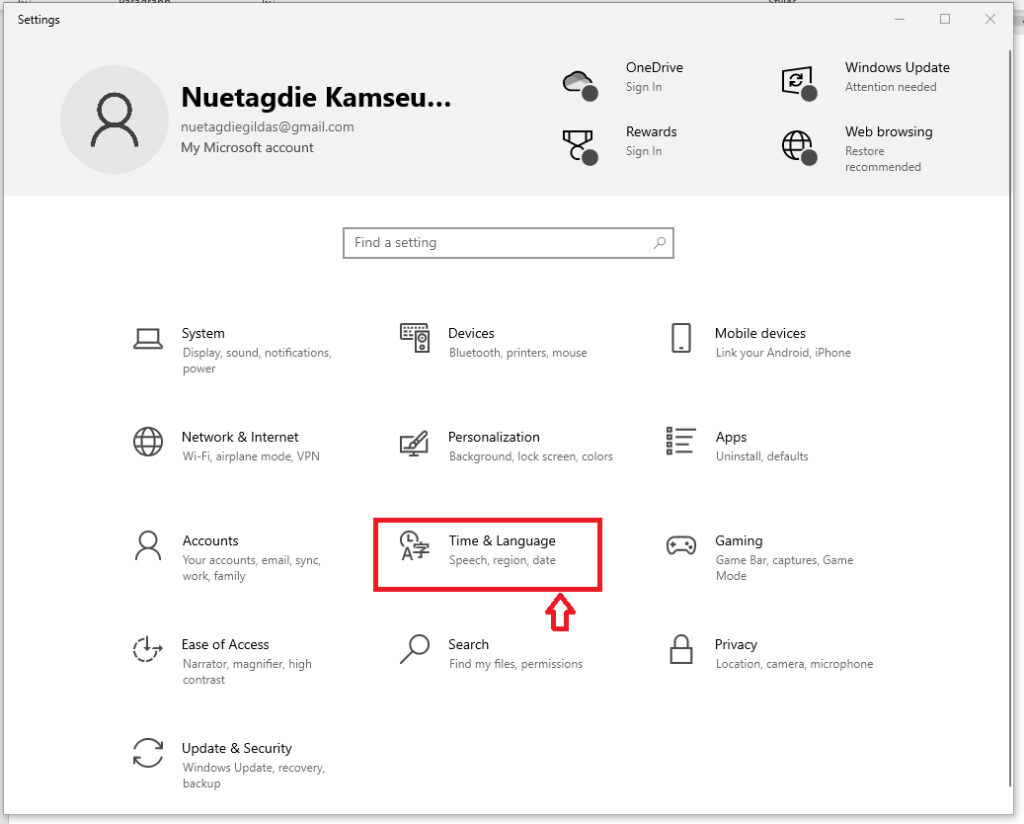
- Click the Start button, then select “Settings”.

- Go to the “Time & Language” category and select “Date & Time”.
Step 2: Adjust Settings
- Make sure that the options “Set time automatically” and “Set time zone automatically” are enabled.
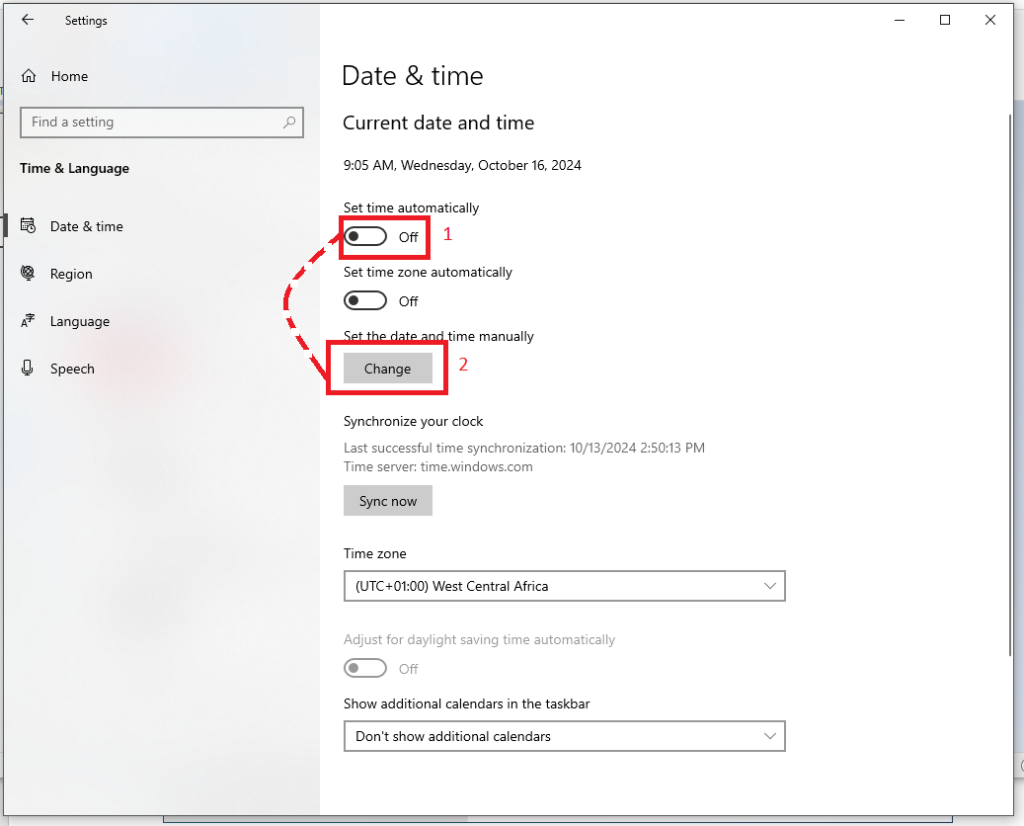
- Manually adjust the date, time, or time zone if necessary.
Solution 3: Run the Windows Update Troubleshooter
Step 1: Open Windows Settings
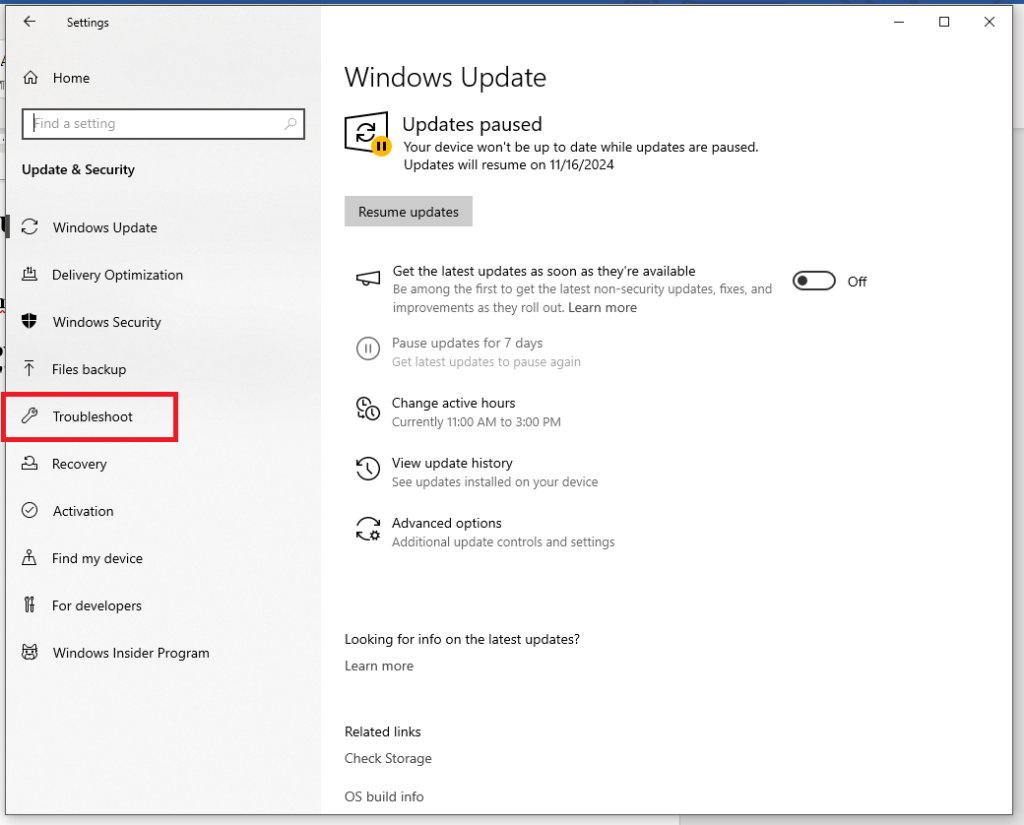
- Press Windows + I to open Settings.
- Go to the “Windows Update” tab and select “Troubleshoot“
Step 2: Launch the Troubleshooter
- Click on “Additional troubleshooters“

- Search for “Windows Update” and click “Run” next to it.

Step 3: Follow the instructions
- Let the tool detect and fix the issues.
- Restart your computer after the repair.
Solution 4: Restart the Windows Update Service
Step 1: Open the Run dialog
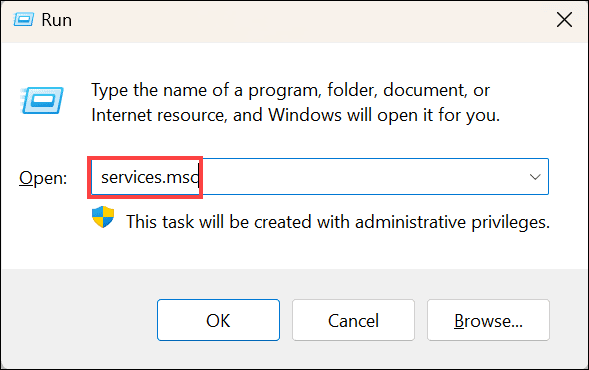
- Press Windows + R to open the Run dialog.
Step 2: Access Services
- Type
services.mscand press Enter.
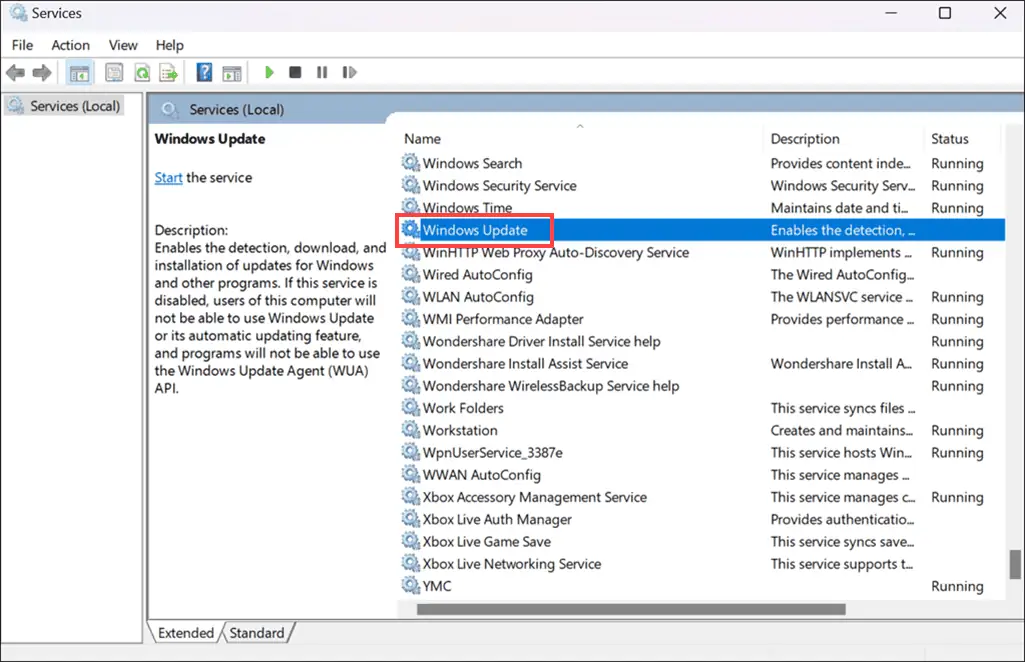
- Locate “Windows Update” in the list of services.
Step 3: Restart the service
- Right-click on “Windows Update” and select “Restart“

Solution 5: Clear the SoftwareDistribution Folder
Step 1: Open Command Prompt as Administrator
- Type “Command Prompt” in the Windows search bar, right-click on the icon, and select “Run as administrator“
Step 2: Stop Necessary Services
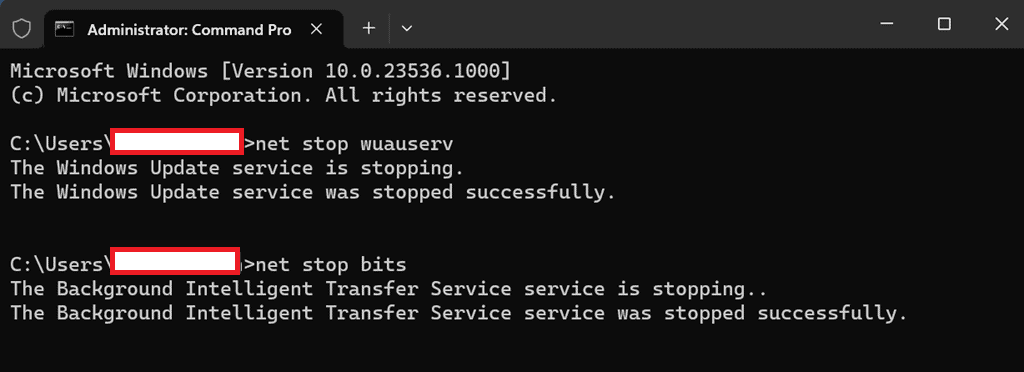
- Type the following commands and press Enter:
net stop wuauserv(to stop the Windows Update service)net stop bits(to stop BITS)
Step 3: Access the SoftwareDistribution Folder
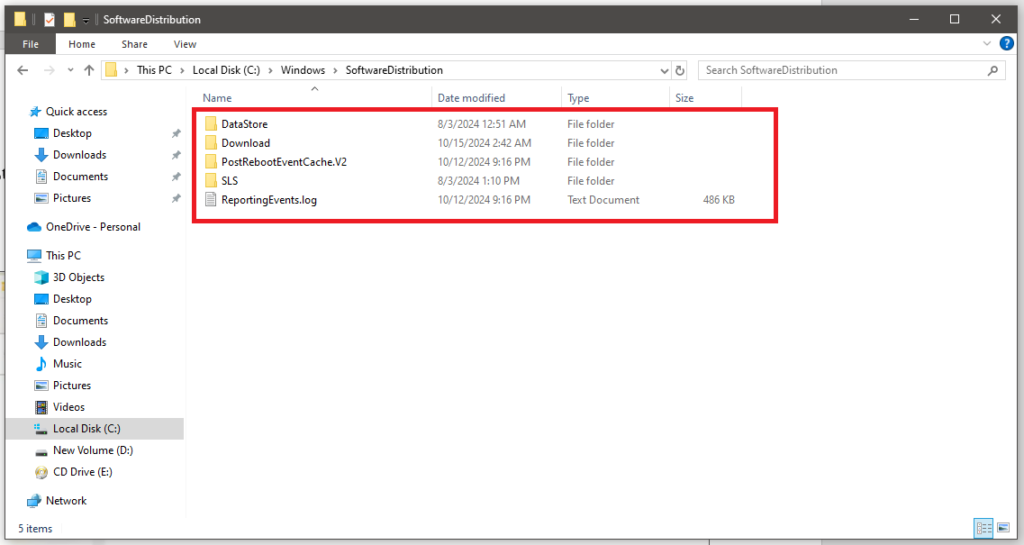
- Open File Explorer and navigate to
C:\Windows\SoftwareDistribution. - Delete all files and folders in this directory.
Step 4: Restart the Services
- Open the Command Prompt again with administrative rights.
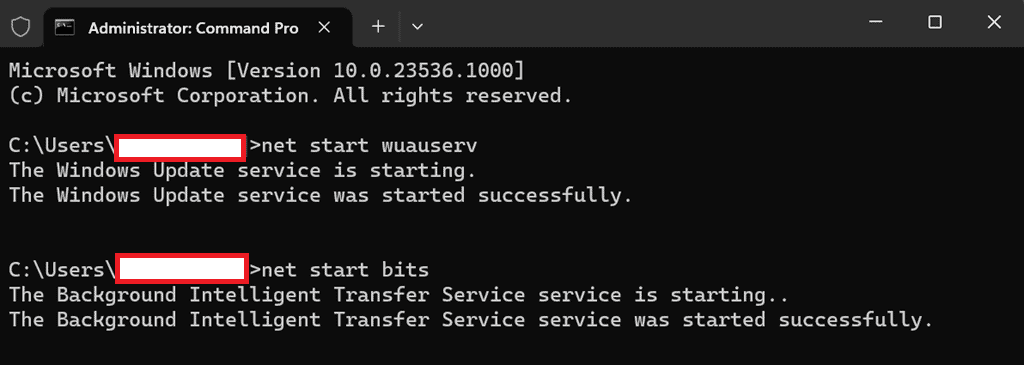
- Type the following commands to restart the services:
net start wuauserv(to start the Windows Update service)net start bits(to start BITS)
Solution 6: Run the SFC and DISM Commands
Step 1: Run the SFC Command (System File Checker)
- Open the Command Prompt as an administrator.
- Type
sfc /scannowand press Enter.
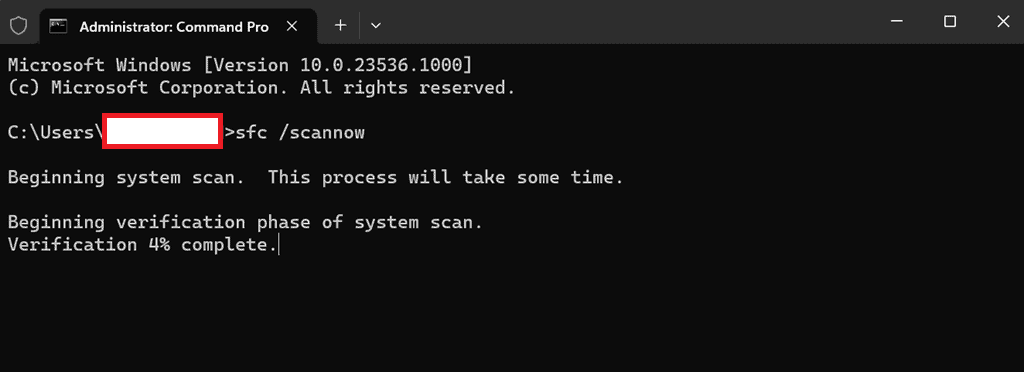
- Wait for the scan to complete and follow the on-screen instructions to repair any corrupted files.
Step 2: Run the DISM Command (Deployment Image Servicing and Management Tool)
- Still in the Command Prompt as an administrator, type
DISM /Online /Cleanup-Image /RestoreHealthand press Enter.

- Wait for the process to complete and check the report for any detected and repaired issues.
Share this content: