

Updated on November 22, 2026
This article contains affiliate links: if you buy through them, Wanda-techs earns a commission at no extra cost to you.
An iPhone 17 camera bug comes in several forms: a black screen in the app, a frozen camera, or photos that are blurry, washed out or marked with artifacts. Apple starts with the simple causes, such as a case, screen film or accessory covering the lens, or a dirty lens. On the software side, the only camera fix named in Apple’s release notes for these models is iOS 26.0.1, which addressed artifacts in photos taken in certain lighting conditions.
Common symptoms and causes of the iPhone 17 camera bug
Symptoms described by Apple:
- photos that are blurry, washed out, poor quality or marked with artifacts;
- a black screen in the Camera app;
- a flash that works only sometimes or keeps flashing.
Causes documented by Apple:
- a dirty lens;
- a case, film, accessory or magnet that covers or interferes with the lens;
- a converter, metal case or magnetic mount, which blur photos in low light;
- a software glitch;
- an iPhone that is too hot: the flash and some camera features are then turned off temporarily;
- artifacts in certain lighting on iPhone 17, iPhone Air and iPhone 17 Pro, fixed by iOS 26.0.1.
Before you start
- This guide covers the iPhone 17, iPhone 17 Pro, iPhone 17 Pro Max and iPhone Air, running iOS 26 (latest version: 26.7.3) or iOS 27, the current release (latest version: 27.2.1, from November 9, 2026).
- The app and its settings are called Camera on both versions, so the steps below are the same on iOS 26 and iOS 27.
- Keep a microfiber cloth within reach.
- Back up to iCloud or to a computer before the update and the reset.
Taking photos is one of the activities that normally warms up an iPhone, and the temperature drops afterward. Apple designs the iPhone for use where the ambient temperature is between 0 and 35 °C (32 to 95 °F): do not leave it in a car. If a temperature warning screen appears, turn the iPhone off, move it somewhere cooler and out of direct sunlight, and let it cool down.
Warning: Solution 5 resets settings and can cause data loss, so back up first. Resetting all settings removes saved Wi-Fi networks and their passwords, Bluetooth and Apple Watch pairings, Apple Pay cards and Face ID setup; photos, videos, apps and their data are kept. Do not confuse this option with “Erase All Content and Settings”.
Warning: during an update, low storage can temporarily remove apps, and deleting an app removes it along with its data. Choose to offload the app instead, which keeps its documents and data.
Warning: opening the device can void the warranty; check your warranty end date first. For a diagnosis or a repair, go through Apple support and do not open the iPhone.
Solution 1: remove the case and clean the lenses
- Remove the case, the protective film and any accessory that covers the lens or the flash: polarizer, converter or telephoto lens, magnifier.
- Move any magnet away from the camera.
- Clean the front and rear lenses with a microfiber cloth.
- Take a test photo.
The test photo should be sharp. If it is sharp without the accessory, leave the accessory off, especially in low light with a converter, a metal case or a magnetic mount.
If you put a case back on after the test, pick one that leaves the lenses clear, like this clear case for iPhone 17.

Spigen Ultra Hybrid clear case for iPhone 17
A clear case with a rigid back and flexible edges that shows off the colour of the iPhone 17. It protects against everyday drops and scratches.
- AmazonSee at Amazon

Solution 2: test both cameras and the flash
- Open the Camera app.
- Take a test photo with the rear camera.
- Tap the rotate button to switch to the front camera.
- Take a test photo with the front camera.
- Swipe down from the top-right corner of the screen to open Control Center.
- Tap the flashlight button (Control Center > Flashlight) to test the light.
- If the flash works only sometimes, tap the flash button in the Camera app and choose a setting other than Flash Auto.
Now you know which camera is the problem, the front, the rear or both, and whether the flash lights up. If the flash keeps blinking, Apple has a separate article for that case.
Solution 3: restart, then force restart
- Restart the iPhone.
- If the restart changes nothing, quickly press and release the volume up button.
- Quickly press and release the volume down button.
- Press and hold the side button.
- Release the side button when the Apple logo appears.
The iPhone restarts: open the app again and take another test photo. Apple’s guide does not mention any data being erased by a force restart. If the iPhone does not restart, follow Apple’s page If your iPhone won’t turn on or is stuck.
Solution 4: update iOS
Apple’s release notes name a single camera fix for these models: iOS 26.0.1, for artifacts in photos taken in certain lighting conditions with the iPhone 17, iPhone Air and iPhone 17 Pro. There is nothing for a frozen camera or a black screen on iPhone 17. iOS 26 still receives fixes (26.7.1, 26.7.2, 26.7.3) alongside iOS 27.
If a “Storage Almost Full” alert appears, free up space before updating:
- Open Settings > General > iPhone Storage.
- Tap Show All under the recommendations.
- Read the description of each recommendation, then tap Enable on the one that suits you.
- Tap an app in the list, then choose to offload it: the space is freed and its documents and data are kept.
Warning: at the last step below, tapping Continue temporarily removes apps; they are reinstalled after the update.
- Back up the iPhone to iCloud or to a computer.
- Plug the iPhone into a power source.
- Connect the iPhone to Wi-Fi.
- Open Settings > General > Software Update: the installed version is shown.
- Tap Download and Install if an update is offered.
- If there is not enough space, tap Continue to let the system temporarily remove apps, which are reinstalled afterward, or Cancel to free up space yourself.
The version shown in Settings > General > Software Update should be the latest one offered, for example 26.7.3 or 27.2.1. The screen may offer the iOS 26 update first and, lower down, the upgrade to iOS 27; Apple gives no rule for choosing. Automatic updates are set in the same menu.
Good to know: an active VPN or proxy can block the update.
Solution 5: reset all settings
Apple advises restarting first, and resetting only if the restart changed nothing.
Warning: step 3 resets settings and can cause data loss, so back up first. It returns Wi-Fi networks and their passwords, Bluetooth and Apple Watch pairings, Apple Pay cards, Face ID, the Home Screen layout, wallpaper, notifications, location preferences, sounds and VPN configurations to their defaults or removes them.
- Open Settings > General > Transfer or Reset iPhone.
- Tap Reset.
- Tap Reset All Settings, not “Erase All Content and Settings”.
- Join your Wi-Fi network again.
- Pair your Bluetooth devices and your Apple Watch again.
- Set up Face ID again.
Settings go back to their defaults. Photos, videos, music, messages, contacts, apps and their data stay in place. Open the Camera app and take another test photo.
If nothing works
The problem persists after the update, the restart (forced if needed), removing the case and accessories, cleaning the lenses and resetting the settings? A repair may then be needed. Request service at getsupport.apple.com, under “Get service” on Apple’s camera page, and do not open the iPhone yourself.
For other system problems, see the most common iOS 26 bugs and how to fix them.
Take better care of your iPhone 17: our toolbox
A few simple accessories to keep the camera clean and your photos safe before an update.
- Mistify screen cleaning spray 500 ml with 2 microfibre clothsCleans screens and glass surfaces without leaving streaks. The two microfibre cloths are soft and lint-free.AmazonSee at Amazon
- SanDisk iXpand Flash Drive Luxe 128 GB, Lightning and USB-C for iPhoneA flash drive with Lightning and USB-C connectors to copy photos and files from an iPhone. Also plugs into a computer to store the copy.AmazonSee at Amazon
- Spigen Glas.tR EZ Fit tempered glass for iPhone 17 (pack of 2)Two 9H tempered-glass screen protectors with an alignment tray for bubble-free fitting. They guard the screen against everyday scratches.AmazonSee at Amazon
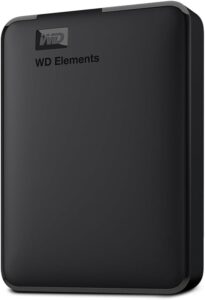 WD Elements 4 TB external hard driveStores a full copy of your files and settings before a risky operation such as a network reset or a system update. Connects by USB with no extra power supply.AmazonSee at Amazon
Frequently asked questions
Why is my iPhone 17 camera glitching?
Apple’s pages list simple causes first: a dirty lens, or a case, film, accessory or magnet that covers or interferes with the lens. An iPhone that is too hot also turns off the flash and some camera features temporarily. A software glitch is handled by restarting, updating iOS, then resetting all settings.
How do I reset the camera on my iPhone 17?
Apple does not document a camera-specific reset. The Settings > Camera > Preserve Settings option keeps your settings from one opening to the next, such as the mode, the Photographic Style or Live Photo: it is not a troubleshooting tool. To get back to default settings, use Reset All Settings (solution 5), which keeps photos, videos and apps.
Why does my iPhone 17 camera show a black screen?
A black screen is among the symptoms Apple describes, but no release note names a fix for it on iPhone 17. Remove the case and accessories, clean the lenses, restart, then update iOS. If the screen stays black after resetting all settings, contact Apple support.
Which update fixes the iPhone 17 camera bug?
iOS 26.0.1 fixed artifacts in photos taken in certain lighting conditions with the iPhone 17, iPhone Air and iPhone 17 Pro. It is the only camera fix named for these models in the iOS 26 and iOS 27 release notes. The camera fix in iOS 27.0.1 concerns the iPhone 18 Pro and iPhone 18 Pro Max: for the iPhone 18 Pro, see also our fixes when the iPhone 18 Pro takes blurry photos.
When should you get an iPhone camera repaired?
When the problem persists after Apple’s checks: case and accessories removed, lenses cleaned, restart, update and reset of the settings. Apple then says a repair may be needed and points to its online support, getsupport.apple.com. Do not open the iPhone yourself.
Share this content: