
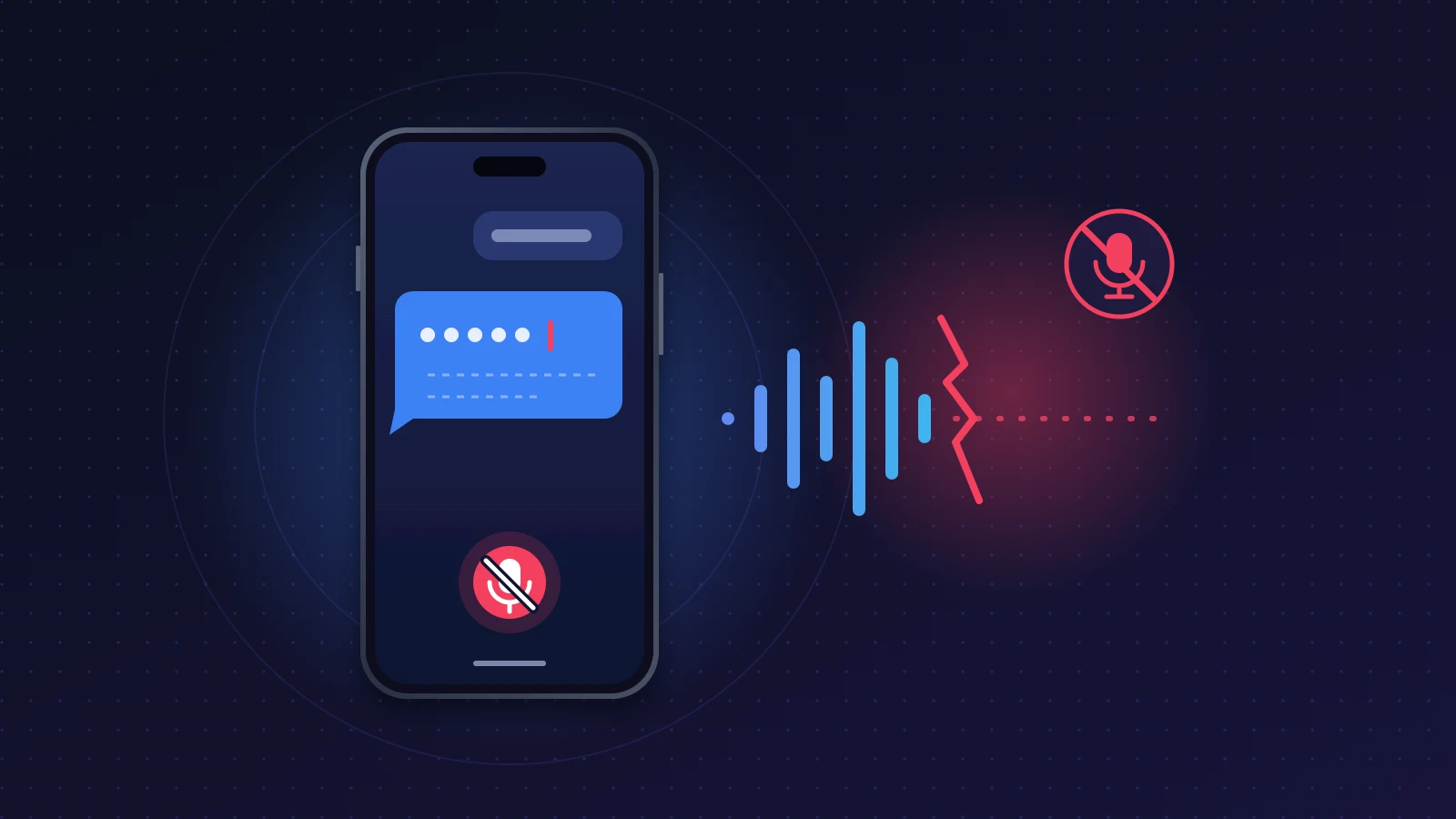
When iPhone 18 dictation keeps stopping after two or three words, or Siri cuts you off before you finish a message, usually while you’re wearing AirPods, two causes often stack up. The first is software: on the iPhone 18 Pro, French dictation suffered a documented bug under iOS 27 that had nothing to do with the microphone. The second is the audio path itself: the AirPods mic and the end-of-speech detection decide too early that you’ve stopped talking. The most effective move is to install the latest iOS version, then test dictation without your AirPods. If it holds up, adjust the AirPods microphone; if it doesn’t, the problem lives in iOS.
Quick fix
- Install the latest version of iOS 27 (Settings > General > Software Update).
- Dictate a long sentence in Notes without AirPods, then with them: you’ll know right away whether the earbuds are involved.
- With AirPods, lock the microphone to one earbud and check their firmware.
- For Siri, lengthen how long it waits in Settings > Accessibility > Siri.
- Until a fix lands, dictate in short chunks, or temporarily switch dictation to another language you speak.
What does the problem look like?
The typical scenario: you tap the mic on the keyboard, start saying “I’ll be late tonight because…”, and only “I’ll be” shows up. Sometimes the mic icon stays lit while nothing else gets typed, or dictation simply closes on its own. Other variations: chunks of a sentence vanish, text gets rewritten the moment you go quiet, or Siri offers to send a truncated message through your AirPods.
One clue matters: if people hear you fine on calls, the microphone isn’t dead. The problem is in speech processing.
Is it an iOS 27 bug on the iPhone 18?
Yes, at least partly. French site iGeneration collected reports from iPhone 18 Pro owners whose French (France) dictation lost track after a few words, while English (US) worked fine on the same phone. An Apple diagnostic found no hardware fault, and a full erase didn’t help. An iPhone 17 Pro running iOS 27 didn’t reproduce the problem.
- Confirmed: Apple hasn’t publicly acknowledged this bug. The iOS 27.0.1 release notes cover Face ID, 2x photos and a touchscreen that freezes, but not dictation.
- Reported: iGeneration later found French dictation working again on iOS 27.0.1 and in the iOS 27.2 beta, while other sites still considered it broken right after iOS 27.0.1.
- Hypothesis: a quiet fix, either server-side or in the language files, would explain an improvement that isn’t in the release notes.
If you’re still on iOS 27.0, updating is the first step. For other languages, including English, no reliable source documents a bug specific to the iPhone 18: the test below will tell you whether yours is affected.
Why iPhone 18 dictation keeps stopping: how the iPhone decides you’re done
Dictation and Siri rely on end-of-speech detection (also called voice activity detection): an algorithm listens continuously and decides when you’ve finished. If it mistakes a pause for the end of a sentence, it stops listening. A breath, an “um”, background noise or choppy audio is enough.
With iOS 27, Apple also switched engines: its release notes promise more accurate dictation thanks to an on-device model on the iPhone Air, the iPhone 17 Pro models and later. According to specialist sites, this model covers English first, with other languages staying on the older engine. Apple hasn’t said so, but it would explain why one language works and another doesn’t.
Are AirPods causing it?
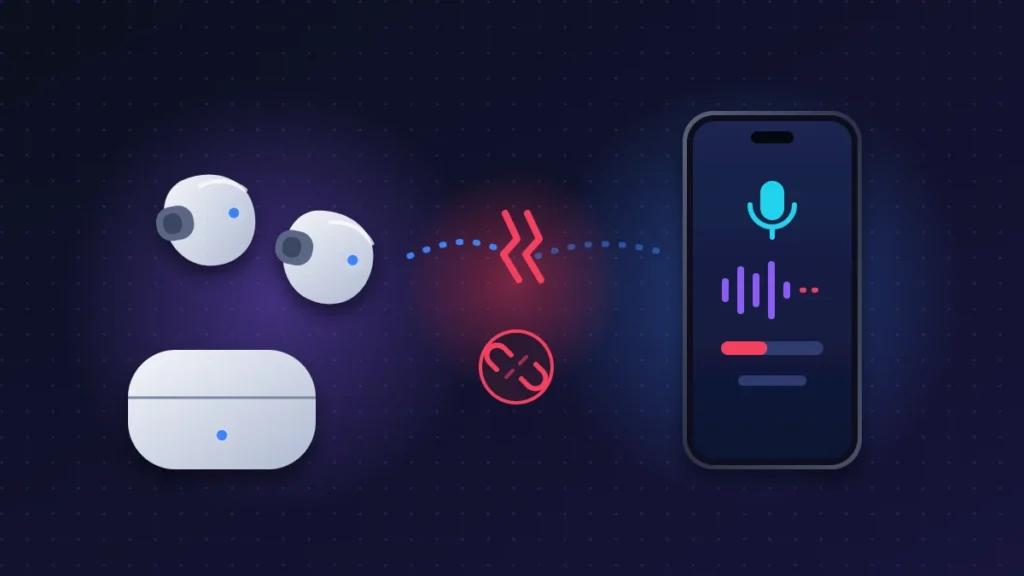
Sometimes. AirPods send your voice over Bluetooth with narrower bandwidth than music gets, and they filter out wind and ambient noise. If that filtering turns your voice down too much, dictation thinks you’ve gone silent.
On Apple’s forums, users have described choppy dictation with AirPods, but normal behavior with the iPhone’s own mic, across several generations: it isn’t specific to iOS 27. The automatic switch of the microphone from one earbud to the other is another moment where listening can drop.
What about Voice Isolation? Apple limits it to phone calls, FaceTime, some third-party apps and, since iOS 26, recording apps like Voice Memos. You pick it in Control Center for the app you’re using. Apple doesn’t mention dictation or Siri, so this setting won’t help when dictation cuts out.
Before you start: the test that points you in the right direction
- Open Notes and create a blank note.
- Without AirPods (or with Bluetooth off), dictate three sentences in a row at a normal pace.
- Do it again with your AirPods in.
- If you speak another language, repeat the test after adding it as a dictation language (see fix 3).
- Finally, turn on Airplane Mode (Wi-Fi off too) and dictate again without AirPods.
How to read the results:
- Cuts out with and without AirPods, in one language only: a software bug tied to that language. Fixes 1 to 4.
- Cuts out only with AirPods: the audio chain. Fixes 6 to 8.
- Cuts out online but not in Airplane Mode, or the other way round: a network or language model issue. Fix 3.
No backup needed: none of these steps touch your data.
Fix 1: install the latest iOS version
Go to Settings > General > Software Update, with the iPhone plugged in and on Wi-Fi. Then leave it charging overnight so iOS can finish its background tasks. Run the Notes test again. Risk: none.
Fix 2: turn Dictation and Siri off and back on
- Settings > General > Keyboard, turn off Enable Dictation and confirm.
- Restart the iPhone (side button and either volume button, then slide to power off).
- Turn Dictation back on in the same place, while on Wi-Fi.
- For Siri: open Settings > Siri (or Settings > Apple Intelligence & Siri, depending on your version) and turn off the option that listens for “Siri” or “Hey Siri”, then turn it back on. The iPhone will ask you to repeat a few phrases to relearn your voice.
When to use it: if dictation also cuts out without AirPods. Risk: none, but stay on Wi-Fi for the reinstall.
Fix 3: check your dictation languages and the downloaded model
On supported models, Apple says dictation works without an internet connection because the language model is stored on the iPhone. There’s no switch to choose between on-device and server processing; what matters is that the right model is installed and complete.
- Settings > General > Keyboard > Dictation Languages. Make sure your language and region are the right ones (English (US), English (UK), English (Australia) and so on), not another variant ticked by mistake.
- Untick languages you never use, so the iPhone no longer has to guess between them.
- To force a fresh download, untick your language, restart, then tick it again on Wi-Fi. Give it a few minutes before testing.
Temporary workaround: if your main dictation language is affected and you speak another one, add it and switch with the globe key on the keyboard. Several users hit by the French bug kept dictating in English this way. For Siri, the language is set separately in Settings > Siri > Language. Changing it turns off “Hey Siri” until you set it up again.
Fix 4: make Siri wait longer
If it’s Siri cutting you off, for example when you dictate a message through your AirPods:
- Go to Settings > Accessibility > Siri.
- Under Siri Pause Time, change Default to Longer or Longest.
According to published tests, Siri then waits about three to four seconds of silence instead of two. Apple presents this setting for Siri only: it isn’t documented as affecting keyboard dictation.
Even more reliable: press and hold the side button, or the stem of an AirPod if Siri is assigned to that gesture. As long as you hold, Siri keeps listening.
Fix 5: check the Messages button and restrictions
Two traps specific to iOS 27 and parental control settings:
- In Messages, the icon in the text field can start an audio recording instead of dictation. In Settings > Apps > Messages, the option that controls which button appears in the text field lets you switch back to dictation, or show nothing and use the keyboard mic instead.
- Settings > Screen Time > Content & Privacy Restrictions, in the allowed apps and features section: Siri and Dictation must be allowed.
Fix 6: force the iPhone mic or a single AirPod
For a long message, turn off Bluetooth while you talk, or take both AirPods out: with Automatic Ear Detection, audio goes back to the iPhone. Control Center also lets you change the audio input when several devices are connected.
If you want to keep using your AirPods, lock their microphone:
- With the AirPods in your ears, open Settings and tap their name near the top of the screen.
- Tap Microphone (it may sit inside an audio section of the AirPods settings).
- Change Automatically Switch AirPods to Always Left AirPod or Always Right AirPod.
- Test each side: if dictation holds with one and cuts out with the other, one mic is dirty or faulty.
Clean the mic meshes with a soft, dry brush, with no liquid and nothing sharp.
Fix 7: update the AirPods firmware
- Settings > Bluetooth, tap the info button next to your AirPods.
- In the About section, note the firmware version and compare it with the one Apple lists on its “Firmware updates for AirPods” page.
- If it’s behind: put the AirPods in their case, close it and plug it in, with the iPhone on Wi-Fi nearby. Wait at least 30 minutes, then check again. There’s no Update button: installation is automatic.
Fix 8: reset your AirPods
- Put the AirPods in the case and keep the lid closed for 30 seconds.
- Settings > Bluetooth, info button, Forget This Device.
- Open the lid. AirPods Pro 3 and AirPods 4: double-tap the front of the case when the light turns on, again when it flashes white, then a third time when it flashes faster. AirPods Pro 2: press and hold the button on the back of the case for about 15 seconds.
- When the light flashes amber, then white, bring the open case close to the iPhone and follow the on-screen steps.
You’ll need to pair them again with your other devices. Before going that far, try a trick reported by users, with no official explanation: put both earbuds back in the case, then take them out one at a time.
Fix 9: reset the keyboard dictionary, then all settings
Settings > General > Transfer or Reset iPhone > Reset > Reset Keyboard Dictionary. Only the words the keyboard has learned are erased. It helps when dictation keeps replacing the same words, and rarely solves dictation that cuts out.
Last resort: Reset All Settings, in the same place. Your data stays; Wi-Fi, Bluetooth pairings and preferences go back to defaults. Don’t go as far as a full erase: for the French bug, it changed nothing.
Workarounds while the bug persists
- Dictate in short sentences, tapping the mic each time. Less comfortable, but nothing gets lost.
- Voice Control (Settings > Accessibility > Voice Control) listens continuously and types into any field, though you’ll need to learn its commands.
- A third-party voice keyboard: iGeneration mentions Wispr Flow, less handy to bring up but more accurate. Read its privacy policy first.
- Send a voice message in Messages or WhatsApp when text isn’t essential.
Summary table
| Symptom | Likely cause | What to try |
|---|---|---|
| Dictation cuts out in one language (French reported), works in English, with or without AirPods | Language-specific software bug in iOS 27 | Update iOS, download the language again (fixes 1 and 3) |
| Cuts out only with AirPods | Bluetooth mic filtering or switching | Lock the mic to one AirPod, firmware, reset (6 to 8) |
| Siri sends a truncated message through AirPods | End-of-speech detection too fast | Longer Siri Pause Time, press and hold (4) |
| The Messages button records audio | iOS 27 text field option | Settings > Apps > Messages (5) |
| No dictation mic on the keyboard | Dictation turned off or restricted | Enable Dictation, Screen Time (2 and 5) |
| Cuts out even on an erased iPhone, in every language, without AirPods | Faulty iPhone microphone | Apple diagnostic |
If nothing works
Report the problem to Apple through the Apple Support app: that’s how a language bug gets escalated, and an advisor can run a remote diagnostic on the microphones. Also turn on sharing in Settings > Privacy & Security > Analytics & Improvements.
Prepare a screen recording showing the cutoff in the affected language and the lack of one in another, the results of your test with and without AirPods, and the list of fixes you’ve tried. If dictation fails in every language, without AirPods, and Voice Memos records poorly too, a hardware fault becomes a serious possibility.
Your warranty and consumer rights:
- iPhone bought from Apple: you can return it within 14 days of receiving it.
- Apple’s one-year limited warranty, plus AppleCare+ if you bought it. AirPods have their own warranty.
- Consumer law applies on top of that, against the seller. In the UK, the Consumer Rights Act requires goods to be of satisfactory quality and fit for purpose. In the European Union, the legal guarantee of conformity lasts at least two years. Elsewhere, statutory guarantees depend on the country where you bought the phone.
A replacement won’t help if the bug is in software: the new phone will behave the same way. Save that option for a microphone that’s actually faulty.
In Africa, contact an Apple Authorized Service Provider, which you can find through the Apple Support app. Bring your receipt: warranty coverage depends on the country of purchase, and an iPhone bought in Europe may have limited options outside the European Economic Area.
How to keep it from happening again
Only tick the dictation languages you actually use. After each major update, leave the iPhone overnight on a charger and on Wi-Fi. Keep your AirPods up to date by charging them near the iPhone. And get into the habit of pressing and holding for Siri whenever the message is long.
FAQ
Why does dictation stop on its own on my iPhone?
Because it decided you’d finished talking. A pause, background noise or poor-quality audio coming from your AirPods is enough to trigger it.
Does iPhone dictation work without internet?
Yes on supported models, including the iPhone 18 lineup, for languages whose model is installed on the device. That’s why Airplane Mode works as a test.
Does Siri Pause Time also affect keyboard dictation?
Apple only presents it for Siri. For keyboard dictation, dictate in chunks or use Voice Control.
Should I turn on Voice Isolation on my AirPods to dictate?
No. According to Apple, this mic mode applies to calls, FaceTime and recording apps, not to dictation or Siri.
Does iOS 27.0.1 fix the iPhone 18 Pro dictation bug?
Its release notes don’t mention it, but iGeneration found French dictation working again on iOS 27.0.1 and the iOS 27.2 beta. Install the latest version available.
Dictation cuts out with only one AirPod, what should I do?
Lock the mic to the other earbud in the AirPods settings, then clean the suspect mic mesh. If the problem stays on one side only, have the AirPods checked under warranty.
Has your iPhone 18 dictation kept stopping even after all these steps? Tell us in the comments which model you have, your iOS version, your dictation language and whether you use AirPods: those details help us match up reports. Our spec sheets for the iPhone 18 Pro and the iPhone 18 Pro Max cover both models in detail. Other issues with your phone? They’re probably in our roundup of every known iPhone 18 Pro problem and how to fix it.
Share this content: