

This article contains affiliate links: if you buy through them, Wanda-techs earns a commission at no extra cost to you.
A USB drive that Windows does not recognize either vanishes from File Explorer or triggers the “USB Device Not Recognized” message. Check the connection first: an unpowered USB hub may supply too little current to the drive. Your files are not necessarily lost.
Common symptoms and causes
- Windows shows “USB Device Not Recognized: One of the USB devices attached to this computer has malfunctioned, and Windows does not recognize it”.
- The drive does not appear in File Explorer, but it shows up in Disk Management, either without a drive letter or as “Unallocated” space.
- The drive is plugged into an unpowered USB hub, which may give it too little current.
- Microsoft also lists a corrupted or unstable USB driver, unstable USB controllers, missing Windows updates, USB selective suspend, and outdated chipset drivers (the chipset is the set of chips on the motherboard).
Before you start
- Use an administrator account: Disk Management,
chkdskand the power settings all require it. - The steps work on Windows 10 and Windows 11. On a Mac, the process is different.
- Do not format the drive if its files matter to you, even if Windows offers to.
Warning: initializing a disk, creating a volume and formatting (solution 5) erase data. Back up whatever can still be read first, because the whole content of the drive will be lost.
The chkdsk /f command can also delete fragments of lost files on a FAT drive, and changing the letter of the disk that holds Windows or your apps will stop those apps from working. Never use the diskpart clean command, which wipes the drive.
Solution 1: try another port, hub or computer
- Unplug the drive from the USB hub or extension cable.
- Plug it straight into a USB port on the computer.
- Try another USB port on the same PC.
- Test the drive on another computer.
If the drive works when connected directly, the hub or cable was the problem. If it does not respond on any PC, move on to solution 2 to see whether Windows detects it as a disk at all.

Tip: on a desktop PC, try a port on the back of the case. The front ports go through an internal cable, while the rear ones are soldered to the motherboard.
Solution 2: assign a drive letter in Disk Management
Disk Management is the Windows tool that lists every connected disk, including those File Explorer does not show. A drive with no drive letter (D:, E:, F:…) stays invisible in File Explorer.
- Open the Start menu and type “Disk Management”.
- Run the tool as administrator.
- If the Computer Management console opens, expand the Storage node and select Disk Management.
- Identify the drive by its capacity, then right-click its volume.
- Choose “Change Drive Letter and Paths”.
- Click Add if the volume has no letter, or Change if it already has one.
- Select Assign the following drive letter, pick a free letter, then click OK and Yes.
The drive should now appear in File Explorer under the letter you chose. Do not touch the letter of the disk that holds Windows or your apps.
Tip: note the drive’s capacity before opening the tool (it is often printed on the drive). It is the surest way not to mistake it for an internal disk.
If the option is missing or greyed out, the volume is not ready. Microsoft lists three cases: unallocated space that must be initialized, an inaccessible partition (an EFI system or recovery partition), or insufficient permissions.
For permissions, the account must belong to the Administrators or Backup Operators group. A drive showing as “Unallocated” is handled at the end of solution 5, because that operation erases it.
According to user reports, a disk marked “Offline” can be brought back by right-clicking its name and choosing Online. This option is not described in the Microsoft pages we consulted.
Solution 3: reinstall the drive and the USB controllers
Device Manager lists the hardware Windows recognizes along with its drivers, the small programs that make it work. Uninstalling the drive forces Windows to reload its driver.
- Type “Device Manager” in the Start menu search and open it.
- Expand Disk drives.
- Right-click the USB drive and choose Uninstall device.
- Unplug the drive and wait a minute.
- Plug it back in: Windows reloads the driver automatically.
Check that the drive now appears in File Explorer. If it does not, reinstall the USB controllers. They reinstall themselves when the PC restarts, along with the USB devices that depend on them.
- In Device Manager, expand Universal Serial Bus controllers.
- Right-click the first device in the list and choose Uninstall device.
- Repeat for every device in the list.
- Restart the PC.
Plug the drive in again: it should appear in File Explorer.
Good to know: the wording of Microsoft’s support pages and of the Windows menus can differ slightly between versions, and between Windows 10 and 11. Trust the label on your own screen.
Solution 4: turn off USB selective suspend and update Windows
USB selective suspend cuts power to unused ports to save energy. According to Microsoft, it can switch off an external drive while it is in use.
- Type “power plan” in the Start menu search and open Choose a power plan.
- Click Change plan settings next to your active plan.
- Click Change advanced power settings.
- Expand USB settings > USB selective suspend setting.
- Set Plugged in to Disabled, and on a laptop set On battery to Disabled as well.
- Click Apply, then OK.
Microsoft also lists missing updates and outdated chipset drivers among the causes:
- Open Windows Update and click Check for updates.
- Click Check for optional updates, tick the ones offered and click Install updates.
- Restart the PC if Windows asks you to.
- Download the chipset driver from your PC manufacturer’s support site and install it.
Plug the drive in again: it should stay visible without disconnecting.
Solution 5: check the file system, then format as a last resort
The file system is the way the drive organizes its files (FAT32, exFAT, NTFS). If it is damaged, Windows may see the drive without being able to open it, or offer to format it. Run chkdsk without any option first: it reports the state of the volume without changing anything.
- Type “cmd” in the Start menu search, right-click Command Prompt and choose Run as administrator.
- Type
chkdsk E:, replacingEwith the drive’s letter, then press Enter. - Type
chkdsk E: /fto fix file system errors. - If a FAT drive offers to convert lost chains into
File####.CHKfiles, accept so you keep those fragments rather than deleting them.
The command should finish without errors and the drive should open in File Explorer. The /r option adds a search for bad sectors to /f. It is much slower.
Tip: as soon as the drive opens, copy your files to the PC before doing anything else.
Warning: the next steps erase the whole drive. Copy whatever can still be read first: files, photos and documents will be lost.
These two steps are not in the Microsoft pages we consulted, so the exact labels may differ on your screen.
- If the drive shows as “Unallocated” in Disk Management, right-click that space and create a new simple volume, or initialize the disk if Windows asks.
- If the drive stays unreadable and its files do not matter, format it by right-clicking the drive in File Explorer, then choosing Format.
According to common guides, the Format window offers the file system and a quick format option, and the Tools > Check tab in the drive’s properties runs the same check as chkdsk. Neither the right-click > Format command in File Explorer nor these screens appear in the Microsoft pages we consulted. Once formatted, the drive can be used to boot a PC from a USB drive with Command Prompt.
To format a drive on a Mac, follow our three methods to format a USB drive on a Mac.
If nothing works
If the drive does not appear in Disk Management on several ports and several computers, treat it as failed and replace it. If it holds valuable data, do not format it: hand it to a data recovery specialist.
If the drive is permanently dead and holds nothing important, here is a brand-name USB drive with both USB-C and USB-A connectors.

SanDisk Ultra Dual Drive Go 128 GB, USB-C and USB-A flash drive
Plugs straight into a phone with a USB-C port and into a computer with USB-A. Handy for keeping a copy of your contacts, photos and files.
- AmazonSee at Amazon
If the drive is under warranty, contact the manufacturer’s customer service. Have these at hand:
- the brand, model and capacity of the drive;
- the serial number, if it is engraved on the drive;
- the date and proof of purchase;
- your Windows version and the exact error message.
Look after your data: our storage picks
A backup on a second device means you no longer depend on a single USB key.
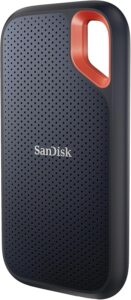 SanDisk Extreme Portable SSD 1 TBThis pocket SSD plugs into a computer over USB to hold all your photos, videos and files. It frees up the phone and the online account before a big backup.AmazonSee at Amazon
- SanDisk Ultra Dual Drive Go 128 GB, USB-C and USB-A flash drivePlugs straight into a phone with a USB-C port and into a computer with USB-A. Handy for keeping a copy of your contacts, photos and files.AmazonSee at Amazon
- Samsung EVO Plus 256 GB microSD card (2024) with SD adapterThis microSD card adds storage to Android phones that have a card slot. Moving photos and videos onto it lightens the phone memory and the WhatsApp backup.AmazonSee at Amazon
Frequently asked questions
Why doesn’t my USB drive show up in File Explorer?
There are two possible cases: the drive has no drive letter, or its space is unallocated. Open Disk Management: if the drive is listed there, assign it a letter (solution 2). If it is not, test another port and another PC, with no hub.
How do I get Windows to recognize a USB drive?
Plug it directly into the PC, then check Disk Management. Next, uninstall the drive in Device Manager to force Windows to reload its driver. USB selective suspend and Windows updates are the next leads.
How do I recover files from a USB drive that isn’t recognized?
Do not format the drive or initialize the disk, as both erase everything. If the drive opens after solution 2 or 3, copy your files right away. If it stays invisible everywhere, a data recovery specialist is the only safe option for valuable files.
What does “USB Device Not Recognized” mean?
The message means a connected device has malfunctioned and Windows cannot identify it. Microsoft links it to an unstable USB driver, unstable USB controllers, selective suspend, missing updates or outdated chipset drivers. Solutions 3 and 4 deal with these causes.
Share this content: