
Updated on October 23, 2026
This article contains affiliate links: if you buy through them, Wanda-techs earns a commission at no extra cost to you.
A laptop is not charging when it stays plugged in but the percentage never climbs, or when charging stops by itself at 60 or 80%. The most likely cause is the charger, the cable, or a charge limit switched on in the manufacturer’s utility, well before a worn-out battery. Set aside half an hour to work through the checks.
Common symptoms and causes
- Laptop plugged in but not charging: charger, cable, wall outlet or a damaged charging port.
- Charge stuck at about 55 to 60% on a Lenovo: Conservation Mode is on, which is not a fault.
- Charge stuck at 60 or 80% on an Asus, or below the maximum on a Dell: a charge limit is protecting the battery.
- Slow charging, or a battery that drains while plugged in: a USB-C charger too weak for this laptop.
- No charging at all after a Windows update or reinstall: a faulty battery driver or BIOS.
- Very short battery life: a worn battery whose capacity has dropped below 40% of its original capacity.
Before you start
Have the laptop’s original charger, or one with the same power rating, within reach, along with the manufacturer’s utility if it is installed (Lenovo Vantage, MyASUS). Use a Windows administrator account for solutions 4 and 5.
Warning: never puncture, bend or heat a lithium battery. A swollen battery will not charge again and goes to a collection point. Work on a non-flammable surface, and stop charging a battery that is hot or deformed.
Warning: opening the device can void the warranty, so check the warranty end date first. This guide does not describe any disassembly or the removal of an internal battery.
Warning: unplug the device from the mains before opening it, and never work on a device that is plugged in. The capacitors in some devices (TVs, microwaves, power supplies) stay charged after unplugging, so do not touch them. Use the original charger or one with the same power rating, and replace any damaged cable.
Solution 1: check the charger, the cable and the port
- Plug the charger into a different wall outlet, one you have tested with another device.
- Inspect the cable along its whole length and at both ends, as well as the plug that goes into the laptop.
- Replace the charger or the cable if it is damaged, with the original model or one with the same power rating.
- On a USB-C laptop, plug the cable into the laptop’s charging port, not into another USB-C port.
- Check that the charger delivers the voltage and current the laptop asks for.
- Leave the laptop asleep or switched off while it charges to see whether the percentage rises.
The percentage should go up.
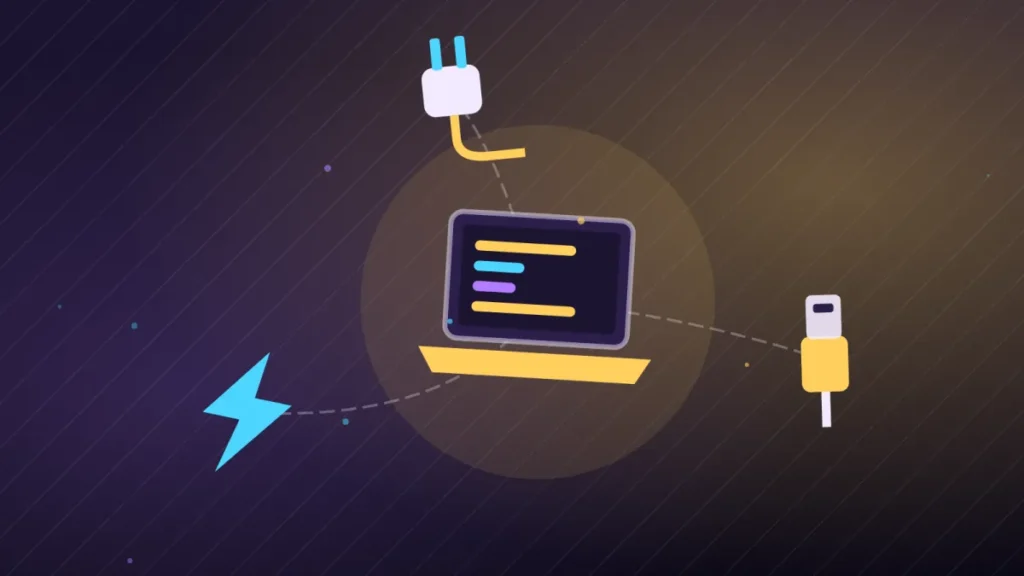
Good to know: basic USB-C delivers only 15 W (5 V and 3 A), so a laptop needs a USB Power Delivery charger (USB PD, the fast-charging standard of USB-C) with enough power. One that asks for 12 V and 3 A charges poorly on a 5 V, 3 A charger. If you are unsure, ask the laptop’s manufacturer.
If the charger is the culprit, here is a 65 W USB Power Delivery charger that suits most laptops charged over USB-C.
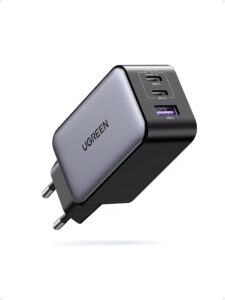
UGREEN Nexode 65 W charger (3 ports)
This 65 W charger has three ports to power a phone, a tablet and a laptop at once. It keeps the battery full during a long backup.
- AmazonSee at Amazon
- CdiscountSee at Cdiscount
- AliExpressSee at AliExpress
Tip: Asus advises against swapping chargers between its products, even ones that look identical. Keep the charger that came with your laptop.
Solution 2: do a power reset
A power reset (called a power reset by HP) erases no data. Dell also mentions a hard reset as a first step, without detailing the procedure. The exact procedure and how long to hold the button vary by brand and model, so follow your manufacturer’s support page.
- Shut the laptop down.
- Unplug the charger, then remove drives, memory cards and peripherals.
- Hold the power button down, with the charger unplugged, for the time the manufacturer gives for your model.
- Plug the charger back in and turn the laptop on.
The laptop should start on the charger and the battery icon should show that it is charging.
Tip: if it restarts, leave it plugged in for an hour or two before judging the battery. A percentage that barely moves in the first few minutes proves nothing.
Good to know: the hold time varies by brand and model, so look it up on the manufacturer’s website. On an Asus, the equivalent reset has a different name (EC reset) and follows its own procedure.
Solution 3: turn off the charge limit (Lenovo, Asus, Dell)
Charging that stops at 60 or 80% is often a deliberate protection, not a fault.
Lenovo: Conservation Mode stops charging at about 55 to 60%.
- Open Lenovo Vantage, then Device > My Device Settings > Power.
- Turn off Conservation Mode. On some IdeaPad models, the setting is in Battery Settings.
- On a ThinkPad, also turn off the custom charge threshold (custom battery charge threshold).
Good to know: according to one IdeaPad user, this setting can switch itself back on without warning. To confirm, let the battery drop to about 50%, then plug in again: if charging resumes, the limit was the cause.
Asus: the Battery Health Charging feature in MyASUS offers three modes.
- Right-click the battery icon in the taskbar.
- Choose the full-capacity mode to charge up to 100%. If the options are not there, look under MyASUS > Device Settings > Battery Care Mode.
- If the charge is already above the threshold, unplug the charger until it falls below, then plug it back in.
The balanced mode stops charging above 80% (blue icon) and the maximum-lifespan mode above 60% (green icon). The threshold applies only once the Windows desktop has loaded, and goes back to 100% during startup, in the BIOS or during updates.
Dell: the charging mode is set in the BIOS, the low-level software built into the motherboard.
- Turn the laptop on and press
F2about once a second to enter the BIOS. - Open the Power or Battery section, then Battery Configuration (or Battery Charge Settings, depending on the model).
- If Primarily AC Use or a low custom threshold is active, choose Standard, which charges to 100%.
Charging should resume up to the maximum.
On other brands, look for an equivalent setting in the manufacturer’s utility or in the BIOS. According to Microsoft, Windows 11 also has smart charging on some PCs that deliberately keeps the battery below 100%. To turn it off, Microsoft points you to the manufacturer.
Solution 4: reinstall the battery drivers and update the BIOS
A driver is the software that lets Windows talk to a component. Windows reinstalls the battery drivers by itself at restart.
- Open Device Manager and expand the Batteries section.
- Right-click Microsoft ACPI-Compliant Control Method Battery, then choose Uninstall device and confirm with Uninstall.
- Do the same for Microsoft AC Adapter.
- Restart the laptop.
- Install the Windows Update updates and the latest BIOS version offered by the manufacturer.
- On a Dell, also update the Intel Management Engine Interface driver, in the System devices section of Device Manager.
- On an Asus, open MyASUS, go to its system diagnosis section, run the battery check and read the results.
Both drivers should reappear under Batteries and charging should resume.
Good to know: if charging does not resume, Asus also suggests restoring the BIOS default settings (F2 at startup). This wipes your custom BIOS settings, so write them down first.
Solution 5: measure wear with the battery report
The Windows battery report compares the battery’s original capacity with its current capacity.
- Press
Win+R, typecmdand pressEnter. - Type
powercfg /batteryreportand pressEnter. - Open the file
C:\Users\YourName\battery-report.htmlin a browser, where YourName is your Windows user name. - In the installed batteries section, compare the design capacity with the full charge capacity.
- Replace the battery if the full charge capacity is below 40% of the design capacity.
The report also shows recent usage, estimated battery life and sometimes the cycle count.

Good to know: a small gap between the two capacities is normal, since the design capacity includes a margin of about 10%. Capacity also varies with temperature and the number of cycles. According to user reports, the file is sometimes created only from a command prompt opened as administrator.
To replace a worn battery, follow our guide to replacing your laptop battery, keeping the warranty warning in mind.
If nothing works
Stop and contact the manufacturer’s support if the battery is swollen, if the manufacturer’s diagnostic reports a failing battery, if the capacity is below 40% of the design capacity, or if the laptop still does not charge with a working charger after the power reset, the driver reinstall and the BIOS update.
First check whether the laptop is still under warranty, then prepare:
- the exact model and serial number;
- the battery report
battery-report.html; - a backup of your data before it goes in for repair.
If the repair costs more than the machine is worth, here are three recent laptops to compare.
- Lenovo Googlebook 15 (Core Ultra 5, 16 Go, 256 Go)Googlebook de Lenovo : écran OLED tactile 15,3 pouces 2,8K, Intel Core Ultra 5, 16 Go de mémoire, 256 Go de stockage.Fnac1,349.99 €See at Fnac
- Asus Googlebook 14 CX9 (Core Ultra 5, 16 Go, 512 Go)Googlebook d'Asus : 0,99 kg, écran OLED tactile 14 pouces 2,8K, Intel Core Ultra 5, 16 Go de mémoire, 512 Go de stockage.Fnac1,399.99 €See at Fnac
- Acer Googlebook 14 (Core Ultra 5, 16 Go, 512 Go)Googlebook convertible d'Acer : écran OLED tactile 14 pouces 2,8K, Intel Core Ultra 5, 16 Go de mémoire, 512 Go de stockage.Fnac1,199.99 €See at Fnac
Prices checked on October 10, 2026. Prices and availability may change.
Take better care of your laptop: our toolbox
These accessories help you charge, troubleshoot and back up a laptop.
- Anker USB-C to USB-C cable 140 W, braided, 1.2 mA braided 1.2 m USB-C cable to charge and transfer data from a phone, a tablet or an earbuds case. Handy to rule out a damaged cable when charging goes wrong.AmazonSee at Amazon
- Anker Nano power bank 10,000 mAh 45 W with retractable USB-C cableCharges an Android phone or a USB-C iPhone anywhere, with a built-in retractable cable so you carry nothing extra. Handy to test charging with a different cable and to never run out of battery.AmazonSee at Amazon
 SanDisk Extreme Portable SSD 1 TBThis pocket SSD plugs into a computer over USB to hold all your photos, videos and files. It frees up the phone and the online account before a big backup.AmazonSee at Amazon
- AABCOOLING Compressed Gas Duster Flex 750 ml, set of 3Blows dust out of the controller's USB-C port, button gaps and sticks, and a flexible tube reaches tight corners. A clean port gives the cable a better contact.AmazonSee at Amazon
Frequently asked questions
Why is my laptop plugged in but not charging?
Check the outlet, the cable, the port and the charger first, using a working original charger. If the percentage stays frozen at 60 or 80%, a charge limit is on. Otherwise, reinstall the battery drivers.
Why is my battery stuck at 80%?
A protection setting stops charging on purpose. On an Asus, the balanced mode of Battery Health Charging stops charging above 80%; on a Lenovo, Conservation Mode holds it at about 55 to 60%. Switch back to full charging in the manufacturer’s utility or, on a Dell, in the BIOS.
How can I tell whether it is the charger or the battery?
Try a working original charger on the same laptop model. If the laptop charges, the old charger is at fault. If it still does not charge, run powercfg /batteryreport: a full charge capacity below 40% of the design capacity points to the battery.
Why does my laptop not charge when it is turned on?
The charger may not deliver the power the laptop asks for, especially over USB-C, so check its voltage and current. The laptop charges faster asleep or switched off. If the battery still drains quickly, see how to fix the critical battery level on your PC.
Share this content: