

Updated on November 16, 2026
This article contains affiliate links: if you buy through them, Wanda-techs earns a commission at no extra cost to you.
NFC is not working on your Android phone: contactless payment fails, or the phone no longer reads a card or a tag (a small electronic sticker). NFC, short for near-field communication, is the chip behind tap-to-pay.
Start with the simple things. NFC switched off, phone locked, antenna not lined up with the reader, or a case blocking the signal: check these four before anything else.
Common symptoms and causes of NFC not working
- NFC switched off in the settings or the quick settings panel
- Phone locked at the moment you pay, or no screen lock set
- NFC antenna not lined up with the reader
- Thick, metal, magnetic, wallet-style or LED case
- Wrong default payment app, or no card added in Wallet
- Uncertified phone: rooted, custom ROM or unlocked bootloader
- Software bug, or a bug that appeared after an update; Wallet or Google Play services out of date
- SIM card problem (Samsung)
- Reader that does not accept contactless for your card network
Before you start
To pay with Google Wallet, you need:
- a phone with NFC, running Android 9 or later;
- at least one card added to Wallet;
- a screen lock (PIN, pattern, password or Class 3 biometrics);
- a device certified by Play Protect, Google’s security check.
Warning: Solution 5 erases data, so back up first. Clearing Samsung Wallet data may mean adding your cards again.
Warning: opening the device may void the warranty, so check your warranty end date first. No step in this guide asks you to open the phone.
The risk mostly concerns a rooted or modified phone. It can no longer pay with Google Wallet: you have to reinstall the original system.
Solution 1: turn on NFC on Android, Samsung and Xiaomi
On a Google Pixel or an Android phone without a custom skin:
- Open Settings > Connected devices > Connection preferences > NFC.
- Turn on the NFC option.
On a Samsung Galaxy (One UI):
- Swipe down with two fingers to open the quick settings panel.
- Tap the NFC button to turn it off, then tap it again to turn it back on: this clears a temporary glitch.
- If the NFC button is missing, open Quick settings panel > More options > Edit buttons.
- Touch and hold the NFC button and drag it into the panel.
- Tap Done.
On a Xiaomi, the labels change with the model and the HyperOS version, and we could not check them on Xiaomi’s help pages:
- Look for NFC in Settings > Connection & sharing > NFC on older models, or in Settings > More connectivity options > NFC on some recent models such as the Xiaomi 14T Pro.
- Turn on the NFC option, which is also in the control center on some models.
- If a secure element position setting appears, choose HCE Wallet.
The NFC button or option should now show as on. Try the payment or the reading again.
Solution 2: use the phone unlocked and line it up with the reader
- Check that a screen lock is set in the Security and privacy settings (the screen lock setting).
- Make sure the phone is unlocked before you pay.
- Open Wallet before holding the phone to the reader, to avoid the screen-lock prompt.
- On a Samsung, open Settings > Connections > NFC and contactless payments to see where the antenna sits on screen.
- Hold the antenna area flat against the reader.
- Keep the phone against the reader a few seconds longer.
- Take the case off and test again.
The reader should approve the payment, or the phone should read the card or tag.
Warning: the code the phone asks for is your screen lock code. Never your bank card PIN.
Good to know: the message Try again means the phone moved too fast, was too far away or has a case that is too thick.
Tip: on Samsung phones, non-official, magnetic, wallet-style or metal cases block NFC. A case with its LED lit turns it off.
Solution 3: choose the default payment app and check your card
On a Pixel or an Android phone without a custom skin:
- Open Settings > Connected devices > Connection preferences > NFC > Contactless payments.
- Choose Google Wallet.
On a Samsung Galaxy:
- Open Settings > Connections > NFC and contactless payments > Contactless payments.
- Choose your payment app; other apps are under the Others tab.
Then, on every phone:
- If Wallet holds no card, open Wallet and tap Add to Wallet > Payment card > New credit or debit card.
- Open Play Store > profile icon > Settings > About and check the Play Protect certification.
The app you picked should show as the default, and the phone as certified. If your card is refused when you add it, follow our guide Google Wallet declining your card.
Good to know: on Samsung, the “Pay with the currently open app” option lets you pay with an app other than the default one, as long as it is open. Google Wallet does not support a rooted phone, or one with a custom ROM, modified firmware or an unlocked bootloader.
Does the reader ask you to insert or swipe your card? It may not accept contactless for your card network. With the phone unlocked, open Wallet, then try again; on a self-service kiosk, press X to reset it.
Does your phone show a check mark while the merchant sees a failure? Try another reader, ask your bank or pay another way.
Solution 4: restart and update the system, Wallet and Google Play services
- Restart the phone.
- Open Settings > System > Advanced > System update and install the update on offer.
- Update the Wallet app.
- Open Settings > profile picture > All services > System services > Google Play services.
- Tap Update or Install if the button appears.
- Force stop the payment app, then reopen it.
- In the date and time settings, turn off automatic date and time as well as automatic time zone.
- Change the time, then turn both options back on to resync the clock.
- Restart the phone.
The phone should now be up to date and show the exact time. Try the payment again.
Good to know: according to press reports, the HyperOS 2.3 update caused an NFC and Google Wallet bug, mostly on the Xiaomi 15 series, fixed by a later update. On a Xiaomi, install the latest update available.
See also: Android Auto not working anymore.
Solution 5: clear Samsung Wallet’s cache if NFC payment stopped working
This is not an official Samsung procedure. Users on the Samsung community forums suggest it when NFC payment stops working after an update.
Warning: step 2 erases Samsung Wallet data; you may have to add your cards again.
- Clear the cache of the Samsung Wallet app.
- If the problem persists, clear the Samsung Wallet data: you may have to add your cards again.
- Restart the phone.
If your cards are gone, add them again in the app. Samsung Wallet should then reopen ready to pay.
If nothing works
Try another reader first. On a Samsung, some NFC services store their data on the SIM card, and Samsung advises reseating it:
- Push the ejection tool straight into the hole of the SIM tray.
- Pull the tray out completely.
- Put the SIM card back, gold contacts facing up, then slide the tray in again.
- Restart the phone.

If NFC still does not work, ask your carrier for a new SIM card. Then contact Samsung support by chat, through the Samsung Members app, or at a service center.
Were you paying contactless with Google Wallet and it stopped working? Contact the phone maker: an update may be to blame. A dead NFC antenna, on the other hand, gets repaired in a workshop.
If the repair costs more than the phone is worth, here are three recent Android smartphones with NFC to compare.
- Samsung Galaxy S26 256 GoLe Galaxy S compact de 2026 : 167 g, puce Exynos 2600 en 2 nm, triple capteur photo et 7 ans de mises à jour.AmazonSee at Amazon
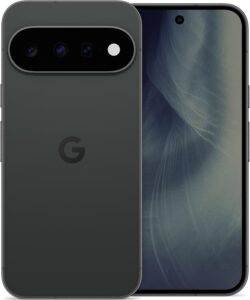 Google Pixel 11 256 GoSmartphone 5G de Google, écran 6,3 pouces, puce Tensor G6, 256 Go.AmazonSee at Amazon
- Xiaomi Redmi Note 15 Pro 5GSmartphone Xiaomi Redmi Note 15 Pro 5GAmazonSee at Amazon
Take better care of your Android phone: our toolbox
A few handy accessories to test NFC and handle your phone without damaging it.
- MCalle NTAG215 NFC tags, pack of 20 round 30 mm stickersRewritable 540-byte NFC stickers that Android phones can read. Handy for testing NFC reading or triggering an action by tapping the phone.AmazonSee at Amazon
- MMOBIEL set of 16 SIM tray eject tools, compatible with Samsung, Xiaomi and moreEject pins that open the SIM card tray without damaging the phone. Handy for reseating or changing the SIM.AmazonSee at Amazon
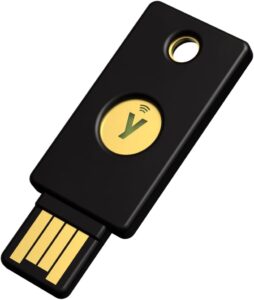 Yubico YubiKey 5 NFC, security keyPhysical key that confirms a sign-in to your Google account over NFC or USB. Protects the account that synchronises your contacts.AmazonSee at Amazon
Frequently asked questions
Why is NFC not working on my phone?
Check three things first: NFC may be switched off, the phone may be locked, or the antenna may not be facing the reader. A thick, metal or magnetic case also blocks the signal. After that come the default payment app, the card in Wallet, updates and Play Protect certification.
How do I turn on NFC on Android?
On a Pixel, open Settings > Connected devices > Connection preferences > NFC and turn the option on. On a Samsung, swipe down with two fingers and tap the NFC button in the quick settings panel. On a Xiaomi, the setting is in the connection settings or in the control center, depending on the model.
Where is the NFC chip on a Samsung phone?
Samsung shows the antenna position in Settings > Connections > NFC and contactless payments. Hold that area flat against the reader. Holding the phone the wrong way round makes the antenna miss.
Why has contactless payment stopped working on my phone?
First check that Wallet holds a card, that it is the default payment app and that the phone is Play Protect certified. A rooted phone or one with an unlocked bootloader can no longer pay with Google Wallet. If payment worked before, contact the phone maker: an update may be to blame.
Does my phone need to be unlocked to pay with NFC?
Yes, the phone must be unlocked before you pay with Google Wallet. Opening Wallet before you hold the phone to the reader avoids the screen-lock prompt. The code asked for is your screen lock code, never your card PIN.
Share this content: