

Converting your photos into PDF files can be very useful for sharing documents, organizing your images, or keeping them in a secure format. Thanks to a hidden feature in your gallery app (specifically on Samsung Galaxy devices), you can enable this option and save images as PDFs. Here is a step-by-step guide to help you configure and use this feature effectively.
Step 1: Access your Gallery Settings
To begin, open the Gallery app on your phone. Once on the main page, locate the three small lines (hamburger menu) at the bottom right of the screen. Click on them to access the Settings menu of your gallery.
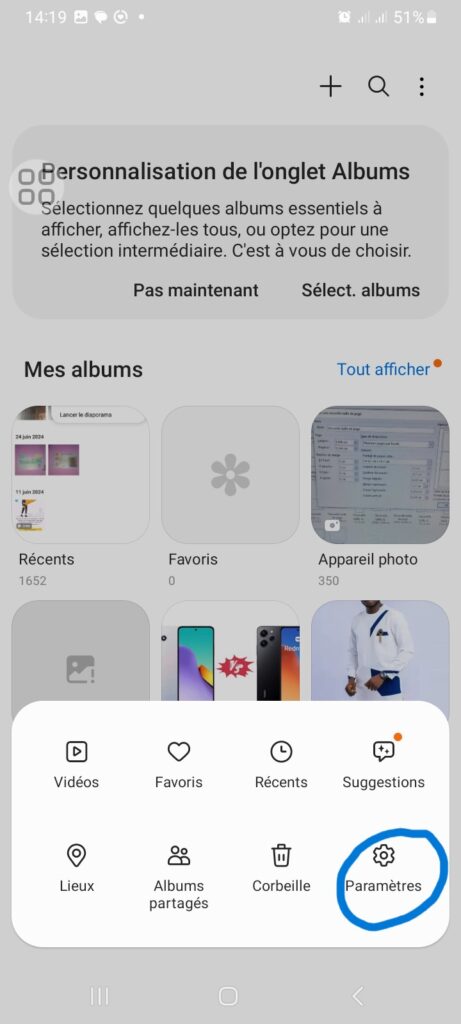
Step 2: Access the “About Gallery” Option
In the settings menu, scroll all the way down until you find the About Gallery option. This section displays technical information such as the app’s version number.
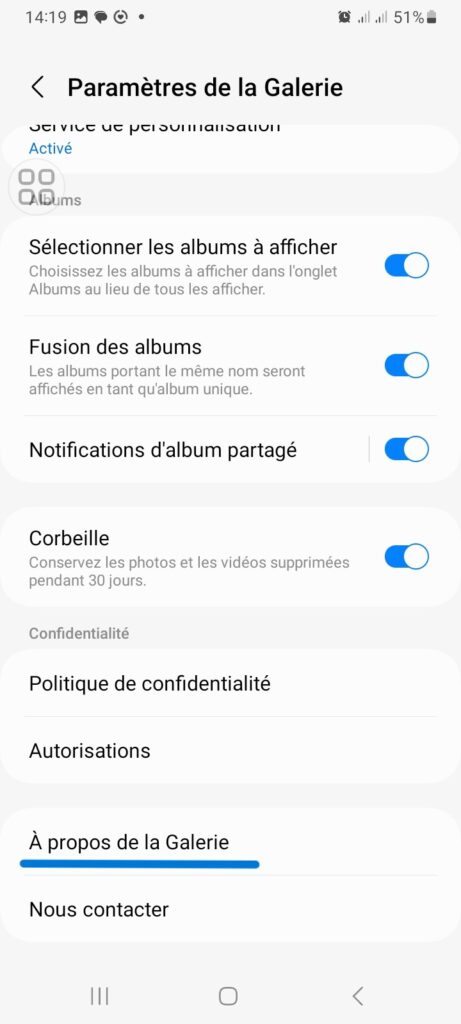
Step 3: Enable “Gallery Labs” Mode
In the About Gallery menu, locate the version number and tap it 10 times in a row. Once this is done, a message will appear at the bottom of the screen indicating that the Gallery Labs menu is now enabled. Gallery Labs is a hidden section containing experimental or advanced features. Once activated, it will be visible at the very bottom of your gallery settings.
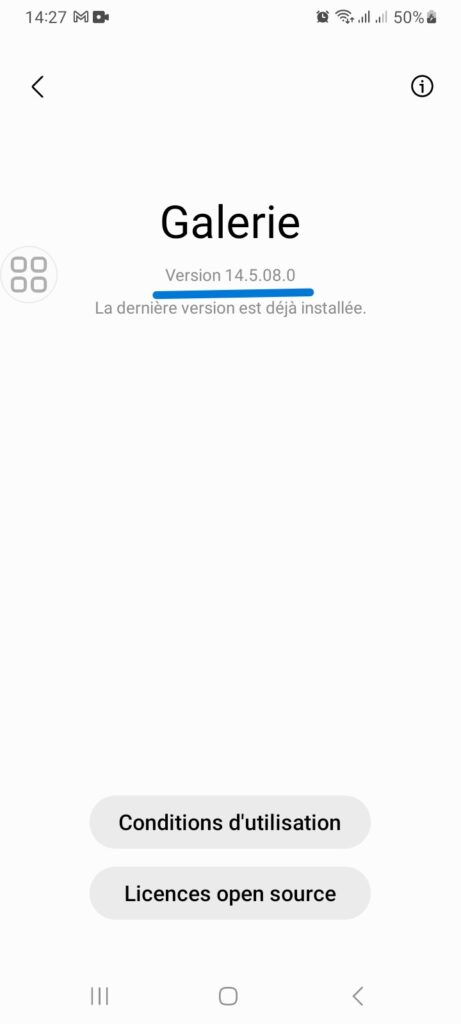
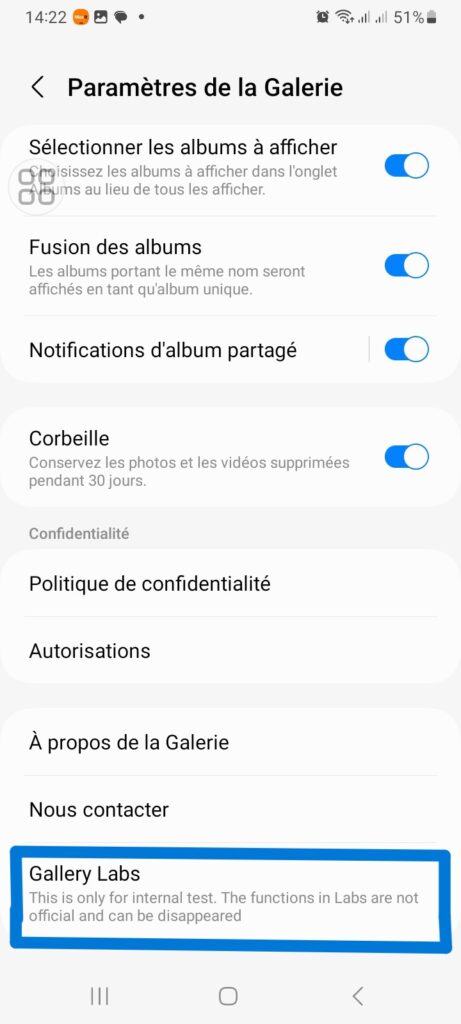
Step 4: Activate the “Support Save as PDF” Option
Enter the Gallery Labs menu and search for the option that allows you to save images as PDF (often labeled “Support Save as PDF“). Enable this feature by toggling the corresponding switch. Once this step is completed, your gallery is ready to convert photos into PDF files.
Step 5: Save Images as PDF
Return to your main gallery and select the photo(s) you wish to convert. Tap on Create (or the share/print icon depending on your version). You will now see a new option to Save as PDF. Follow the prompts to finalize the file creation.
With these simple steps, you can unlock a powerful feature on your phone to save images as PDFs directly from your gallery. Whether for professional or personal use, this option allows you to manage your images conveniently and efficiently. Don’t hesitate to explore other hidden features to get the most out of your gallery app.
Read also:
Share this content: