

This article contains affiliate links: if you buy through them, Wanda-techs earns a commission at no extra cost to you.
An external hard drive that is not recognized no longer shows up in File Explorer or in the Finder. Most of the time the culprit is the cable, the USB port, the power supply or a missing drive letter in Disk Management. Allow 10 to 20 minutes for these checks, which do not touch your data.
Common symptoms and causes
- The drive is visible in Disk Management but has no drive letter, or a letter that is already taken: File Explorer does not list it.
- The drive is shown as “Offline”, “Not Initialized” or “Unallocated”.
- The volume appears as
RAW: its file system may be damaged. - The cable or the USB port is faulty, or the drive is not getting enough power (a desktop drive without its power adapter).
- Device Manager reports a
Code 10,Code 28orCode 43error. - The drive has failed: it shows up neither in Disk Management nor on a second computer, or it makes a clicking noise.
- On a Mac, the volume is not mounted or its file system contains errors.
Before you start
- Use a Windows administrator account (or a member of the Backup Operators group): you need it to change a drive letter.
- Have a second computer on hand to find out whether the problem comes from the PC or from the drive.
Warning: initializing, formatting or erasing the drive, running chkdsk or reinstalling can destroy your data. Recover or back up your files before any repair: an initialized or formatted drive loses all its content. If the drive makes a clicking noise, stop everything and contact the manufacturer’s support or a data recovery service.
Warning: opening the drive’s enclosure may void the warranty, so check the warranty end date first. A faulty drive that is still under warranty can be replaced by the manufacturer.
Solution 1: check the cable, the USB port and the power supply
- Plug in the drive and look at its light: if it stays off, the drive may not be getting power.
- For a desktop drive, the kind with its own power adapter, plug the adapter into a wall outlet, not a power strip or surge protector.
- Replace the USB cable with another one.
- Plug the drive into a different USB port on the computer.
- Plug it straight into the PC, with no hub or USB adapter in between.
- Try the drive on another computer.

The drive should appear in File Explorer. If it works on the second computer, the problem lies with the first PC or its USB drivers: move on to the next solutions. If it stays invisible on both, the drive is probably faulty and covered by its warranty.
If the cable is to blame, here is a USB 3.0 Micro-B cable that works with most WD, Seagate and Toshiba drives.

UGREEN USB 3.0 A to Micro-B cable, 0.5 m, for external hard drives
Replaces the cable of a USB 3.0 external hard drive with a Micro-B connector (WD, Seagate, Toshiba). A new cable rules out a common cause of dropped connections.
- AmazonSee at Amazon
Tip: on a desktop PC, prefer the USB ports on the back of the case. They are soldered to the motherboard, while the front ones go through an internal extension cable.
Good to know: the procedure is similar for a USB flash drive not recognized on Windows.
Solution 2: external hard drive visible in Disk Management but without a letter
Disk Management is the Windows tool that lists every connected drive, even those File Explorer ignores. Without a drive letter (E:, F:…), a drive stays invisible in File Explorer.
- Right-click the Start button and choose Disk Management (or press Windows+R, type
diskmgmt.mscand press Enter). - Right-click the external drive’s volume and choose Change Drive Letter and Paths.
- Click Add if the volume has no letter, or Change if it has one.
- Select Assign the following drive letter and pick a free letter from the list.
- Click OK, then Yes to confirm.
The drive should appear in File Explorer under its new letter.
Warning: never change the letter of the drive that holds Windows or your applications.
If the option is greyed out or missing, the drive is unallocated and needs to be initialized, it is an EFI system or recovery partition, or your account lacks the required rights.
The drive is “Offline”
- Right-click the disk and choose Online.
The disk should switch to “Online”. If it then shows “Not Initialized”, see the last resort below, after you have recovered your data.
Solution 3: check the drive in Device Manager
- Press Windows+R, type
compmgmt.mscand press Enter. - Open Device Manager > Disk drives and look for the external drive.
- If it is not listed, expand Universal Serial Bus controllers and Other devices, and look for a device marked with a yellow icon.
- Double-click it and read the code shown under Device status.
What to do depending on the code:
Code 10: the drive has probably failed. First try another cable and another computer.Code 28: try the drive on another computer.Code 43: follow the steps below.
- Right-click the device and choose Uninstall device.
- Unplug the drive.
- Restart the PC.
- Plug the drive back into a different USB port.
The drive should reappear under Disk drives, without a yellow icon.
Good to know: according to an older Seagate page, not verified for Windows 10 and 11, an external drive does not need a manufacturer driver. Its procedures around the INFCACHE.1 file target Windows Vista and 7.
Solution 4: turn off USB selective suspend
USB selective suspend puts unused USB ports to sleep to save power. Microsoft turns it on by default and advises against disabling it: this setting comes from user reports, so try it as a last resort on Windows.
- Open Control Panel > Power Options.
- Click Change plan settings, then Change advanced power settings.
- Expand USB settings > USB selective suspend setting.
- Choose Disabled for both On battery and Plugged in, then click OK.
- In Device Manager, double-click a USB Root Hub or a Generic USB Hub.
- On the Power Management tab, clear “Allow the computer to turn off this device to save power”, then click OK.
Unplug and replug the drive: it should stay visible in File Explorer. On some custom power plans, the USB setting does not appear.
Solution 5: on a Mac, check the drive in Disk Utility
- Open Finder > Applications > Utilities > Disk Utility.
- Choose View > Show All Devices.
- If the drive does not appear in the sidebar, shut down the Mac.
- Unplug any unneeded devices, turn the Mac back on and reconnect the drive, checking the cable, the connections and the power supply.
- If the volume appears indented under the disk but is not mounted, select it and click Mount.
- Select the last volume on the disk, click First Aid, then Run.
- Run First Aid again while working your way up the list: volume group, container, then device. Skip any item whose button is greyed out.

The volume should appear in the Finder. The Mac may ask for the administrator password.
A volume that refuses to mount may have a damaged file system.
Tip: to see whether the Mac detects the drive, hold the Option key, click the Apple menu, choose System Information and look at the USB section.
Warning: if First Aid fails or finds errors it cannot repair, the only option left is to erase the disk in Disk Utility, which deletes all its data. Recover your files first.
Last resort on Windows: initialize the drive
Warning: initializing erases the content of the drive. Use it only on an empty drive, or on one whose data you have already recovered.
- In Disk Management, right-click the disk and choose Initialize Disk.
- Choose GPT for a recent PC (UEFI), a large-capacity drive or more than four partitions, or MBR for older hardware, then click OK.
The drive should show up as initialized in Disk Management. Some USB drives cannot be initialized, only formatted.
If the volume appears as RAW, “Unallocated” or without NTFS, its file system (the structure that organizes files on the disk) may be damaged. Reformatting erases everything: do it only if you do not need the data. Otherwise, see how to recover files from a formatted drive or hand the drive to a professional.
If nothing works
Stop if the drive appears neither in Disk Management nor in Device Manager on two computers, if it makes a clicking noise or if it shows Code 10 on another PC. Do not format it.
- Your data matters: hand the drive to a professional data recovery service.
- Your data does not matter and the drive is under warranty: ask for a replacement on the manufacturer’s warranty page.
- The problem persists: contact the manufacturer’s support.
If the drive is too old or out of warranty, here are three reliable external drives to compare. Copy your data first if it is still readable.
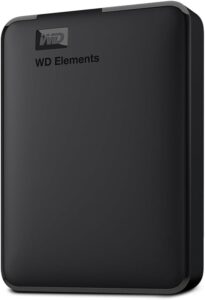 WD Elements 4 TB external hard driveStores a full copy of your files and settings before a risky operation such as a network reset or a system update. Connects by USB with no extra power supply.AmazonSee at Amazon
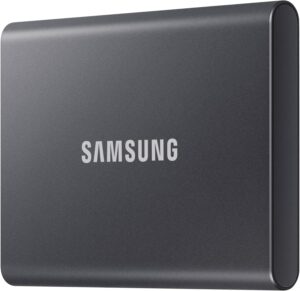 Samsung T7 1 TB external SSDFast, rugged pocket SSD to keep an offline copy of your site files and database at home. Unplugged, it is out of an attacker's reach.AmazonSee at Amazon
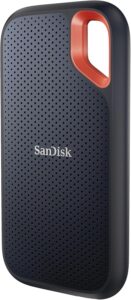 SanDisk Extreme Portable SSD 1 TBA fast pocket-sized external drive for keeping backups and exported archives. Shock-resistant and compatible with computers and many phones over USB-C.AmazonSee at Amazon
Keep the drive’s make, model and serial number at hand, along with the purchase date, your Windows or macOS version, the error code you noted and the list of solutions you have already tried.
Take better care of your external hard drive: our toolbox
A few accessories to connect, protect and back up your data.
- UGREEN USB 3.0 A to Micro-B cable, 0.5 m, for external hard drivesReplaces the cable of a USB 3.0 external hard drive with a Micro-B connector (WD, Seagate, Toshiba). A new cable rules out a common cause of dropped connections.AmazonSee at Amazon
- UGREEN 2.5-inch USB 3.0 external enclosure for SATA drivesTurns a 2.5-inch SATA drive or SSD into a USB 3.0 external drive, cable included. It also lets you read a drive taken out of an old PC.AmazonSee at Amazon
- SanDisk Ultra Dual Drive Go 128 GB, USB-C and USB-A flash driveUSB key with two connectors, for a computer or a phone. Handy for carrying files or a software update.AmazonSee at Amazon
- iFixit Mako precision screwdriver set, 64 bitsA precision driver with an aluminium handle and 64 bits, including the flat blade to open a key case. The magnetic case keeps the screws together so none gets lost.AmazonSee at Amazon
Frequently asked questions
Why is my external hard drive not recognized by my PC?
The drive may not be getting enough power, have a faulty cable or port, lack a drive letter or have a damaged file system. A driver error (codes 10, 28 or 43) or a failed drive are the other possible causes. A test on a second computer shows whether the problem comes from the PC or from the drive.
Why does my external hard drive not show up in File Explorer?
Most often, Windows has not assigned it a drive letter, or the letter is already taken. Open Disk Management: if the drive is listed there, give it a free letter.
How do I assign a letter to an external hard drive?
Open Disk Management, right-click the volume and choose Change Drive Letter and Paths. Click Add or Change, pick a free letter, then confirm with OK and Yes. You need an administrator account.
Can an external hard drive that clicks be repaired?
Not by yourself: according to Seagate, a drive that makes a clicking noise is a matter for the manufacturer’s support or a data recovery service. Unplug it and do not try to format or repair it. If it is under warranty and the data does not matter, ask for a replacement.
How do I recover data from an external hard drive that is not recognized?
If the volume is still readable, copy its data before any initialization, formatting or repair. If it shows up on no computer or if it clicks, hand it to a professional data recovery service. Never format a drive whose content you want to keep.
Share this content: