

This article explains how to create a virtual office onr Windows 11.
Why to create a virtual office on Windows 11?
The main task of a virtual desk / office is to separate your apps. For instance, if actually working on many tasks using different apps, you can separate your apps in function of the task and run an office for each task.
You can equally have an office meant for the work, another meant for games and fun, an office only meant only for your social apps, or anything at your convenience / that pleases you.
Since it’s so easy to create and delete offices on Windows 11, you’re free to create one whenever wanted, for any purpose, then delete it when you’re done. They’re conserved even after your computer shots down. Thus, you can conserve them in any setting/ configuration at your convenience.
How to create a new desktop on Windows 11
Virtual offices are being managed by the Task View function of Windows 11. Otherwise virtual offices management, Tasks View also supplies with a display of all the applications gathered on the actual office
This is how to create a new virtual office on Windows 11
- Click the task view icon (the black square with a transparent square on top) in your taskbar.
If you can’t see the tasks view symbol, go to Settings > Customisation > Tasks Bar and enable tasks view.
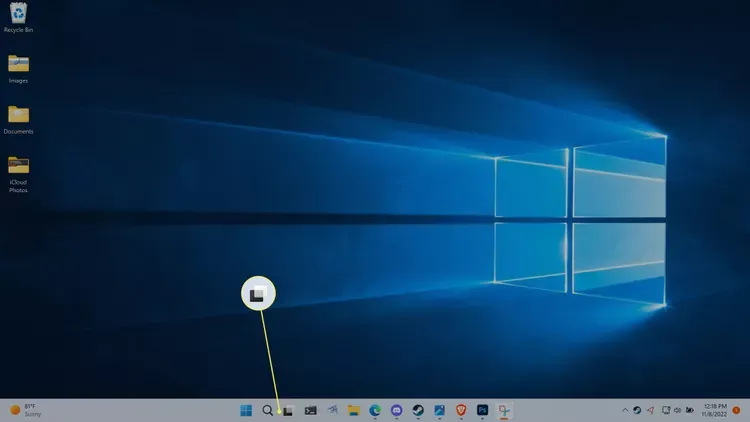
- Click on New office +.

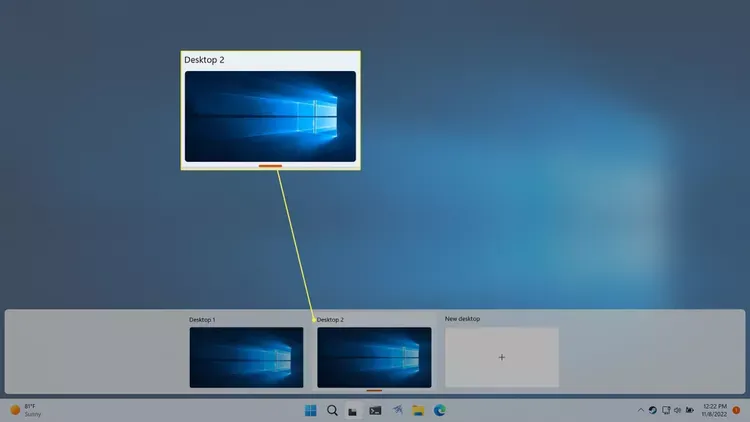
- Click on the thumbnail of the new desktop
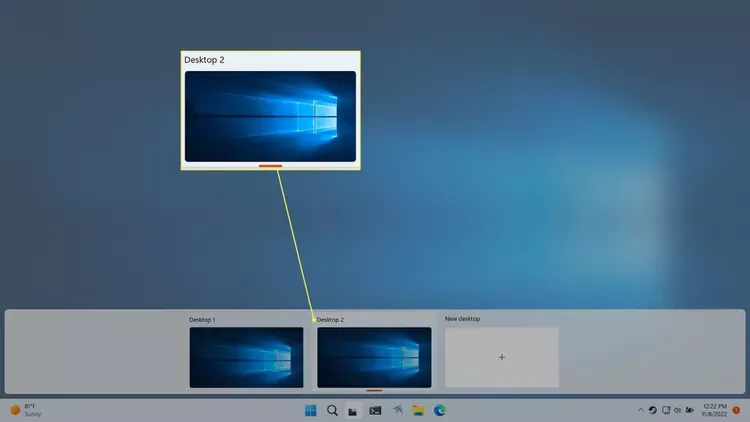
By default, the new desktop will be call Desktop 2, Desktop 3, Desktop 4 etc.
- Your view will switch to the virtual one.

The desktop shall have the same icons as the main desktop, but there will be no active applications in the taskbar until you move something to the new desktop or run a new app.
- To return to the original desktop, click or move your mouse over Task View and select the one titled Desktop 1

You can also switch between desktops by pressing Win + Ctrl + Left Arrow and Win + Ctrl + Right Arrow
How to delete a virtual desktop on Windows 11
Virtual desktops are very useful for when gathering together different sets of applications equally for different purposes, but those purposes are not always constant. When a desktop is no more necessary, you can delete it via the Task View function.
This is how to delete a virtual desktop when no more needed:
- Click on the Task View icon in the tasks bar

- Move the mouse on the desktop thumbnail that corresponds to the desktop you want to delete.
- Click on X on the right upper corner of the desktop thumbnail.
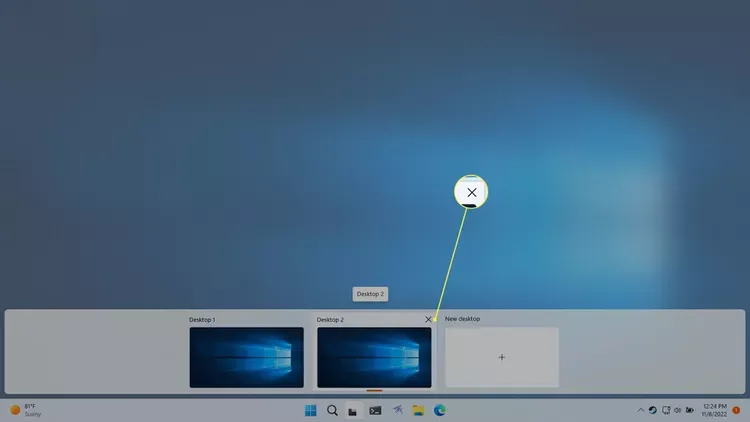
Remark: deleting a desktop doesn’t close the apps opened under the latter. They will be shifted to another opened desktop.
Find out
Share this content: