
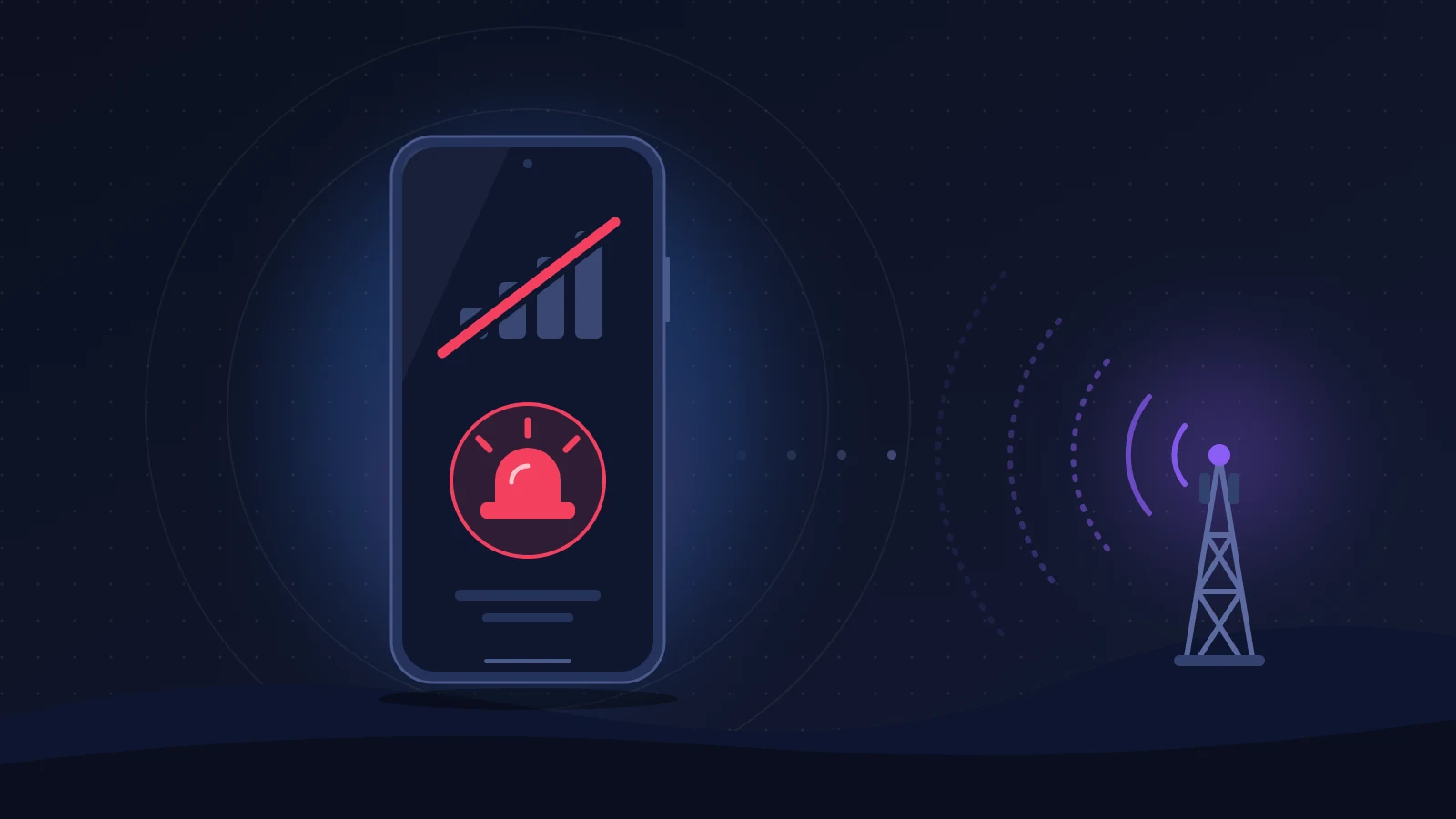
The iPhone SOS only status means the phone is no longer registered on its carrier’s network: it can still see cell towers, but only emergency calls go through. In the vast majority of cases the fault lies with the line, not the phone. Either the carrier’s network is down, or the eSIM profile installed on the device no longer matches what the carrier has on file, which happens readily after an eSIM is transferred from an old iPhone to a new one. The remedy that most often clears the problem is having the carrier reissue the eSIM, after giving it the phone’s EID and IMEI.
In short: the quick fix
- First find out whether other customers of the same carrier around you are affected. If they are, it is a network outage and no setting will fix it.
- Turn on Airplane Mode for at least 15 seconds, turn it off, then restart the iPhone.
- In Settings > Cellular, check that the line is turned on. Then go to Settings > General > About so that any carrier settings update can install.
- If the eSIM has just been transferred or is stuck on “Activating,” contact the carrier and ask for a new eSIM profile (QR code) tied to the iPhone’s EID.
- Do not delete the eSIM until you have what you need to reinstall it in hand.
Recognizing the problem
The symptom comes down to three letters. At the top right of the screen, where the signal bars should be, you see “SOS.” Open Control Center and the full wording appears: “SOS only.” Outgoing calls fail, text messages sit waiting, 4G and 5G are cut off. Everything that runs over Wi-Fi keeps working, which sometimes delays the moment you notice the fault.
Several variants exist, and they do not all mean the same thing:
- the phone alternates between a full 5G signal and SOS, sometimes several times an hour;
- the signal bars are there, but every call ends with “Call Failed”;
- the line stays on “Activating” indefinitely in Settings, or the eSIM installation ends with a failure message;
- service works for a few days after the new iPhone is set up, then vanishes all at once.
These scenarios have been described at length by iPhone 18 Pro Max owners on the MacRumors forums, Reddit and the Apple communities, mainly on the US carrier AT&T. For some, a new eSIM was enough. For others, several reissues changed nothing and only a replacement device settled the matter.
A note on wording. Apple states that the “SOS” label in the status bar exists only in the United States, Canada and Australia. Elsewhere, including on an iPhone used in the United Kingdom, in Europe or in Africa, the same situation shows up as “No Service” or “Searching.” The cause and the solutions are identical.
iPhone SOS only: why it happens
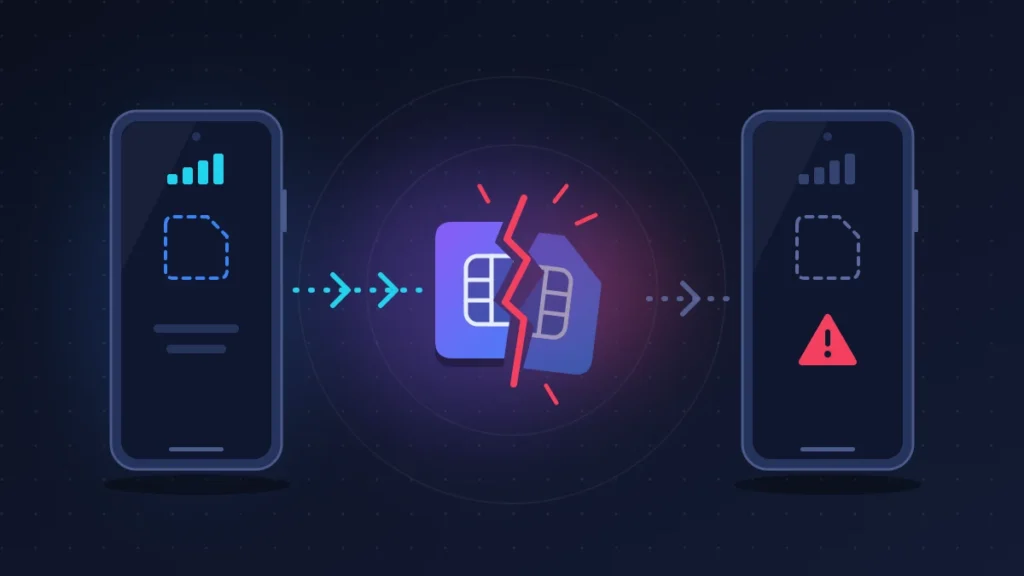
A mobile phone does more than pick up a tower. It has to register with it: the tower asks the carrier’s core network whether this subscriber is known and authorized. When the answer is no, or when no answer comes, the iPhone is left at the door. Regulations nonetheless require any network to accept an emergency call, even from a device that is not one of its subscribers. That is what “SOS” tells you: your carrier is no longer serving you, but a network, its own or a competitor’s, will route a call to the emergency services.
Three families of causes lead to that refusal.
The first is an outage on the carrier’s side. If the core network goes down, the towers keep transmitting but nobody can authenticate. Thousands of subscribers drop to SOS at the same moment.
The second concerns the line itself. An eSIM is a subscriber profile downloaded into a chip soldered into the phone. That chip carries a unique identifier, the EID, which the carrier associates with your number. During an eSIM Quick Transfer between two iPhones, the carrier has to deactivate the old profile, generate a new one and bind it to the new EID. If any of those steps fails behind the scenes, the phone shows a line that looks installed but that the network does not recognize. An account suspended for non-payment, an IMEI reported stolen or a line ported to another carrier produce the same refusal.
The third is hardware or software: a failing modem, an antenna damaged in a fall, a bug in a version of iOS. It is rarer, and becomes the suspect when a new eSIM changes nothing and the same line works in another phone.
Before you start
Connect the iPhone to a Wi-Fi network: nearly every eSIM operation needs one. Then note three pieces of information in Settings > General > About: the EID, the IMEI and the iOS version. Dialing *#06# in the Phone app also displays the EID and the IMEI. Take a screenshot, because the carrier will ask for them.
Keep the old iPhone within reach if it has not yet been erased. Have your account login details ready, along with a second phone to reach the carrier.
Warning: Apple advises against erasing an eSIM as a troubleshooting step. A deleted eSIM cannot be restored from a backup; it has to be reissued by the carrier.
Solution 1: find out whether the fault is on the carrier’s side
Do this first, because it saves an hour of pointless tinkering.
The checks
- Ask someone nearby on the same carrier whether they have service in the same place.
- Over Wi-Fi, check the carrier’s status page or official accounts, as well as an outage reporting site.
- Move a few hundred yards, or step outside the building.
If other subscribers are affected, wait. Deleting the eSIM during a general outage is the worst possible decision: the carrier will not be able to reissue it while its systems are down.
Solution 2: Airplane Mode, then a restart
This is the first step in Apple’s official procedure, and it carries no risk.
- Open Settings and turn on Airplane Mode.
- Wait at least 15 seconds.
- Turn it off and let the iPhone search for the network for a minute.
- If that fails, power the iPhone off completely and turn it back on.
Airplane Mode forces a fresh registration request to the network. When that is all it takes, the bars come back within seconds.
Solution 3: check the line and the carrier settings
Turn the line back on
- Open Settings > Cellular.
- Tap your line in the list of SIMs.
- Switch off “Turn On This Line,” wait a few seconds, then switch it back on.
With two lines on the iPhone, make sure you are looking at the right one: a forgotten travel eSIM set as the default for data gives exactly the impression of a fault.
Update the carrier settings
- Stay on Wi-Fi.
- Open Settings > General > About.
- Wait about ten seconds on that screen. If an update exists, a prompt offers to install it.
This small file gives the iPhone the parameters specific to each network. A freshly released model sometimes needs a newer version than the one that shipped with iOS.
Solution 4: roaming and manual network selection
Mostly useful when traveling, near a border or with a foreign plan.
- In Settings > Cellular, tap the line, then check that “Data Roaming” is on if you are outside your country.
- Open “Network Selection” and turn off “Automatic.”
- Wait while the phone searches, which can take more than a minute, then choose your carrier’s network or that of its roaming partner.
- Once the network is locked on, turn “Automatic” back on.
If the list shows your carrier but the connection is refused, you have a solid clue: the signal is there and it is the authorization that is missing. Head for solution 7.
Solution 5: update iOS
The first weeks of a new model often bring corrective updates that touch the modem. In Settings > General > Software Update, install the latest version on offer, over Wi-Fi, after an iCloud backup. This step does not repair a badly provisioned line, but it eliminates one cause and support will ask you to do it anyway.
Solution 6: reset network settings
- Open Settings > General > Transfer or Reset iPhone.
- Tap Reset, then Reset Network Settings.
- Enter your passcode and confirm. The iPhone restarts.
This erases saved Wi-Fi networks and their passwords, paired Bluetooth devices and VPN configurations. Your photos, apps and messages are untouched. Have the Wi-Fi password to hand before confirming, otherwise you will have no connection at all for what follows.
Solution 7: ask the carrier for a new eSIM
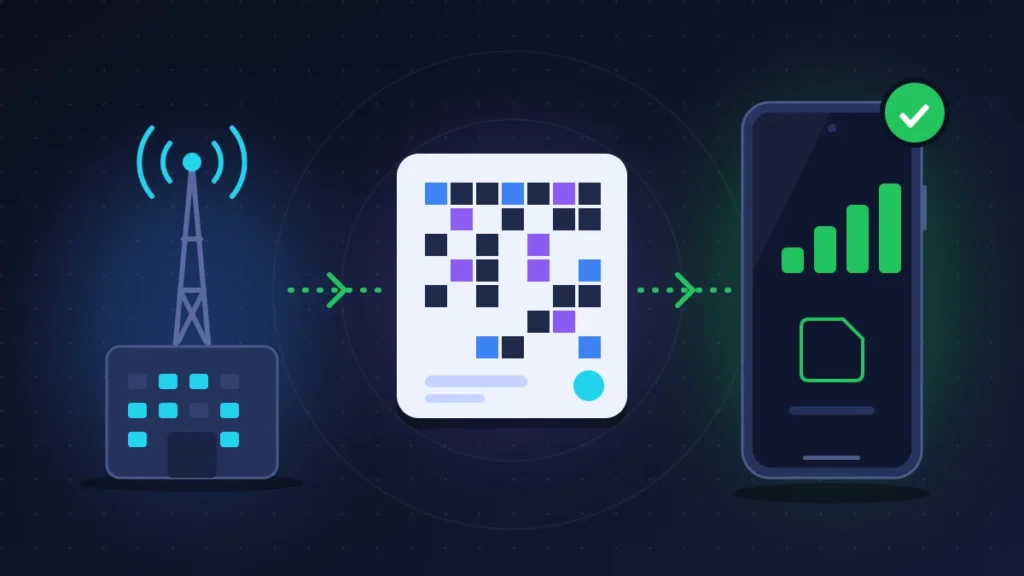
This is the fix that settles most of the failures that appear after an eSIM transfer. It costs little or nothing, and it does not require deleting anything beforehand: activating the new profile deactivates the old one.
What to say
Be precise, and the agent will save time: “My iPhone has shown SOS only since my eSIM was transferred. I would like you to check that my line is active, that the IMEI is not blocked and that the eSIM is associated with this EID. If it is not, please reissue an eSIM profile.” Provide the line’s number, the EID, the IMEI, the iOS version and the exact error message if there is one.
Where to make the request
| Carrier | How to request it | Indicative fee |
|---|---|---|
| AT&T, Verizon, T-Mobile (United States) | Online account, carrier app, phone support or store: ask for a replacement eSIM | Varies, check with the carrier |
| EE, Vodafone, O2, Three (United Kingdom) | Online account, carrier app, phone support or store: ask for a replacement eSIM | Varies, check with the carrier |
| Orange Cameroon | Orange store, request for a new QR code | Not disclosed |
| Orange Côte d’Ivoire | Branch or the Max it app | 500 FCFA for a conversion |
| Orange Senegal | Max it app, eSIM mini-app | From 500 FCFA depending on the plan |
Whatever the carrier, make the request before deleting the eSIM from the old phone. At Orange Cameroon the QR code is single-use: when you change devices, you have to ask for another one in a store before erasing the existing profile.
Install the new profile
- Open Settings > Cellular > Add eSIM.
- Choose Use QR Code and scan the one supplied by the carrier, displayed on another screen or printed out.
- With no usable camera, tap Enter Details Manually and copy in the SM-DP+ address and the activation code.
- Leave the iPhone on Wi-Fi until activation finishes, which takes from a few minutes to an hour.
Solution 8: delete and reinstall the eSIM
Reserve this for when the carrier asks you to do it, or when the new profile refuses to install because the old one is in the way.
- Check that you have the new QR code, or that the carrier has confirmed it will push the profile remotely.
- Open Settings > Cellular.
- With a single plan, tap Delete eSIM. With several, select the line concerned first, then delete it.
- Restart the iPhone, then install the new profile as in solution 7.
The trap: deleting the eSIM in the hope that Quick Transfer will offer it again. It will only do so if the old iPhone still holds the line. Otherwise the number exists on no device at all until the carrier steps in.
Solution 9: fall back on Wi-Fi Calling in the meantime
It is not a repair, but it makes the phone usable. In Settings > Cellular, tap the line, then Wi-Fi Calling, and turn the option on. “Wi-Fi” then appears next to the carrier name and ordinary calls travel through your home router. Two limits: the carrier has to offer the service, which remains rare in sub-Saharan Africa, and the line has to be recognized by its network.
Summary table
| Symptom | Likely cause | Solution to try |
|---|---|---|
| SOS for several customers of the same carrier | Network outage | Solution 1, then wait |
| SOS right after an eSIM Quick Transfer | Profile wrongly associated with the EID | Solutions 2 and 3, then 7 |
| Line stuck on “Activating” | Provisioning left unfinished at the carrier | Solution 7 |
| Network visible in manual selection, connection refused | Suspended line, blocked IMEI, unpaid bill | Call the carrier, solution 7 |
| SOS only when abroad | Roaming turned off or not included | Solution 4 |
| Flipping between 5G and SOS, “Call Failed” despite a new eSIM | Modem or iOS bug | Solutions 5 and 6, then Apple |
| SOS after a fall or contact with water | Damaged antenna or modem | Apple or an authorized repairer |
If nothing works
Run the test that settles it: ask the carrier to place your line temporarily on another phone, or try a different line on your iPhone, for example a prepaid eSIM from a competing carrier. If your line works elsewhere and no line works on your device, the hardware is at fault.
Then contact Apple through the Apple Support app, which can launch a remote diagnostic of the modem, or book an appointment at an Apple Store or an Apple Authorized Service Provider. State the solutions already tried, the number of eSIMs reissued and the result of the cross-test. Reports around the iPhone 18 Pro Max show that a first diagnostic can come back normal even though the modem is defective: insist on a second test if the fault is intermittent. Under warranty, a confirmed modem defect leads to a replacement. In the days following purchase, returning the phone to the seller is often the quickest route.
A special case: imported iPhones. Models sold in the United States have had no SIM tray for several generations, and that design is spreading to other markets. You cannot slip in a backup SIM card: everything depends on your carrier’s ability to provide an eSIM, which Apple details country by country in its list of supported carriers. Some countries also require the IMEI of phones bought abroad to be registered; an undeclared device ends up being refused by local networks, with this very same display.
Keeping it from happening again
The next time you change iPhones, do not erase the old one before you have placed a real call and sent a text message from the new one. Hold on to it for a few days. Update both devices before starting the transfer, turn on Bluetooth and keep them side by side, unlocked, for the whole operation.
Locate the eSIM section of your carrier account ahead of time and keep a note of the EID and IMEI somewhere other than on the phone. Turn on Wi-Fi Calling as well while everything is working: on the day the network drops, it will be too late.
Frequently asked questions
Can you call the emergency services when the iPhone shows SOS only?
Yes. That is the very meaning of the label: 911, 999, 112 or the local emergency number go through any available network, including a competing carrier’s.
Does resetting network settings delete the eSIM?
No. That reset erases saved Wi-Fi networks, Bluetooth pairings and VPNs. The eSIM is removed only by an explicit action in Cellular, or if you choose to erase it during a full reset of the iPhone.
My iPhone shows “No Service” rather than SOS. Is it the same fault?
Yes in most countries, since the SOS display is reserved for the United States, Canada and Australia. The order of the checks does not change.
Does a new eSIM change my number?
No. The profile is replaced; the number, the plan and the voicemail stay attached to your contract. Only the PIN and PUK codes may be different.
If your iPhone SOS only problem was cleared by something that is not on this list, describe it in the comments along with the name of your carrier: those reports help readers who land here with the same screen.
Share this content: