
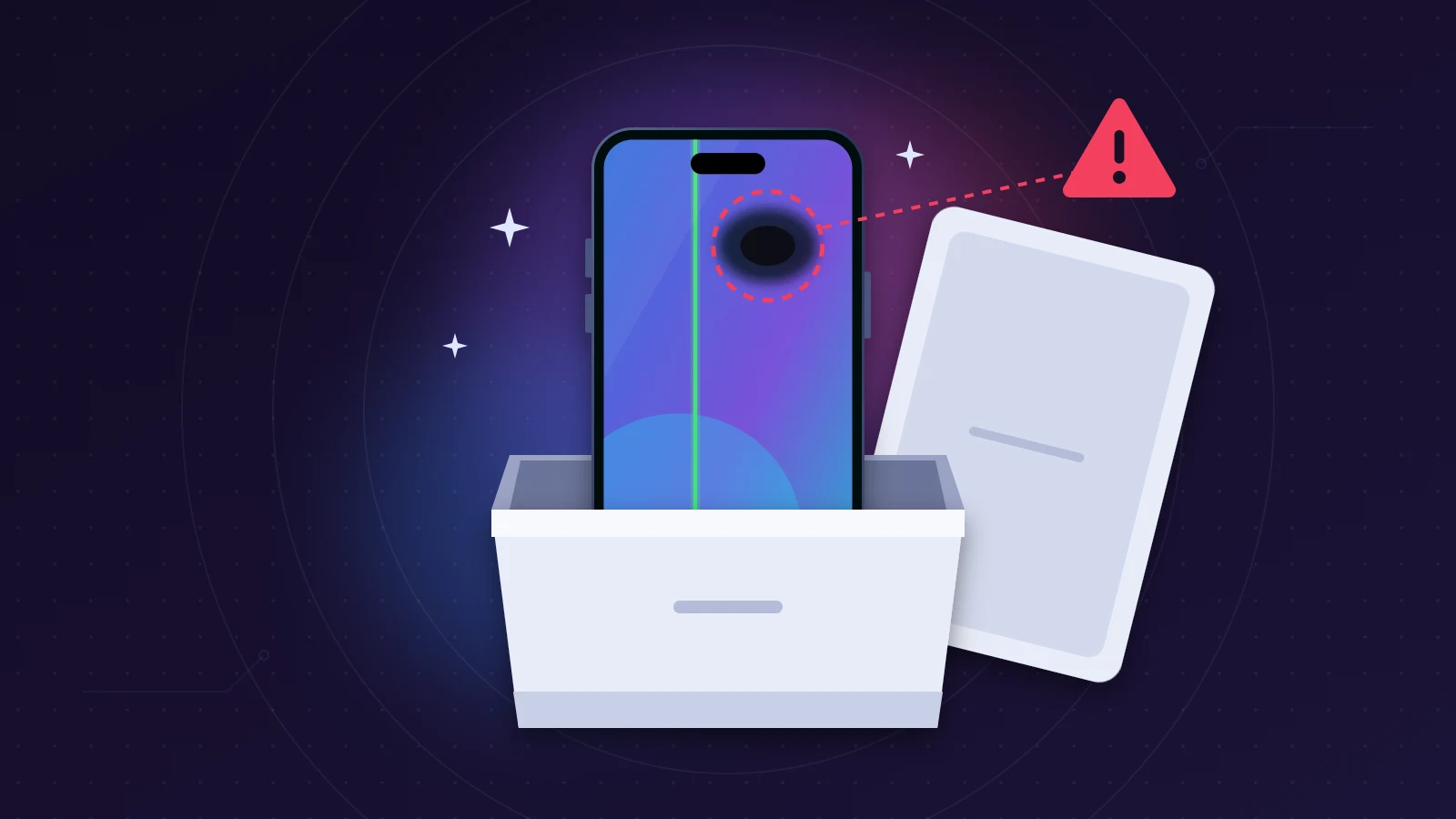
A spot, a dead pixel or a colored line: an iPhone 18 Pro Max defective screen straight out of the box can almost always be exchanged, as long as you act within 14 days and can show the fault is in the hardware. A mark that stays in the same place after a restart, right down to the black Apple logo screen, comes from the panel. A small, slightly duller circle to the left of the clock is not necessarily a fault, though: that is where the Face ID infrared camera now sits, under the display, on the iPhone 18 Pro and 18 Pro Max.
Quick fix
- Restart the phone. If the anomaly goes away, it was a display glitch. If it stays, even during the Apple logo, it’s the panel.
- Peel off any screen protector and film the fault on plain gray, black, white and green backgrounds with another device.
- Contact the seller within 14 days of delivery and describe it as “defective on arrival” (often called DOA).
- After that, Apple’s one-year limited warranty, and in many countries consumer law, still entitle you to a free repair or replacement.
What screen defects show up on a new iPhone 18 Pro?
Buyer reports fall into five groups:
- the fixed dot: a dead pixel (black on a white background) or a stuck pixel (a red, green or blue dot on a black background);
- the spot: a black, green or purplish area with soft edges, sometimes with a halo, which can spread;
- the line: a vertical green, pink or red line, shown on video by several iPhone 18 Pro owners on X and Reddit shortly after launch;
- the area near the Dynamic Island: a duller circle or less crisp text around the clock;
- a glass defect: dust under the glass, a micro-scratch or a chip visible when you unbox the phone.
Is it a screen defect or a display glitch?
If the anomaly survives a restart and shows up during startup, it’s the panel: iOS has not loaded yet when the Apple logo appears.
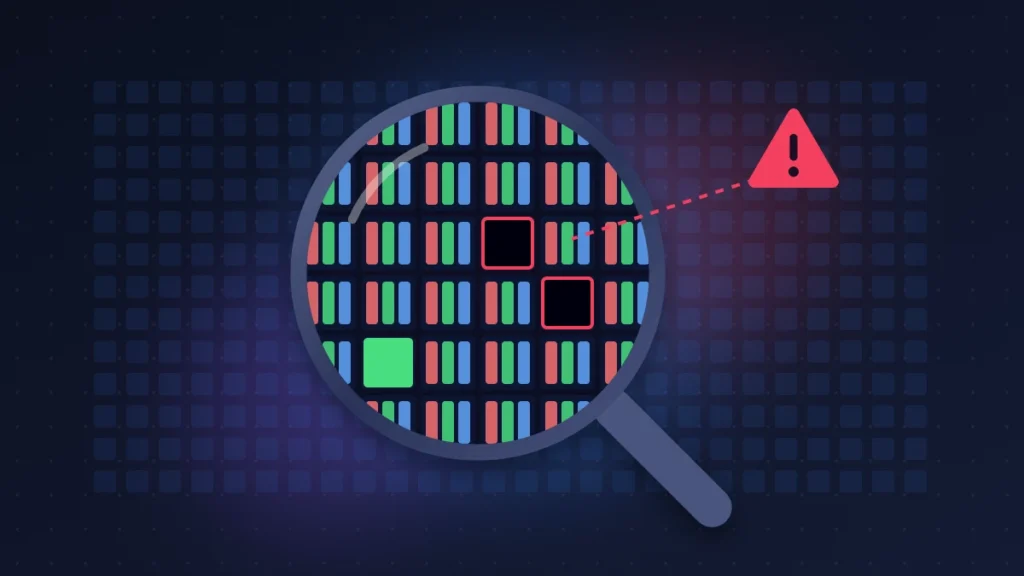
An OLED screen is a mosaic of organic diodes that produce their own light, each driven by a transistor etched beneath it. A dead transistor means a pixel that stays off. A colored line most often points to a faulty connection between the panel and its driver circuit. A blurry spot suggests a diode damaged by pressure or a manufacturing flaw. No software update can repair these components.
A software bug, on the other hand (a Live Activity frozen in the Dynamic Island, a black rectangle that won’t close), changes appearance and disappears after a restart.
The screenshot test (side button + volume up) often settles it. A screenshot records the image the system renders, not what the panel actually displays. A physical spot never appears in it. If the suspicious area shows up in the screenshot, the problem is software.
One trap to know about: according to Apple’s release notes, iOS 27.0.1 fixes an unwanted tint in some photos taken at 2x zoom on a small number of iPhone 18 Pro and Pro Max units. That color cast is in the photo, not on the screen. Open the image on another device before blaming the panel.
Is the dark area next to the clock a defect?
Usually not. To shrink the Dynamic Island, Apple moved the Face ID infrared camera under the panel, in the top left corner. iFixit’s teardown shows that above the sensor, every other row of pixels is removed to let infrared light through, with a gradual transition back to normal density. To the naked eye, you can make out a small, duller circle just left of the clock, especially at low brightness, on a plain background or viewed at an angle. Some people notice it right away, others never do. Apple does not treat it as a defect and has not announced any repair program.
A black or green spot that is sharp when viewed head-on at full brightness, spills beyond that corner or changes shape is a different matter: that’s the panel. And if the circle only appears with a screen protector on, the protector is to blame: several users also report Face ID failures in the dark with some tempered glass protectors. Remove it before you diagnose anything.
Why would a brand-new iPhone arrive with a defective screen?
A few panels pass quality control with a faulty subpixel, a speck of dust trapped when the glass was bonded or a loose connector, and shipping adds its share of knocks. As for the green and pink lines on the iPhone 18 Pro, here is what is established: videos exist, and some users say the line survived a full reset. What remains unknown: how many units are affected, the history of those devices and the cause. One Reddit image was even judged doubtful, since the line seemed to pass behind the Wi-Fi icon, which a panel defect cannot do. Apple has not acknowledged any widespread defect, and the fixes it has released concern Face ID, photos and a touch freeze, not the display.
Before you start
- Back up the iPhone (Settings > [your name] > iCloud > iCloud Backup, or with a cable to a computer): an exchange means a different device.
- Keep the box, the cable and the receipt, and don’t apply anything permanent to the screen.
- Note the delivery date: the 14 days start from there.
Fix 1: restart and update
Risk-free, and the first thing to do. For a force restart, quickly press and release volume up, then volume down, then press and hold the side button until the Apple logo appears. While that white logo is on the black screen, look at the suspicious spot: a stuck pixel or a line shows up very clearly.
Then install the latest version of iOS (Settings > General > Software Update). An iPhone still on iOS 27.0 should move to 27.0.1 or later: that version fixes Face ID related restarts and the touch freeze that happens when Notification Center and Control Center are opened together, two bugs sometimes mistaken for a screen fault.
Expected result: the anomaly disappears and doesn’t come back. If not, move on.
Fix 2: turn off settings that tint the screen
A green or yellow cast across the whole screen can be a software setting. Turn off True Tone and Night Shift one at a time (Settings > Display & Brightness), then Color Filters and Reduce White Point (Settings > Accessibility > Display & Text Size), then Zoom (Settings > Accessibility > Zoom). These settings affect the entire image: they never explain a localized spot, pixel or line. If your screen mostly looks too cool or too dim, with no visible defect, read our article on the iPhone 18 Pro blue tint and dim screen instead.
Fix 3: document the defect
This is what wins you the exchange, since a screenshot will show nothing.
1. Display plain backgrounds
Open plain black, white, gray, green, red and blue images full screen in Photos. Gray reveals spots and uneven areas, black shows stuck pixels, white shows dead pixels, green shows tinted zones.
2. Film with a second device
In a room without reflections, film at 50% then 100% brightness, head-on and then tilting the iPhone. Dust under the glass seems to slide relative to the pixels when the angle changes; a panel spot stays locked to the image.
3. Film a restart
The Apple logo sequence on its own proves the fault doesn’t come from iOS.
4. Write down the facts
Delivery date, when you discovered the fault, no drop and no pressure, screen protector or not. Sent to the seller in writing, this account leaves a paper trail.
Fix 4: run Apple Diagnostics
Apple’s diagnostics mode checks the hardware, and it includes a dedicated test for pixel anomalies. According to Apple’s support page, connect the iPhone to Wi-Fi, turn it off, then press and hold the side button while it restarts: Recovery Assistant opens, and you tap Diagnostics.
For a single pixel, though, the technician’s visual inspection carries more weight than the test result. For repeated freezes, show the logs in Settings > Privacy & Security > Analytics & Improvements > Analytics Data instead; a file whose name starts with panic-full indicates a kernel crash.
Fix 5: get an exchange within 14 days
Ordered online from Apple
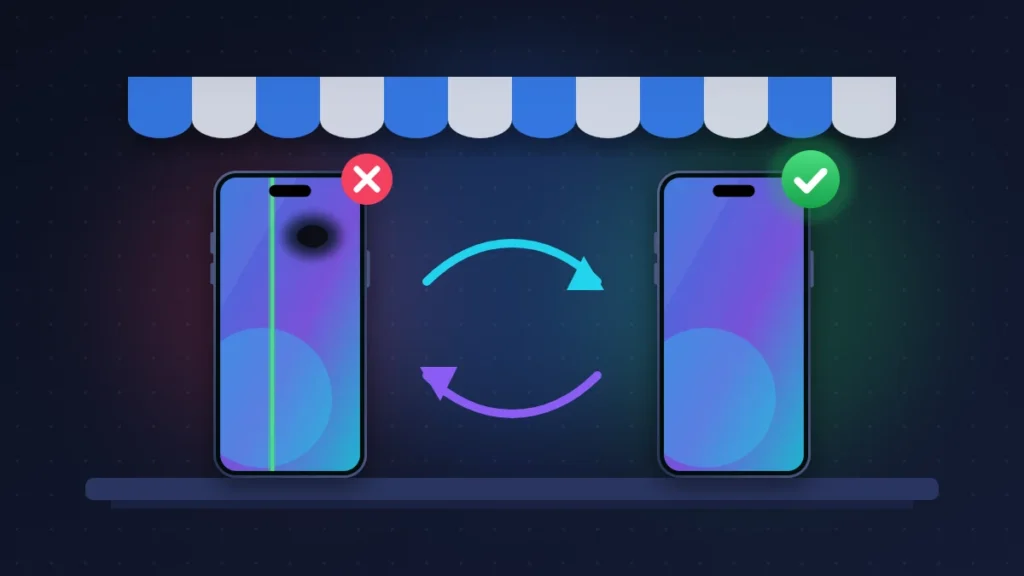
Apple accepts returns within 14 days of delivery and asks you to report a product that is defective on arrival before that window closes, by contacting AppleCare. You can take the iPhone to an Apple Store in the same country, or send it back with the return number (RMA) provided by customer service. Keep your order number handy.
Bought in an Apple Store
An exchange is possible at any Apple Store in the same country, subject to stock. Book an appointment through the Apple Support app, bring the complete box and the receipt, and show the startup video. Have your Apple Account password ready to turn off Find My.
Retailers and Amazon
Each retailer applies its own return policy, and it’s often more generous for a product that is faulty on arrival than for a simple change of mind. Contact customer service as soon as possible and ask for an exchange. Amazon details its return policy in its online help: check the window that applies to your order. On a marketplace, the third-party seller handles the return.
Carrier
Go to a store with the complete box, or contact customer service for an online order. Make it clear that you want an exchange: returning the iPhone doesn’t automatically cancel your plan.
Return window or warranty: which one should you use?
Apple’s 14-day return window, and the return policies of most retailers, are the fastest route: you generally get a new device, or a refund. In the EU and the UK, an online purchase also comes with a cancellation right that lets you send the product back without giving a reason, but it leads to a refund, not an exchange, and the seller can deduct an amount if the product was handled beyond a simple test. For a defect, it’s better to rely on the rules for faulty goods.
Apple’s one-year limited warranty covers manufacturing defects, even on an iPhone bought from a retailer or a carrier: Apple may repair it, replace it with the same model or refund it. After the first 14 days, expect a screen replacement rather than a new iPhone.
On top of that, consumer law in your country usually gives you rights against the seller:
- in the UK, the Consumer Rights Act requires goods to be of satisfactory quality, and lets you ask the retailer for a repair, a replacement or, in some cases, a refund;
- in the EU, the legal guarantee of conformity lasts at least two years and is owed by the seller, who can’t simply send you to Apple;
- elsewhere, statutory guarantees and their durations depend on the country where you bought the phone.
If a seller refuses, remind them of their obligations in writing, then contact your local consumer protection agency.
iPhone 18 Pro Max defective screen: what Apple accepts
Apple doesn’t publish any dead pixel threshold for the iPhone. An old internal guideline leaked to the press called for a replacement from a single defective pixel, with no guarantee it still applies. In practice, a clearly visible dead pixel on a new iPhone is generally accepted at an Apple Store.
| Anomaly | What Apple says | Likely outcome |
|---|---|---|
| Visible dead or stuck pixel | No public rule | Exchange usually accepted |
| Persistent colored line or spot | Hardware defect | Exchange or screen replacement |
| Dust under the original glass | No public rule | Case by case, depending on visibility |
| Colors shifting with viewing angle | Normal for OLED | No |
| Slight blur or color shift when scrolling on black, low brightness | Normal | No |
| Ghost image that fades within minutes | Temporary image retention, normal | No |
| Permanent burn-in | Rare, impossible on a new phone | Case by case |
| Scratch or chip at unboxing | Excluded unless it’s a manufacturing defect | Report it the same day, with photos |
Icon burn-in on a “new” iPhone should make you suspect a device that has already been used.
What if the defect appears after a drop or pressure?
A screen that worked and then develops a spot after a drop or after being crushed in a bag is no longer “defective on arrival”: it’s accidental damage, excluded from Apple’s warranty as well as from statutory guarantees. That leaves AppleCare+, if you bought it before the incident (it covers accidental damage with a service fee for each claim, whose amount depends on the model and the type of damage), a paid repair on quote from Apple or an authorized service provider, or your home or card insurance.
Summary table
| Symptom | Likely cause | Fix |
|---|---|---|
| Fixed black dot on a white background | Dead pixel | Video on white, exchange |
| Fixed colored dot on a black background | Stuck pixel | Video on black and at startup, exchange |
| Persistent green, pink or red line | Faulty panel or connection | Restart, video of the logo, exchange |
| Blurry black or green spot | Damaged diode | Video on gray, exchange if present on delivery |
| Dull circle left of the clock | Under-display Face ID sensor | Nothing, unless it’s clearly visible head-on |
| Frozen black rectangle around the Dynamic Island | Software bug | Restart, update iOS |
| Anomaly visible in a screenshot | App or iOS bug | Close the app, restart, update |
| Green cast across the whole screen | Display settings or panel | Turn off True Tone, Night Shift, filters |
| Dot that moves when you tilt the screen | Dust under the glass or protector | Remove the protector, otherwise report it |
| Spot after a drop | Accidental damage | AppleCare+ or paid repair |
If nothing works: what to tell support
State the model and the delivery date, then: “screen defect present on delivery, visible during startup, no drop.” Show the Apple logo video, then the plain backgrounds. If they bring up the Face ID area while your defect is somewhere else, point to its exact location in the video.
For readers in Africa, be aware that Apple can limit warranty service to the country or region where the iPhone was originally sold. An iPhone bought in Europe, the United States or elsewhere may be refused, or handled slowly, by an authorized service provider in Lagos, Nairobi, Douala or Abidjan. So test the screen before leaving the country of purchase, and find authorized service providers through the locator on Apple’s support website rather than picking a repair shop at random.
How to avoid it next time
- Check the screen on plain backgrounds the day you get it, before applying a protector or a case.
- Choose a protector designed for the iPhone 18 Pro or 18 Pro Max, which lets infrared light through over the Face ID sensor.
- Avoid back pockets and heavy bags: most spots that “appeared on their own” follow pressure.
- Keep Auto-Brightness on and a short Auto-Lock delay, as Apple recommends to protect the OLED.
- Buy AppleCare+ before any incident, never after.
To review the display and sensors of these models, see our iPhone 18 Pro Max price and review page and the iPhone 18 Pro specs.
FAQ
Is a single dead pixel enough to exchange a new iPhone 18 Pro?
Within 14 days, usually yes, if it shows up on video. Apple has no public threshold, and a dead pixel remains a defect covered by the warranty.
Can a software update fix the green spot on my iPhone 18 Pro Max?
Not if it persists after a restart and shows up during startup. An update can’t repair a diode or a connector.
Can I insist on a new iPhone rather than a repair?
Within 14 days, an exchange is the norm with most sellers. After that, Apple’s warranty lets Apple choose between repair and replacement, and depending on the country, consumer law may let you ask the seller for a replacement, although the seller can often impose a repair if it costs much less.
Is the gray circle near the clock normal on the iPhone 18 Pro?
Yes, if it stays subtle and is mostly visible at low brightness or at an angle. It’s the area with fewer pixels above the Face ID infrared camera.
Should I erase the iPhone before returning it?
Always back it up. In a store, the staff will guide you; if you’re mailing it, erase the device and turn off Find My, or the return will be blocked.
Is dust under the glass a defect?
Yes, if it’s under the original glass from the moment you unbox the phone. If it disappears when you remove the screen protector, it was simply underneath it.
Was your iPhone 18 Pro Max defective screen exchanged on delivery, and with which seller? Share your experience in the comments: it will help the next buyers. For other faults on these models, see our roundup of all the known iPhone 18 Pro problems and their fixes.
Share this content: