

This article contains affiliate links: if you buy through them, Wanda-techs earns a commission at no extra cost to you.
When Outlook stops receiving mail, Microsoft says to check three things first on an Outlook.com account: storage, a recently changed password, and a temporary block after an unusual sign-in. The message may also have landed in another folder.
Sometimes only the app has stopped syncing.
Common symptoms and causes
- Nothing at all in the Outlook.com inbox: full storage, a changed password, or an account temporarily blocked after an unusual sign-in.
- Messages go missing for no visible reason: a mail rule hides them, or forwarding sends them to another address.
- The messages are there but you can’t see them: the Other tab, the Junk Email folder, a filter, or the sort order of the list.
- Mail from one contact is missing: their address or domain is blocked.
- Your correspondents get their message bounced back: an Outlook.com mailbox over 15 GB, or full cloud storage.
- Mail shows up in Outlook.com in the browser but not in the app: classic Outlook working offline, with no internet, or with an old password; or the Outlook mobile app no longer syncing.
Before you start
- Work out which Outlook you use, because the menus change between versions: new Outlook for Windows, classic Outlook (Microsoft 365, 2024, 2021, 2019 or 2016), Outlook.com in a browser, or the Outlook mobile app on iPhone or Android.
- The storage limits given below apply to a free personal Outlook.com account.
Warning: some steps in solutions 4 and 5 erase data, so back up the messages and attachments you want to keep first. What you lose: messages permanently deleted from the Outlook.com Storage page or with Shift+Delete, with no way to recover them. In Outlook mobile, it is the data of the removed account, which the new sync reloads.
Warning: while the Outlook.com mailbox is full, incoming messages bounce back to their sender. They can’t be recovered: you will have to ask the sender to resend them.
Solution 1: test Outlook.com on the web and force a sync
This test tells you whether the problem comes from the account or from the app.
- Open Outlook.com in a browser on your computer and sign in to your account.
- In Outlook.com, press F9 or refresh the browser page to sync the mailbox.
- In new Outlook for Windows, click Mail > View tab > Sync (F9).
- In classic Outlook, click Send/Receive > Send/Receive All Folders (F9).
New messages appear on the web but not in your app? The account works: go to solution 4. If they are missing on the web too, continue with solutions 2, 3 and 5.
Solution 2: look for the mail in Other and Junk Email
- In Outlook.com, open the Other tab of the inbox.
- Check that no filter is hiding messages in the list.
- Sort the list with Filter > Sort > Date: a message that has arrived may sit lower down than you expect.
- Open the Junk Email folder.
- On each legitimate message, right-click and choose Mark as not junk.
The missing message should show up in the date-sorted list or in one of these folders.

Good to know: messages from blocked senders also end up in Junk Email. That folder empties itself after a few days, so check it as soon as a message goes missing.
Solution 3: check rules, forwarding and blocked senders
- In Outlook.com, check whether forwarding (automatically sending your messages to another address) is turned on.
- In Outlook.com, check that no mail rule is hiding incoming messages.
- In Outlook.com or new Outlook for Windows, open Settings > Mail > Junk email.
- In the Blocked senders and Blocked domains lists, click the remove icon next to the address or domain you want to unblock.
- In classic Outlook, open Home > Delete group > Block > Junk E-mail Options.
- On the Blocked Senders tab, select the address, then click Remove.
Warning: the next step cuts off third-party apps that fetch your Outlook.com mail over IMAP or POP. Turn access back on after the test if you need it.
- In the Outlook.com settings, if IMAP or POP access is turned on, turn both off, then send yourself a test message.
- If one sender never gets through and gets no error message back, ask them to use the Outlook.com Sender Support service.
Once the address is removed from the list, its new messages should reach the inbox.
Good to know: in new Outlook for Windows, blocking does not work for Gmail, Yahoo, iCloud and other third-party accounts. Manage it with the provider; for a Gmail address, follow our guide Gmail not receiving emails. The blocked and safe sender lists hold 10,000 entries at most between them.
Solution 4: bring classic Outlook and Outlook mobile back online
Classic Outlook for Windows
- Look at the bar at the bottom of the classic Outlook window: a Work Offline notice means the mode is on.
- Click Send/Receive > Work Offline to turn this mode off. It applies to all your mail accounts.
- Open a website in your browser to check that the computer has internet access.
- If you changed your password with your mail provider (Gmail, for example), enter the new one in classic Outlook.
- Compare the account settings in classic Outlook with the POP or IMAP server names given by your provider.
The offline notice disappears and Send/Receive collects your mail again. For a Hotmail address set up in Outlook, see also how to fix Hotmail not working in Outlook.
Outlook mobile (iPhone and Android)
- Update the Outlook app, then restart the phone.
- On Android, open Settings, then Apps, then Outlook, and force stop the app.
- Still on Android, tap Storage, then Clear cache: your data is kept.
- On iPhone, open Settings, then General, then iPhone Storage, then Outlook, and choose Offload App. Then reinstall the Outlook app and open it.
Warning: the next step erases data, so back up first. What you lose: the account data inside the Outlook app on your phone, which the sync then reloads.
- In the Outlook app, remove the mail account, then add it again.
Once the account is added, the mailbox syncs. New messages appear in the app.
Solution 5: free up space in Outlook.com (free account)
A free Outlook.com account has a 15 GB mailbox and 5 GB of cloud storage, shared between OneDrive, Outlook attachments and Microsoft 365 apps. Above 15 GB, the mailbox neither sends nor receives anything.
The errors Quota exceeded or Mailbox full point to a full mailbox. The error Microsoft Unified Storage is full points to full cloud storage, which also blocks mail even when the mailbox is under 15 GB.
- In Outlook.com, click the gear icon, then open Settings > Account > Storage.
- Spot the folders that take up the most room in the list shown.
- In the message list, sort by size from the Filter menu to find large attachments.
- Save the attachments you want to keep to OneDrive.
Warning: the next steps erase data, so back up first. What you lose: permanently deleted messages, with no way to recover them. Attachments saved to OneDrive count against the 5 GB of shared storage.
- Delete the original messages that carried those attachments.
- On the Storage page, permanently delete the contents of a folder, either all of it or only the messages older than 3, 6 or 12 months.
- Empty the Deleted Items folder: its messages count towards the space used until it is emptied or purged automatically after 30 days.
- Ask your correspondents to resend the messages that were refused while the mailbox was full.
The used space shown on the Storage page should drop back under 15 GB. New messages then arrive again.

Tip: a deleted message still takes up space until the Deleted Items folder is emptied. Do step 7 before judging the result.
To keep a copy of your messages and attachments before deleting them for good, an external drive is enough.

WD My Passport 5TB portable external hard drive (WDBPKJ0050BBK)
This pocket-size hard drive connects over USB 3.2 Gen 1 and holds a large archive of photos and files. The included software protects it with a password and AES 256-bit encryption.
- AmazonSee at Amazon
Good to know: with a Microsoft 365 subscription, the mailbox grows to 100 GB; this does not apply during a trial.
If you would rather keep your messages than delete them, a Microsoft 365 subscription increases the space available.

Microsoft 365 Personnel (12 mois)
Word, Excel, PowerPoint, Outlook et 1 To de stockage OneDrive pour un utilisateur, pendant un an.
- AmazonSee at Amazon
- CdiscountSee at Cdiscount
- FnacSee at Fnac
If nothing works
Run the interactive troubleshooter on the Microsoft page Can’t send or receive email in Outlook.com, using the Start button. Then use the Help menu in Outlook.com or Microsoft Support.
For a work or school account, Microsoft points you to your administrator or IT department. If classic Outlook crashes since a Windows update, see Word, Excel and Outlook crash after a Windows update.
Protect your mailbox and your data: our toolbox
A few useful products to secure your computer and keep a copy of your important messages and files.
 Bitdefender Total Security 2026, 3 devices, 1 yearSecurity suite for Windows, Mac, Android and iPhone. It helps protect accounts and files on your phone.AmazonSee at Amazon
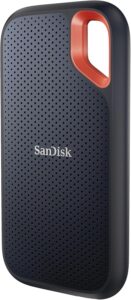 SanDisk Extreme Portable SSD 1 TBA pocket-size external SSD to back up files or move large folders between computers. Useful when a laptop offers little internal storage.AmazonSee at Amazon
- SanDisk Ultra Dual Drive Go 128 GB, USB-C and USB-A flash driveUSB key with two connectors, for a computer or a phone. Handy for carrying files or a software update.AmazonSee at Amazon
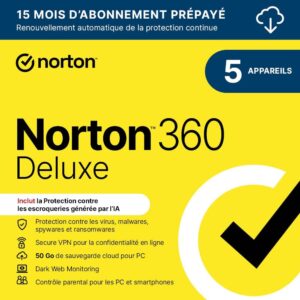 Norton 360 Deluxe 2026, 5 devices, 15 monthsSecurity suite licence for PCs, Macs, Android phones and iPhones, with a VPN and a password manager. A way to protect the accounts that hold your contacts.AmazonSee at Amazon
Frequently asked questions
Why am I no longer receiving emails in Outlook?
On Outlook.com, Microsoft first names three leads: full storage, a recently changed password, and an account temporarily blocked after an unusual sign-in. The messages may also have arrived in the Other tab or in the Junk Email folder. In classic Outlook, also check that offline mode is not turned on.
How do I know if my Outlook mailbox is full?
Open Settings > Account > Storage in Outlook.com: the page shows the space each folder takes up. A free account has 15 GB for the mailbox and 5 GB of shared cloud storage. A full mailbox comes with the errors Quota exceeded or Mailbox full, full cloud storage with the error Microsoft Unified Storage is full.
Why have a contact’s emails stopped arriving in Outlook?
Their address or domain may be on your blocked senders list: in Outlook.com and new Outlook for Windows, the list is under Settings > Mail > Junk email. Their messages may also be waiting in Junk Email. If they never arrive and the sender gets no error message back, ask them to use the Outlook.com Sender Support service.
How do I force Outlook to sync my emails?
Press F9, or use the menu of your version. In new Outlook for Windows, the command is Mail > View tab > Sync (F9); in classic Outlook, Send/Receive > Send/Receive All Folders (F9). In Outlook.com on the web, F9 or refreshing the page syncs the mailbox.
Share this content: