
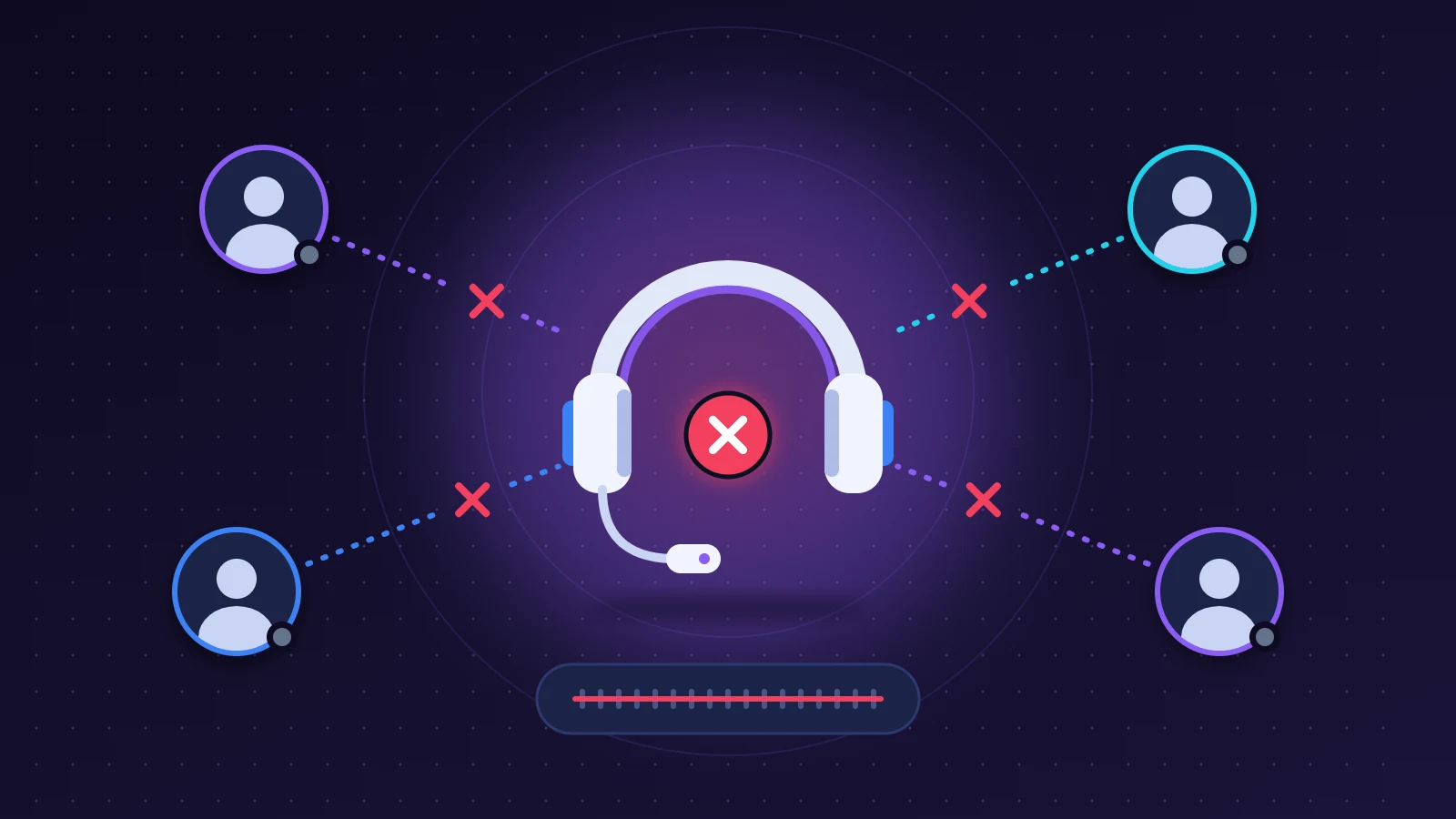
When you see Discord RTC Connecting spinning forever, or a “No Route” label in its place, the app cannot open the audio channel to the voice server, even though the rest of Discord may be working perfectly well. There are two possible origins: an outage on Discord’s voice servers, usually limited to one region and resolved within an hour or two, or an obstacle on your own network, most often a VPN, a firewall or a router blocking UDP traffic. The test that settles it in a minute is to join the same channel from a phone on mobile data. If voice works on the phone, the problem is on your side. If it fails there too, the fault is with Discord, and changing the voice channel’s region is often enough to work around it.
In short: the quick fix
- Open discordstatus.com and look at the “Voice” line and the list of voice regions.
- Join the same channel from a smartphone on 4G or 5G with Wi-Fi turned off. This is the decisive test.
- Outage on Discord’s side: a server admin changes the voice channel’s region and everyone reconnects.
- Local problem: turn off your VPN, quit Discord completely, restart your router, then disable the Quality of Service setting under Voice & Video.
- In the meantime, the browser version of Discord or a direct call often lets you keep talking.
Recognizing the problem
The symptom shows up at the bottom left of the window, just above your username. Instead of the green “Voice Connected,” an orange or red status keeps cycling. You can see everyone else’s avatars in the channel, but no sound gets through in either direction.
The wording changes depending on the stage where the connection stalls:
| Status shown | What Discord is doing | What it most often points to |
|---|---|---|
| Awaiting Endpoint | Waiting to be assigned a voice server | A voice region in trouble, more rarely a filtered network |
| ICE Checking | Testing the possible network paths to the voice server | A firewall, VPN or router filtering traffic |
| RTC Connecting | Trying to open the real-time audio stream | UDP blocked on your side, or a voice server that has stopped responding |
| No Route | No path worked | A local network block (VPN, firewall, school or office network) |
| Connecting | General connection stage | Unstable internet connection, frozen app |
| Voice Connected | Everything is established | If the audio is still choppy, see below |
If your app is set to another language, the wording differs but the states are exactly the same.
Two variants come with no error message at all. The voice turns metallic, robotic, or cuts in and out: the connection is established but packets are getting lost along the way. Or your text messages stay grayed out and then turn red. In that case the general link to Discord is affected, which points to a wider outage or to your internet access.
Why Discord RTC Connecting errors happen
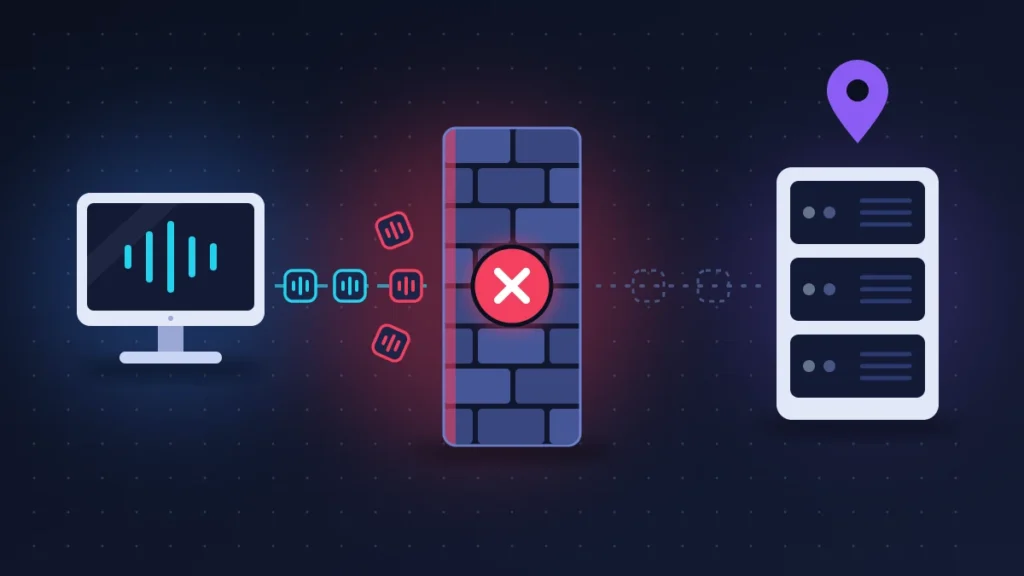
Discord does not send everything down the same pipe. Messages, the member list and notifications travel over a permanent link called the gateway. Voice takes a separate circuit. When you click a voice channel, Discord picks a voice server in a given region, passes its address to your app, and the app then opens a direct audio stream to that server. That stream uses UDP, a fast transport mode that does not wait for an acknowledgment. RTC simply stands for “real-time communication.”
On Discord’s side, a voice server or a whole region can go down or become overloaded. The service is built for this: when a voice server stops responding, it is pulled from the pool and another one is assigned to the channel, then the apps reconnect on their own. That explains the sporadic interruptions that often clear up without any intervention in under two hours.
On the user’s side, UDP is almost always the culprit. A VPN that does not carry it, an antivirus whose network shield inspects everything, a school firewall that only lets web traffic through: in all these cases text shows up normally and voice is left at the door. After that come a router that needs restarting, a stale DNS cache or an app that is too old. Discord encrypts calls end to end with its DAVE protocol and refuses versions that do not support it.
Before you start
Nothing below touches your account or your messages, which are stored on Discord’s servers. Still, make sure you know your password and have access to your two-factor authentication method, because some of these steps log you out. And write down your custom voice settings (devices, input sensitivity, push-to-talk key) before resetting them.
Fix 1: work out whether the fault is with Discord or with you
Three checks, five minutes in total.
1. Check the status page
Go to discordstatus.com. The page lists the service’s components: API, Gateway, Voice, then the voice regions one by one (Rotterdam, US East, South Africa, Singapore and the others). An ongoing incident appears at the top in orange or red. Be wary of an all-green board: the page is updated by hand by Discord’s teams and often lags behind the first user reports.
2. Test from a phone on mobile data
Turn off Wi-Fi on the phone and join exactly the same voice channel. If voice works, your computer or your router is at fault. If it fails the same way, the voice server behind that channel has a problem.
3. Try another channel, another server
Join a voice channel on a different Discord server, or start a direct call with a friend. Each channel is assigned its own region. Voice that works elsewhere but not here confirms a regional outage.
When the whole channel is stuck at the same time, there is no point touching your own setup.
Fix 2: change the voice channel’s region
Use this when the outage is on Discord’s side. It is reserved for members who have the Manage Channels permission on the server.
- Right-click the voice channel, then Edit Channel (or click the gear icon next to its name).
- In the Overview tab, find the region menu, called Region Override.
- Replace Automatic with a specific, nearby region. From North America, a US region such as US East is the usual pick; from Europe or much of Africa, Rotterdam; South Africa can suit users in the south of the continent.
- On mobile: long-press the channel, open the channel settings, go to the region section, then save.
All participants are briefly disconnected and then moved to the new server. Remember to switch back to Automatic once the incident is over: in that mode Discord picks the region based on the first person to enter an empty channel, which remains the best everyday setting.
Without admin rights, a simple trick sometimes works in Automatic mode: everyone leaves the channel, then someone located in a different part of the world joins first. During a direct call on desktop, clicking the region name at the top right lets you change it.
Fix 3: restart Discord and your router, and turn off the VPN
Closing the window is not enough, because Discord keeps running in the background.
- Right-click the Discord icon in the Windows system tray, then Quit Discord. On a Mac, press Cmd + Q. If in doubt, open Task Manager (Ctrl + Shift + Esc) and end every Discord process.
- Turn off your VPN or proxy. Discord states that only VPNs able to carry UDP are compatible with voice. If you want to keep the VPN, look in its settings for a UDP-based protocol (WireGuard or OpenVPN UDP).
- Unplug the router for about thirty seconds, plug it back in, and wait for the connection to come back fully.
- Relaunch Discord and let it install its update at startup.
Check: the indicator turns to a green “Voice Connected” within a few seconds.
Fix 4: disable Quality of Service under Voice & Video
This setting asks your router to treat voice packets as a priority. Some routers and some internet providers handle that marking badly and end up dropping the packets instead of favoring them. The result is a robotic voice or a connection stuck on RTC Connecting.
- Open User Settings (the gear icon at the bottom left), then Voice & Video.
- Scroll down to the Quality of Service section.
- Turn off “Enable Quality of Service High Packet Priority.”
- Quit Discord completely and relaunch it.
There is no risk. If it changes nothing, you can turn the option back on.
Fix 5: allow Discord through your firewall and antivirus
Typical symptom: “No Route” or “ICE Checking” on the computer, while a phone connected to the same Wi-Fi joins the channel without any trouble.
- On Windows, open Windows Security > Firewall & network protection > Allow an app through firewall. Check that Discord is ticked for both private and public networks.
- In your third-party antivirus, pause the web shield or network protection for a few minutes, then try again. If voice comes back, add Discord to the exceptions and turn the protection back on.
- On a router you manage yourself, check that no rule is blocking outbound UDP.
Do not leave the protection off after the test.
Fix 6: renew your IP address and change DNS
Useful after switching networks, after an internet dropout, or when text itself starts misbehaving.
On Windows
Open the Start menu, type cmd, right-click Command Prompt and choose Run as administrator. Enter these commands one at a time:
ipconfig /release
ipconfig /flushdns
ipconfig /renew
The connection drops for a few seconds after the first one, which is normal. If the problem persists, add netsh winsock reset and restart the computer. That last command resets the Windows networking layer, and it may force you to reconfigure a VPN or any filtering software you have installed.
On macOS
In Terminal:
sudo dscacheutil -flushcache; sudo killall -HUP mDNSResponderChange DNS server
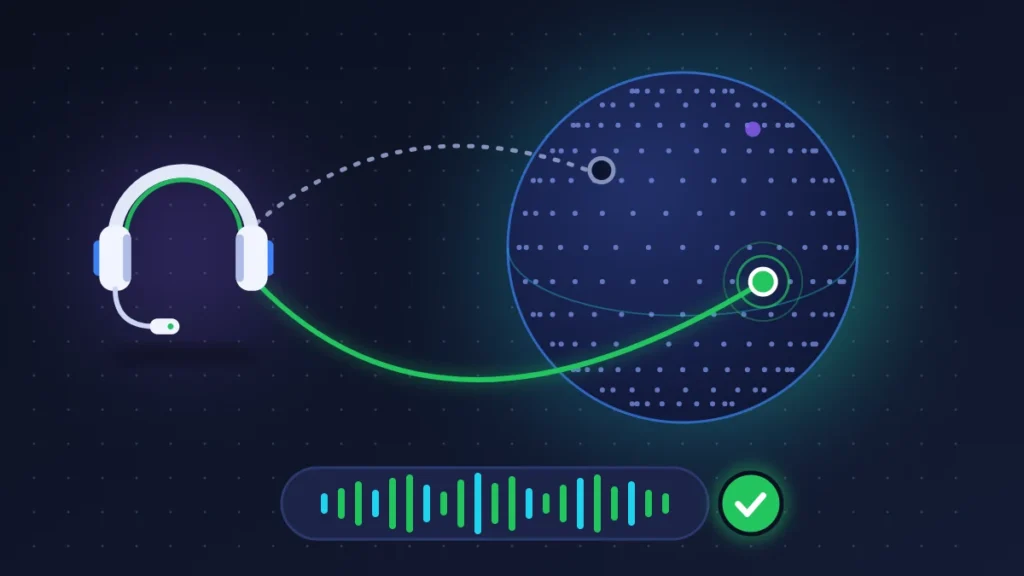
In your network adapter’s properties (IPv4), replace the automatic DNS with 1.1.1.1 and 1.0.0.1 (Cloudflare) or 8.8.8.8 and 8.8.4.4 (Google). A failing resolver stops Discord from finding the voice server’s address.
Fix 7: reset voice settings and switch audio subsystem
Worth trying once the network has been ruled out.
- User Settings > Voice & Video, at the very bottom: Reset Voice Settings. Your devices, volumes and keybinds go back to their defaults.
- On Windows, on the same page, look for Audio Subsystem. Switch from Standard to Legacy. Discord restarts by itself.
- If the voice is still choppy, turn off Krisp noise suppression for the duration of a test.
Changing the subsystem mostly helps when an old audio driver or a USB headset does not get along with the newer audio engine.
Fix 8: clear Discord’s cache, then do a clean reinstall
A corrupted cache causes erratic behavior, such as a channel that connects one time out of three. Quit Discord completely before you begin.
Clear the cache
- Windows: press Windows + R, type
%appdata%\discordand confirm. Delete theCache,Code CacheandGPUCachefolders. - macOS: in Finder, choose Go > Go to Folder and enter
~/Library/Application Support/discord/. Delete the same three folders. - Android: Settings > Apps > Discord > Storage > Clear cache.
- iPhone: in Discord, User Settings > Voice > Developer Settings > Cache Actions > Clear Caches.
Clean reinstall
Uninstall Discord from your system settings. On Windows, then delete both the %appdata%\discord and %localappdata%\Discord folders, restart, and download the installer from discord.com/download. You will have to log in again. Without this cleanup, the reinstall picks up the faulty files and changes nothing.
Fix 9: use the browser version
Open discord.com/app in Chrome, Edge or Firefox, log in, and allow microphone access when the browser asks. The web version uses the browser’s audio engine rather than the desktop app’s. If voice works there, your network is healthy and the local install is damaged: go back to fix 8. If it fails in the same way, the block sits on the network or with Discord.
Special cases: school or office networks, smartphones
On a school, dorm or office network, the central firewall frequently blocks UDP, or even Discord altogether. No setting on your machine will change that. The only clean route is to ask the network administrator to open it up. Failing that, tethering from your phone will get you out of trouble.
On mobile, the causes are different:
- Check the microphone permission for Discord in the phone’s settings.
- Turn off power saving mode and, on Android, remove Discord from battery optimization. These modes cut the app off as soon as the screen turns off.
- Switch from Wi-Fi to mobile data, or the other way around.
- Update the app from the store.
Summary table
| Symptom | Likely cause | Fix to try |
|---|---|---|
| Whole channel stuck, text working | Discord voice region down | Fixes 1 and 2 |
| Endless “Awaiting Endpoint” | No voice server assigned | Fix 2, otherwise wait |
| “No Route” on PC, phone on 4G fine | VPN, firewall, antivirus | Fixes 3 and 5 |
| “RTC Connecting” only at school or at the office | UDP filtered by the organization | Network administrator, phone tethering |
| Robotic or choppy voice, connection established | Packet loss, badly handled QoS, distant region | Fixes 4 and 2, Ethernet cable |
| Messages no longer sending | Discord gateway or internet access | Fixes 1, 3 and 6 |
| Voice works in the browser, not in the app | Corrupted install or cache | Fixes 7 and 8 |
| Stuck on mobile with the screen off | Battery saving | Special cases, step 2 |
| Very old app refused in voice | Version without DAVE encryption support | Update or fix 8 |
If nothing works
First wait an hour or two if other users describe the same problem: most voice incidents end by themselves when servers are switched over.
After that, contact support via dis.gd/support. Include from the start: your operating system and its version, the devices affected (computer, browser, mobile), the exact message shown, a screenshot of the Voice & Video page, the result of the mobile data test and the debug log. You will find the log under Voice & Video, in the Debugging section. Support may also ask for the console output, which opens with Ctrl + Shift + I on Windows and Option + Cmd + I on macOS.
If voice works everywhere except on your home line, including in the browser and without a VPN, call your internet provider. Tell them precisely that outbound UDP traffic to Discord’s voice servers is not getting through, while web browsing is normal.
Keep talking during an outage
- Start a direct or group call: it does not necessarily use the same region as the server’s channel.
- Create a temporary voice channel with a different region override.
- Join from your phone on mobile data.
- Fall back on the game’s built-in voice chat, Steam’s, a WhatsApp, Telegram or Signal group call, or a Mumble or TeamSpeak server if your community runs one.
Stopping it from happening again
Let Discord update at every launch and restart it now and then instead of leaving it running for weeks. On a desktop computer, prefer an Ethernet cable to Wi-Fi: voice copes badly with packet loss. Add Discord to your antivirus exceptions once and for all. If you use a VPN all the time, turn on split tunneling to exclude Discord, or choose a UDP protocol.
Server admins would do well to subscribe to alerts from discordstatus.com (email or RSS feed) and to announce a fallback option in advance.
Frequently asked questions
What does “RTC Connecting” mean on Discord?
The app is trying to open the real-time audio stream to the voice server. If it stays stuck for more than a few seconds, that stream is not getting through, because of either the local network or the server.
Why does text work when voice is stuck?
Messages and voice take two separate circuits. Text goes over a standard web link, voice over a UDP stream to a regional voice server. One can fail without the other.
Can a VPN fix the “No Route” error?
Sometimes, if your internet provider routes traffic to Discord poorly. But a VPN without UDP support causes exactly this error. Test without a VPN first.
Why does my voice sound robotic?
Audio packets are getting lost or arriving too late: weak Wi-Fi, a connection saturated by a download, a distant voice region or the Quality of Service setting.
Does resetting voice settings delete my servers or messages?
No. Only the local audio settings go back to zero: devices, volumes, sensitivity, keybinds.
A Discord RTC Connecting freeze is almost always solved by one of these steps, provided you start with the mobile data test. If another method worked for you, or if the message persists regardless, describe your situation in the comments: your feedback will help readers facing the same screen.
Share this content: