
A YouTube playback error with a gray player and the message “An error occurred. Please try again later” rarely comes from a general outage: in most cases the cause lies in the browser (an extension filtering ads, a damaged cache) or in the connection. Open the same video in a private browsing window, or on another device connected to a different network. If it starts, the problem is on your side and can be fixed in a few minutes.
In short: the quick fix
- Test the video in a private window. If it plays, an extension or the cache is to blame.
- Turn off your ad blocker on youtube.com, then reload the page with Ctrl + F5.
- On a phone, close the app, switch from Wi-Fi to mobile data (or the other way around) and clear the app’s cache.
- On a TV, unplug it from the wall for at least 30 seconds.
- If the video will not start on any device or any network, the fault is on YouTube’s side and you have to wait.
Recognizing the problem
The problem takes three forms. The first is the error screen. The player turns gray or black, with an icon in the center and a sentence along the lines of “An error occurred. Please try again later,” followed by a “Playback ID” line and a string of characters. That identifier does not describe the fault. YouTube uses it to find the session in its logs, and it changes with every attempt.
The second is endless loading: the circle spins, the video freezes after a few seconds and then starts again.
The third: the video plays, but in 144p or 240p despite a good connection, or the picture stutters while the sound carries on.
| Message or symptom | What it most often means |
|---|---|
| “An error occurred. Please try again later” + Playback ID | The player did not receive the video stream: a blocking extension, corrupted cache or cookies, a network dropout, or an incident at YouTube |
| “Playback error. Tap to retry” | The mobile and TV variant of the same error, often tied to a connection that keeps dropping |
| “Connection to server lost” | The app can no longer reach the servers: network, DNS, VPN or outage |
| “Something went wrong. Tap to retry” | Generic app error, cache or a version that is too old |
| “This video is unavailable” | The video has been removed, set to private, blocked in your country or filtered by Restricted Mode |
| “Experiencing interruptions? Find out why” | YouTube has detected a connection too slow for the selected quality |
| Warning about ad blockers | YouTube has spotted a filter and may suspend playback |
| Green picture, black picture with sound, or stuttering | Video decoding is failing: hardware acceleration or graphics driver |
Why a YouTube playback error happens
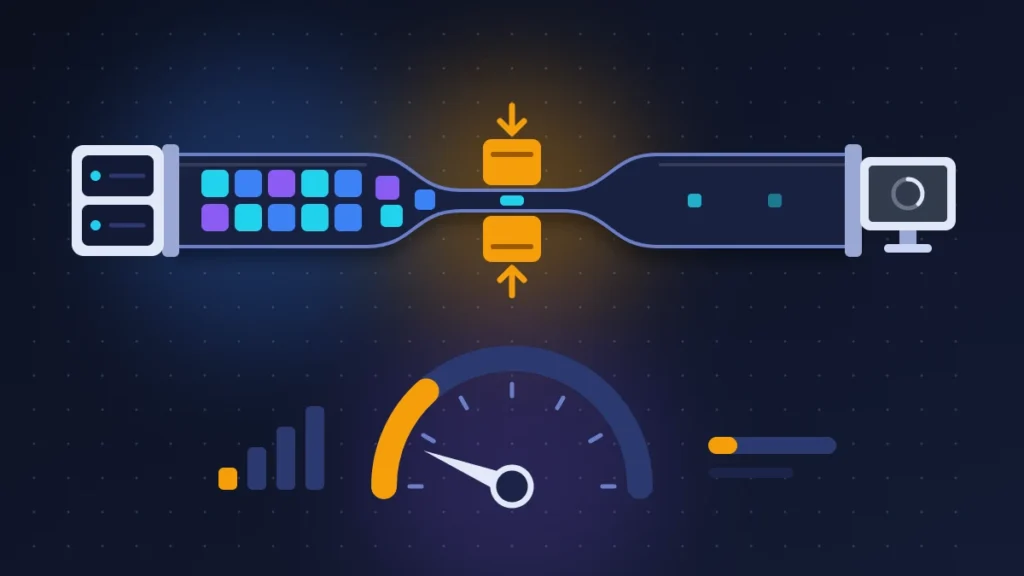
YouTube does not download a video in one piece. The player requests small segments a few seconds long, one after another, and adjusts the quality to the measured speed. If a single link in the chain blocks those requests, the player waits, retries, then gives up and shows the error screen.
Ad blockers top the list: their filter lists sometimes intercept, by mistake, requests the video itself needs. YouTube also considers that these tools violate its Terms of Service and warns that it may block playback for as long as they stay active.
Next come a corrupted cache and cookies, then hardware acceleration, the setting that hands video decoding to the graphics card rather than the processor. With an old or buggy graphics driver, the picture turns black, green or choppy. The codec matters too: YouTube streams in H.264, VP9 or AV1 depending on the device, and an older machine decoding AV1 or VP9 without help from the graphics chip gets overwhelmed, even on an excellent connection.
On the network side, the usual suspects are a connection that is too slow, unstable Wi-Fi, a failing DNS server (the directory that translates site names into addresses), a VPN or proxy, and sometimes a carrier that throttles video at peak times or once your data allowance is used up. One classic is often forgotten: a wrong date or time on the device, which makes secure connections fail.
Before you start
Nothing below deletes your subscriptions or playlists, which are saved in your Google Account.
Make sure you know your Google Account password: clearing cookies or the app’s data signs you out. On mobile, clearing data also removes downloaded videos. Finally, note down your current DNS settings before changing them.
Fix 1: check in one minute whether the fault is with YouTube
Do this first. It saves you from taking your setup apart for nothing.
1. Try another video
Play two or three different videos. If only one refuses to start, that video is the issue (removed, restricted, still processing), not your hardware.
2. Try another device and another network
Open YouTube on your phone using mobile data, with Wi-Fi off. Does the video play? The service is working, and the problem comes from the computer, the TV or the router. Does it fail too? A general outage becomes more likely.
3. Look at user reports
Downdetector aggregates reports from users: a curve that shoots up well above its usual level indicates an incident. The TeamYouTube support account on X confirms acknowledged outages and announces when they are resolved.
If the outage is confirmed, wait. Reinstalling or resetting in the meantime would add a local problem to a remote one.
Fix 2: on a computer, test a private window, then your extensions
A private window starts without extensions (unless you have explicitly allowed them) and with fresh cookies.
1. Open a private window
Ctrl + Shift + N in Chrome and Edge, Ctrl + Shift + P in Firefox. On a Mac, replace Ctrl with Cmd. Paste in the video’s address.
2. Read the result
The video plays in the private window: an extension or your browsing data is at fault. It fails there too: go straight to fix 4 and then to the network.
3. Isolate the extension
Type chrome://extensions (or edge://extensions, or about:addons in Firefox) in the address bar. Start by disabling ad blockers, video download extensions, privacy tools and VPNs built into the browser. Reload YouTube after each one you disable.
If the blocker is responsible, update its filter lists or add youtube.com to its allowlist. A common trap: ad-blocking DNS filtering running at router level, which produces the same effect with no visible extension at all.
Fix 3: clear YouTube’s cache and cookies
Use this when private browsing works even though every extension is already off.
1. Delete browsing data
Ctrl + Shift + Delete opens the Delete browsing data window in Chrome and Edge, and its equivalent in Firefox. Tick cookies and cached images and files, with the time range set to All time.
2. Relaunch
Close the browser completely, reopen it and sign back in. Also check that the browser is up to date (menu, Help, About Google Chrome or the equivalent).
Fix 4: turn off hardware acceleration and update the graphics driver
The right reflex when the picture is black, green or stuttering while the sound plays, or when the error appears after a system update.
1. Turn off acceleration
- Chrome: Settings, System, turn off “Use graphics acceleration when available,” then Relaunch.
- Edge: Settings, System and performance, same option.
- Firefox: Settings, General, Performance section, untick “Use recommended performance settings,” then “Use hardware acceleration when available.”
2. Check
Play a video in 1080p again. If the picture is back, the graphics driver is at fault. Install the latest version from the manufacturer’s site (Intel, AMD or NVIDIA), then turn acceleration back on: without it, the processor runs hot and the battery drains fast.
3. Read “Stats for nerds”
Right-click the video and choose Stats for nerds. Three lines are enough for a diagnosis:
- Connection Speed: the speed actually measured by the player. If it stays under 1,000 Kbps, there is no need to look beyond the network.
- Buffer Health: the number of seconds buffered ahead. A value that keeps falling back toward zero signals a connection that cannot feed the player fast enough.
- Frames (Dropped): lost frames. If this counter soars while speed and buffer are fine, the machine cannot keep up with decoding. Then look at the Codecs line: av01 means AV1, vp09 means VP9, avc1 means H.264, the lightest to decode.
Fix 5: on Android and iPhone, give the app a fresh start
1. Close, then restart
Swipe the app out of the recent apps list, then restart the phone. Also switch from Wi-Fi to mobile data to compare.
2. Clear the cache (Android)
Settings, Apps, YouTube, Storage & cache, Clear cache. The wording varies slightly from one brand to another. If the error persists, “Clear storage” resets the app to zero, at the cost of signing in again and losing your offline videos.
3. Update or reinstall
On iPhone there is no button to clear the cache: update the app from the App Store, or delete it and reinstall it. On Android, where YouTube is often preinstalled, uninstalling only removes the updates.
4. Check Data Saver and the clock
The system’s Data Saver can throttle the app in the background and force a very low quality. Also check that the date and time are set automatically in the phone’s settings.
Fix 6: on smart TVs, streaming boxes and consoles
A TV on standby never really switches off, and the YouTube app ends up clogged.
1. Power cycle
Unplug the power cable from the wall, wait at least 30 seconds, and plug it back in. YouTube presents this as the most effective step on TVs. Turning it off with the remote is not enough.
2. Update
Look for an update to the app in the device’s store, then for a system software update. On an older model that no longer gets any, an external device (Chromecast, Fire TV, Android TV box) settles the matter.
3. Sign out and back in
In the app, open the left-hand menu, select your profile and then sign out. Sign back in afterward. If nothing changes, uninstall and reinstall the app when the TV allows it.
After a long power cut, also check the TV’s clock and set it to automatic.
Fix 7: get the network back in shape
1. Measure your speed
Run a speed test from the device concerned, in the spot where you watch. Compare it with the sustained speeds YouTube recommends.
| Resolution | Recommended sustained speed |
|---|---|
| 4K | 20 Mbps |
| 1080p | 5 Mbps |
| 720p | 2.5 Mbps |
| 480p | 1.1 Mbps |
| 360p | 0.7 Mbps |
These figures apply to a single stream. Two phones and a TV on the same line share the bandwidth.
2. Restart the modem or router
Unplug the modem and router for a minute, plug them back in, and wait for all the lights to come back.
3. Turn off VPN and proxy
A VPN lengthens the path your data takes and may route you through a country where the video is blocked. Turn it off for the duration of the test.
4. Change DNS
On Windows, open Command Prompt and type ipconfig /flushdns to clear the DNS cache. If YouTube pages are still slow to open, try a public resolver: 8.8.8.8 and 8.8.4.4 for Google, entered in the network adapter’s TCP/IP properties. On Android 9 and later, go to Settings, Network & internet, Private DNS, then enter the hostname dns.google. This setting has no effect while a VPN is active.
Fix 8: watching YouTube on a slow or unstable connection
On a fluctuating mobile connection, common in many African cities, the automatic setting keeps changing quality, and every change causes a pause.
Set the quality yourself. In the player, tap the gear icon, Quality, Advanced, and choose 360p or 480p. To make that choice permanent, open your profile, Settings, Video quality preferences, and select Data saver for mobile networks.
Download ahead of time. In several countries, YouTube allows certain videos to be downloaded in the app without a subscription, with offline playback possible for 48 hours before the app has to check in online again. Elsewhere, the feature depends on YouTube Premium. The Download button appears under the video when it is eligible.
Shift heavy use to off-peak hours, early in the morning or late at night, when cell towers are less loaded. Keep an eye on your balance too: once your data allowance is used up, many carriers keep the connection open at a speed too low for video.
Fix 9: check your account and restrictions
When the message is “This video is unavailable,” or only certain videos are affected, look at the account.
Sign in: YouTube sometimes limits playback for visitors who are not signed in, particularly on age-restricted content. Then check Restricted Mode, in the menu under your profile picture. If it refuses to turn off, it is being enforced by the network administrator (workplace, university, library) or by Family Link parental controls.
Summary table
| Symptom | Likely cause | Fix to try |
|---|---|---|
| Gray screen with Playback ID on a computer | Ad blocker, cache | Fixes 2 and 3 |
| Black or green screen, sound present | Hardware acceleration, driver | Fix 4 |
| Stuttering despite good speed | Codec too heavy for the machine | Fix 4, lower the quality |
| Endless loading circle | Insufficient speed, Wi-Fi, data allowance used up | Fixes 7 and 8 |
| Quality stuck very low | Data saver, throttling, VPN | Fixes 5, 7 and 8 |
| Error on the TV only | Clogged or outdated app | Fix 6 |
| Error on every device and network | Outage on YouTube’s side | Fix 1, wait |
| One video unavailable, others fine | Age or country restriction, Restricted Mode | Fix 9 |
| Error after a power cut | Wrong date and time | Fixes 5 and 6 |
If nothing works
Try another browser. Chrome also offers Settings, Reset settings, Restore settings to their original defaults, which disables extensions without erasing bookmarks or passwords.
If the problem follows your network and not your devices, call your internet provider with specifics: speed test result, times when playback stalls, normal playback on another network. Ask whether video throttling applies to your plan.
To report the issue to YouTube, click your profile picture and then Send feedback, including the Playback ID shown on the error screen. This is the only case where that string of characters is of any use.
Stopping it from happening again
Keep a single, up-to-date ad blocker rather than several stacked on top of each other. Let the browser and the app update automatically. Connect the TV to the router with an Ethernet cable when you can, since Wi-Fi remains the leading cause of buffering in a home. On mobile, set a default quality that suits your data plan.
Frequently asked questions
What is the Playback ID under the error message for?
Nothing, as far as you are concerned right now. It is a session identifier meant for YouTube’s teams. It only becomes useful when you send a problem report.
Why does YouTube work on my phone but not on my computer?
Because the mobile app uses neither your extensions nor the browser’s cache. That difference almost always points to an ad blocker, corrupted cookies or hardware acceleration.
Can my ad blocker really stop videos from playing?
Yes, in two ways. Its filters can block video requests by mistake, and YouTube itself can suspend playback when it detects a blocker.
Why does the video stay blurry when my connection is fast?
Look at Data saver, an active VPN, or the Connection Speed line in Stats for nerds, which shows the speed you are actually getting from YouTube.
If your YouTube playback error is still there after these steps, describe your device, your browser and the exact message shown in the comments: it will help other readers find the fix that matches their case.
Share this content: