
Updated on November 17, 2026
This article contains affiliate links: if you buy through them, Wanda-techs earns a commission at no extra cost to you.
When Gmail is not receiving emails, the cause sits either in your Google account or in the mobile app. An account with full storage can no longer receive messages, and a filter, a forwarding rule or a POP setting can pull mail out of your inbox. On Android, switched-off sync keeps mail from showing up in the app.
Common symptoms and causes
- No mail arrives at all: Google storage is full and messages bounce back to the sender.
- Mail from one sender is missing: a filter or a blocked address.
- Mail arrives on your computer but not on your phone: app sync is off, or the phone’s storage is almost full.
- Messages vanish from the inbox: forwarding is on, or POP download is set to archive or delete the Gmail copy.
- Messages are sitting in Spam or Trash.
Before you start
Open Gmail on a computer, in a browser, and check whether the expected email arrives there. If it arrives on the computer but not in the app, the problem is the app (Solution 4). If it arrives nowhere, look at the account: filters, forwarding, storage.
- Keep computer access to the account: the full settings (filters, forwarding) are there.
- This guide covers a personal Gmail account.
Warning: some steps in this guide permanently erase data. Back up anything you want to keep first.
Emptying Trash or Spam deletes their messages for good, as does deleting a device backup (WhatsApp, phone). Clearing the Gmail app’s data on Android erases drafts, your signature, the ringtone and the app’s settings.
If your storage stays over the limit for two years, Google may delete content from Gmail, Drive and Photos.
Solution 1: look for the email in Spam, Trash and All Mail
Trash and Spam keep messages until they are permanently deleted, after 30 days or when you empty them. Look quickly.
- On a computer, click the Gmail search bar, then Show search options.
- In the scope menu (All Mail by default), choose Mail & Spam & Trash. If the label differs on your screen, choose the option that also covers Spam and Trash.
- Enter your criteria, then click Search.
- If the email is in Spam, mark it Not spam.
Expected result: the email shows up in the results and, once marked Not spam, leaves the Spam folder.
Good to know: Gmail keeps only one copy of each message. An email deleted from another program synced with the account, such as Apple Mail, is deleted from Gmail too, permanently.
Solution 2: check filters and blocked addresses
- On a computer, open Settings (gear icon) > See all settings > Filters and Blocked Addresses.
- Export your filters to an
.xmlfile before touching them. - Look for a filter that forwards messages to another address (the Forward action).
- Click Edit to fix a filter that diverts the mail you expect.
- Click Delete to remove a filter you no longer need, then confirm.
- Go through the list of blocked addresses: if the sender is there, remove it from the list.
Expected result: new messages are no longer diverted.
Good to know: a filter only applies to new messages. Those it has already sorted stay where it put them.
Solution 3: turn off forwarding or POP download
Forwarding sends a copy of your mail to another address. POP download (a protocol that pulls mail into an email program) can, depending on its setting, remove mail from your Gmail inbox.
- On a computer, open Settings > See all settings > Forwarding and POP/IMAP tab.
- If you keep forwarding, choose to keep Gmail’s copy in the inbox, the option Google recommends, rather than archiving it.
- If you no longer need forwarding, click Disable forwarding.
- In the POP Download section of the same tab, check that neither archive Gmail’s copy nor delete Gmail’s copy is selected.
- Click Save Changes at the bottom of the page.
Expected result: mail stays in your Gmail inbox.
Warning: if you see a forwarding notice you never set up, change your Google account password right away, then turn forwarding off.
Good to know: with several devices, Google recommends IMAP over POP. A desktop email program is set up with pop.gmail.com (port 995, SSL) and smtp.gmail.com (port 587, TLS). With 2-Step Verification on, it asks for an app password.
Solution 4: restart sync in the Gmail app on Android and iPhone
On Android, menu labels change with the manufacturer and the system version: look for the closest wording if yours differs.
On Android
- Wait up to 15 minutes, then pull down on the inbox to refresh.
- Check that the phone is connected to the internet.
- Update the Gmail app from the Play Store.
- Open Gmail > menu > Settings > (account) > Data usage > Sync Gmail and tick Sync Gmail.
- Open Settings > About phone > Google account > Account sync, then tap More > Sync now.
- Free up space on the phone if its storage is almost full: it can block sync.
- Restart the phone.
Expected result: new emails appear in the app, as they do on the computer.
If nothing changes, clear the app’s data as a last resort.
Warning: the next step erases data. Clearing the app’s storage deletes drafts, your signature, the ringtone and Gmail’s settings on this phone.
- Open Settings > Apps > See all apps > Gmail > Storage & cache.
- This step erases the app’s drafts and settings: tap Clear storage and confirm.
- Restart the phone, then reopen Gmail.
On iPhone
- In the inbox, pull the screen down to refresh.
- Open a page in Safari to check your internet connection.
- Update the Gmail app from the App Store.
- Open Settings > General > Background App Refresh > Gmail and turn Gmail on.
- Open Gmail > Menu > Settings > Data usage > Sync settings and set the number of days of mail to sync.
- Restart the iPhone.
Expected result on iPhone: new emails appear in the app, as they do on the computer.
Solution 5: free up Google storage
The 15 GB of free space on your account is shared between Gmail, Google Drive and Google Photos, and Android WhatsApp backups count too. Once the quota is reached, Gmail can neither send nor receive mail: messages sent to you bounce back to the sender.
Warning: steps 6 and 7 erase data. Items emptied from Trash or Spam cannot be recovered. Until they are permanently deleted there, they still count toward the quota.
- Open one.google.com/storage/management to see what is using your space.
- In the Gmail search bar, type
has:attachment larger:10Mto show emails with an attachment over 10 MB. - Also run
older_than:2y has:attachment(attachments older than two years) andfilename:.pdf larger:5M(PDFs over 5 MB). - Delete the messages you found that you no longer need. They stay in Trash and count toward the quota until you empty it (step 6).
- In Drive, open Drive > Storage and sort files by size to spot the heaviest ones.
- This step permanently erases data: empty Trash, then the Spam folder, with Gmail > Trash / Spam > Empty Trash now.
- This step also permanently erases data: empty the Drive and Photos trash the same way.
- Wait for the quota to update: it takes 48 to 72 hours after a mass deletion.
Expected result: the space used drops below the limit and Gmail receives mail again. Messages refused while the account was full were returned to their senders.
Good to know: if you still run short of space, a Google One subscription adds storage (one.google.com/plans).
Before emptying Trash or deleting backups, you can keep a copy of what matters on an external drive.
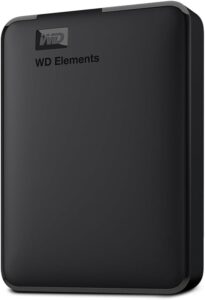
WD Elements 4 TB external hard drive
Stores a full copy of your files and settings before a risky operation such as a network reset or a system update. Connects by USB with no extra power supply.
- AmazonSee at Amazon
If nothing works
If the email arrives nowhere even though Spam, Trash, filters, forwarding and storage are checked, turn to Gmail’s official help. It covers sync errors on Android, on iPhone and account storage.
For other failures, see our guide to recurring Gmail problems and their fixes. You may also want to see which sites your email address is registered on.
Protect your Gmail account: our selection
A few products to back up your mail and files, free up space on your devices and protect your account.
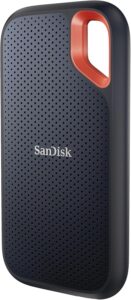 SanDisk Extreme Portable SSD 1 TBA fast pocket-sized external drive for keeping backups and exported archives. Shock-resistant and compatible with computers and many phones over USB-C.AmazonSee at Amazon
- SanDisk Ultra Dual Drive Go 128 GB, USB-C and USB-A flash driveUSB key with two connectors, for a computer or a phone. Handy for carrying files or a software update.AmazonSee at Amazon
- SanDisk iXpand Flash Drive Luxe 128 GB, Lightning and USB-C for iPhoneA flash drive with Lightning and USB-C connectors to copy photos and files from an iPhone. Also plugs into a computer to store the copy.AmazonSee at Amazon
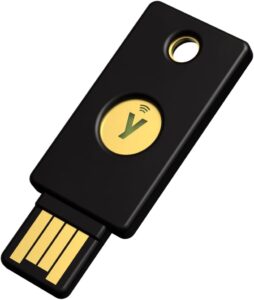 Yubico YubiKey 5 NFC, security keyPhysical key that confirms a sign-in to your Google account over NFC or USB. Protects the account that synchronises your contacts.AmazonSee at Amazon
 Bitdefender Total Security 2026, 3 devices, 1 yearSecurity suite for Windows, Mac, Android and iPhone. It helps protect accounts and files on your phone.AmazonSee at Amazon
Frequently asked questions
Why am I not receiving my emails in Gmail?
The email may be filed in Spam or Trash, or full Google storage, a filter, forwarding or a POP setting may be blocking or diverting your mail. If the email arrives on a computer but not in the app, the problem is the app. On Android, switched-off sync keeps messages from reaching the app.
What happens when Google storage is full?
Gmail can neither send nor receive mail, and messages sent to you bounce back to the sender. The 15 GB quota is shared between Gmail, Drive and Photos. If storage stays over the limit for two years, Google may delete content from all three services.
How do I check whether a filter or forwarding is diverting my mail?
On a computer, open Settings (gear icon) > See all settings > Filters and Blocked Addresses, then the Forwarding and POP/IMAP tab. In the first, look for a filter that forwards the emails you expect. In the second, check forwarding and the POP Download section.
Why is Gmail not receiving emails on my iPhone but working on my computer?
If the email arrives on a computer but not in the app, the problem is the app and not the account. Refresh the inbox, update Gmail from the App Store and turn Gmail on in Settings > General > Background App Refresh > Gmail. Also check the number of days synced in Gmail > Menu > Settings > Data usage > Sync settings.
Share this content: