
This article contains affiliate links: if you buy through them, Wanda-techs earns a commission at no extra cost to you.
Your Chromecast is not working: black screen, device missing in Google Home, no Cast icon or a dead remote. Most of the time the cause is weak power, a phone on a different Wi-Fi network or a lost Bluetooth link with the remote.
Common symptoms and causes
- Black screen or a “no signal” message: not enough power or a bad connection.
- The Chromecast with Google TV shows “Your system or an app is having problems”: this is the system recovery screen.
- Chromecast missing in Google Home or no Cast icon: phone on another Wi-Fi network, client isolation turned on in the router, wrong time on the phone, a stuck app or a missing permission.
- Unresponsive remote: weak batteries or a lost Bluetooth link.
- First-generation Chromecast: Google no longer updates or supports it.
Before you start
- Identify your exact model: Chromecast (2nd or 3rd generation, Ultra), Chromecast with Google TV (HD or 4K) or Google TV Streamer. The procedures differ. To place your device’s system, see our comparison Google TV or Android TV.
- Connect your phone to the same Wi-Fi network as the Chromecast.
- Install the Google Home app and sign in with the Google account used to set up the Chromecast.
Warning: Solution 5 restores factory settings and erases all the data on the Chromecast, with no way back. Signed-in accounts, installed apps and Wi-Fi settings disappear, and you have to set everything up again in Google Home.
Before you start it, note what you will need: Wi-Fi name and password, accounts to sign in again, apps to reinstall. If you plan to give away or sell the device, remove it from Google Home first.
Solution 1: check the power supply and the TV’s HDMI input
A Chromecast that stops working on the TV is often short of power.
- Plug the Chromecast into a wall outlet.
- If the power cable runs from a USB port on the TV, switch to the wall outlet: according to user reports, that port often supplies too little current.
- Check that the white light comes on, on the side or the back of the device depending on the model.
- Select the HDMI input on the TV where the Chromecast is plugged in.
- Keep your phone within 20 feet (6 meters) of the Chromecast to use it with Google Home.
Expected result: the white light is on and the Chromecast picture appears.
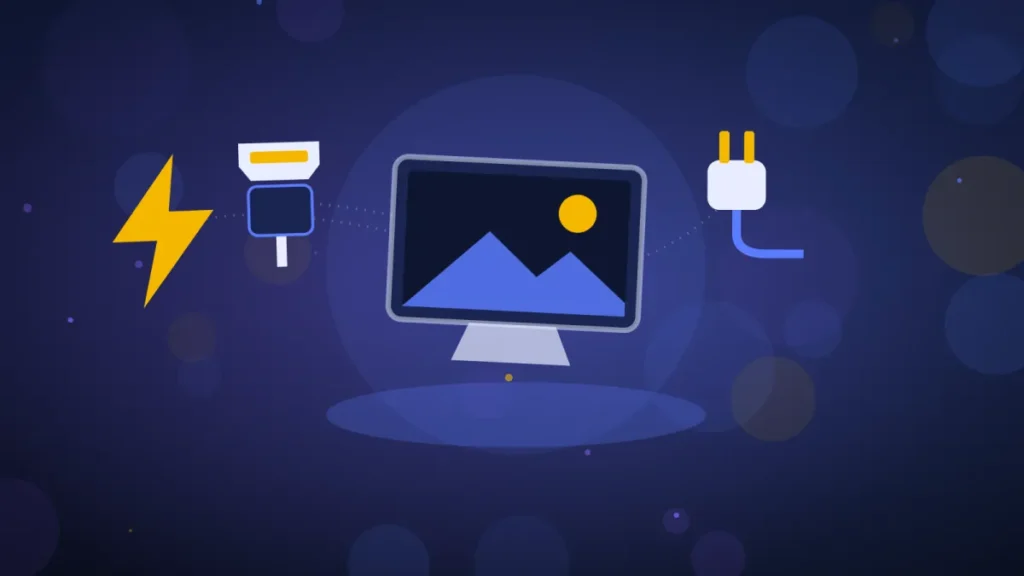
Good to know: unplugging the HDMI cable does not restart the Chromecast. Only cutting the power does.
Is the power adapter itself the culprit? Here is a reliable USB-C wall charger to plug the Chromecast into an outlet.
Anker Nano 20 W USB-C wall charger (PowerPort III)
Compact fast charger for phones with a USB-C port. It fits easily in a bag or a travel pouch.
- AmazonSee at Amazon
Solution 2: restart the Chromecast
Power restart, valid for every model:
- Unplug the power cable from the Chromecast.
- Wait one minute.
- Plug the cable back in.
Chromecast (2nd, 3rd generation, Ultra) from your phone:
- Open Google Home with the account that set up the Chromecast.
- Tap Home > All, then press and hold the Chromecast tile.
- Tap Settings > More settings > Reboot.
Chromecast with Google TV that stopped working, from the remote:
- Open Settings > System > Restart > Restart.
Google TV Streamer:
- Open All settings > System > Restart.
Expected result: the home screen comes back after a few moments. The Chromecast shows up again in Google Home.
Solution 3: bring the Cast icon back
The Cast icon, the small screen with waves, appears in compatible apps. It shows up only if your phone finds the Chromecast on the local network.
- Turn on the phone’s Wi-Fi and connect it to the same network as the Chromecast.
- Test casting with a Cast test app, not with Netflix or YouTube.
- Close the casting app: force stop it on Android, or swipe it up in the app switcher on iPhone.
- Reopen the app.
- Turn on automatic time on the phone, then restart it: a time difference with the Chromecast can block authentication.
- On Android, turn on location in Settings > Location.
- On Android, open Settings > Apps > Home app > Permissions and allow location.
- On Android, turn on Bluetooth.
- On iPhone, check in the privacy settings that local network access is allowed. This tip comes from an excerpt of Google’s help that we could not read in full.
- In your router’s interface, turn off Wi-Fi client isolation (“AP isolation”), an option that stops devices on the network from seeing each other.
- Install the latest router firmware update, the router’s internal software.
- Restart the router, then the Chromecast.
Expected result: the Cast icon appears in the app and the Chromecast shows up in Google Home.
Tip: if your Chromecast is not working with Netflix but casts from a test app, the Chromecast and the network are not at fault. Close and reopen Netflix, as in step 3.
Solution 4: Chromecast remote not working
These steps apply to the voice remote of the Chromecast with Google TV. For a similar fault on another television, see our guide TV remote not working.
- Remove the two batteries from the remote.
- Put them back while watching the light: it should blink twice.
- If it does not blink, remove one battery, put it back within 2 seconds, and try again.
- Still nothing: replace the batteries with the original ones or with two new 1.5 V AAA batteries.
- If the light stays off, remove both batteries and wait 5 minutes.
- If the light comes on but the TV does not react, unplug the USB-C cable from the Chromecast for one minute, then plug it back in.
- Hold Home and Back for 3 seconds to pair the remote.
If it still does not pair, reset it:
- Remove the batteries for 5 minutes.
- Put the batteries back while holding Home, as long as the light stays solid.
- Release Home when the light blinks.
- Hold Home and Back for 3 seconds.
- If pairing still fails, press the button on the Chromecast: the pairing screen appears.
A badly paired remote can be removed from the virtual remote in the Google Home app. Open Settings > Remotes & Accessories > Voice Remote > Remove > Yes.
Google TV Streamer remote:
- Hold Mute and the center select button.
- Keep holding them while the white light blinks: an audible countdown starts after 10 to 12 seconds.
- Release when the light turns solid white, after about 12 seconds.
Expected result: the voice remote’s light blinks twice when the batteries go back in. The Google TV Streamer remote’s light turns solid white.
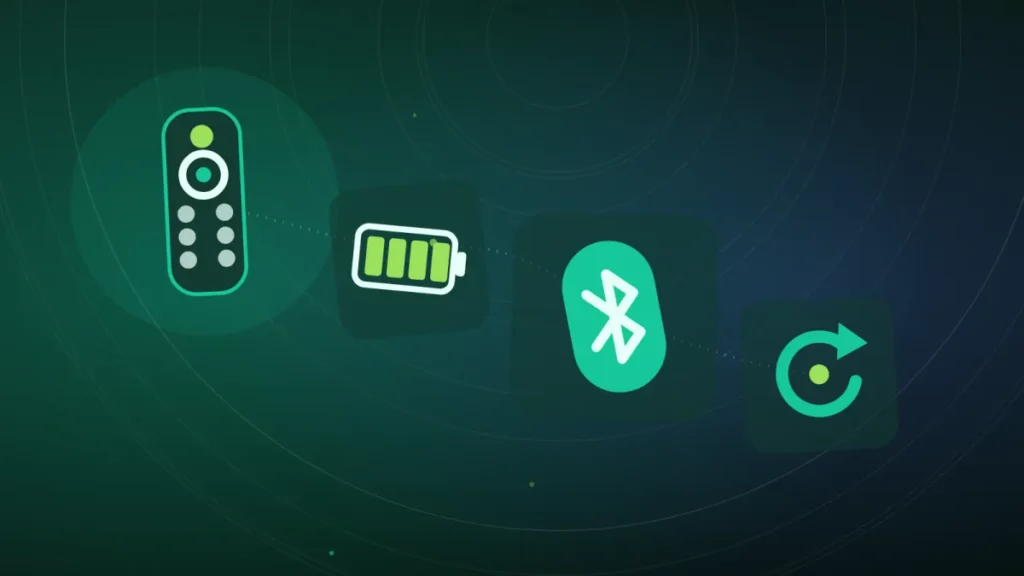
Good to know: in 2026, specialist sites reported failures of Google’s physical remotes, with no official confirmation. Until then, the virtual remote in Google Home gets you by.
If the batteries are the problem, here are alkaline AAA batteries for the remote.
Duracell Plus AAA (LR03) alkaline batteries, pack of 24
1.5 V alkaline AAA batteries for remote controls, thermostats and other low-drain devices. The large pack covers several changes.
- AmazonSee at Amazon
Solution 5: restore factory settings
Warning: the next step erases all the data on the Chromecast, with no way back. Accounts, apps and settings will be lost, and you have to set everything up again in Google Home. First note the Wi-Fi name and password, the accounts and the apps to reinstall; before handing the device on, remove it from Google Home.
If the “Your system or an app is having problems” screen appears on the Chromecast with Google TV, the voice remote does not work on that screen:
- Briefly press the button on the back of the Chromecast to move between options.
- Hold the button for 3 seconds to confirm Try again.
- If the screen comes back, choose Factory reset the same way.
Chromecast with Google TV and Google TV Streamer, from the remote:
- Open Profile > Settings > System > About > Factory reset.
Chromecast with Google TV and Google TV Streamer, with the device button:
- Check that the device is on and that the TV shows its HDMI input.
- Hold the button on the back of the device.
- Release when the light, which blinks yellow, turns solid white.
Chromecast (2nd, 3rd generation, Ultra) from Google Home:
- Connect your phone to the Wi-Fi network used during setup.
- Tap Home > All devices, then press and hold the Chromecast tile.
- Tap Settings > More > Factory reset.
- Confirm twice.
Chromecast (2nd, 3rd generation, Ultra) with the button. Google’s help pages disagree on the button’s position and the light’s color: prefer the Google Home method above.
- Hold the side button.
- Release when the light, which blinks orange, turns solid white.
First-generation Chromecast:
- Hold the button for 25 seconds, or until the light blinks.
- Release when the light blinks white and the TV goes dark.
Expected result: the setup screen appears. Set the Chromecast up again in Google Home with our Chromecast setup guide.
If nothing works
Stop if the recovery screen comes back after the reset, or if the remote stays dead after its own reset. Then contact Google Store support for warranty service or a replacement remote. According to user reports, Google sometimes replaces a faulty remote.
Have the exact model of the device at hand. One exception: the first-generation Chromecast, which Google no longer updates or supports.
Take better care of your Chromecast: our toolbox
A few accessories useful to owners of a Chromecast or a Google TV box.
- Anker Nano 20 W USB-C wall charger (PowerPort III)Compact fast charger for phones with a USB-C port. It fits easily in a bag or a travel pouch.AmazonSee at Amazon
- Duracell Plus AAA (LR03) alkaline batteries, pack of 241.5 V alkaline AAA batteries for remote controls, thermostats and other low-drain devices. The large pack covers several changes.AmazonSee at Amazon
- Anker 310 USB-C to USB-C cable, 0.9 mShort USB-C to USB-C cable from a recognised brand, handy to replace a worn cable. Also useful to test whether the cable is the cause of a charging problem.AmazonSee at Amazon
- UGREEN Cat 6 Ethernet cable, 5 mConnects a PC straight to the router for a stable wired connection. Handy for testing the network or working while Wi-Fi is down.AmazonSee at Amazon
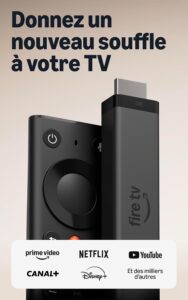 Amazon Fire TV Stick 4K (2026)Clé HDMI 4K HDR10+, Wi-Fi 6, décodage AV1, système Vega OS.AmazonSee at Amazon
Frequently asked questions
Why is my Chromecast not working?
Most often because of weak power, a phone on a different Wi-Fi network or a lost Bluetooth link with the remote. On the Chromecast with Google TV, a recovery screen signals a problem with the system or an app. A first-generation Chromecast no longer receives any update.
How do I reset a Chromecast?
On a Chromecast with Google TV or a Google TV Streamer, open Profile > Settings > System > About > Factory reset, or hold the back button until the light turns solid white. On a 2nd or 3rd generation Chromecast or an Ultra, go through Google Home if you can: the button method varies from one help page to another. A reset erases all the data.
Why did the Cast icon disappear from my phone?
The phone cannot find the Chromecast on the local network. Check that both devices are on the same Wi-Fi, that client isolation is off in the router and that the phone’s time is automatic. On Android, Google Home also needs location and Bluetooth.
How do I fix the remote of a Chromecast with Google TV?
Remove and replace the batteries while watching the light, which should blink twice. Then hold Home and Back for 3 seconds to pair it. If nothing changes, reset it: batteries out for 5 minutes, then back in while holding Home.
Is an old Chromecast still supported?
The first-generation Chromecast is not: Google no longer updates or supports it. Newer models can be fixed with the solutions above.
Share this content: