
Updated on November 26, 2026
This article contains affiliate links: if you buy through them, Wanda-techs earns a commission at no extra cost to you.
To switch from Android to iPhone, install the Move to iOS app on the Android phone, then choose the transfer from Android while you set up the new iPhone. Contacts, messages, photos, mail accounts, calendars and WhatsApp chats travel over a Wi-Fi network the iPhone creates for the occasion, with a few WhatsApp limits such as call history. If the iPhone is already set up, two options remain: move things by hand, or erase it and start over.
Common symptoms and causes
- The code does not appear on the iPhone: mobile data left on, a Wi-Fi optimizer on the Android, or known Wi-Fi networks getting in the way of the connection.
- The transfer stops: another app or a call on the Android, phones too far apart, or an iPhone running out of space.
- Some data is missing afterward: not enough storage on the iPhone, or apps with no App Store equivalent.
Before you start
- Turn on Wi-Fi on the Android.
- Plug both phones into power for the whole transfer.
- Check that the iPhone has enough space for everything on the Android, including what is on the microSD card.
- Update Chrome on the Android so your bookmarks come across.
- A USB-C cable between the two phones is optional: Apple says it speeds up the transfer.
If you do not have a USB-C to USB-C cable at hand, here is one that suits both phones.
Anker USB-C to USB-C 240 W cable, 1 m
USB-C cable rated for 240 W and 40 Gbps. Replaces a worn or missing charging cable.
- AmazonSee at Amazon
Warning: risk of data loss. Move to iOS is used during the iPhone’s setup; on an iPhone that is already set up, you have to erase it, which deletes everything on it (photos, messages, apps, settings), so back it up first. The same erase may be needed if the iPhone runs out of space mid-transfer.
Good to know: Apple also describes a method that needs no app, detailed after the four steps.
Step 1: start the iPhone setup
- Turn on the iPhone and follow the setup until you reach the Transfer Your Apps & Data screen.
- Tap From Android.
- Choose the transfer with the app.
The iPhone shows the Move from Android screen, with a QR code that leads to the app. Screen names can differ slightly depending on your iOS language and version.
Step 2: install Move to iOS on the Android
- Scan the QR code shown on the iPhone with the Android, or download Move to iOS from Google Play.
- Open the app and tap Continue.
- Accept the terms of use.
- Choose whether to share analytics data.
- Allow access to location and notifications if the app asks for them.
The app then waits for the code the iPhone is about to show.
Step 3: link the two phones with the code
- On the iPhone, on the Move from Android screen, tap Continue.
- Wait for a 6- or 10-digit code to appear.
- Enter that code on the Android.
- On the Android, join the temporary Wi-Fi network created by the iPhone.
The two phones are now linked. The Android then offers to pick the data to transfer.
Step 4: choose the data and wait for the end
- On the Android, tick the data you want to transfer.
- Keep the two phones side by side and plugged in until the iPhone’s progress bar is full.
- Do not use either device during the transfer.
- Tap Done on the Android.
- Tap Continue on the iPhone and finish the setup.
A full bar on the iPhone means the transfer is over.
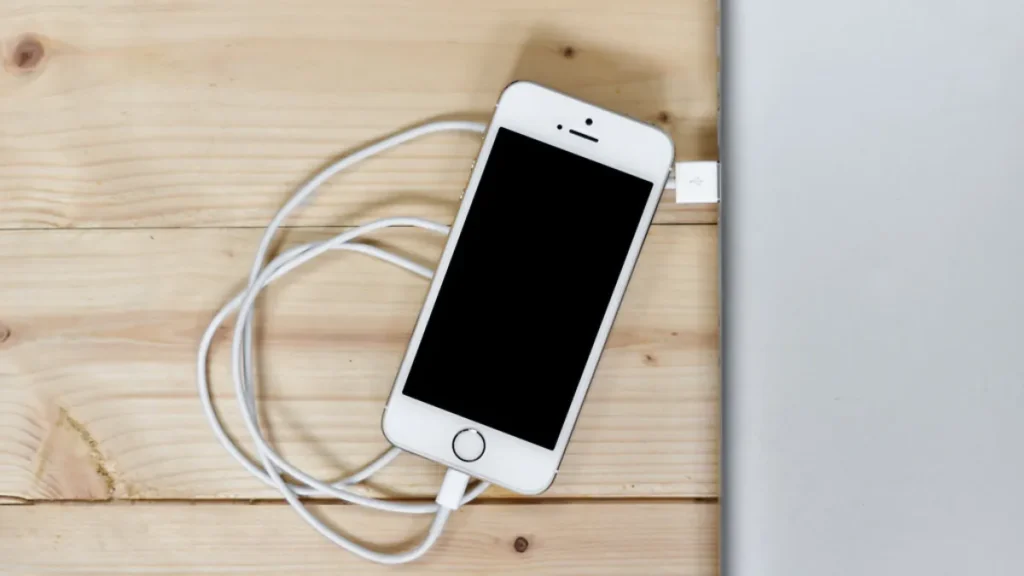
Switch from Android to iPhone: what is transferred and what is not
According to Apple, Move to iOS transfers:
- contacts, message history and calendars;
- photos, videos, albums, files and folders;
- mail accounts and web bookmarks;
- accessibility and display settings;
- WhatsApp messages and media;
- some free apps, when they exist on both Google Play and the App Store.
Not transferred: music, books and PDFs, which you move by hand, and paid apps or apps with no equivalent, which you download again from the App Store. For the data of an app that does not follow, Apple points you to its developer.
Transfer WhatsApp from Android to iPhone
According to WhatsApp’s help page, read on November 26, 2026, the transfer goes through Move to iOS and requires:
- Android 5 or later and iOS 15.5 or later;
- Move to iOS on the Android, with no other migration app;
- the latest version of WhatsApp on both phones and the same phone number;
- a new iPhone or one reset to factory settings;
- both devices plugged in, on the same Wi-Fi or with the Android connected to the iPhone’s hotspot.
Good to know: WhatsApp Business is not supported for now. For a new number, first run Change number in WhatsApp on the Android.
Follow steps 1 to 3 of this guide, then, when you get to choosing the data (step 4):
- On the Transfer Data screen, select WhatsApp.
- Tap Start on the Android.
- Wait for WhatsApp to prepare the export; the Android is signed out of WhatsApp when it is ready.
- Tap Next to go back to Move to iOS.
- Tap Continue and wait for the confirmation that it is finished.
- Install WhatsApp from the App Store on the iPhone.
- Sign in with the same number.
- Tap Start when prompted and let the transfer finish.
Your chats, groups, media and settings appear in WhatsApp on the iPhone. Not transferred: call history, display name, media received on channels, and peer-to-peer payment messages. The data stays on the Android until you delete WhatsApp or erase the phone.
Warning: restoring is only possible before you activate WhatsApp on the iPhone, and the old history does not merge with a new one. If WhatsApp is already active, you must reset the iPhone and start again, which erases all its content: back it up first.
If copying your chats gets stuck, see our guide to a stuck WhatsApp backup.
Transfer without an app
This method requires Android 17 or later and iOS 26.5 or later. Not every Android maker supports it.
- During the iPhone setup, choose Android, then Transfer without App.
- Scan the iPhone’s QR code with the Android’s camera.
- Select the data to transfer on the Android.
- Tap Continue on the iPhone.
QR code not working? Tap Other Options on the iPhone, then, in the Android settings, open Google services, all services, pairing with an iPhone or iPad, and copying data; enter the session ID and pairing code shown. These Android labels come from Apple’s English page and may vary by phone.
iPhone already set up: the other options
Apple offers two routes: move the content by hand without erasing anything, or erase the iPhone and restart the setup.
To keep the iPhone as it is, transfer by hand:
- Add to the iPhone the accounts you used on the Android, such as Gmail, to get your mail, contacts and calendars back.
- Copy the photos and videos from the Android’s
DCIMfolder to a computer. - Sync them with the iPhone through Finder (macOS Catalina or later), iTunes (macOS Mojave or earlier) or the Apple Devices app on a PC.
- Copy the music from the
Musicfolder, then the books and PDFs from theDocumentsfolder, and sync them the same way. - For documents, use Pages, Numbers, Keynote or an online storage service opened in the Files app.
- Reinstall your apps from the App Store.
Your content shows up in the iPhone’s apps with nothing erased. To move your contacts from Android to iPhone another way, see our guide to transferring contacts between iPhone and Android.
Prefer to run Move to iOS again? Then you have to erase the iPhone.
Warning: the next step erases all content and settings on the iPhone. Back it up first if you have already started using it.
- Erase the iPhone to return to the setup screen.
- Repeat steps 1 to 4.
The iPhone goes back to the setup screen, ready for the transfer.
SIM card, eSIM and text messages
Text message history is among the data Move to iOS copies. Your number, SIM card or eSIM are then activated on the iPhone, and your carrier’s website may be needed to finish.
With the no-app method, select your number on the Android and tap the transfer option to move the eSIM to the iPhone. This depends on the maker of the Android phone.
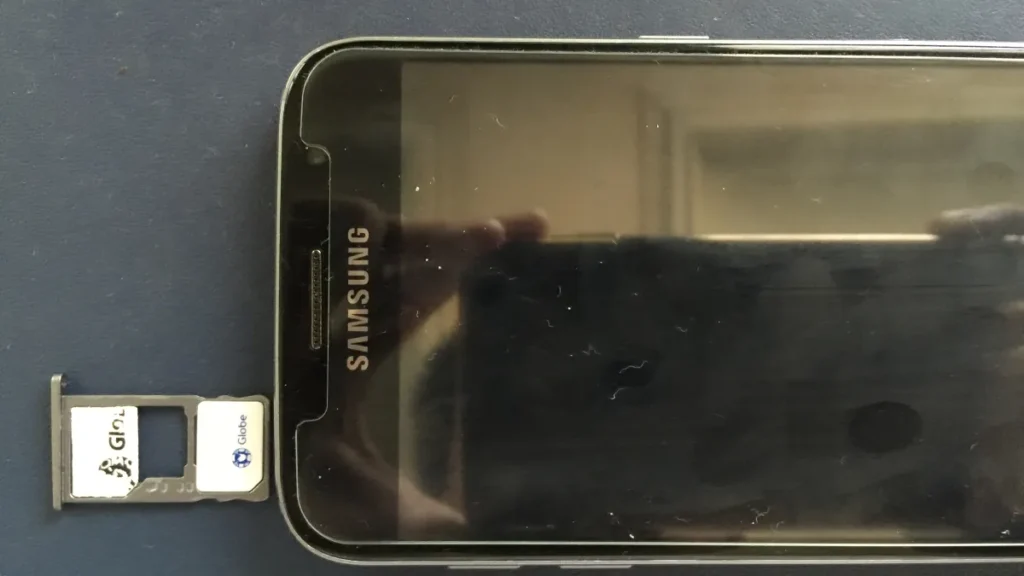
The transfer stops or the code does not appear
- Keep Move to iOS open on the Android screen, with no other app and no call.
- Turn off the Android’s Wi-Fi optimizer, for example Smart Network Switch, which Apple’s English page mentions.
- Forget the known Wi-Fi networks on the Android.
- Turn off mobile data on the Android.
- Restart both phones, then run the transfer again.
The code should appear and the copy should run to the end.
Warning: if the iPhone runs out of space, Apple advises erasing it, which deletes what it already holds, then starting over with less data.
If nothing works
If the transfer fails several times, switch to the manual transfer described above or contact Apple Support. Note beforehand the model of both phones, their Android and iOS versions, and the screen where the transfer stops.
The page Move from Android to iPhone or iPad gives the current procedure.
Equip your new iPhone: our selection
Here are a few accessories that help you set up and protect your new iPhone from day one.
- Anker 20 W USB-C charger with USB-C cableSmall USB-C wall charger with a cable included. Gives a new phone a fast first charge.AmazonSee at Amazon
- Apple USB-C charge cable, 60 W (1 m)USB-C cable for charging and syncing compatible Apple devices. Rated for up to 60 W.AmazonSee at Amazon
- Spigen Ultra Hybrid clear case for iPhone 17A clear case with a rigid back and flexible edges that shows off the colour of the iPhone 17. It protects against everyday drops and scratches.AmazonSee at Amazon
Frequently asked questions
How do you transfer all your data from Android to iPhone?
Use Move to iOS during the iPhone setup: the app copies contacts, messages, photos, videos, calendars, mail accounts and bookmarks. Music, books, PDFs and paid apps are transferred separately.
Can you transfer WhatsApp from Android to iPhone?
Yes, with Move to iOS, on a new or reset iPhone, with the same number and iOS 15.5 or later. Chats, media and settings come across. Call history, display name and channel media stay on the Android.
Can you use Move to iOS after setting up the iPhone?
No, not without erasing the iPhone to restart its setup. The other option is to move your content by hand: accounts, photos through a computer, documents through the Files app.
Do Android apps transfer to iPhone?
Only some free apps, when they exist on both Google Play and the App Store. Paid apps or apps with no equivalent are downloaded again from the App Store. To recover an app’s data, contact its developer.
Photo credits: Hand holding Google Nexus by freestocks.org, licence CC0 1.0; apple-iphone-smartphone-desk-1 by pixellaphoto, licence CC0 1.0; Galaxy S7 clone dual-SIM tray by Blakegripling ph, licence CC0 1.0
Share this content: