
This article contains affiliate links: if you buy through them, Wanda-techs earns a commission at no extra cost to you.
Laptop screen black but still on, fan spinning and no picture? Rule out zero brightness or a video output switched to another display first. The graphics driver comes next, then the hardware.
For the backlight, the panel or the display cable, every test in this guide works without opening the machine.
Common symptoms and causes
- Black screen, fan and lights active: brightness at zero.
- Picture sent to a display that is not there: video output switched with
Win+P. - Black screen after a Windows update: faulty graphics driver.
- No desktop:
explorer.exeprocess not loaded. - Frozen machine: residual electricity or a stuck state.
- Very faint picture visible in the dark: failed backlight.
- Picture on an external monitor, nothing on the laptop: faulty panel or display cable.
- Fan spinning, no picture anywhere: memory (RAM) or motherboard.
Before you start
Have an HDMI cable or a USB-C to HDMI adapter ready, plus an external monitor or a TV for the test in Solution 2.
Warning: opening the device can void the warranty, so check the warranty end date first. Do not open the case to touch the memory, the display cable or a motherboard jumper: those jobs are outside this guide.
Warning: remove the battery only if it is designed to be removable, and never force a sealed battery. Never puncture, bend or heat a lithium battery. A swollen battery will no longer charge and goes to a collection point; work on a non-flammable surface.
Warning: the Windows restore and reset offered as a last resort in Solution 5 can erase data. Back up your files first if you can still reach the system. Dell states that the reset keeps personal files, but a backup remains the only guarantee.
Solution 1: wake the screen and reset the graphics driver
- Press the brightness-up key on your keyboard.
- If nothing changes, hold the
Fnkey and press the brightness key. - Press
Win+Ctrl+Shift+Bat the same time. - Wait for the beep and the brief screen flicker, which show the graphics driver restarting.
- Press
Win+Pto open the display mode choice, then pick a mode that includes the laptop’s own screen.
The Win+Ctrl+Shift+B shortcut does not close your windows or open files. The screen should wake up and show the desktop.
If the keyboard does not respond to any key, see our guide on a laptop keyboard that no longer works.
Solution 2: plug in an external monitor to isolate the panel
- Connect the laptop to an external monitor or a TV with an HDMI cable or a USB-C adapter.
- Press
Win+Pand choose a display mode that uses the external monitor. - Look at the external monitor: a picture means the power supply and the motherboard work, and the fault lies in the laptop’s panel.
A picture on the external monitor and nothing on the laptop: the panel is the culprit. Go to Solution 4 to test it. If the computer does not detect the external monitor, follow our guide on a second monitor not detected in Windows.
For this test, here is a reliable HDMI cable if you do not have one at hand.
Belkin Ultra High Speed HDMI 2.1 cable, 2 m
Carries 4K and 8K picture and sound between a box, console or soundbar and the TV. A worn or bent cable can cause a black screen.
- AmazonSee at Amazon

Tip: as soon as the external monitor shows the desktop, back up your files before trying anything else.
Solution 3: do a hard reset
This procedure drains the residual electricity from the computer. According to an HP technician on the brand’s forum, it does not erase your files.
- Unplug USB devices, external drives and the printer.
- Unplug the charger.
- Remove the battery if it is removable.
- Hold the power button for 15 to 30 seconds on an HP, 15 to 20 seconds on a Dell.
- Plug the charger back in on its own, without the battery.
- Turn the computer on.
- If the computer starts, put the battery back.
- Reconnect your devices one by one, checking the screen after each.
On a Dell with a sealed battery, do not remove anything: just check the AC adapter light. The screen should come back on at startup.
On a Lenovo, the procedure can differ by model: follow the one on the Lenovo support page for your model.
Solution 4: test the backlight and run the manufacturer’s diagnostic
- Switch off the room light and look closely at the screen.
- Press the
Caps Lockkey and check that its light comes on. - On a Dell, shut the computer down, then hold the
Dkey and press the power button to start the LCD-BIST test. - Watch the color patterns filling the screen: solid colors mean the panel is healthy.
- On a Dell, if the screen stays black, hold the
Mkey and press the power button to start the M-BIST motherboard test. - On an HP or a Lenovo, start the manufacturer’s diagnostic tool by following the support page for your model.
A very faint picture in the dark and a Caps Lock light that responds show that the computer is running and the backlight may have failed.
On a Dell, a battery light that blinks amber twice then white eight times during the LCD-BIST signals a panel fault. During the M-BIST, an amber light signals a motherboard fault, and no light means no fault is detected.
If the LCD-BIST colors display properly, the panel is sound and the problem comes from the graphics card or the settings: go to Solution 5.
Good to know: on a Dell, the ePSA diagnostic starts by holding Fn then the power button; at the video test, press N for the LCD-BIST. For SupportAssist OS Recovery, press F12 about once a second at power-on.
Solution 5: repair the graphics driver in Safe Mode
- Press
Ctrl+Alt+Delete, open Task Manager, run a new task and typeexplorer.exe. - If the desktop does not appear, force the computer off with the power button, two to three times in a row during startup, to open the recovery environment.
- Choose Troubleshoot > Advanced options > Startup Settings > Restart.
- Press
4orF4for Safe Mode, or5orF5for Safe Mode with Networking. - Open Device Manager, expand the display adapters section, right-click your graphics card and open its properties, then, on the driver tab, roll back to the previous driver.
- On a Dell, download the latest graphics driver if needed from the video category of the Drivers & Downloads page.
If the desktop appears at step 1, a background process is probably to blame, according to Dell.
If the computer stays stuck in Safe Mode, run msconfig, open the Boot tab and clear Safe boot. After a normal restart, the screen should show the desktop, as our guide on the black screen at Windows 11 startup also explains.
Warning: the next step can erase data. A reset puts Windows back to a fresh state; according to Dell it keeps your personal files, but back them up first.
- Start System Restore from the recovery environment.
- If the screen stays black, start the Windows 11 reset, or the refresh on Windows 10, choosing to keep your personal files.
Microsoft’s Safe Mode procedure is detailed on the page Start your PC in Safe Mode.
If nothing works
Stop if the external monitor shows a picture but the laptop does not, if the LCD-BIST makes the light blink, or if neither brightness, the driver restart nor the hard reset changes anything.
The panel, the backlight or the display cable are then repaired by the manufacturer or at the repair service. With no picture on the external monitor and the fan running, the motherboard, the memory or the graphics chip is at fault: repair service again.
If the repair costs more than the machine is worth, an external monitor lets you keep working in the meantime. Here are three monitors to compare.
- Philips 27E1N1100A: 27-inch Full HD IPS 120 Hz monitor with speakersA 27-inch Full HD monitor with an IPS panel, 120 Hz and built-in speakers. It connects through HDMI or VGA.AmazonSee at Amazon
- Philips 27E2N2100: 27-inch Full HD IPS 120 Hz monitorA 27-inch Full HD monitor with an IPS panel and 120 Hz. A desk model to replace a screen that no longer displays.AmazonSee at Amazon
- Philips 27E1N1300A: 27-inch Full HD IPS 100 Hz monitor with USB-CA 27-inch Full HD monitor with an IPS panel, 100 Hz, a USB-C port and built-in speakers. It suits laptops that output video through USB-C.AmazonSee at Amazon
On a Dell, an amber power light usually signals a failed power-on self-test (POST); for a light code you cannot find, contact Dell support.
If the computer got hot, let it cool for 15 to 20 minutes before a last attempt. A drop, a knock or a spilled liquid can cause the display failure: the repair is then paid, unless you have accidental damage cover.
Prepare the model reference, the serial number, the proof of purchase, the list of tests you ran and the state of your backup.
Take better care of your laptop: our toolbox
These accessories help you test the display, protect your data and avoid the next breakdown.
- UGREEN USB-C to HDMI adapter, 4K 60 HzConnects a video-capable USB-C port to the HDMI input of a monitor or TV. It saves you a hub when the PC has no HDMI output.AmazonSee at Amazon
- Anker 332: 5-in-1 USB-C hub with 4K HDMIAdds HDMI and USB ports to a laptop that has too few. Handy for plugging in a monitor and a mouse receiver.AmazonSee at Amazon
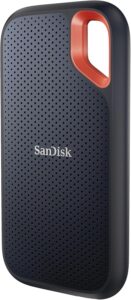 SanDisk Extreme Portable SSD 1 TBPocket-sized external SSD to offload footage after a shoot. Connects over USB-C.AmazonSee at Amazon
- Belkin surge protector power strip, 4 sockets, 525 joules, 2 m, 2 USB portsFour sockets with surge protection rated 525 joules, plus two USB ports. An indicator shows when the earth connection is missing.AmazonSee at Amazon
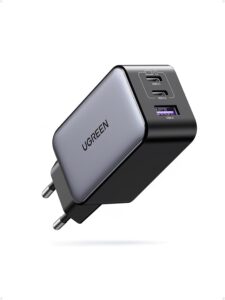 UGREEN Nexode 65 W charger (3 ports)One wall charger for a laptop, a phone and a third device at once.AmazonSee at Amazon
Frequently asked questions
Why does my laptop turn on but the screen stays black?
Several causes produce this symptom: brightness at zero, video output switched to another display, a faulty graphics driver, backlight, or a faulty panel or display cable. Plugging in an external monitor helps you decide. A picture on the external monitor points to the laptop’s panel, not the power supply or the motherboard.
How do I do a hard reset on a laptop?
Unplug the charger, remove the battery if it is removable, then hold the power button for about 15 to 30 seconds. Plug the charger back in on its own and turn the computer on again. According to an HP technician on the brand’s forum, this does not erase your files.
Which shortcut wakes the screen in Windows?
The Win+Ctrl+Shift+B shortcut brings the screen out of a black or blank state, according to Microsoft. Dell adds that it restarts the graphics driver, with a beep and a screen flicker. Your windows and open files stay in place.
How can I tell whether it is the screen or the motherboard?
Plug in an external monitor over HDMI or USB-C. A picture on the external monitor points to the panel; no picture on either screen while the fan runs points to the motherboard, the memory or the graphics chip. On a Dell, the LCD-BIST test, started with D and the power button, confirms the state of the panel.
HP laptop on but screen black: where do I start?
Start with the shortcuts in Solution 1, then do the hard reset: charger unplugged, battery removed if it is removable, power button held for 15 to 30 seconds. HP also suggests looking at the screen in a dark room and testing the Caps Lock light to spot a failed backlight. For a hardware diagnostic, follow the HP support page for your model.
Share this content: