
This article contains affiliate links: if you buy through them, Wanda-techs earns a commission at no extra cost to you.
Google Chrome won’t open: you click the icon and no window appears, or it closes right away. Google’s first lead is that Chrome may still be running in the background, so you need to end its processes before launching it again. If that is not enough, check your antivirus, then reinstall the browser.
Common symptoms and causes
- Nothing happens when you click the icon, or Chrome does not respond.
- A
chrome.exeprocess stays active in the background while no window is visible. - Your antivirus or other security software is blocking Chrome.
- Malware or unwanted software is interfering with the browser.
- Chrome opens, then crashes: a faulty extension can be the cause.
- The Chrome installation is damaged and needs to be redone.
- A corrupted Chrome profile: a plausible cause, but one that Google’s help pages do not document.
Before you start
Warning: uninstalling Chrome with the “Also delete your browsing data” box ticked, like deleting a Chrome profile, erases data, so back up first. Lost on the PC with no way back: the bookmarks and history of the profile, and, when a profile is deleted, its passwords and settings. This risk is repeated right before the step concerned.
- A PC running Windows 10 or Windows 11.
- If possible, sign in to Chrome with your Google account and turn on sync before any uninstall: part of your data then stays on Google’s servers.
- Uninstalling Chrome may ask for administrator rights.
Solution 1: end the Chrome processes and restart the PC
Chrome can stay open in the background without showing a window.
- Press
Ctrl+Alt+Delete, then choose Task Manager. - Open the Processes tab.
- Select each Google Chrome or
chrome.exeline, then click End task. - Restart the PC to clear the conflicting processes.
Launch Chrome again after the restart: the browser window should appear.
Tip: when Chrome is open, Ctrl+Q quits it completely, and Ctrl+Shift+T reopens the tabs from your previous session.
Solution 2: check your antivirus and scan for malware
Google says an antivirus or other security software can block Chrome. The menus depend on your software.
- Open your antivirus and check whether it has blocked Chrome.
- If it has, change its settings so it stops blocking Chrome.
- Run a scan of the PC for malware or unwanted software.
Once the block is lifted or the unwanted software is removed, Chrome should open when you click its icon.
Solution 3: Chrome opens, then crashes: rule out extensions and hardware acceleration
These settings are changed inside Chrome, so they only help if the browser manages to open, even briefly. An extension is a small add-on installed in Chrome.
- Uninstall all your extensions.
- Add them back one at a time and test Chrome after each one, to find the one causing the crash.
If the crashes continue with no extensions, turn off hardware acceleration, which means using the graphics card to display pages.
- Open More > Settings > System.
- Turn off Use hardware acceleration when available.
- Relaunch Chrome.
Chrome should now stay open without closing by itself.
Solution 4: test a new Chrome profile
A profile holds your bookmarks, history, passwords and settings.
- Click the Chrome Profile icon.
- Click Add Chrome profile.
If Chrome works with the new profile, the problem most likely comes from the old one. You can find your profiles under Manage Chrome profiles.
Warning: do not delete the old profile without backing up its content. Deleting it erases its bookmarks, history, passwords and settings from the PC.
To copy your bookmarks and files before any risky step, here is what you need for a simple backup.
- SanDisk Ultra Dual Drive Go 128 GB, USB-C and USB-A flash driveUSB key with two connectors, for a computer or a phone. Handy for carrying files or a software update.AmazonSee at Amazon
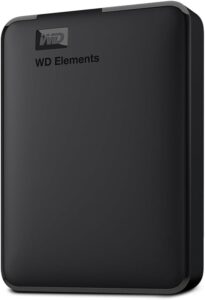 WD Elements 4 TB external hard driveStores a full copy of your files and settings before a risky operation such as a network reset or a system update. Connects by USB with no extra power supply.AmazonSee at Amazon
Solution 5: uninstall and reinstall Google Chrome
Google suggests reinstalling when Chrome still will not open. It can also fix a changed search engine, pop-up windows or update problems. For a search engine forced on you without your consent, see also how to remove Bing from Chrome’s search engine.
On Windows 11:
- Close Chrome.
- Open Start > Settings > Apps > Installed apps.
- Click … next to Google Chrome, then Uninstall.
Warning: the next step can erase data. If you tick “Also delete your browsing data”, the profile’s bookmarks and history are deleted from the PC with no way back, so back them up or sync them first.
- Tick the “Also delete your browsing data” box to start from scratch, or leave it unticked to keep that data on the PC.
- Click Uninstall, then Yes.
- Download Chrome from google.com/chrome and install it.
On Windows 10 the path is different: Settings > Apps > Apps & features, select Google Chrome, then click Uninstall twice. Reinstalling works as above.
Warning: if you tick “Also delete your browsing data”, the profile’s bookmarks and history are deleted from the PC with no way back, so back them up or sync them first.
Once reinstalled, Chrome should open on the first click. On its crash page, Google advises ticking the browsing data box; its uninstall page presents it as optional.
If the installation fails, note the code shown:
0x80070070: the disk is full; free up space on theC:drive.- Error
4: a newer version of Chrome is already installed. - Errors
7,12,13,35,57,102or103: a failure with no identified cause. - Error
31: Chrome cannot be reinstalled. - Error
1603or0x00000643: check the Chrome Help Forum or a Microsoft tool.
Google also offers an offline installer, in a version for a single user account or for all accounts on the PC.
If Windows Firewall blocks the installation or the update:
- Open Allow an app through Windows Firewall.
- Click Change settings, then Allow another app and Browse.
- Choose
updater.exein the highest-numbered subfolder of%ProgramFiles(x86)%\Google\GoogleUpdater. - Click Add.
Good to know: Chrome does not install in Windows S mode. Leaving S mode goes through the Microsoft Store (Switch out of S mode > Get); it is free but irreversible.
If nothing works
Stop here if Chrome still will not open after a clean reinstall. Turn on Chrome’s error and crash reports, then look for your case or ask your question on the Chrome Help Forum. In the meantime, use another browser, which also tells you whether a page is a problem everywhere.
Have ready your Windows version (10 or 11), the error code shown during installation and what you have already tried. If Windows Update itself is stuck, our guide on Windows Update stuck helps you get it going again.
Protect your PC: our toolbox
A protected and backed-up PC avoids many browser blocks and data losses.
 Bitdefender Total Security 2026, 3 devices, 1 yearSecurity suite for Windows, Mac, Android and iPhone. It helps protect accounts and files on your phone.AmazonSee at Amazon
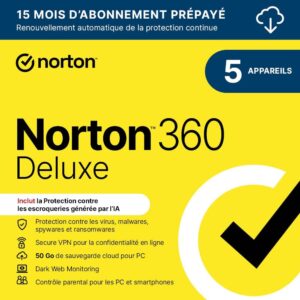 Norton 360 Deluxe 2026, 5 devices, 15 monthsSecurity suite licence for PCs, Macs, Android phones and iPhones, with a VPN and a password manager. A way to protect the accounts that hold your contacts.AmazonSee at Amazon
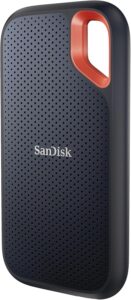 SanDisk Extreme Portable SSD 1 TBPocket-sized external SSD to offload footage after a shoot. Connects over USB-C.AmazonSee at Amazon
 Avast Premium Security 2026, 1 device, 1 yearThe entry-level choice for a single computer: antivirus, fake-site blocking and ransomware protection for around ten euros.AmazonSee at Amazon
Frequently asked questions
Why won’t Google Chrome open on my PC?
Google documents several causes: a Chrome process still active in the background, an antivirus blocking the browser, malware or a damaged installation. Start by ending the chrome.exe processes in Task Manager and restart the PC. If nothing changes, check your antivirus, then reinstall Chrome.
How do I force Chrome to close in Task Manager?
Press Ctrl+Alt+Delete, choose Task Manager, then the Processes tab. Select each Google Chrome or chrome.exe line and click End task. Then restart the PC before launching Chrome again.
How do I reinstall Chrome without losing my bookmarks?
Leave the “Also delete your browsing data” box unticked when you uninstall: your bookmarks and history then stay on the PC. Turn on sync with your Google account before you start too, because part of your data stays on Google’s servers. Then reinstall Chrome from google.com/chrome.
Can an antivirus stop Chrome from opening?
Yes, Google lists antivirus and other security software among the possible causes. Open your antivirus, check whether it has blocked Chrome and change its settings if so. Also run a scan for malware or unwanted software.
Google Chrome won’t open on Windows 11 or Windows 10: does the method change?
Only the uninstall path changes. On Windows 11, go through Start > Settings > Apps > Installed apps; on Windows 10, through Settings > Apps > Apps & features. The other solutions work the same way.
Share this content: