

Updated on November 14, 2026
This article contains affiliate links: if you buy through them, Wanda-techs earns a commission at no extra cost to you.
SD card not recognized by your phone or PC: it no longer shows up, or Windows gives it no drive letter. The cause ranges from a simple missing letter to a damaged file system, or a faulty card reader.
Start with the checks that carry no risk. Formatting comes last.
Common symptoms and causes
- The card has no letter in File Explorer, but it is visible in Windows Disk Management.
- The file system (the way the card organizes its files) is corrupted: Windows shows it as
RAW. These logical errors can be repaired with chkdsk or First Aid. - The card reader or its driver is faulty.
- The card is encrypted with BitLocker To Go: it stays unreadable until you enter its password.
- The card shows up nowhere, not even in Disk Management, on several readers: the card or the reader is defective.
Before you start
- An external card reader, preferably, to test the card on a computer.
- An account with administrator rights on Windows, to run chkdsk.
- The card’s drive letter, noted in Disk Management before running chkdsk.
Warning: formatting erases all the data on the card, and chkdsk can lose data on a card formatted as FAT. First copy everything that is still readable to your computer, photos and videos included. Do not format the card first.
Warning: opening the device, the card reader or the adapter may void the warranty. Check the warranty end date beforehand.
Solution 1: microSD card not recognized by your Android phone
- Open Settings > Storage > SD card.
- For a new card, wait for the “SD card detected” notification when you insert it.
Expected result: the card appears in Settings > Storage > SD card and your files open. If it stays missing, move on to a computer with a card reader.
To test the card on a computer without relying on a built-in reader that may be faulty, here is an external card reader.

SanDisk Extreme PRO: UHS-II USB-C SD card reader
Reads UHS-II SD cards at full speed on a computer with a USB-C port. It speeds up copying photos before a format.
- AmazonSee at Amazon
Solution 2: SD card not recognized on Windows 11 or 10, assign a drive letter
- Press Win+X, then choose Disk Management.
- Right-click the card’s volume.
- Choose “Change Drive Letter and Paths”.
- Pick a free letter, then confirm.
Expected result: the card shows up in File Explorer under the letter you chose. Note this letter, chkdsk needs it.
Good to know: a defective card does not appear in Disk Management. If yours is in the list, look at the drive letter first.
Solution 3: repair the SD card with chkdsk on a PC
Warning: on a card formatted as FAT, chkdsk can lose data. First copy what is still readable.
- Right-click Command Prompt, then choose Run as administrator.
- Type
chkdsk X: /f, replacingXwith the card’s letter, then press Enter. - If chkdsk offers to convert lost chains to files, type
Yto keep them asFile0000.chkfiles at the root of the card. TypeNto repair without keeping them. - Let the scan run to the end, without interrupting it.
- To also look for bad sectors, run the command again as
chkdsk X: /r, which includes/f.
Expected result: chkdsk finishes its scan and the card opens in File Explorer.
Good to know: chkdsk X: with no parameter displays errors without fixing them. The /scan and /b options only apply to NTFS, not to a card formatted as FAT32 or exFAT. The /x option forces the volume to dismount before the scan.
Solution 4: repair the card on a Mac with First Aid
- Open Disk Utility, then choose View > Show All Devices.
- Select the card’s volume.
- Click First Aid, then Run.
- Click Done.
- Repeat for each volume on the card, then for the container, then for the device.
Expected result: the card can be read again in the Finder. If Disk Utility cannot repair it, back up what is readable, then reformat it (solution 5) or replace it.
Solution 5: recover your files, then format the card
Warning: the steps below erase all the data on the card, photos and videos included. Back up everything that is still readable first.
- Copy all the files that are still readable to your computer.
- Check that the device that will receive the card (phone, camera, console) is compatible with it.
Format an unrecognized SD card on a Windows PC
- Open This PC, then right-click the card under Devices and drives.
- Choose Format.
- Under File system, choose
NTFS,FAT32orexFAT, depending on what the destination device supports. - Click Start.
Format the card on an Android phone
- Open Settings > Storage > SD card.
- Tap the three-dot menu at the top right.
- Tap Format, then Format card.
Good to know: Format sets the card up as portable storage. Format as internal turns it into internal storage for the phone.
With the SD Association’s tool
The SD Association recommends its SD Memory Card Formatter software for SD, SDHC, SDXC and SDUC cards. The operating systems’ own tools are not necessarily optimized for them. This one leaves the card’s protected area untouched.
- If the card is encrypted with BitLocker To Go, decrypt it with its password first: the tool does not support it.
- Download SD Memory Card Formatter from the SD Association website.
- Run it with administrator rights, on Windows and macOS alike, then format the card.
Expected result: the empty card is recognized again by the computer or the phone. Then copy your files back.
If nothing works
Stop if the card stays missing from Disk Management on several readers and devices. The same goes if it stays unreadable after chkdsk or First Aid and a format: the card or the reader is defective, so replace it.
For important files, do not reformat the card again and read our guide on recovering files from a corrupted memory card.
If the card is dead, here are two brand-name cards to compare as a replacement.
- Samsung EVO Plus 256 GB microSD card (2024) with SD adapterThis microSD card adds storage to Android phones that have a card slot. Moving photos and videos onto it lightens the phone memory and the WhatsApp backup.AmazonSee at Amazon
- SanDisk Extreme PRO 128 GB SDXC UHS-II V90Fast UHS-II SD card for burst shooting and demanding video. Format it in the camera before first use.AmazonSee at Amazon
The same diagnosis applies to other media: see our guides on a USB drive not recognized on Windows and an external hard drive not recognized.
Take better care of your memory cards: our toolbox
A few products to replace a card, back up your files and avoid losing them again.
- Samsung EVO Plus 256 GB microSD card (2024) with SD adapterThis microSD card adds storage to Android phones that have a card slot. Moving photos and videos onto it lightens the phone memory and the WhatsApp backup.AmazonSee at Amazon
- SanDisk Extreme PRO 128 GB SDXC UHS-II V90Fast UHS-II SD card for burst shooting and demanding video. Format it in the camera before first use.AmazonSee at Amazon
- SanDisk Ultra Dual Drive Go 128 GB, USB-C and USB-A flash driveUSB key with two connectors, for a computer or a phone. Handy for carrying files or a software update.AmazonSee at Amazon
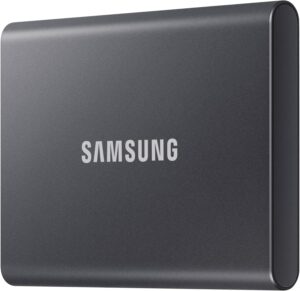 Samsung T7 1 TB external SSDFast, rugged pocket SSD to keep an offline copy of your site files and database at home. Unplugged, it is out of an attacker's reach.AmazonSee at Amazon
Frequently asked questions
Why is my SD card not recognized?
Most often, it is missing a drive letter on Windows or its file system is corrupted. A faulty card reader or driver, or a card encrypted with BitLocker To Go, causes the same symptom. If the card does not even appear in Disk Management on several readers, the card or the reader is defective.
My SD card is not recognized by my phone, what should I do?
Open Settings > Storage > SD card to check that Android sees the card. A new card shows an “SD card detected” notification when inserted. If the card stays missing, test it on a computer with a card reader, then repair it with chkdsk or First Aid.
Should I format an SD card that is not recognized?
Not first. Formatting erases all the data on the card: copy what is still readable first, then try chkdsk on Windows or First Aid on a Mac. Format only if the repair fails, for example with SD Memory Card Formatter, the SD Association’s tool.
How can I tell if my SD card is dead?
A card missing from Disk Management on several readers and devices points to a defective card or reader. The same verdict applies to a card that stays unreadable after chkdsk or First Aid and then a format. Replace the card or the reader at that point.
Share this content: