

This article contains affiliate links: if you buy through them, Wanda-techs earns a commission at no extra cost to you.
When WhatsApp notifications are not showing, the message arrives, but your phone does not ring, vibrate or display anything on the screen. One setting among several is to blame: those of the app, the system permissions, the Do Not Disturb or Focus modes, or battery management. Check them in the order below, from the simplest to the most involved.
Common symptoms and causes
- No alert for a single chat or group: the chat is muted.
- Notification visible but silent: the WhatsApp ringtone is set to Silent or None, or the phone is in silent mode.
- No notification at all from WhatsApp: notifications are turned off in the phone settings.
- Nothing during certain periods: Do Not Disturb (Samsung) or a Focus mode (iPhone) is on.
- A WhatsApp notification but no message, or messages that only arrive when you open the app: battery restrictions or background data turned off, especially on Samsung and Xiaomi.
- App or system out of date.
According to WhatsApp’s help pages, on Android 10 and later, pop-up alerts (the windows that appear at the top of the screen) may not show. This follows a change in the system.
Before you start
Update WhatsApp from your app store. On a Samsung, also install the latest system version from Settings, under Software update.
On iPhone, notifications go through Apple’s push notification service, the channel that delivers app alerts. According to information relayed by WhatsApp’s help pages, a stable internet connection and a correct date and time are part of the basic checks.
Warning: the last-resort fix, reinstalling WhatsApp, erases chats that are not backed up. Back up your chats before you get that far, or they are lost. See our guide if your WhatsApp backup is stuck.
Solution 1: check muted chats and the ringtone in WhatsApp
A muted chat or group triggers no alert. A ringtone set to Silent or None makes no sound.
- Open the chat or group that no longer alerts you and check that it is not muted. If it is, turn notifications back on.
- Open WhatsApp’s notification settings and check that the message and group ringtones are not set to Silent or None.
The next message in that chat should now sound an alert. To set sounds and alerts chat by chat, see our tip on customizing WhatsApp notifications.
Good to know: according to WhatsApp’s help pages, the phone’s notification settings override those of the app. If the system blocks everything, your changes in WhatsApp have no effect. Move on to solution 2.
Solution 2: allow WhatsApp notifications in the system
On iPhone:
- Open Settings > Notifications, then tap WhatsApp.
- Turn on Allow Notifications.
- Choose where alerts appear: Lock Screen, Notification Center and Banners.
- On the same screen, turn on Sounds.
New messages should now show on the lock screen and as a banner.

On Android:
- Open Settings > Notifications > App notifications.
- Choose All apps in the drop-down menu if WhatsApp is not in the list of recent apps.
- Turn on notifications for WhatsApp and for each of its categories.
On a Samsung, turn on WhatsApp in the app notifications list, from Settings under Notifications. Menus vary by manufacturer.
Tip: when a WhatsApp notification is on screen, press and hold it, then tap the gear icon to open its settings directly. Handy when menus are named differently from one brand to another.
According to WhatsApp’s help pages, Android 13 and later ask for a notification permission for each app. Check it in Settings, on WhatsApp’s page in the app list, in the notifications section (Settings > Apps > WhatsApp > Notifications). WhatsApp should then be among the apps allowed to notify you.
Solution 3: turn off Do Not Disturb, Focus and silent mode
An active Focus mode on iPhone silences notifications. The menu labels below were not confirmed by an Apple source and may vary with the iOS version.
- Open Control Center and tap the Focus tile to turn off the active mode.
- To keep a Focus mode, open its settings in Settings, choose the mode, add WhatsApp to the apps allowed to notify you, then confirm.
- Check the iPhone’s ring/silent switch and the volume: an iPhone in silent mode makes no sound.
When the Focus icon in Control Center appears alone, without a mode name, no mode is active.
Good to know: the Driving Focus mode lets no app notification through.
On a Samsung:
- Swipe down from the top of the screen to open the quick settings panel.
- Turn off Do not disturb and Power saving.
WhatsApp notifications should show again.
Solution 4: lift the battery and data restrictions
If messages only arrive when you open WhatsApp, look here. According to WhatsApp’s help pages, alerts also depend on battery settings and background data.
On a Samsung (menu names may differ with the One UI version, Samsung’s interface):
- Open Settings, then Battery, then Background usage limits.
- Turn off Put unused apps to sleep.
- Remove WhatsApp from the list of sleeping apps.
- In Settings, open Connections, then Data usage, and turn off Data saver (Connections > Data usage > Data saver).
On other Android phones, WhatsApp’s help pages, as quoted in search summaries, advise excluding WhatsApp from battery optimization and allowing its background data. Menu names vary by manufacturer, on Xiaomi in particular.
Messages should arrive with their notification, without opening WhatsApp.

Solution 5: reset app preferences (Samsung)
Warning: step 1 restores the default preferences of all apps. Your data is kept. Menu names may differ with the One UI version.
- Open Settings, then Apps, tap the three-dot menu, then Reset app preferences.
- Open WhatsApp in the app list, then Storage, and clear the cache (Storage > Clear cache).
WhatsApp notifications should come back with the default settings.
If nothing works
Restart the phone, then check that WhatsApp is up to date. If the problem persists, reinstall WhatsApp as a last resort.
Warning: uninstalling WhatsApp erases chats that are not backed up. Back up your chats before uninstalling, or they are lost.
If battery management still cuts notifications, contact the phone manufacturer’s support. Have the exact model, the system version and the WhatsApp version at hand.
For a WhatsApp call notification that does not show, or calls that do not go through, see our guide on WhatsApp calls not working.
Protect your phone and your chats: our selection
A smartwatch, a backup drive within reach and a healthy battery help you stop missing messages.
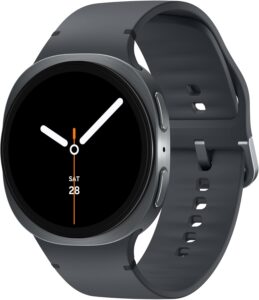 Samsung Galaxy Watch8 40 mmMontre connectée Bluetooth sous Wear OS, coach de course et suivi du sommeil.AmazonSee at Amazon
 Apple Watch Series 11 GPS 42 mmMontre connectée Apple, score de sommeil, suivi de la santé, écran toujours activé.AmazonSee at Amazon
- SanDisk iXpand Flash Drive Luxe 128 GB, Lightning and USB-C for iPhoneA flash drive with Lightning and USB-C connectors to copy photos and files from an iPhone. Also plugs into a computer to store the copy.AmazonSee at Amazon
- SanDisk Ultra Dual Drive Go 128 GB, USB-C and USB-A flash driveUSB key with two connectors, for a computer or a phone. Handy for carrying files or a software update.AmazonSee at Amazon
- Anker Nano power bank 10,000 mAh 45 W with retractable USB-C cablePortable battery with a built-in retractable USB-C cable to top up a tablet away from a socket. Handy as a backup when the wall charger is out of reach.AmazonSee at Amazon
- Samsung 25 W USB-C wall charger (EP-TA800)Original Samsung charger with a USB-C output for fast charging of compatible Galaxy devices. A reliable reference to rule out a faulty charger.AmazonSee at Amazon
Frequently asked questions
Why do I only get WhatsApp messages when I open the app?
According to WhatsApp’s help pages, alerts depend on permissions, background data and battery settings. On a Samsung, turn off Put unused apps to sleep and Data saver.
How do I turn WhatsApp notifications back on for an iPhone?
Open Settings > Notifications, tap WhatsApp and turn on Allow Notifications. Then choose where alerts appear: Lock Screen, Notification Center and Banners. Also check that no Focus mode is blocking WhatsApp.
Why are WhatsApp notifications not coming through on Samsung or Xiaomi?
These phones’ battery management can put WhatsApp to sleep. On a Samsung, remove WhatsApp from the sleeping apps under Background usage limits in the Battery section, and turn off Power saving.
For Xiaomi, the official sources consulted give no path. According to WhatsApp’s help pages, exclude WhatsApp from battery optimization and allow its background data.
Does a muted chat block notifications?
Yes. According to WhatsApp’s help pages, a muted chat or group triggers no alert. Turn notifications back on from the chat in question.
Share this content: