

Updated on November 6, 2026
This article contains affiliate links: if you buy through them, Wanda-techs earns a commission at no extra cost to you.
Your Wi-Fi has disappeared on Windows 11: the icon is missing from Quick Settings, or no network shows up at all. Most of the time the cause is airplane mode, a disabled Wi-Fi adapter or a driver damaged by an update.
Common symptoms and causes of a missing Wi-Fi on Windows 11
- The Wi-Fi icon is gone from the taskbar, or no network is listed.
- Airplane mode is on, or the laptop’s Wi-Fi switch is set to off.
- The Wi-Fi adapter (the component that picks up the signal) is disabled, or its driver misbehaves after an update.
- The WLAN AutoConfig service, which manages Windows wireless connections, is stopped.
- The adapter only picks up the 2.4 GHz band while the router broadcasts on 5 GHz.
- Power saving switches the Wi-Fi adapter off.
Before you start
- Sign in with an administrator account: Command Prompt, Services and Device Manager all require one.
- Download the Wi-Fi driver from your PC maker’s website before uninstalling anything, using an Ethernet cable or another connection.
- Check that another device (phone, tablet) connects to the same network.
Warning: the network reset in Solution 4 erases data, so back up first. It removes installed network adapters and saved Wi-Fi networks with their passwords, and forces you to set up VPNs and Hyper-V virtual switches again. Write down your Wi-Fi passwords and VPN settings before you run it.
Solution 1: turn off airplane mode when the Wi-Fi icon is gone
- Open Settings > Network & internet > Airplane mode.
- Set airplane mode to Off.
- Check that Wi-Fi is turned on and that your network shows “Connected” in the taskbar.
- On a laptop, check the physical Wi-Fi switch and slide it to the on position.
Wi-Fi comes back and your network shows “Connected”.
Solution 2: run the network troubleshooter and restart the router
- Open the Get Help app and run the network troubleshooter.
- If the app fixes nothing, open Settings > Network & Internet > Status > Network troubleshooter.
- Restart the PC.
- Unplug the router, then the modem.
- Wait at least 30 seconds.
- Plug the modem back in and wait until its lights are steady.
- Plug the router back in.
The network list returns after the PC and the router restart. No change? Move on to the Wi-Fi adapter.
Solution 3: re-enable the Wi-Fi adapter and reinstall its driver
The driver is the small piece of software that lets Windows control the Wi-Fi adapter. Everything happens in Device Manager.
Enable the adapter and turn off power saving
- Open Device Manager and expand Network adapters.
- Right-click the Wi-Fi adapter and enable it if it is disabled.
- Right-click the adapter, choose Properties, then open the Power Management tab.
- Clear the checkbox that lets the computer turn off this device to save power.

Good to know: if the adapter shows a problem code in Device Manager, write it down and check the driver version. The same code appears in the Windows wireless network report.
Reinstall the Wi-Fi driver
- Check that the manufacturer’s driver is already downloaded on the PC.
- Open Device Manager > Network adapters > Uninstall device by right-clicking the Wi-Fi adapter.
- Tick the box to attempt to remove the driver, then click Uninstall.
- Restart the PC: Windows reinstalls the adapter at startup.
- If the adapter still does not appear, install the driver you downloaded from the manufacturer’s website by hand.
The Wi-Fi adapter is back under Network adapters, and the Wi-Fi icon returns. This reinstall helps most after a recent Windows update.
Tip: write down the exact adapter name shown under Network adapters before you uninstall it. It keeps you from downloading the wrong driver. Our guide on fixing a Wi-Fi adapter driver problem covers the other cases.
Solution 4: restart the WLAN service and reset the network
Restart the WLAN AutoConfig service
- Press
Win+R, typeservices.mscand press Enter. - Right-click WLAN AutoConfig and choose Restart.
Reset the network stack
These commands set some of the Windows network settings back to zero. Open Command Prompt as administrator and type them in this order.
- Type
netsh winsock resetand press Enter. - Type
netsh int ip resetand press Enter. - Type
ipconfig /releaseand press Enter. - Type
ipconfig /renewand press Enter. - Type
ipconfig /flushdnsand press Enter.
Network reset (last resort)
Warning: the next step erases data, so back up first. It removes network adapters and saved Wi-Fi networks with their passwords, and forces you to set up VPNs and Hyper-V virtual switches again.
- Open Settings > Network & internet > Advanced network settings > Network reset.
- Click Reset now, then Yes.
- Let the PC restart.
- Reconnect to your network and type its password again.
Wi-Fi lists the available networks again. Your networks may switch to the public profile after the restart.
Solution 5: show a 5 GHz network that does not appear
A router can broadcast two networks, one on 2.4 GHz and one on 5 GHz. An adapter limited to 2.4 GHz cannot see the second one.
- Open the Wi-Fi adapter’s properties in Device Manager, on the Advanced tab.
- Select the Wireless Mode or Band property and pick a value that allows your network’s frequency.
- Connect to the router’s other band to compare.
- Change the Wi-Fi channel from the router’s admin page.

The 5 GHz network shows up in the list. For a 6 GHz network (Wi-Fi 6E), ask the PC maker whether the adapter supports it: Microsoft’s help pages do not cover this case.
Tip: if the connection comes back and then drops by itself, read our guide on a PC that keeps disconnecting from Wi-Fi.
If nothing works
Test the router first. Type ipconfig in Command Prompt, note the gateway address, then run ping followed by that address. If the gateway answers, the fault lies with the modem or the internet provider; if not, plug the PC into the router with Ethernet to test it, and update its firmware.
An IP address starting 169.254.x.x means the router is not handing out addresses (no DHCP service). Also open Settings > Windows Update and click Check for updates. Uninstalling the latest update or changing a BIOS/UEFI setting sometimes helps, but the Microsoft pages we checked do not confirm it.
Another device connects and the PC still has no Wi-Fi after the driver and the network reset? Get by with a USB Wi-Fi adapter or an Ethernet cable, then contact the PC maker’s support with the adapter’s problem code.
If the built-in adapter is dead, here is a USB Wi-Fi dongle that gets you back online without opening the PC.

TP-Link Archer TX20U, Wi-Fi 6 USB 3.0 adapter AX1800
Adds dual-band Wi-Fi 6 to a PC whose built-in card is missing or faulty. It plugs into a USB port and works without opening the computer.
- AmazonSee at Amazon
Take better care of your connection: our toolbox
These accessories help keep your connection reliable and protect your data before any risky operation.
- UGREEN Cat 6 Ethernet cable, 5 mConnects a PC straight to the router for a stable wired connection. Handy for testing the network or working while Wi-Fi is down.AmazonSee at Amazon
- TP-Link Deco X20 (pack of 2) Wi-Fi 6 mesh system AX1800Two units that cover a home with a single Wi-Fi network. Useful when one router cannot reach every room.AmazonSee at Amazon
- TP-Link RE315 AC1200 dual-band Wi-Fi repeaterExtends the Wi-Fi signal into a room the router reaches poorly. Dual-band, it works on 2.4 GHz and 5 GHz.AmazonSee at Amazon
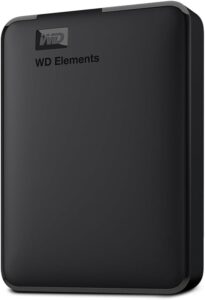 WD Elements 4 TB external hard driveStores a full copy of your files and settings before a risky operation such as a network reset or a system update. Connects by USB with no extra power supply.AmazonSee at Amazon
Frequently asked questions
Why did Wi-Fi disappear on my Windows 11 PC?
Airplane mode, a Wi-Fi switch turned off or a disabled Wi-Fi adapter all make Wi-Fi vanish. A faulty driver after an update, or a stopped WLAN AutoConfig service, causes the same symptom. Check these points in the order of the solutions above.
How do I turn Wi-Fi back on in Windows 11?
Turn off airplane mode in Settings > Network & internet > Airplane mode, then turn on Wi-Fi. If the Wi-Fi option is missing, enable the adapter in Device Manager and restart the WLAN AutoConfig service.
Why does Windows 11 find no Wi-Fi networks?
The adapter may be disabled, its driver faulty, or the router may broadcast on a band the adapter cannot pick up. An adapter limited to 2.4 GHz cannot see a 5 GHz network. Run the network troubleshooter, then check the adapter’s Band property.
How do I reinstall the Wi-Fi driver on Windows 11?
Download the driver from the PC maker’s website first. In Device Manager, right-click the adapter under Network adapters, choose Uninstall device, tick the option to remove the driver and restart. Windows reinstalls the adapter; if it does not, install the driver you downloaded.
Share this content: