
Updated on October 26, 2026
This article contains affiliate links: if you buy through them, Wanda-techs earns a commission at no extra cost to you.
Your phone is not charging: nothing happens when you plug it in, charging crawls, or it stops at 80%. Test the accessories first (cable, adapter, outlet), then the charging port, a possible moisture alert and the settings that limit charging on purpose. The first tests take a few minutes; allow about an hour if the phone needs two 30-minute charges.
Common symptoms and causes of a phone that is not charging
- Nothing happens when you plug in: damaged cable or adapter, faulty outlet, dirty or worn charging port.
- Slow charging: unsuitable adapter, plugged into a computer’s USB port, cable with an intermittent contact.
- Charging stuck at 80%: Optimized Charging, a charge limit you set, or a phone that is too hot.
- Water-drop icon on a Samsung: moisture detected in the USB port, charging blocked.
- “Accessory Not Supported” message on an iPhone: uncertified or faulty accessory, dirty or damaged port.
- Unexpected shutdowns, repeated alerts, blocked charging: worn battery, or one that is not original.
Before you start
- Menus vary with the model and the system version: a label may differ slightly on your phone.
- The adjustable charge limit applies to the iPhone 15 and later models.
- The Samsung moisture sensor is fitted to Galaxy phones rated IP68 or higher (IP68: water and dust resistance rating).
Warning: never use a damaged cable or adapter. Never puncture, bend or heat a lithium battery; a swollen battery will not charge again and must go to a collection point. Work on a non-flammable surface.
Warning: unplug the charger from the wall before inspecting or drying the port. Never work on a device that is plugged in, and never plug in a phone whose port is wet.
Warning: do not open a charger. The capacitors in a power supply stay charged after it is unplugged: do not touch them.
Good to know: opening the phone can void the warranty; check the warranty end date before any repair. A battery that is not original can cause alerts, shutdowns and blocked charging.
Solution 1: try another cable, another adapter and another outlet
- Inspect the cable and the adapter: set them aside if a pin is bent or broken, or if either one is damaged.
- Plug the cable straight into the adapter, with no USB hub in between.
- Plug the adapter into a wall outlet rather than a computer’s USB port.
- Let it charge for at least 10 minutes.
- Gently move the cable near the connector: if charging cuts out and then resumes, the contact is intermittent.
- Try another wall outlet.
- Try another cable, then another USB-C adapter.
The percentage should climb. If another cable or adapter fixes the problem, replace the old one.
If the accessory is the culprit, here are original or well-known-brand cables and adapters to compare.
- Anker 310 USB-C to USB-C cable, 0.9 mCharges and syncs any USB-C phone, tablet or laptop. A short cable that makes a quick, reliable test of the charging chain.AmazonSee at Amazon
- Apple USB-C to Lightning cable, 1 mConnects a Lightning iPad or iPhone to a USB-C charger or computer. An Apple cable avoids charging faults caused by poor-quality cables.AmazonSee at Amazon
- Samsung 25 W USB-C wall charger (EP-TA800)The original Samsung 25 W adapter for fast charging a Galaxy. It also works with other USB-C phones.AmazonSee at Amazon
On an iPhone, the “Accessory Not Supported” or “Accessory May Not Be Supported” message can come from a dirty or damaged port, a faulty accessory or a USB charger that is not designed for charging. Once you have tested the accessories, update iOS too.
Tip: to test wireless charging, place the phone in the center of a compatible charger plugged into a wall outlet, without a thick case and with the cable unplugged. If the iPhone does not detect a MagSafe charger, Apple advises trying an Apple MagSafe charger.
Solution 2: clean a dirty charging port
- Unplug the cable from the phone and the adapter from the outlet.
- Look inside the charging port.
- Remove any visible debris before plugging back in.
- Plug the cable back in all the way, straight into the charger.
- Restart the phone, then start charging again.

The plug should seat fully and charging should start.
Good to know: a phone carried in a pocket collects lint, which packs down at the bottom of the port and stops the plug from going all the way in. A flashlight helps you spot it.
Warning: Apple does not specify a tool for this cleaning. To be safe, do not push any metal object into the port.
Solution 3: Samsung phone, “moisture detected” alert
On Galaxy phones rated IP68 or higher, a sensor blocks charging when it detects water or moisture in the USB port, to prevent corrosion. The alert appears as a water drop. It can show up without any contact with water, in a very humid place.
- Unplug the charger from the phone.
- Wipe the port with a dry cloth, or gently shake the phone 5 to 10 times, port facing down.
- Let the phone dry on a cloth, in a ventilated room or in front of a fan.
- Restart the phone.
- Plug back in with a different cable: the first one may be damp too.
- If the icon stays while the port is dry, open Settings > Apps > Filter and sort > Show system apps > OK.
- Touch USBSettings > Storage > Clear cache.
The water-drop icon should disappear and charging should resume.
Warning: shaking the phone too hard can damage it. As long as the alert keeps coming back, avoid charging in the kitchen or the bathroom.
Tip: wireless charging remains possible in the meantime, with the phone centered on the pad. A foldable Galaxy goes on the charger closed, back panel against the pad.
For a liquid alert on an iPhone, the Apple troubleshooting page we consulted gives no detailed procedure. To be safe, do not plug the cable back in until the port is dry.
Solution 4: charging stuck at 80% (Optimized Charging, heat)
On an iPhone, a stop at 80% is not necessarily a fault. Since iOS 13, Optimized Charging can hold the battery at 80% and finish charging later, based on the habits it has learned. It only kicks in when the iPhone expects a long charge, and this routine stays stored on the device.
- Check whether the iPhone gets hot while charging: if it is hot, the software can cap charging at 80%.
- Move the iPhone and the charger somewhere cooler.
- Wait for the phone to cool down: charging resumes on its own.
- On an iPhone 15 or later, open the battery settings and check the charge limit that is set.
- Change that limit to charge beyond 80%.
The percentage should go past 80% once the phone has cooled or the limit is changed. The Apple iPhone guide covers Optimized Charging, the charge limit and temperature-limited charging in detail.
Solution 5: force restart, update and battery health
If your iPhone is not charging and stays off, or shows only a battery icon after 30 minutes of charging, force a restart and charge it again. On a Galaxy, go straight to step 7: Samsung recommends starting with the software update.
- Leave the iPhone charging for 30 minutes.
- On an iPhone 8 or later (including the iPhone SE 2nd generation and later), press and release Volume Up, then Volume Down.
- Hold the side button until the Apple logo appears.
- On an iPhone 7 or 7 Plus, hold the side button and Volume Down together until the Apple logo appears.
- On an iPhone 6s or earlier (including the iPhone SE 1st generation), hold the side button (or top button) and the Home button together until the Apple logo appears.
- Plug the iPhone back in and let it charge another 30 minutes.
- On a Galaxy, open Settings > Software update > Download and install.
- On an iPhone, open the battery settings, Battery Health section (the label varies with the iOS version), and read the maximum capacity.
The phone should turn back on and the percentage should climb. Maximum capacity compares your battery with a new one. Under ideal conditions, it stays at 80% after 500 charge cycles up to the iPhone 14, and after 1,000 cycles on the iPhone 15.
The status messages change wording with the iOS version. A message saying battery health is significantly degraded advises having the battery checked, without flagging any safety risk. A message saying the battery cannot be verified points to a battery that may not be an original Apple one.
If battery life drops too, read our guide on an iPhone battery that drains fast on iOS 26. The Samsung help pages we consulted do not describe a battery diagnostic: for a Galaxy, see our guide to checking the battery health of a Samsung Galaxy.
If nothing works
Stop if the iPhone neither charges nor turns on after solution 5 (two 30-minute charges and a force restart). On a Samsung, stop if the moisture icon persists after drying, clearing the USBSettings cache and trying another cable. A repair is then likely: contact the manufacturer’s support or an authorized repair shop.
According to Apple, the repair may involve the USB-C connector (iPhone 15 to 16), the logic board on recent models, or the casing if the fault persists. Wireless charging works but not the cable, or the other way round? The parts involved differ, because the wireless charging coil is built into the back glass.
If the diagnostic reports an unknown battery, Apple recommends replacing it.
Have these ready before you contact support:
- the phone’s serial number;
- the system version (iOS or Android);
- the purchase date and proof of purchase, for the warranty;
- the list of cables, adapters and fixes you have already tried.
The official procedures are on the support pages of Apple and Samsung. In the meantime, see how to charge a smartphone with another phone.
Take better care of your phone: our toolbox
A good charger, wireless charging and a backup spare you many faults and unpleasant surprises.
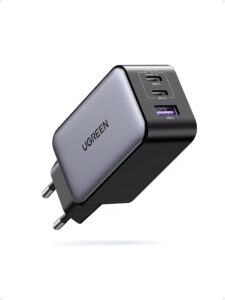 UGREEN Nexode 65 W charger (3 ports)Charges a phone, a tablet and a laptop at the same time from one outlet. A single adapter replaces several chargers.AmazonSee at Amazon
- Anker PowerWave Pad 10 W Qi wireless chargerA flat Qi pad: set the phone on it and it charges without a cable. It spares the charging port from daily plugging.AmazonSee at Amazon
- Anker Nano 10,000 mAh 45 W power bank with retractable USB-C cableCharges a tablet or phone away from an outlet. The built-in USB-C cable means nothing else to carry.AmazonSee at Amazon
- SanDisk iXpand Flash Drive Luxe 128 GB, Lightning and USB-C key for iPhoneA flash drive with Lightning and USB-C plugs to copy photos and files from an iPhone. Handy for a backup before a repair.AmazonSee at Amazon
Frequently asked questions
Why is my phone not charging?
The simplest causes to check are a damaged cable or adapter, a faulty outlet and debris in the charging port. On a Samsung, moisture detected in the port also blocks charging. On an iPhone, an uncertified accessory, heat or a worn battery can stop it.
Why is my phone not charging to 100%?
On an iPhone, a stop at 80% can come from Optimized Charging, a charge limit you set (iPhone 15 and later) or too high a temperature. Charging resumes when the phone cools, or later depending on your charging habits. A display stuck at 99% after a full charge is not necessarily a fault, and the percentage can wobble for a few seconds after plugging in.
What should I do when the phone says moisture detected?
On a Samsung, unplug the charger and wipe the port with a dry cloth, or gently shake the phone 5 to 10 times, port facing down. Let it dry in a ventilated room, then restart it. If the icon stays while the port is dry, clear the cache of the USBSettings system app.
How do I clean a phone’s charging port?
Unplug the cable, then remove any visible debris from the port before plugging back in. Apple does not specify a tool for this cleaning; to be safe, do not push any metal object into the port. If the plug still will not go in, or the port looks damaged, have a repair technician check the connector.
How can I tell if my phone’s battery is dead?
On an iPhone, the Battery Health section in the battery settings shows the maximum capacity and flags significantly degraded health when a check is advised; its label varies with the iOS version. If the phone neither charges nor turns on after 30 minutes of charging, a force restart and another 30 minutes, Apple considers a repair likely.
Share this content: