
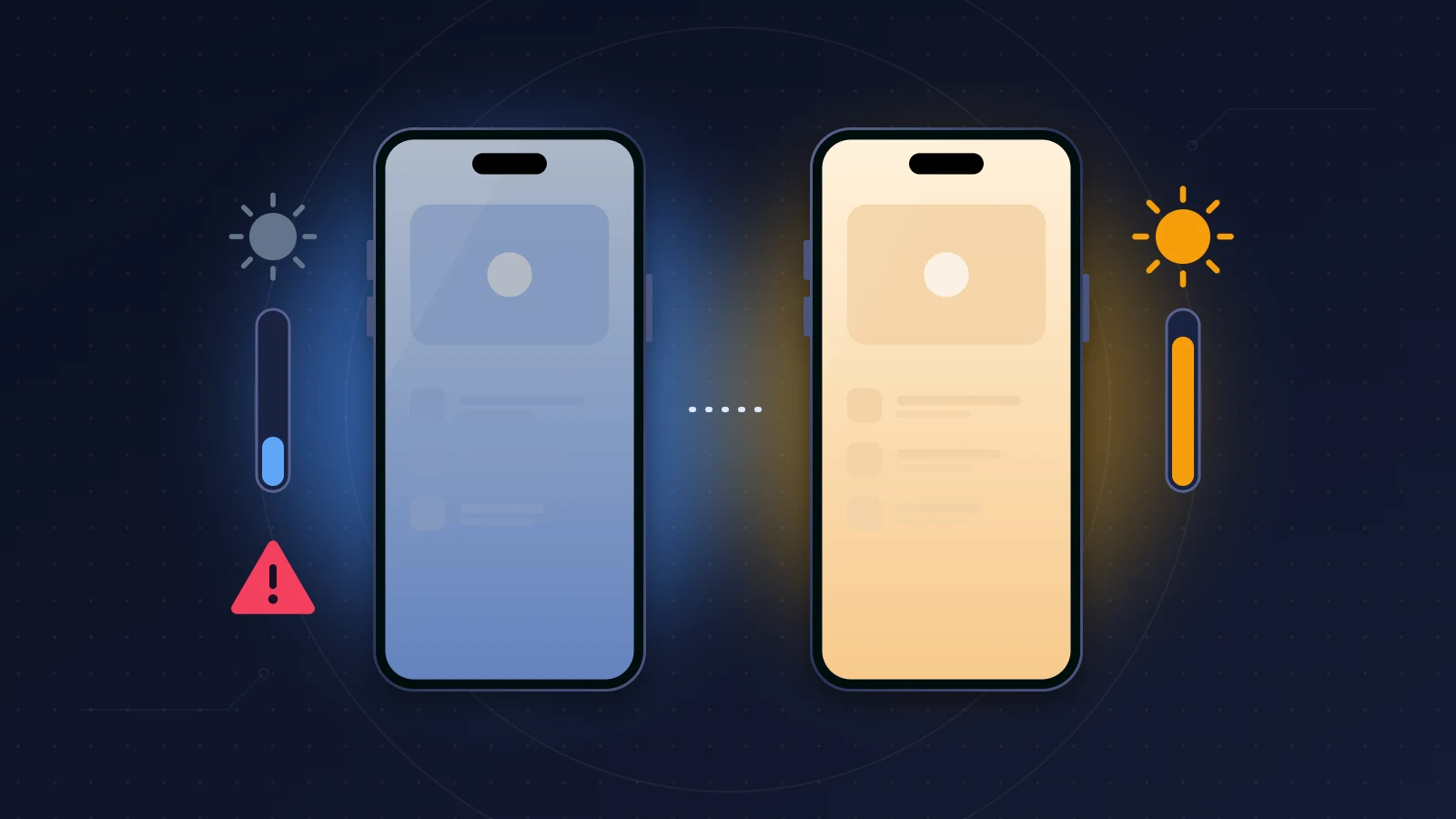
An iPhone 18 Pro blue tint, with a screen that looks a little duller than the iPhone 17 Pro sitting next to it, is almost never a fault. Apple did not change the display from one generation to the next, and the published measurements show neither an overall drop in brightness nor a shift toward blue. The difference usually comes from mismatched settings between the two phones (True Tone, Auto-Brightness, Night Shift), from normal calibration variation between panels, or from heat, which caps brightness. Match the settings, let the phone cool down, compare properly. A clearly green or pink cast, uneven areas or lines, on the other hand, are a job for Apple support.
Quick fix
- Turn on True Tone: Settings > Display & Brightness > True Tone. Without it, white looks cooler under warm indoor lighting.
- Turn off Reduce White Point: Settings > Accessibility > Display & Text Size. It is the classic culprit behind a dull screen.
- Leave Auto-Brightness on, turn off Low Power Mode, and let a hot phone cool down.
- To warm up the image permanently: Night Shift at a low setting, or a very light Color Tint filter.
- Strong green or pink cast, lines, dark patches: ask for a replacement.
How to recognize the problem
The typical scenario plays out on setup day. Both iPhones sit side by side during the transfer, and the new one looks bluer on white backgrounds. Some owners also feel it does not get as bright.
The variations reported on Reddit, the MacRumors forums and the Apple Community are not all equal:
- a white that looks cooler, or on the contrary yellower, than the old iPhone;
- a slight magenta (pinkish) cast on grays, especially at low brightness;
- brightness that drops by itself outdoors, then comes back up;
- vertical green, pink or red lines that survive a full reset.
The first three cases come down to settings or manufacturing tolerance. The last one is a hardware defect, reported by several sites (Techaeris, bdnews24, MobiDevices) based on accounts from iPhone 18 Pro and 18 Pro Max owners. Apple has not commented on these lines, but some users say they got a replacement.
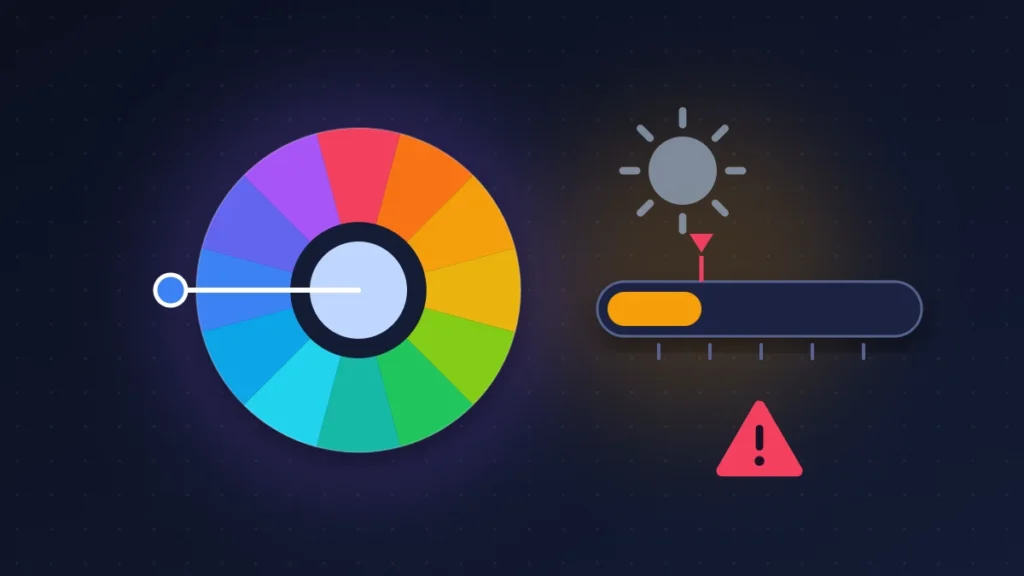
iPhone 18 Pro blue tint: why does the screen look cooler?
Did the iPhone 18 Pro display change compared with the 17 Pro?
Not on paper. Apple’s spec sheet repeats the 17 Pro figures: 6.3-inch Super Retina XDR OLED (6.9 inches on the Pro Max), ProMotion up to 120Hz, 1,000 nits typical max brightness, 1,600 nits peak HDR, 3,000 nits peak outdoor, 1 nit minimum, True Tone and P3 wide color. Only the Dynamic Island gets smaller, since the Face ID infrared camera has moved under the panel. Nothing suggests Apple moved the white point either. That term refers to the exact color of white, expressed in kelvins: the higher the number, the bluer the white.
What do the measurements say?
We found no DisplayMate test of the iPhone 18 Pro. The available measurements come from the tech press.
- LTT Labs recorded around 800 nits in everyday use, the same as the 17 Pro, and 1,500 to 1,600 nits in HDR. At outdoor peak, its unit fell up to 130 nits short of the advertised 3,000, and 50 to 80 nits below the 17 Pro, a gap the lab attributes to Auto-Brightness, temperature or a restart. It mentions reports of a slight magenta tint, probably linked to calibration.
- Tom’s Guide measured about 2,300 nits on a window covering 25% of the screen for both the 18 Pro and the 18 Pro Max, on par with the 17 Pro Max, with identical color accuracy (Delta-E of 0.26).
A few dozen nits of difference are invisible to the eye. Above all, these numbers are a reminder that a single unit does not represent an entire production run.
Is there a panel lottery?
Yes, to a degree. According to Korean trade press (The Elec, UBI Research), iPhone 18 Pro panels come from Samsung Display and LG Display, with BOE left out of the Pro lineup. Apple does not confirm its suppliers. Each panel is calibrated at the factory within a tolerance: two identical iPhones can show a white that is slightly cooler, slightly warmer or slightly pinker. This is nothing new. When the iPhone 17 Pro Max came out, some users found their screen yellower than the 16 Pro Max.
Then there is how your eyes adapt. After years in front of a warmer screen, a neutral white looks blue. Side by side, the brain takes the warmer screen as its reference and judges the other one cold. After a few days of using the new phone on its own, that impression often fades.
Does True Tone “settle in” over the first few days?
Apple describes no learning phase. True Tone continuously reads the ambient light and adjusts the color and intensity of the display; when it is off, white stays constant. What changes over the first few days is mostly your perception. Another trap: a transfer can bring back old accessibility settings, or leave out your Night Shift schedule.
SDR, HDR, direct sunlight: three different brightness levels
The 1,000 nits typical figure applies to SDR content (the interface, the web, messages) and is the ceiling of the manual slider. The 1,600 nits are only used for the bright areas of HDR photos and videos. The 3,000 nits are only reached in direct sunlight, when Auto-Brightness pushes the screen past the manual maximum. With Auto-Brightness off, you will never see that peak.
Heat and Low Power Mode cap brightness
Apple says so in its documentation: if the device gets too warm, the display can dim and maximum brightness stays reduced until it cools down. And a new iPhone runs warmer during its first few days, while it restores photos and apps. Low Power Mode also reduces brightness. If your phone is still running hot after those first days, see our guide on the iPhone 18 Pro overheating and draining its battery.
Before you start
None of the steps below erase any data. Write down your current settings so you can go back, and check that the latest version of iOS is installed (Settings > General > Software Update), especially if you are still on iOS 27.0. In iOS 27, the text size and bold text settings have moved; if a path given here looks slightly different on your iPhone, search for the setting by name with the search bar at the top of Settings.
How to compare two iPhones properly
A sloppy comparison creates fake defects.
- Leave both phones idle for fifteen minutes, unplugged, out of the sun.
- On both, turn off True Tone, Night Shift, Auto-Brightness, Reduce White Point, color filters and Low Power Mode. Same appearance on both, Light or Dark.
- Sliders at maximum, then both at the halfway point.
- Display a full-screen pure white, then a mid gray. Gray reveals a green or pink cast far better.
- Look straight on: a tilted OLED shifts color and looks bluer or pinker.
- Swap their positions, then look at each phone on its own for a few minutes.
- For uniformity: dark room, minimum brightness, full-screen dark gray. Look for bands, tinted corners, blotches.
A photo taken with a third phone proves nothing about the tint, because the camera corrects white balance. It is useful, however, to show lines or uneven areas.
Fix 1: turn True Tone back on
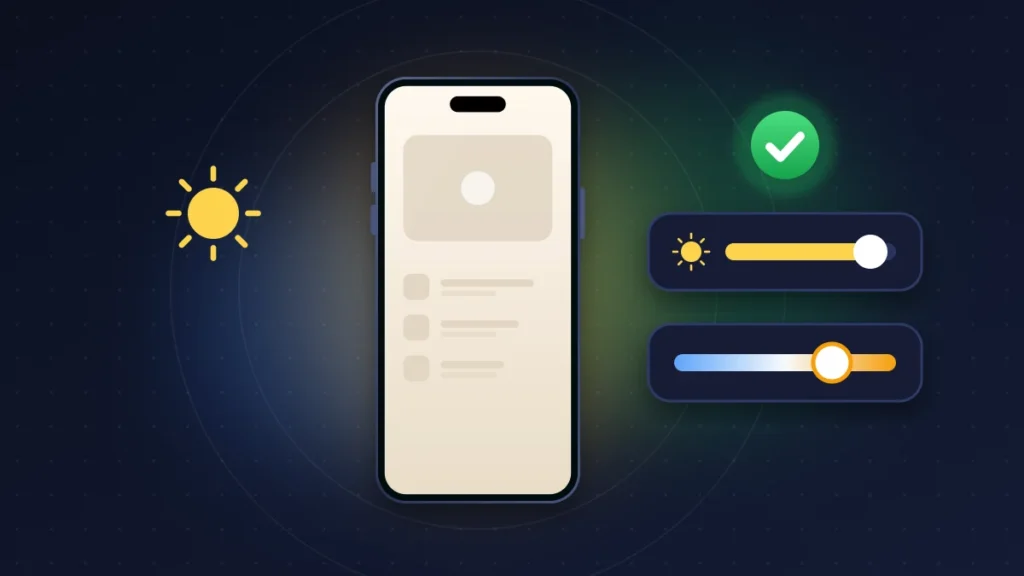
Path: Settings > Display & Brightness > True Tone, or touch and hold the brightness slider in Control Center. Use it if the screen looks cold under yellowish indoor lighting. There is no downside except for photo editing, since color varies with the room. To check, move from a room lit with warm bulbs into daylight: white should slide toward warm, then back to neutral.
Fix 2: low-intensity Night Shift, all day
Night Shift shifts colors toward the warm end. Set low, it compensates for a slightly cool panel without the orange look of nighttime mode.
- Settings > Display & Brightness > Night Shift.
- Turn on Manually Enable Until Tomorrow to test it.
- Move the slider close to Less Warm, then increase in small steps.
- To go further, turn on Scheduled with a Custom Schedule that covers the hours you use your phone.
Useful if the blue cast still bothers you after a few days. The drawback: colors are no longer accurate, so turn it off when editing a photo. Check the result on a mid gray, with and without it.
Fix 3: correct the tint with a color filter
The most precise tool, useful against a slight green or pink cast.
- Settings > Accessibility > Display & Text Size > Color Filters.
- Turn on Color Filters, choose Color Tint.
- Intensity close to zero, then move Hue toward orange to warm things up, toward magenta to counter green, toward green to counter pink.
- Raise the intensity in very small steps.
A filter that is too strong distorts every color. Also note that Apple turns off True Tone when you invert colors, apply the grayscale filter or increase contrast. Success looks like this: a mid gray appears neutral.
Fix 4: track down what is dimming the screen
- Reduce White Point (Settings > Accessibility > Display & Text Size) reduces the intensity of bright colors. It sometimes comes back with a backup. Turn it off.
- Auto-Brightness (same menu): leave it on, it is the only way to reach the direct-sunlight peak.
- Low Power Mode: Settings > Battery, in the power mode section. It reduces brightness.
- Always On display: when the phone is locked, the screen is deliberately dimmed, which says nothing about its real brightness.
- Tinted or privacy tempered glass: it absorbs light and can color the image. Remove it for a test.
Fix 5: let it cool down
If brightness drops in the sun, on a car mount or while gaming, take off the case, stop charging and put the phone in the shade. Maximum brightness returns as the temperature falls. During the first few days, let the iPhone finish its background tasks while plugged in overnight, then judge the screen when it is cool.
Fix 6: update and reset settings
Apple has not acknowledged any software tint issue on the iPhone 18 Pro, but an update remains the first step support will require. If you cannot find which setting is causing the problem, go to Settings > General > Transfer or Reset iPhone > Reset > Reset All Settings. Your data stays in place; you will have to re-enter Wi-Fi passwords.
Summary table
| Symptom | Likely cause | What to try |
|---|---|---|
| White slightly bluer than the old iPhone | True Tone off, eye adaptation, panel tolerance | True Tone, low Night Shift |
| Screen permanently dull | Reduce White Point, Low Power Mode | Turn these settings off |
| No high brightness in the sun | Auto-Brightness off | Turn it back on |
| Brightness drops, then comes back | Overheating | Let it cool, remove the case |
| Slight pink cast on grays | Panel calibration | Color Tint; replacement if strong |
| Clear green or pink tint | Panel out of tolerance | Apple diagnostics, replacement |
| Colored vertical lines | Hardware defect | Replacement |
| Bands, tinted corners, blotches | Uniformity defect | Replacement |
If nothing works: when to ask for a replacement
A simple difference in color temperature between two iPhones stays within tolerance, and support generally does not treat it as a fault. Once settings are back to default, a replacement is justified in these cases:
- a clearly green or pinkish tint, visible on gray with nothing to compare it to;
- lines, bands or darker areas;
- brightness clearly lower than another iPhone 18 Pro under the same conditions;
- flicker or dead pixels.
For these visible defects, our guide on a defective screen out of the box covers the tests to film and your options depending on the seller.
Returns, warranty and your rights
- Apple return window: if you bought from Apple, online or in store, you can return the iPhone within 14 days, even without a defect. Report a defective product within that window.
- Apple One-Year Limited Warranty: it covers manufacturing defects, including a faulty display.
- AppleCare+: it extends coverage and adds accidental damage protection; it does not replace your statutory rights.
- Consumer law: depending on the country, the seller owes you legal guarantees on top of Apple’s warranty. In the UK, the Consumer Rights Act gives you rights against the retailer for goods that are faulty. If you bought from a carrier or a store, that seller remains your legal point of contact.
At your appointment (Apple Support app or Genius Bar), bring a video of the defect on a gray background in a dark room, the list of settings you have already tried and, if possible, a second iPhone 18 Pro. Ask for a display test with Apple diagnostics, and describe a precise symptom: “green cast on a gray background” rather than “the screen looks weird.”
In Africa
Where there is no Apple Store, the reseller or an Apple Authorized Service Provider (the list is on Apple’s support site) takes over. Be careful with iPhones bought abroad: Apple’s warranty allows it to restrict service to the country of original sale, and elsewhere your options are limited to what is available locally, with customs duties and taxes at your expense if the device has to be shipped. Keep the original invoice.
Preventing it from happening again
Judge a new screen on its own, after a few days, rather than next to the old one during the transfer. Avoid fast charging under a thick case in the sun. Write down your display and accessibility settings before each migration. For the full panel specs, see our iPhone 18 Pro specs sheet and our iPhone 18 Pro Max review.
Frequently asked questions
Is the iPhone 18 Pro screen bluer than the 17 Pro?
Not across the board. The specs are identical and published tests show no drift. The differences come from settings and from variation between panels.
Why is my iPhone 18 Pro dimmer in the sun?
Auto-Brightness is probably off, or the phone has heated up. The 3,000-nit peak requires the opposite of both.
Does True Tone make the screen yellow?
It warms it up under warm lighting, which can look yellow when you are coming from a screen without True Tone.
My iPhone 18 Pro has a pink tint: is it a defect?
A very slight hue comes down to calibration. A clear cast, visible without comparison, justifies a diagnostic.
Green or pink lines on the screen: what should I do?
It is a hardware defect that no reset will fix. Ask Apple or the seller for a replacement.
Does a Samsung or LG panel change the color?
iOS does not show where the panel comes from, and differences between units come mostly from calibration tolerance.
Can I exchange an iPhone 18 Pro whose screen looks too cold?
Within 14 days of buying from Apple, yes, through a standard return. After that, you need an actual defect.
Does your iPhone 18 Pro look cooler than your old phone, and which setting finally sorted out your iPhone 18 Pro blue tint? Tell us in the comments, with your model and iOS version. For the other issues reported on these models, see all the known iPhone 18 Pro problems and their fixes.
Share this content: