
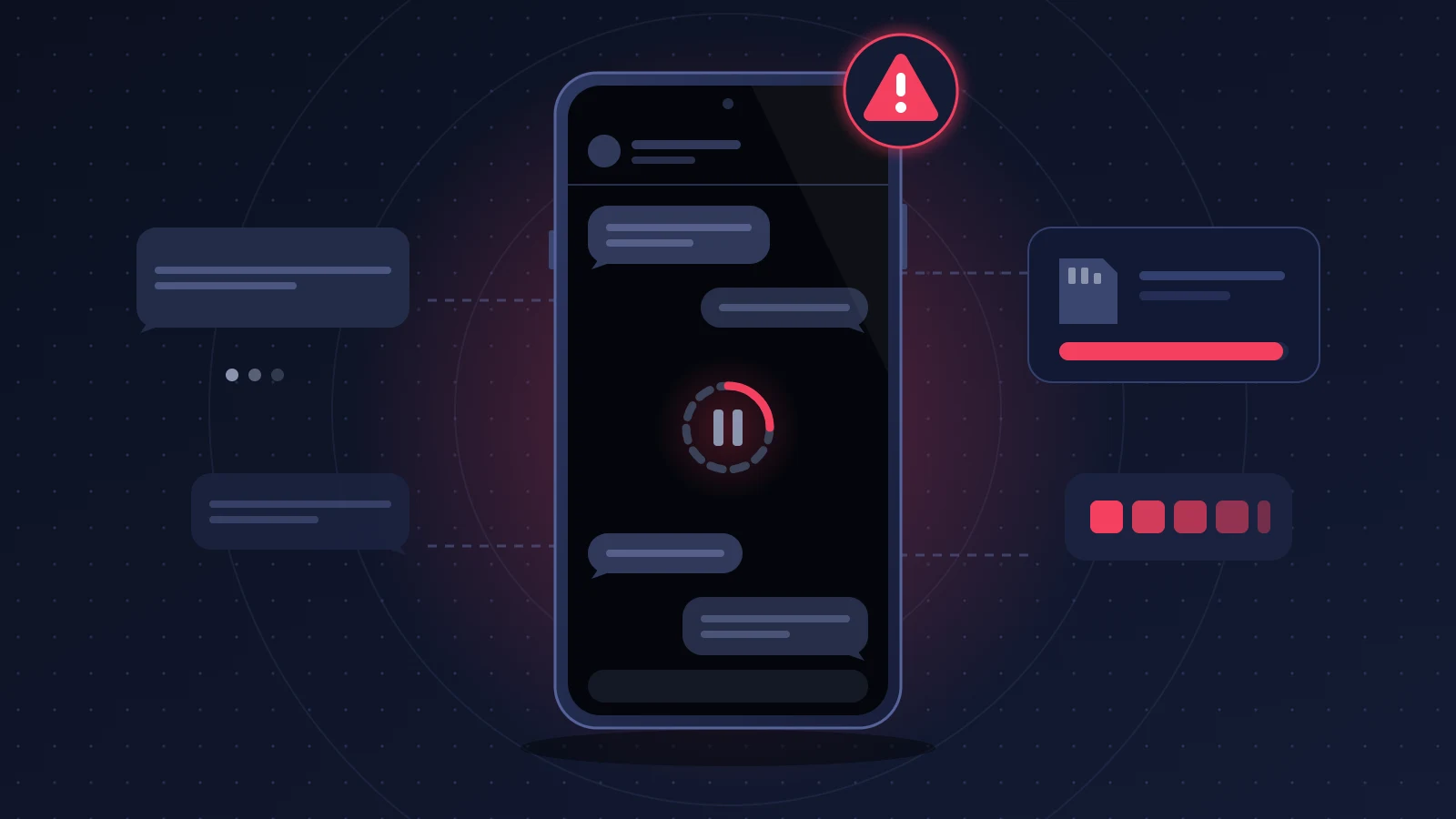
An iPhone Messages black screen, paired with a Settings app that locks up the moment you tap the Messages row, is rarely the fault of the app itself. Most of the time the iPhone can no longer read from or write to its local message store, and nearly full internal storage is one of the triggers affected users mention most often. A force restart followed by freeing up a few gigabytes is enough in many cases.
The quick fix
- Close Messages and Settings from the App Switcher, then force restart the iPhone.
- Open Settings > General > iPhone Storage, without touching the Messages row in the main menu, and free up several gigabytes.
- Restart once more, then reopen Messages and give it a minute or two.
- If it is still stuck: turn off Messages in iCloud syncing from your account, remove any VPN configurations, then update iOS over a cable from a computer.
Recognizing the iPhone Messages black screen problem
The pattern is easy to spot. You tap the green icon, the opening animation starts, then the screen stays black, sometimes white. The app closes on its own after a few seconds, or stays frozen until you close it yourself.
The second symptom is the real clue. In Settings, the Messages row turns gray when you tap it, and then nothing responds. You have to kill Settings to get control back.
Around that core, user reports describe several variations:
- text notifications arrive, but the matching conversation will not open;
- messages go out several minutes late, or sit on “Sending…”;
- the FaceTime section of Settings freezes too, and the Phone app turns sluggish;
- the Apple Watch or the Mac keeps showing and sending messages without any trouble.
That last point is valuable: if your messages flow normally on your other devices, neither your account nor your carrier is to blame. Each device keeps its own copy of your conversations, and only the iPhone’s copy is stuck.
Why it happens
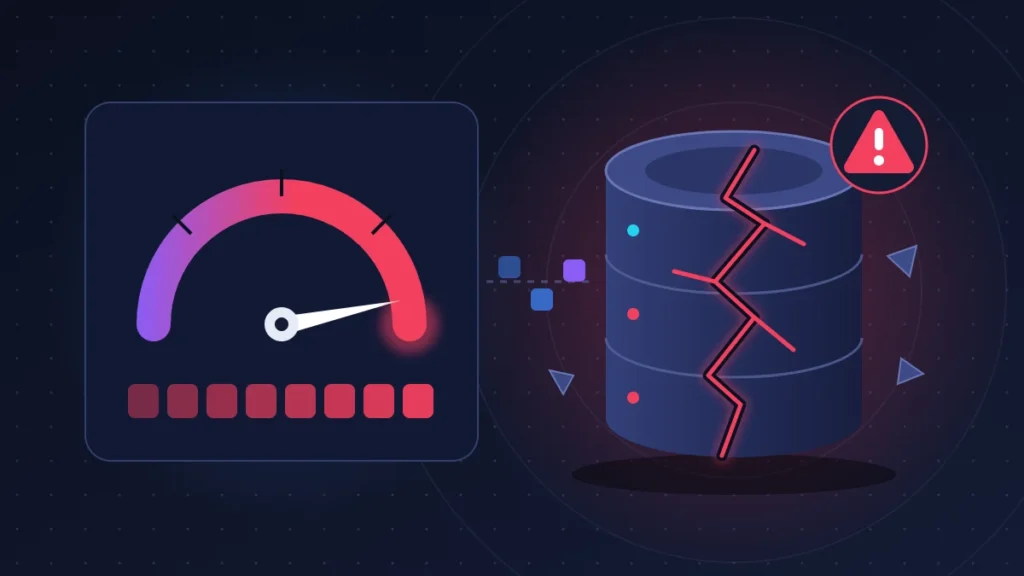
All your SMS, MMS and iMessage conversations live in a single file called sms.db, tucked away in a system folder you cannot reach. That file is an SQLite database. SQLite is a small embedded database engine: instead of running on a server, it sits in a single file that the app reads and modifies directly. Next to sms.db, the system keeps companion files that act as a scratchpad during writes, plus an attachments folder that is often far bigger than the database itself.
Every incoming message, every read receipt, every photo triggers a write. To stay consistent, SQLite first records the change in its scratch file, then carries it over to the database. That mechanism needs free space. On an iPhone whose storage is full, the write is refused. In theory, the engine can absorb that refusal and cleanly roll the operation back. In practice, the app and the messaging service end up asking again and again for an operation that cannot complete, while the interface waits for an answer that never comes. That is your black screen.
If, on top of that, the phone shuts down or crashes in the middle of a write, the database and its scratch file can be left in an inconsistent state. Forums then talk about a corrupted database. The term is plausible, but Apple publishes no official diagnosis along those lines, and from the outside there is no way to tell a genuinely damaged database from one that is simply stuck for lack of space.
Why does Settings freeze as well? The Messages pane is not just a list of switches. It queries the same system service to get the state of iMessage, your addresses and how long messages are kept. If that service is jammed, the pane waits for it, and Settings hangs along with it.
Full storage does not explain everything. In the same discussion threads, other triggers come up again and again, with fixes confirmed by the people who applied them: a VPN configuration, even an inactive one; a monster contact card holding hundreds of numbers (typically created by a spam-blocking app); a faulty animated sticker; new iCloud terms waiting to be accepted; or an iOS update interrupted partway through. The fixes below cover those cases.
Before you start
If the iPhone still allows it, plug it into a computer and make a local backup: Finder on a Mac, the Apple Devices app on a PC (iTunes on older systems).
Then check one detail that changes everything that follows: is Messages in iCloud turned on? Look in Settings > [your name] > iCloud. If it is, your conversations are synced to Apple’s servers and are not included in the daily iCloud backup. If it is not, they live only on the iPhone and in its backups.
Fix 1: close the apps and force restart
A force restart cuts off the stuck service and makes the system reopen the database cleanly, replaying its scratch file. It erases no data.
1. Close Messages and Settings
Swipe up from the bottom of the screen and pause in the middle (or double-click the Home button), then swipe the Messages and Settings previews up and away.
2. Force restart according to your model
| Model | Button combination |
|---|---|
| iPhone with Face ID, iPhone 8, iPhone SE (2nd generation and later) | Press and quickly release volume up, press and quickly release volume down, then hold the side button until the Apple logo appears |
| iPhone 7 and 7 Plus | Hold volume down and the Sleep/Wake button together until the Apple logo appears |
| iPhone 6s, 6s Plus, SE (1st generation) | Hold the Sleep/Wake button and the Home button together until the Apple logo appears |
The classic mistake is letting go when the “slide to power off” slider shows up. Keep holding: the logo can take more than ten seconds to appear.
3. Check
Open Messages and wait a full minute without touching anything. If the conversation list appears, move on to fix 2 anyway, otherwise the problem comes back quickly.
Fix 2: free up space without going through Messages
This is the fix that settles the most cases when storage is the cause. The iPhone Storage screen sits under General, not under the section that freezes, so you can open it safely.
1. Measure
Go to Settings > General > iPhone Storage. Let the graph finish calculating. If less than one gigabyte is left, or if the storage almost full alert has already appeared, you have a serious suspect.
2. Make room fast
- In the list, tap a large app you rarely use, then “Offload App” (the app goes, its data stays) or “Delete App”.
- Delete offline downloads: movies, shows, playlists, podcasts, maps.
- In Photos, delete long videos and then empty the “Recently Deleted” album, otherwise nothing is actually freed.
- With a computer: import photos and videos to the machine’s drive, check the copy, then delete them from the phone.
Apple gives no official threshold. From experience, aiming for at least 5 GB free, and ideally around ten percent of total capacity, leaves the system enough room to work.
3. Restart and test
Restart, then open Messages. After that, try Settings > Messages (Settings > Apps > Messages on recent versions of iOS).
Fix 3: clear out attachments from the Storage screen
Conversations themselves weigh very little. The photos, videos and GIFs exchanged over the years can add up to tens of gigabytes, and they can be deleted without opening Messages.
Go to Settings > General > iPhone Storage > Messages. You will find “Review Large Attachments” there, along with categories: Top Conversations, Photos, Videos, GIFs and Stickers, Other. Open Videos, tap Edit, select, delete.
Start with GIFs and Stickers if the freeze began right after you received an animated sticker: some users got their app working again by deleting the offending item from that screen.
The risk: if Messages in iCloud is on, whatever you delete here also disappears from your other devices.
Fix 4: turn Messages in iCloud off and back on
This forces a resync and goes through your account, without touching the pane that freezes.
1. Accept any pending terms
Open Settings and look at the very top, under your name. A badge or a prompt asking you to accept new iCloud terms and conditions is sometimes enough to block syncing. Accept them.
2. Turn syncing off
Settings > [your name] > iCloud > See All > Messages in iCloud, then turn off “Use on this iPhone” (labeled “Sync this iPhone” on older versions). If the iPhone offers “Disable and Download Messages”, accept.
Be careful: that download pulls your messages back onto the phone, so it needs space. Do fix 2 before, not after.
3. Restart, turn it back on
Restart, check that Messages opens, then turn the option back on. Resyncing can take several hours, with the phone plugged in and on Wi-Fi.
Fix 5: rule out causes unrelated to storage
Try this when the iPhone has room to spare and Messages still stays black.
- VPN: in Settings > General > VPN & Device Management, delete the VPN configurations, including those left by apps you no longer use. Then uninstall the VPN app and restart. This is one of the fixes most often confirmed on Apple’s forums.
- Contacts: look for a card named “Spam”, or named after a call-blocking app, that contains hundreds of numbers. Delete it.
- Network: Settings > General > Transfer or Reset iPhone > Reset > Reset Network Settings. You lose saved Wi-Fi passwords and paired Bluetooth devices, nothing else.
Fix 6: update iOS from a computer
An update downloaded onto a full phone, or interrupted by a Wi-Fi dropout, sometimes leaves the system in a shaky state. Going through a computer sidesteps the lack of space and reinstalls the system files without touching your data.
- Plug in the iPhone, then open Finder (Mac) or Apple Devices (PC).
- Select the device, click “Check for Update”, then “Download and Update”.
- Leave it connected until the restart is complete.
If iOS is already up to date, the same operation can be forced in recovery mode: use the force restart button combination, but keep holding after the logo appears, until you see the screen showing a cable and a computer. The computer then offers “Update” or “Restore”. Choose “Update”: your data is kept. “Restore” erases everything.
Fix 7: back up, erase, restore
A backup contains the sms.db file exactly as it is. If the database is genuinely damaged, restoring it brings the fault back with it: some users report a few quiet days, then the black screen returns. If the database was only stuck for lack of space, a restore solves the problem.
Hence this order, which matters:
- Make a fresh backup (see “Before you start”).
- Settings > General > Transfer or Reset iPhone > Erase All Content and Settings. On an eSIM plan, choose to keep the eSIM.
- At the Hello screen, restore from the iCloud backup or, on a computer, with “Restore Backup”.
- Test Messages over several days.
Fix 8: start from scratch without reimporting the database
The last resort, if a restore brings the freeze back. Erase the iPhone, then choose to set it up as a new device instead of restoring the backup. Sign in to your Apple Account: contacts, photos, notes and calendars synced with iCloud come back on their own.
Check that Messages works on this clean base. Only then, if your conversations were stored in Messages in iCloud, turn the option back on to bring them home.
What you lose: data from apps that do not sync online, your Home Screen layout, and your messages if they only existed locally.
Summary table
| Symptom | Likely cause | Fix to try |
|---|---|---|
| Black screen, storage full alert already seen | Writes refused for lack of space | Fixes 1 and 2 |
| Messages comes back after a restart, then fails again | Storage still too tight, attachments taking over | Fixes 2 and 3 |
| Freeze began after receiving a GIF or sticker | Faulty item in a conversation | Fix 3, GIFs and Stickers category |
| Settings freezes on Messages and FaceTime, storage is fine | Messaging service stuck, VPN or pending iCloud terms | Fixes 4 and 5 |
| Freeze when typing a recipient | Contact card containing hundreds of numbers | Fix 5 |
| Symptoms appeared right after an update | Incomplete installation | Fix 6 |
| Problem returns after a restore | Damaged database reimported with the backup | Fix 8 |
If nothing works
Contact Apple Support, through the Apple Support app on another device, by phone or in a store.
To save time, state up front: the model and iOS version, the free space shown, the fact that Settings freezes on Messages (and FaceTime if that applies), whether Messages in iCloud is on, and the list of what you have already tried, including the update from a computer.
If the iPhone also freezes in other apps, restarts on its own or refuses every restore, the internal storage may be failing. At that point it becomes a repair question, in or out of warranty.
Keeping it from happening again
Keep a margin. An iPhone filled to the brim runs badly long before it shows an alert: keep a few gigabytes free at all times.
Limit how long messages are kept. In the Messages settings, the “Keep Messages” option offers 30 Days, 1 Year or Forever. Set to one year, the database and its attachments stop growing without end. The change permanently deletes anything older than the period you pick, so archive what matters first.
Turn on Messages in iCloud if your iCloud plan allows it. Your conversations then exist somewhere other than the phone, and a full erase no longer costs you your history.
Clean out attachments from time to time, from iPhone Storage > Messages.
Frequently asked questions
Will I lose my messages by force restarting?
No. A force restart cuts power at the software level and relaunches the system without erasing anything. At worst, a message you were in the middle of typing disappears.
Can the sms.db file be repaired by hand?
Not on an unmodified iPhone: the folder is off limits. Desktop tools can extract the database from a local backup so you can read it, but injecting a repaired copy back into the phone is not something Apple provides for.
Does turning off iMessage fix the problem?
Sometimes, but the switch sits in the pane that freezes. As long as Settings > Messages stays out of reach, that route is closed, which is why going through the iCloud account and the Storage screen is so useful.
Does erasing the iPhone delete my eSIM plan?
Only if you ask it to. During the erase, the iPhone offers to keep or delete the eSIM. Keep it, otherwise you will have to ask your carrier for a new activation.
If you are still facing the iPhone Messages black screen after these steps, or if a different trick got you out of trouble, describe your case in the comments with the model and the free space remaining: those reports help readers who arrive with the same freeze.
Share this content: