

With File History not working in Windows 11, nothing warns you: no error window, no notification, and the external drive stays plugged in as if all were well. The most common cause is a monthly cumulative update that crashes the program before it ever reaches the destination drive, or a local configuration that has become inconsistent. Most of the time, installing the fix Microsoft ships afterward and then selecting the drive again is enough to get everything going.
You still have to notice the failure first.
In short: the quick fix
- Open Control Panel, then System and Security, then File History, and read the date of the last copy. If it is old, the backup has stopped.
- Install every available Windows update, optional ones included: the fix for this kind of failure often arrives through that channel.
- Click Select drive, pick your disk again, then click Run now.
- If nothing moves, restart the fhsvc service, then reset the configuration by renaming the
%LOCALAPPDATA%\Microsoft\Windows\FileHistoryfolder.
File History not working: the symptoms
The tool still shows as turned on while it no longer copies anything. Here is what you actually see.
In the File History window, the date of the last copy is frozen. Clicking Run now changes nothing.
A “Reconnect your drive” message appears although the disk is plugged in and perfectly readable in File Explorer. This variant makes you suspect the hardware, wrongly.
The Turn on button does nothing: you click, and the status stays on off. And right-clicking a file, then choosing Restore previous versions, returns “There are no previous versions available” for documents you edit every day.
In Event Viewer, application crashes mention FileHistory.exe and the KERNELBASE.dll module.
Another case is sneakier: the backup runs but skips part of your files. The log then contains warnings reading “File was not backed up due to its full path exceeding MAX_PATH limit or containing unsupported characters”. The date of the last copy is recent, yet hundreds of documents are missing.

Why it happens
File History relies on three parts: a Windows service named fhsvc (File History Service), which starts on demand; a scheduled task, filed in Task Scheduler under Microsoft, Windows, FileHistory; and a local configuration folder, %LOCALAPPDATA%\Microsoft\Windows\FileHistory, which holds the settings and the catalog of files already copied. If any one of the three goes wrong, the copy stops.
A faulty cumulative update. Microsoft acknowledged this defect on a monthly security update, KB5124008 for Windows 11 (and KB5122878 on the Windows 10 side): once it was installed, FileHistory.exe crashed at launch and both local and network backups failed without a clear error. The fix was first distributed in an optional update (KB5124010), then folded into the following monthly update. The same scenario can repeat with any update.
A target drive that has changed. A different drive letter after replugging, an expired password on a network share, a renamed NAS: the tool can no longer find its destination.
A corrupted configuration. The local catalog no longer matches what is on the disk, often after the drive was pulled out without ejecting or the power dropped mid-copy.
Files the tool cannot copy. File History adds a timestamp to the name of every copy and remains bound by the MAX_PATH limit, roughly 260 characters for the full path. Files encrypted with EFS and OneDrive files kept online only are skipped as well.
A tool Microsoft no longer promotes. File History has disappeared from the Windows 11 Settings app and can only be configured from Control Panel. Microsoft has not announced its retirement, but it steers users toward Windows Backup and OneDrive. A component that gets little maintenance breaks more easily with each update.
Before you start
First make a manual copy of your essential folders on another medium (USB stick, second drive, online storage). Until the diagnosis is finished, assume you have no recent backup.
Do not delete the FileHistory folder on the external drive: it holds your older versions, and none of the solutions below requires erasing it.
You need an administrator account and a drive plugged directly into the PC.
Solution 1: check that the backup is really running
Do this first, then again after every other solution. It carries no risk.
1. Read the date of the last copy
Press Windows + R, type control and press Enter. Go to System and Security, then File History. Under the drive name, Windows states when files were last copied. With the default setting of one copy per hour, any gap of more than a day on a PC used daily is suspicious.
2. Check the dedicated log
In the same window, click Advanced settings, then the link that opens the File History event logs. You land in Event Viewer, under Applications and Services Logs, Microsoft, Windows, FileHistory-Engine. A second log, FileHistory-Core, sits right next to it. Faster, in PowerShell:
Get-WinEvent -LogName "Microsoft-Windows-FileHistory-Engine/BackupLog" -MaxEvents 20 | Format-List TimeCreated, Id, LevelDisplayName, MessageEvent 100 flags a skipped file, typically because its path is too long. Event 204 is an end-of-cycle warning (“Unusual condition was encountered during finalization of a backup cycle”), common with NAS devices. A log that has been empty for days is a clue: the engine is no longer starting.
To find crashes of the program:
Get-WinEvent -FilterHashtable @{LogName='Application'; Id=1000} | Where-Object Message -like '*FileHistory.exe*' | Select-Object -First 5 TimeCreated, Message3. Look at the drive itself
This is the only check that does not lie. On the backup drive, go down into FileHistory\<your user name>\<PC name>\Data. Copies carry the original name followed by a UTC timestamp in parentheses. This command lists the five most recent copies to arrive (replace E: with your drive letter):
Get-ChildItem "E:\FileHistory" -Recurse -File | Sort-Object CreationTime -Descending | Select-Object -First 5 FullName, CreationTime4. Run the canary file test
Create a text file in Documents, click Run now, wait a few minutes, then look for it on the drive. If it is missing, the failure is confirmed, whatever the interface says. The reverse also exists: a frozen date while copies keep landing on the drive.
Solution 2: install the fix from Windows Update
When the failure follows a monthly update, this is the cleanest repair. Open Settings, Windows Update, then Check for updates. Next go to Advanced options, Optional updates, and see whether a preview cumulative update is offered.
The risk: a preview can introduce other defects, and the first fix is not always complete. On a critical machine, waiting for the regular monthly update is a defensible choice, with a replacement backup in the meantime (solution 8).
To verify: restart, launch a copy and repeat the canary file test.
Solution 3: relaunch the copy and restart the services
Harmless, and sometimes enough after a botched wake from sleep. In PowerShell as administrator:
Get-Service fhsvc, WSearch
Restart-Service fhsvc
Restart-Service WSearch
WSearch is Windows Search, the indexing service that libraries depend on. In services.msc, check that File History Service is not set to Disabled: some “cleanup” tools switch it off. Then click Run now. Against a Windows regression this does not unblock anything for long, but it rules out a stuck service.
Solution 4: reconnect and reselect the drive
Try this as soon as the “Reconnect your drive” message appears or the disk has moved to another port.
1. Pin the drive letter
Right-click the Start button, choose Disk Management, right-click the backup volume, then Change Drive Letter and Paths. Assign a letter far down the alphabet (X or Z): no passing USB stick will take it.
2. Check the disk
chkdsk X: /f3. Reselect the destination
In File History, click Select drive, choose the same disk and confirm. If Windows offers to reuse an existing backup found on that drive, accept. For a network share, go back through Add network location and type the full path again. Finish with Run now and the canary file test.
Solution 5: reset the local configuration
This is the most effective repair when the catalog is corrupted. It erases your local settings (excluded folders, frequency, retention period), but not the copies stored on the external drive.
- In File History, click Turn off.
- In an administrator PowerShell:
Stop-Service fhsvc - Press Windows + R, type
%LOCALAPPDATA%\Microsoft\Windowsand press Enter. - Rename the
FileHistoryfolder toFileHistory.old. Renaming rather than deleting leaves you a way back. Start-Service fhsvc- Reopen File History, select the drive, tick the option to reuse the previous backup if it is offered, then click Turn on and Run now.
The first copy afterward takes a long time, because the tool rebuilds its catalog. If everything works after a few days, delete FileHistory.old. Against a faulty update, however, this reset changes nothing.
Solution 6: free up space and deal with skipped files
Use this when the backup runs but stays incomplete, or when the drive is full.
To purge old versions, open Advanced settings and then Clean up versions, or run:
FhManagew.exe -cleanup 90The number is the age in days beyond which versions are deleted (30, 90, 180, 360 and so on). A value of 0 removes everything except the most recent version of each file. The -quiet option hides the confirmation windows. Deleted versions do not come back, so choose the period carefully.
For paths that are too long, look for event 100 entries in the log and shorten the names of the folders involved. Enabling long paths in Windows does not lift the limit for this tool.
Three more checks: the Exclude folders link, where a forgotten exclusion sometimes lingers; OneDrive files, which are skipped until they are downloaded (right-click the folder, Always keep on this device); and folders outside the libraries, which you add with a right-click and Include in library.
Solution 7: repair system files, then uninstall the offending update
Two separate steps, for when everything else has failed. First the repair, which is risk-free, in an administrator terminal:
DISM /Online /Cleanup-Image /RestoreHealth
sfc /scannow
Restart and test.
Only then, the uninstall: Settings, Windows Update, Update history, Uninstall updates. Remove the cumulative update installed just before the failure, restart, then pause updates so it is not reinstalled straight away.
A word of caution: a monthly update contains fixes for security flaws, some of them already exploited. Microsoft advises against removing it in this kind of situation. If you do it anyway, keep it to a few days at most, just long enough for a fix to ship.
Solution 8: move to a more reliable backup
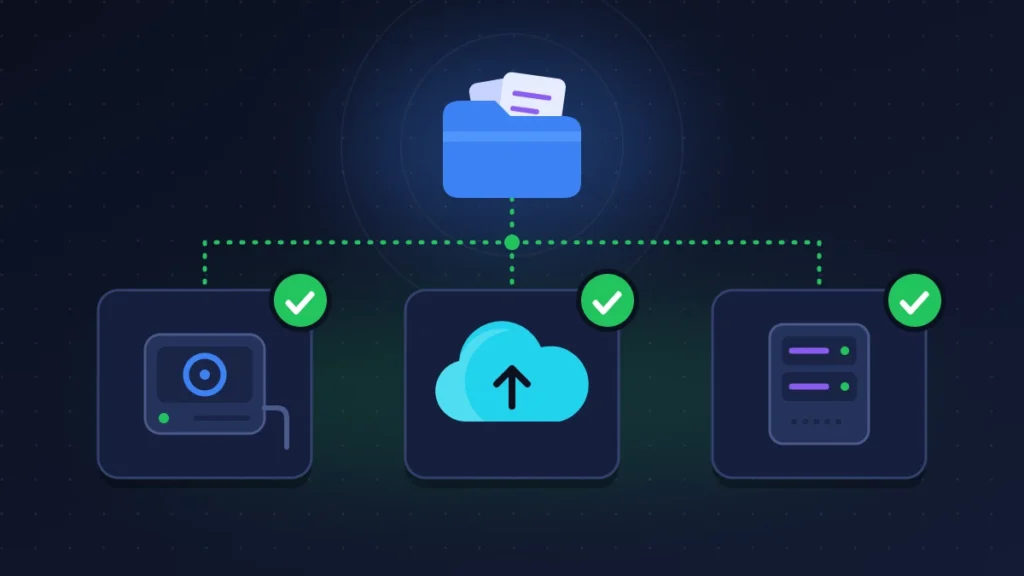
A tool that has let you down once without warning no longer deserves to be the sole guardian of your data. The 3-2-1 rule is a good compass: three copies of your files, on two different media, one of them away from home.
- Windows Backup and OneDrive: the built-in app syncs Desktop, Documents and Pictures to the cloud. A good off-site copy, limited by free storage and by your connection speed.
- System image: Control Panel, Backup and Restore (Windows 7), Create a system image. It restores the whole PC, with no file-by-file history.
- Scheduled Robocopy: a raw, transparent copy, with no catalog to corrupt.
robocopy "C:\Users\YourName\Documents" "X:\Backup\Documents" /E /XJ /R:2 /W:5 /LOG+:"X:\Backup\robocopy.log"Save that line in a .cmd file, then schedule it:
schtasks /Create /SC DAILY /ST 20:00 /TN "DocumentsBackup" /TR "C:\Scripts\backup.cmd"Stay away from the /MIR option until you have mastered it: it deletes from the destination everything that has vanished from the source, handling mistakes included.
- Free third-party software: FreeFileSync for folder synchronization with versioning, Veeam Agent for Microsoft Windows or Hasleo Backup Suite for scheduled images with verification.
A second external drive, stored somewhere else and plugged in once a week, rounds it all off.
Summary table
| Symptom | Likely cause | Solution to try |
|---|---|---|
| Date of last copy frozen, no error | Regression after a monthly update | Solution 1, then 2 |
| “Reconnect your drive” with the disk plugged in | Drive letter changed, or update bug | Solution 4, then 2 |
| The Turn on button does nothing | Program crashing, corrupted configuration | Solutions 2, 3, then 5 |
| FileHistory.exe / KERNELBASE.dll crashes | Faulty cumulative update | Solution 2, failing that 7 |
| Recent backup but files missing | Paths too long, exclusions, online-only OneDrive files | Solution 6 |
| Failures to a NAS, event 204 | Unstable network share, expired credentials | Solution 4, otherwise solution 8 |
If nothing works
Report the problem in Feedback Hub (Windows + F), attaching the build number shown by winver and the list of the last updates installed.
Give Microsoft support or your IT department facts: the date of the last copy displayed, the result of the canary file test, the event IDs you found, the type of destination (USB or network) and what you have already tried. Mention that the drive is readable in File Explorer, which cuts short the questions about hardware.
The drive is rarely to blame. If it disconnects by itself, clicks or returns errors in chkdsk, claim on the manufacturer’s warranty after recovering whatever can be recovered.
Reinstalling Windows seldom helps: users have run into the same failure on a clean installation as soon as the offending update came back. Switching to another method and waiting for the fix is the better course.
Keeping it from happening again
Run a monthly check, a few days after updates have gone through: the date of the last copy, then a glance at what is on the drive. Two minutes is enough.
Test a restore from time to time. A backup you have never restored is still a hypothesis.
Keep a fixed drive letter and eject the drive properly.
On a company fleet, a PowerShell query on the BackupLog log, fed into the monitoring tool, is enough to flag a machine that has copied nothing for several days.
Frequently asked questions
Are my old backups lost when File History stops?
No. Versions already copied remain in the FileHistory folder on the drive, as ordinary files. Only the changes made during the failure are unprotected. Formatting the drive would therefore be a mistake.
File History Service shows as stopped. Is that normal?
Yes, as long as its startup type is not Disabled. This service launches on a trigger and stops between two cycles.
Can you recover files without going through the tool?
Yes. Browse FileHistory\<user>\<PC>\Data on the drive and copy the files you want. All you have to do is remove the timestamp in parentheses from the name.
Is File History going to disappear from Windows?
Microsoft has not announced it, but the tool is no longer evolving and has left the Settings app. Treat it as a supplement, not as your only safety net.
Was File History not working on your PC until one of these methods revived it, or did none of them do the job? Leave a comment with your Windows version, the type of drive and what your log shows: those reports save other readers time.
Share this content: