
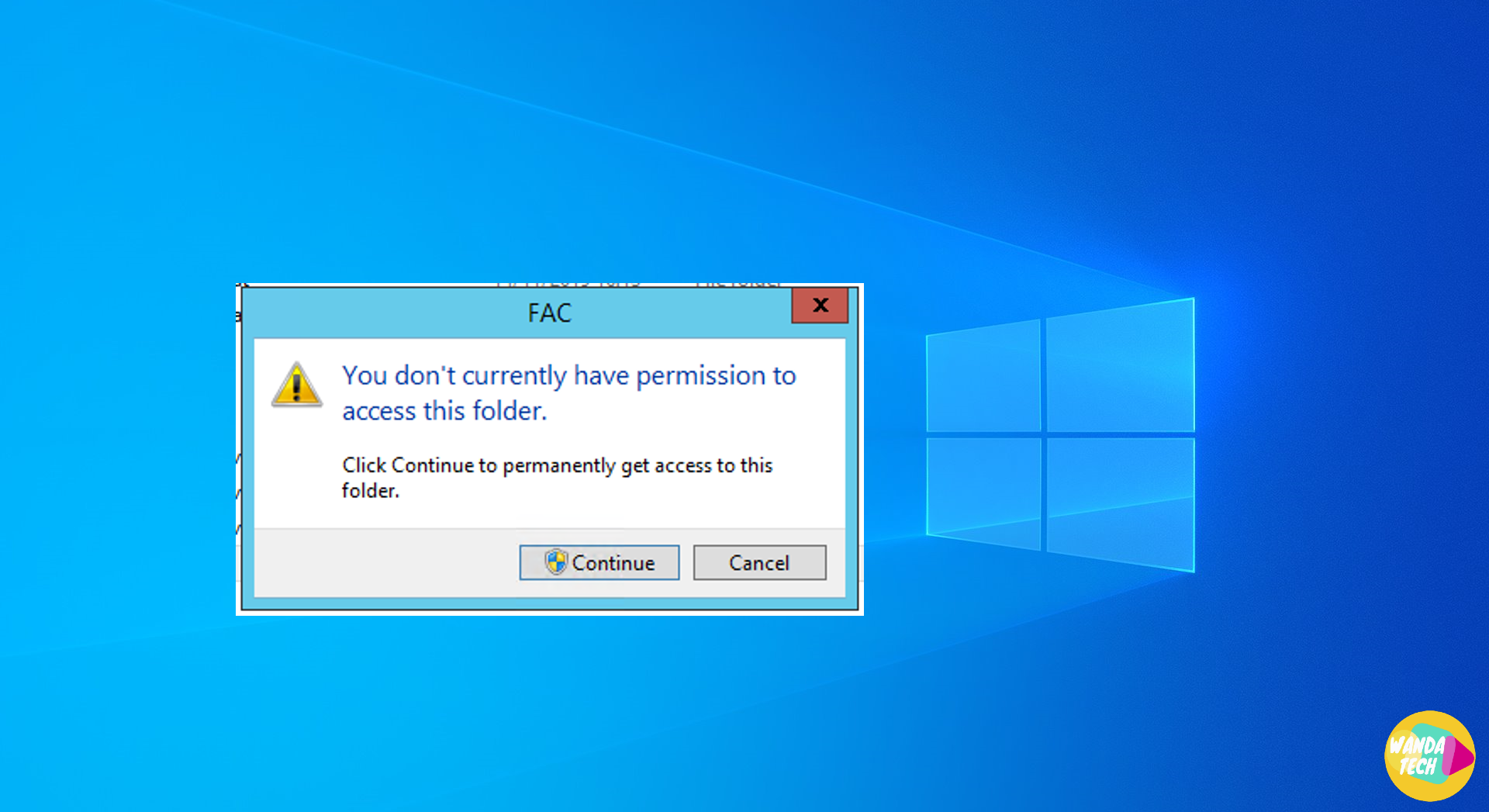
The “You don’t currently have permission to access this folder” error often appears when you try to access a folder with modified or restricted permissions. This issue is common on Windows 10 and Windows 11 systems, preventing users from viewing or modifying files in certain folders. It can be caused by permission or file property issues, but fortunately, there are several simple solutions to fix it.
In this article, we’ll explore multiple methods to resolve this error. Each solution is explained with detailed steps to help you restore access to protected folders.
List of Solutions:
- Solution 1: Modify folder security permissions
- Solution 2: Take ownership of the folder
- Solution 3: Enable administrator permission
- Solution 4: Disable User Account Control (UAC)
Solution 1: Modify Folder Security Permissions
This solution involves changing permissions to grant full control over the folder in question.
- Step 1: Open Folder Properties
Access the folder: Right-click on the folder you can’t open and select Properties from the context menu. - Step 2: Go to the “Security” Tab
In the Properties window, click on the Security tab.
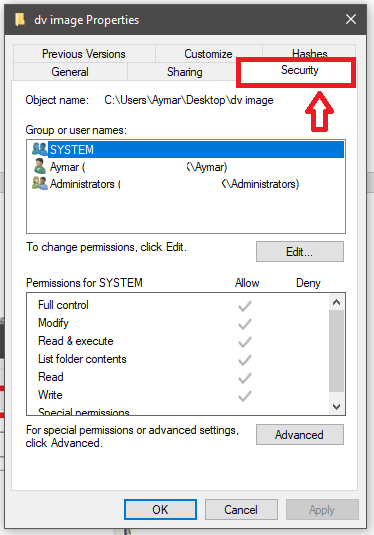
Step 3: Modify Permissions
- Select your username from the list.
- Click on Edit in the “Group or user names” section.
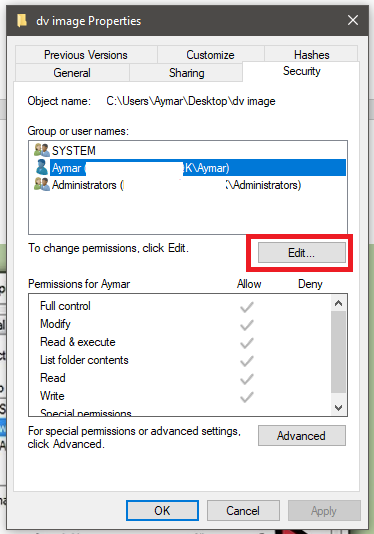
- Check the Full control box under Allow.

Step 4: Apply the Changes
- Click Apply, then OK to save the changes.
- Try accessing the folder again.
Solution 2: Take Ownership of the Folder
If changing the permissions didn’t work, you may need to take ownership of the folder.
- Step 1: Open Folder Properties
Right-click on the folder, then select Properties. - Step 2: Go to the “Security” Tab
Go to the Security tab and click on Advanced.
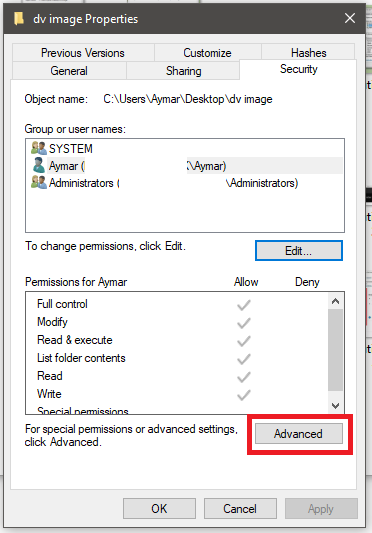
Step 3: Change the Folder Owner
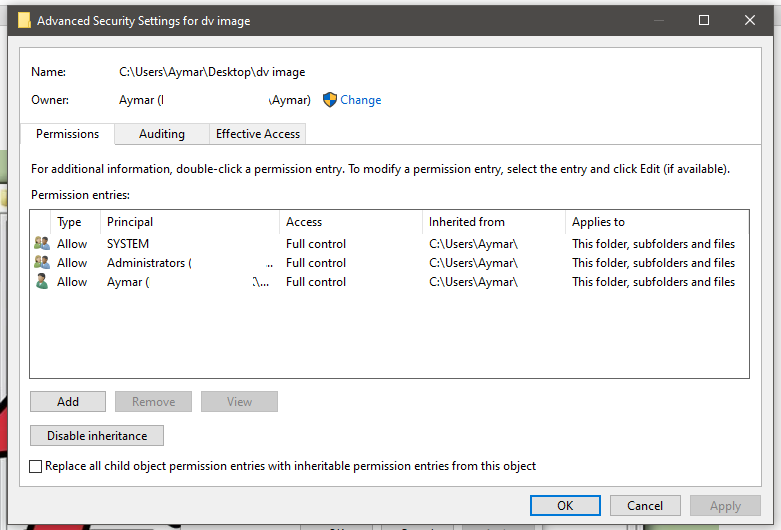
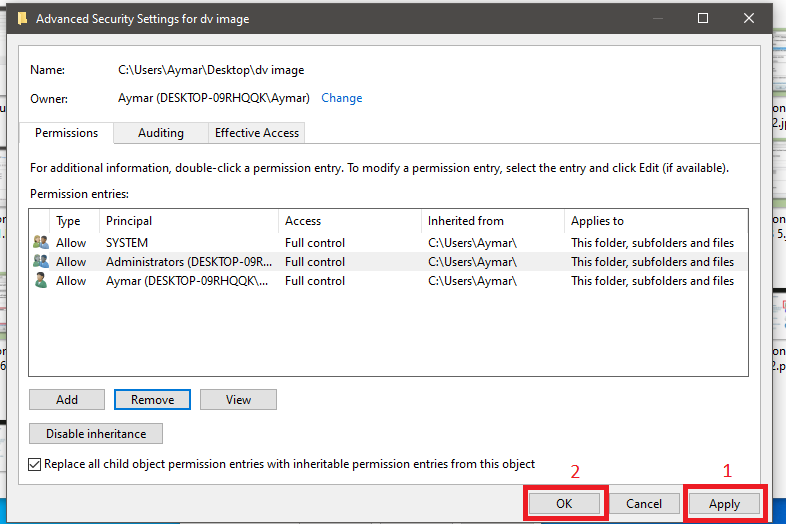
- Click on Advanced. This will display the Advanced Security Settings window for the selected folder or file.
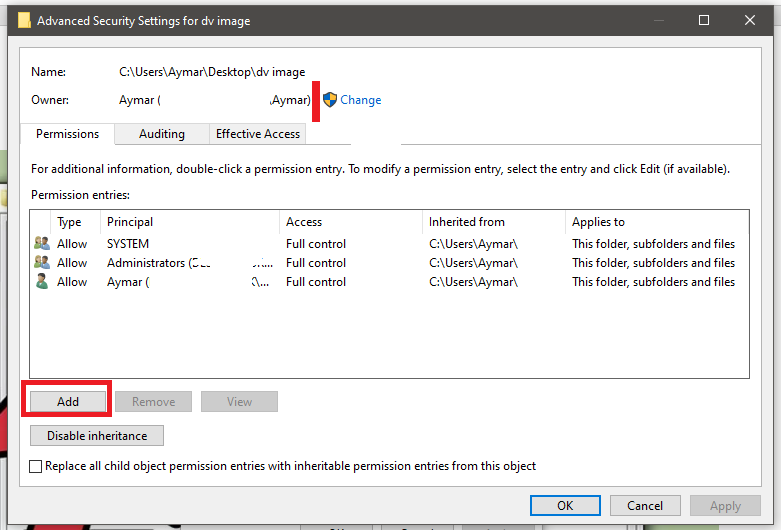
- Click on Add. This option will allow you to select a new owner from the list.
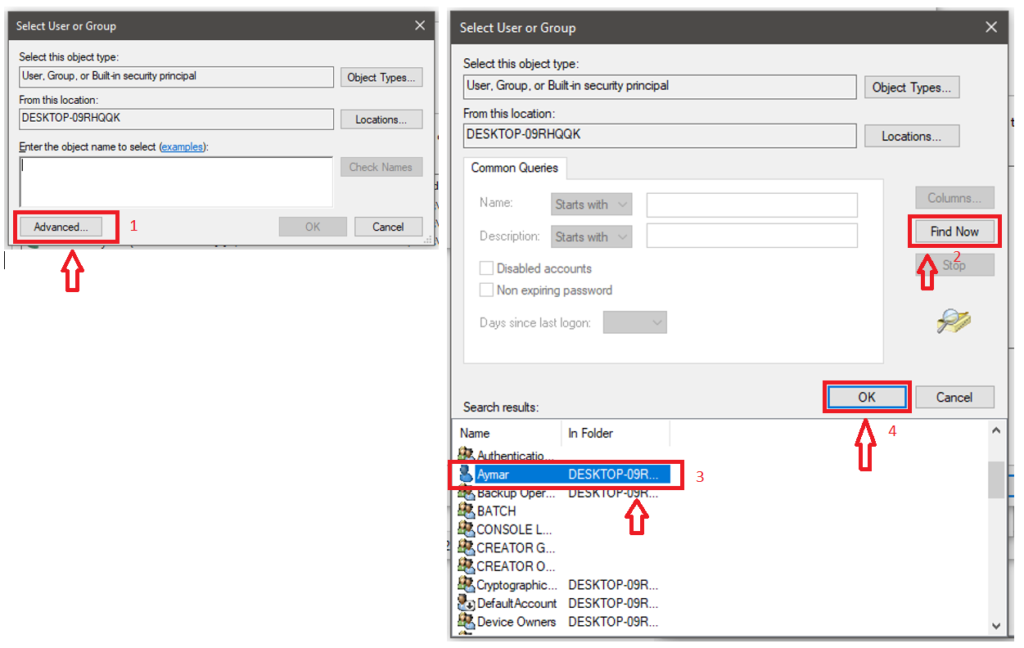
- Select the desired user or group by clicking on Advanced > Find Now and choose the appropriate user or group.
- Adjust the folder permissions after that.

- Check the box “Replace all child object permission entries with inheritable permission entries from this object” to apply this change to all files within the folder.
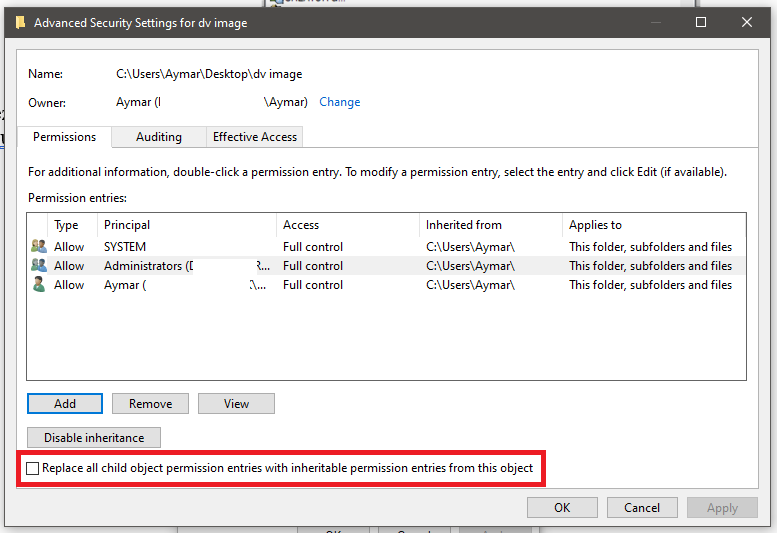
- Save the changes. Click OK to save the ownership changes. If you reopen the Properties window and go to the Security tab, you will see that the ownership has changed in the Advanced Security Settings window.
- Adjust Your Permissions. You may need to set your permissions to Full Control for a file even after taking ownership of it. To do this, follow the instructions in the first section of this article.
Solution 3 : Enable Administrator Permission
Enabling the built-in administrator account allows access to protected folders.
Step 1: Open Command Prompt as Administrator
- Windows 10 and 11 :
- Press Windows + X, then select Command Prompt (Admin) or Windows Terminal (Admin).
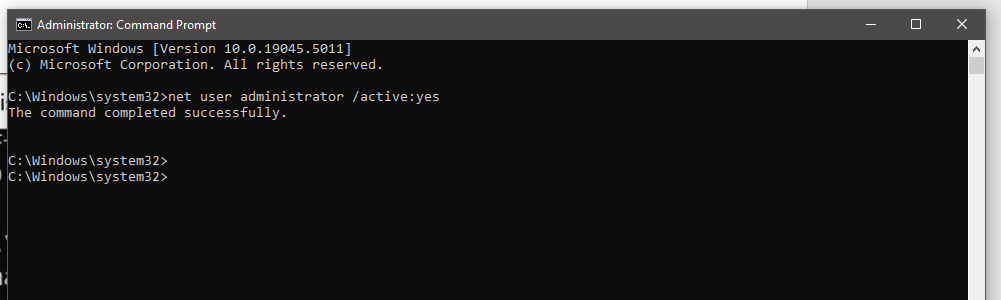
Step 2: Enable the Administrator Account
- Type the following command to enable the built-in administrator account:
Step 3: Try Accessing the Folder Again
- Log out and log back in as an administrator, then try to access the problematic folder again.
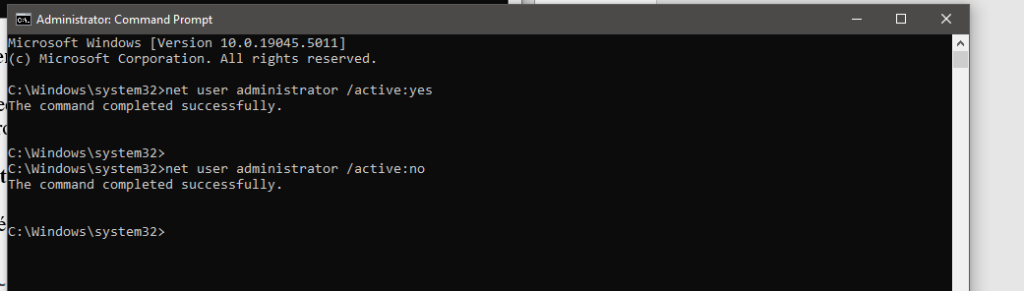
Step 4: Disable the Administrator Account (Optional)
- Once the issue is resolved, you can disable the administrator account with the following command:
Solution 4: Disable User Account Control (UAC)
If the previous solutions did not work, disabling User Account Control (UAC) may resolve the issue.
Step 1: Open the Control Panel
1. Press Windows + S, type Control Panel, and open it.
Step 2: Access UAC Settings
1. In the main Control Panel window, click on User Accounts.
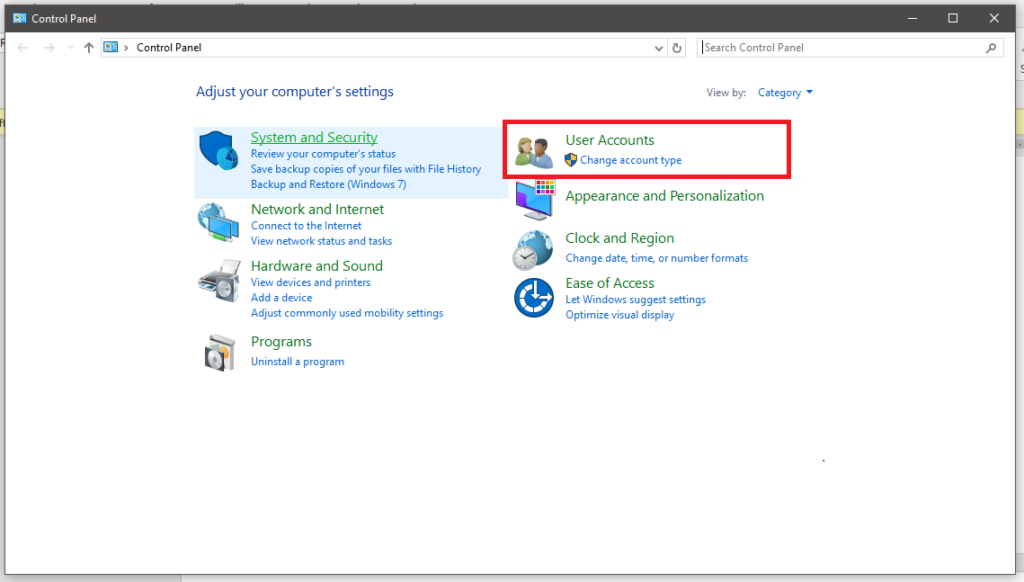
2. In the next window, click on User Accounts again.
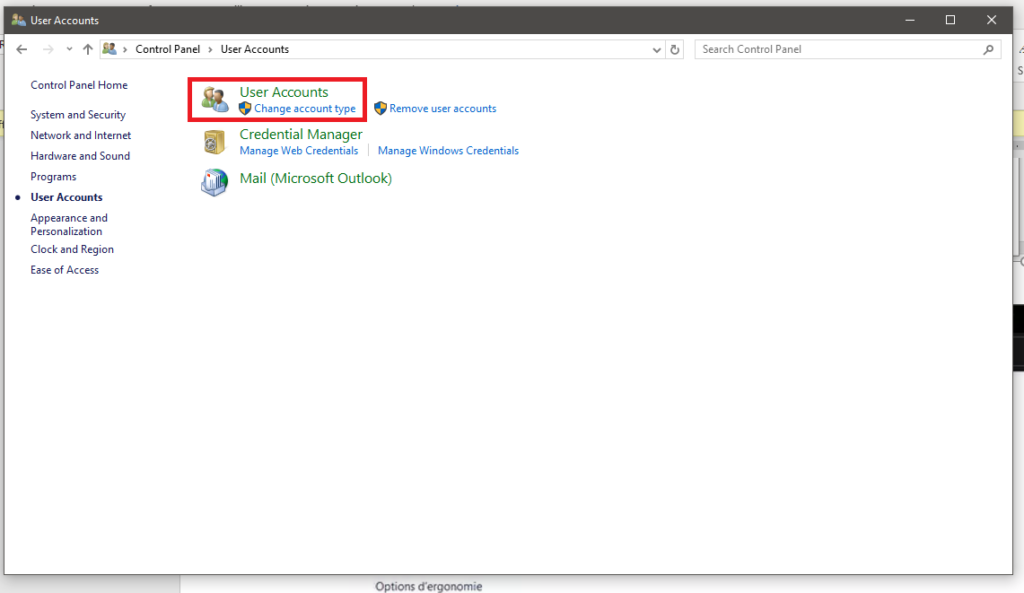
3. In the Make changes to your user account section, click on Change User Account Control settings.
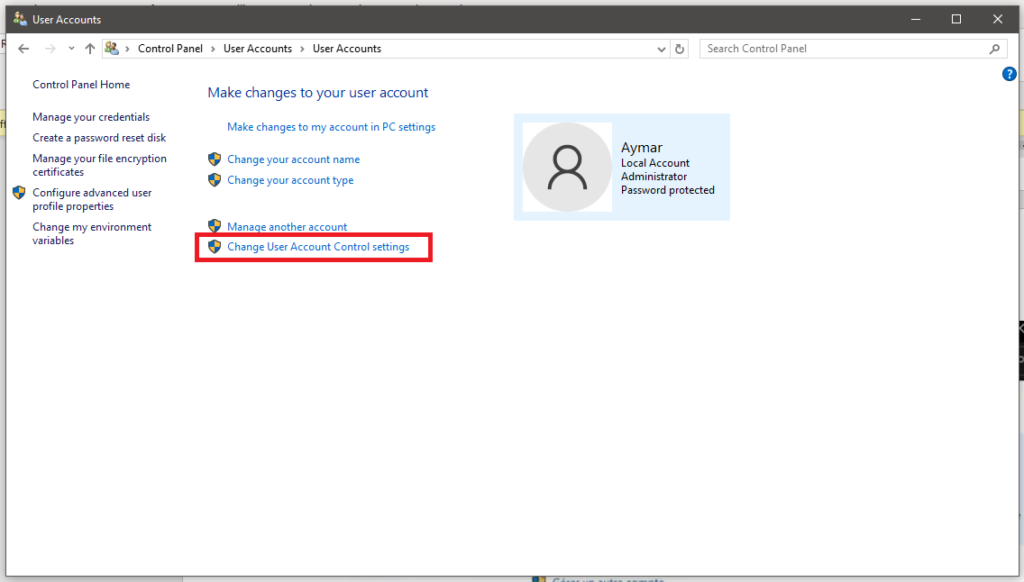
Step 3: Disable UAC
- Slide the slider down to Never notify to stop receiving notifications about program changes.

- Click OK to apply the changes.
Step 4: Restart the Computer
- Restart your computer and try accessing the folder again after disabling UAC..
- To reactivate User Account Control, simply repeat the same process and move the slider back to the desired security level..
What should I do if my Amazon Buyer, Partner or Seller account is blocked?
Common Google Pixel Fold problems and solutions
Share this content: