

Updated on November 7, 2026
This article contains affiliate links: if you buy through them, Wanda-techs earns a commission at no extra cost to you.
Error 0xc0000906 stops Filmora from starting: Windows shows “The application was unable to start correctly (0xc0000906)” and the program stays closed. Wondershare does not document the cause. The leads that can be checked are a file blocked by your antivirus, a damaged installation or corrupted Windows files.
Allow a few minutes for the antivirus check and the reinstall. Repairing Windows takes longer: DISM alone runs for several minutes, and Microsoft gives no exact time.
Common symptoms and causes of error 0xc0000906
- When you launch Filmora, the message “The application was unable to start correctly (0xc0000906)” appears, then nothing opens.
- The antivirus may have quarantined a program file. Mostly third-party sites report this link, not Wondershare.
- The Filmora installation is incomplete or damaged.
- Windows system files are corrupted.
Good to know: a BugSplat window at startup is a different problem, a Filmora crash. If another app shows a similar code, see our guide on the 0xc000007b error on Windows.
Before you start
- A PC running Windows 10 or Windows 11.
- An administrator account, needed for solution 3.
- The email address of your Filmora license.
Warning: according to Wondershare, reinstalling Filmora does not delete your projects, which are normally stored locally. They are lost only if you changed the save path to a folder inside Filmora’s installation folder: move them elsewhere before any uninstall. Also back up your projects to an external drive before you begin.
Warning: never allow, restore or exclude a file of doubtful origin. Download Filmora only from the Wondershare website and nowhere else.
Solution 1: check the antivirus quarantine
An antivirus can isolate a legitimate file it mistakes for a threat: that is a false positive. Third-party sites mention this lead for error 0xc0000906. Nothing official.
- Open Windows Security > Protection history.
- Look for a recent item that concerns a Filmora file, an
.exeor.dllfile. - Also check Virus & threat protection > Current threats.
- If the item comes from an installer downloaded from the Wondershare site, open it and choose the action that restores or allows the file; its label may vary.
- Open Windows Security > Virus & threat protection > Manage settings > Add or remove exclusions.
- Add an exclusion of type Folder and select the Filmora installation folder.
Restart Filmora. The program should open without the error message.
Tip: if you use an antivirus other than Windows’, the quarantine is in its own interface, not in Windows Security. Running only one antivirus at a time stops a second one from blocking what the first one allowed.

Good to know: if you allowed an item by mistake, find it in the list of allowed threats, select it, then remove the permission. The exact label of the list and of the button may vary with your version of Windows.
Solution 2: reinstall Filmora over the current version
Wondershare says you do not need to uninstall Filmora before reinstalling it. The installer then replaces the program files.
Warning: as a precaution, back up your projects to an external drive before step 1.
To back up your video projects, here are three SSDs and external drives to compare.
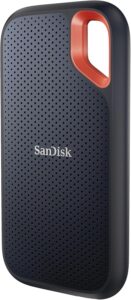 SanDisk Extreme Portable SSD 1 TBA fast pocket-sized external drive for keeping backups and exported archives. Shock-resistant and compatible with computers and many phones over USB-C.AmazonSee at Amazon
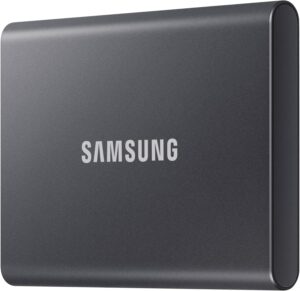 Samsung T7 1 TB external SSDFast, rugged pocket SSD to keep an offline copy of your site files and database at home. Unplugged, it is out of an attacker's reach.AmazonSee at Amazon
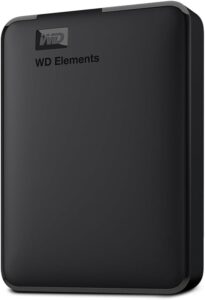 WD Elements 4 TB external hard driveStores a full copy of your files and settings before a risky operation such as a network reset or a system update. Connects by USB with no extra power supply.AmazonSee at Amazon
- Open the official Wondershare download page and download the latest version of Filmora.
- Run the installer without uninstalling the old version.
- Accept when the installer detects the existing version and offers to overwrite it.
When the installation finishes, launch Filmora. It should start normally.
Good to know: the Wondershare download page also offers earlier versions of Filmora.
Solution 3: repair Windows system files
Microsoft recommends two tools, in this order. DISM first, then SFC (System File Checker), which replaces corrupted files with a cached copy.
- Type
cmdin Windows search, right-click Command Prompt, then choose Run as administrator. - Type
DISM.exe /Online /Cleanup-image /Restorehealth, then press Enter. - Wait for the operation to finish, which takes several minutes.
- Type
sfc /scannow, then press Enter. - Keep the window open until it reaches 100%.
- Read the final message.
The message “Windows Resource Protection did not find any integrity violations” means there was nothing to repair. If SFC reports that it found and repaired corrupted files, restart and launch Filmora again. If it could not repair everything, extract the details from the log with this command, which creates a sfcdetails.txt file on the Desktop:
findstr /c:"[SR]" %windir%\Logs\CBS\CBS.log >"%userprofile%\Desktop\sfcdetails.txt"Good to know: if Windows Update does not work, DISM can use another source with the /Source: option followed by the path of a repair source, and the /LimitAccess option. If Command Prompt denies access, see our guide on system error 5, Access is denied.
Solution 4: update Windows 11 or Windows 10
- On Windows 11, open Start > Settings > Windows Update > Check for updates.
- On Windows 10, open Start > Settings > Update & Security > Windows Update, then click Check for updates.
- Click Download & install if updates appear.
- Restart the computer.
After the restart, launch Filmora. It should open without an error message.
Tip: run another check after the restart. Windows Update often installs updates in several passes.
Solution 5: uninstall, then reinstall Filmora
This time Filmora is removed before it is reinstalled. Your license stays valid.
Warning: uninstalling deletes the projects saved in Filmora’s installation folder. Move them elsewhere before step 1, or they will be lost.
- Right-click the Filmora icon, then choose Open file location.
- Double-click
unins000.exe. - Follow the prompts until the uninstall finishes.
- Download the latest version from the official Wondershare page.
- Install Filmora.

You can also uninstall from Control Panel, in the section for uninstalling programs: right-click Filmora, choose uninstall and confirm. Wondershare documents this path only in English, so the labels on your screen may differ.
Filmora should then start without the 0xc0000906 code.
If nothing works
Stop if the error persists after the reinstall and the Windows repair. Microsoft lists reinstalling Windows as a last resort. It requires you to back up all your files first.
Write to Wondershare support from the Get Support page or the French contact page. Have these ready:
- the email address of your license;
- your Windows version and your Filmora version;
- a screenshot of the 0xc0000906 error message;
- the BugSplat report or the log files, if any;
- the list of solutions you already tried.
If a BugSplat window opens, enter your license email and a precise description, then click Send.
Protect your PC and your projects: our selection
Good protection and a backup copy keep you from losing an edit at the next failure.
 Bitdefender Total Security 2026, 3 devices, 1 yearSecurity suite for Windows, Mac, Android and iPhone. It helps protect accounts and files on your phone.AmazonSee at Amazon
 Norton 360 Deluxe 2026, 5 devices, 15 monthsSecurity suite licence for PCs, Macs, Android phones and iPhones, with a VPN and a password manager. A way to protect the accounts that hold your contacts.AmazonSee at Amazon
- SanDisk Ultra Dual Drive Go 128 GB, USB-C and USB-A flash driveUSB key with two connectors, for a computer or a phone. Handy for carrying files or a software update.AmazonSee at Amazon
 Avast Premium Security 2026, 1 device, 1 yearThe entry-level choice for a single computer: antivirus, fake-site blocking and ransomware protection for around ten euros.AmazonSee at Amazon
Frequently asked questions
What does error 0xc0000906 mean?
Error 0xc0000906 means an application was unable to start correctly. Neither Wondershare nor Microsoft documents its exact cause for Filmora. The most cited leads are a file blocked by the antivirus, an incomplete installation or damaged system files.
Why won’t Filmora launch?
Filmora may refuse to launch if one of its files is missing or blocked, or if Windows files are damaged. The message on screen points the way: 0xc0000906 at startup, or a BugSplat window when the program crashes. For crashes while editing, see our guide on Filmora that keeps crashing.
Can an antivirus block Filmora?
Yes, an antivirus can quarantine a file it considers suspicious, including a legitimate one. Windows Security lists these items in its protection history. Prefer a targeted exclusion on the Filmora folder over turning the antivirus off, and only for an official installation.
How do I reinstall Filmora cleanly?
The quickest way is to install the latest version over the current one: the Wondershare installer detects the old one and offers to overwrite it. To start from scratch, uninstall with unins000.exe, then reinstall from the official site. Move any projects kept in the installation folder first; the license stays valid.
Share this content: