
Updated on November 15, 2026
This article contains affiliate links: if you buy through them, Wanda-techs earns a commission at no extra cost to you.
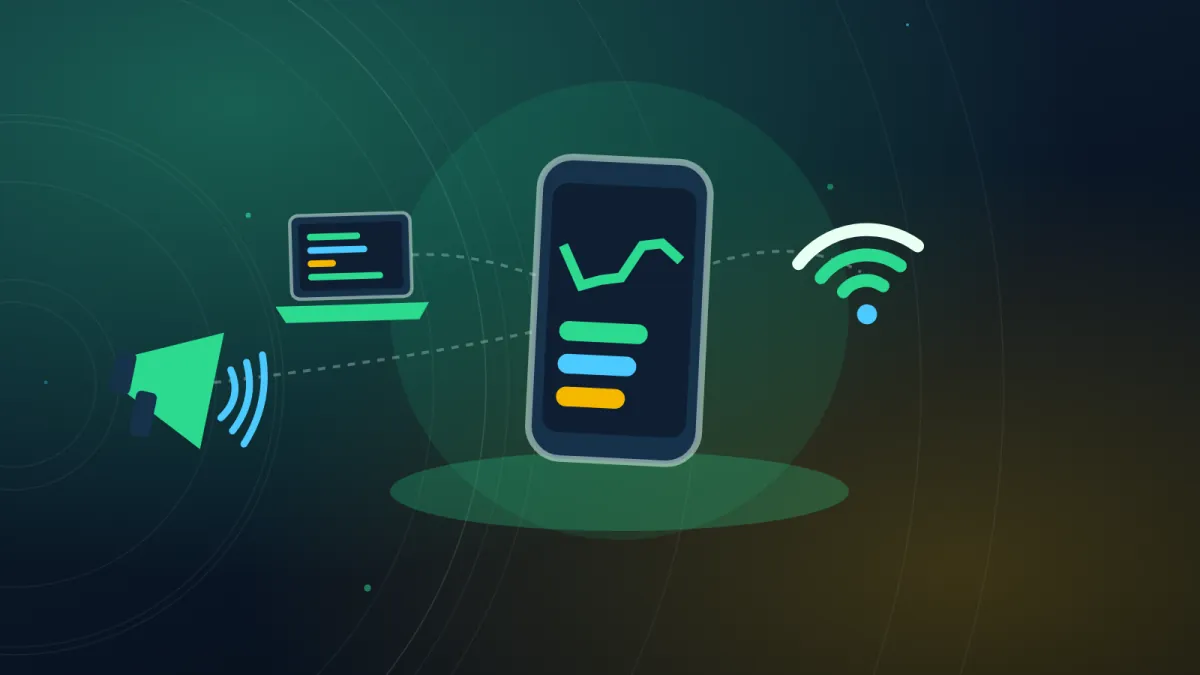
To use your phone as a PC microphone, you need two things: an app that sends the phone’s sound to the computer, and a virtual microphone on the Windows side to receive it. The PC then sees your phone as an ordinary mic, in Windows as well as in Discord or Zoom.
WO Mic works with Android and iPhone over Wi-Fi, and also over USB or Bluetooth on Android. AudioRelay works here with Android, over Wi-Fi.
Common symptoms and causes
- The PC has no microphone, or its microphone has stopped working.
- The phone does not show up in the list of Windows input devices: the virtual driver is missing, or the wrong device is selected in the app.
- The Wi-Fi connection starts, then drops: the firewall is blocking the audio stream.
- The phone and the PC are not on the same network.
- Windows blocks the microphone for desktop apps in its privacy settings.
Before you start
You need a PC running Windows 10 or 11, an Android phone or an iPhone, and microphone access granted to the app on the phone. Then pick one of the two apps.
- WO Mic, free: an app for Android and iPhone, plus WO Mic Client on the PC with its virtual microphone driver, which you download from the official WO Mic site. The sound arrives at 48 kHz, 16-bit, mono, and only one phone can connect at a time.
- AudioRelay: an Android app and a Windows server, available on the AudioRelay site. Its virtual microphone needs Windows 10 or later. Its official pages do not mention the iPhone.
A virtual microphone is a driver that makes a fake input device appear in Windows. Your phone’s voice reaches your programs through it.
Without a cable, the phone and the PC must be on the same Wi-Fi network.
Warning: opening a device can void its warranty, so check the warranty end date first. Nothing here asks you to open the PC or the phone. The sensitive step is installing a virtual audio driver (WO Mic, VB-CABLE), which needs administrator rights and a restart; if anything goes wrong, uninstall it from Device Manager.
Good to know: the previous version of this guide suggested a jack cable plugged into the PC’s microphone port, with the Microphone and Megaphone apps. No official source confirms that this turns a phone into a PC microphone, so we removed it.
Step 1: use your phone as a PC microphone over Wi-Fi with WO Mic
This method works on Android and on iPhone.
- Connect the phone and the PC to the same router, your home router for example.
- On Android, open the WO Mic app menu, then Settings > Transport > Wi-Fi.
- On Android, tap the action bar to start the server and grant the permissions it asks for.
- On Android, tap the transport information to show the phone’s IP address.
- On iPhone, tap Start, allow the access it asks for, then note the IP address shown on the panel.
- On the PC, type “WO Mic” in Windows search and open WO Mic Client.
- Open Connection > Connect…, choose Wi-Fi and enter the phone’s IP address.
- Click Connect and wait a few seconds.
The phone’s sound now arrives on the “WO Mic Device” input. You will select it in step 4.
Step 2: connect an Android phone over Wi-Fi with AudioRelay
Here too, the phone and the PC must share the same Wi-Fi network.
- On the phone, open AudioRelay, go to the Server tab and tap the Microphone source.
- Accept the microphone access request that appears at startup.
- On the PC, open AudioRelay and go to the Player tab.
- Set the output mode to Mic.
- Choose your phone in the list of servers.
Your voice arrives on the “Virtual Mic (Virtual Mic for AudioRelay)” microphone, which AudioRelay installs on Windows 10 and 11.
On Windows 7, or without that virtual microphone, use VB-CABLE. It is a virtual audio cable, distributed as donationware.
- Download VB-CABLE from the VB-Audio site and run the installer as administrator.
- Restart the PC.
- In AudioRelay’s Player tab, choose CABLE Input as the device.
- In your programs, choose CABLE Output as the microphone.
Good to know: AudioRelay promotes the USB connection for the best quality, but its official pages do not explain how to set it up. We could not verify it.
Step 3: connect an Android phone over USB with WO Mic
WO Mic’s USB connection only works with Android. It requires USB debugging, a mode that lets the PC talk to the phone over the cable. It lives in the developer options, which have been hidden since Android 4.2.
- On the phone, open Settings > About phone.
- Tap Build number 7 times to reveal the developer options.
- In the developer options, turn on USB debugging.
- Install your phone’s USB driver on the PC.
- Plug the phone into the PC with a USB cable.
- Open Device Manager and check that the phone appears there as “ADB Interface”.
Then choose the USB transport in the app and in the client. We could not verify this setting.
If your charging cable only carries power or keeps disconnecting, here is a sturdy USB-C to USB-C cable to link the phone to the PC.
Anker 310 USB-C to USB-C cable, 0.9 m
Short USB-C to USB-C cable from a recognised brand, handy to replace a worn cable. Also useful to test whether the cable is the cause of a charging problem.
- AmazonSee at Amazon
Good to know: WO Mic also offers Bluetooth and Wi-Fi Direct, on Android only, and we have not verified those steps. On iPhone, only Wi-Fi works, contrary to what the previous version of this guide said. AudioRelay does not support Bluetooth.
Step 4: choose the phone’s microphone in Windows, Discord or Zoom
- Open Start > Settings > System > Sound > Input.
- Select the phone’s microphone as the input device: “WO Mic Device” for WO Mic, “Virtual Mic (Virtual Mic for AudioRelay)” for AudioRelay.
- Start the microphone test, speak into the phone, then stop the test.
- Play back the recorded sample.
- In Discord, Zoom or Skype, choose the same microphone in the app’s audio settings.
When you play the sample back, you should hear your voice picked up by the phone. On Windows 10, you choose the input in Settings > System > Sound.
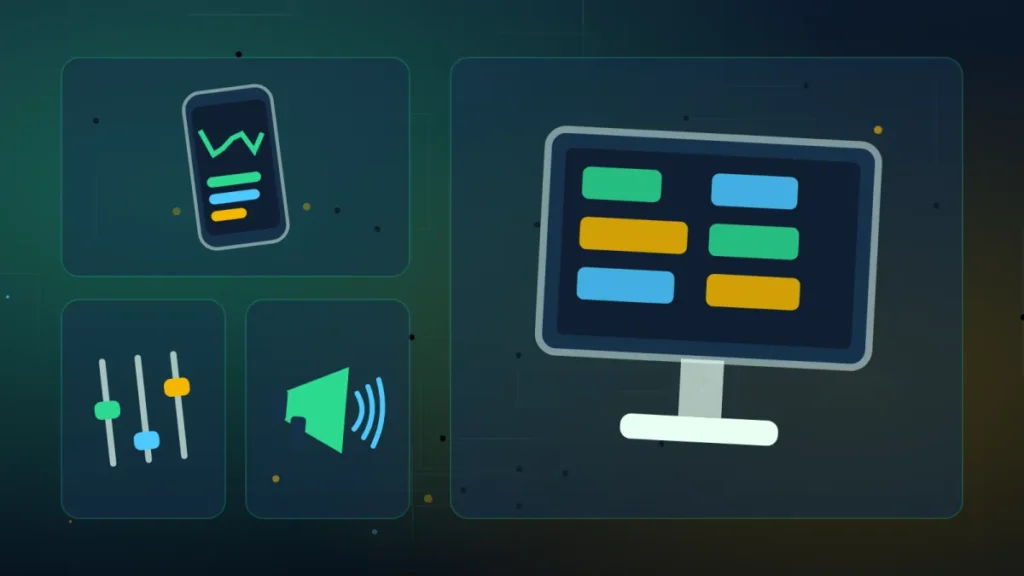
Tip: with AudioRelay, right-click the sound icon in the taskbar, open Sounds, then the Recording tab. Right-click Virtual Mic to set it as the default device, then as the default communication device.
Step 5: if the PC cannot hear the phone’s microphone
- On the phone, allow microphone access for WO Mic or AudioRelay: both apps ask for it at startup.
- On the PC, open Start > Settings > Privacy & security > Microphone.
- Turn on Microphone access and “Let apps access your microphone”.
- Turn on “Let desktop apps access your microphone”: desktop apps do not ask for permission one by one.
- Run the troubleshooter: Settings > System > Sound > Advanced > Troubleshoot input devices.
- If WO Mic connects, then drops, allow the client’s incoming UDP audio port in the PC’s firewall.
- If it keeps dropping, change the client’s media port, for example to
12345. - Set the PC’s Wi-Fi network profile to Private.
- In WO Mic Client, open Help > Statistics and read the
Driver stateline:1means the driver works,0means it is broken. - If Windows reports a missing DLL when the client starts, install the Visual C++ x86 runtime from Microsoft’s website.
- As a last resort, reinstall WO Mic Client in a new folder.
On Windows 10, the microphone permissions are in Settings > Privacy > Microphone.
A broken WO Mic driver can be removed by uninstalling the client, or in Device Manager under Sound, video and game controllers.
If nothing works
The phone still does not appear after checking the firewall, the network and the driver? Switch to a USB microphone or a USB headset. If it is the PC’s built-in microphone that gave up on you, also read our guide on a microphone not working on Windows 11.
For stable sound with no tweaking, here are two microphones that plug in over USB, a headset and a desktop mic.
- Logitech H390 USB headset with noise-cancelling microphoneA headset that plugs in over USB and brings its own microphone, so it bypasses the PC jack. The mic swings out of the way and the volume and mute controls sit on the cable.AmazonSee at Amazon
- Blue Snowball iCE USB plug-and-play microphoneA desktop microphone that connects over USB and works without any installation. It picks up your voice for calls, meetings and recordings.AmazonSee at Amazon
For WO Mic, the official FAQ covers connection and driver errors. Before asking for help, note your Windows version, the app version on the phone and on the PC, the phone model and the connection mode you used.
Your phone can also act as a camera: see how to use your phone as a webcam for your PC.
A proper microphone for your PC: our toolbox
A few accessories so you no longer depend on your phone.
- Logitech H390 USB headset with noise-cancelling microphoneA headset that plugs in over USB and brings its own microphone, so it bypasses the PC jack. The mic swings out of the way and the volume and mute controls sit on the cable.AmazonSee at Amazon
- Blue Snowball iCE USB plug-and-play microphoneA desktop microphone that connects over USB and works without any installation. It picks up your voice for calls, meetings and recordings.AmazonSee at Amazon
- UGREEN external USB sound card with headphone and mic jacksAdds a headphone output and a microphone input to the PC through a USB port. Useful when the PC sound chip or jack socket no longer works.AmazonSee at Amazon
- UGREEN USB-C male to USB-A 3.0 female OTG adapterLets a USB-A cable plug into a USB-C charger or port. Useful when your charger no longer has a USB-A socket.AmazonSee at Amazon
Frequently asked questions
Can you use an iPhone as a microphone on a Windows PC?
Yes, with WO Mic, which exists on iPhone, and only over Wi-Fi. WO Mic’s Bluetooth, Wi-Fi Direct and USB modes are limited to Android. AudioRelay’s official pages do not mention the iPhone.
How do you use your phone as a microphone on Discord?
Connect the phone first with WO Mic or AudioRelay, then choose its virtual microphone in Discord’s audio settings. It is called “WO Mic Device” with WO Mic and “Virtual Mic (Virtual Mic for AudioRelay)” with AudioRelay. You can also set it as the default recording device in Windows.
Do you need a USB cable to use your phone as a microphone?
No, Wi-Fi is enough with WO Mic and AudioRelay, as long as the phone and the PC are on the same network. WO Mic’s USB mode, which is Android only, requires USB debugging. No official source confirms the jack cable to the PC’s microphone port.
Why can’t the PC hear the phone’s microphone?
Several settings can block the sound along the way: microphone access denied on the phone, the microphone turned off for desktop apps in Windows, the wrong device selected, or a firewall blocking the stream. Check these in the order of step 5. With WO Mic, the Driver state line under Help > Statistics tells you whether the driver works.
Share this content: