

This article contains affiliate links: if you buy through them, Wanda-techs earns a commission at no extra cost to you.
Your iPad is not charging: no lightning bolt appears on the battery icon, or nothing happens when you plug it in. Start with the cable and the power adapter. They are the easiest cause to rule out, well before a dirty port, temperature or the battery.
Common symptoms and causes
A charging iPad shows a lightning bolt on the battery icon in the status bar, or a large battery icon on the Lock Screen. Without one of those, it is not charging.
- No bolt or charging icon after plugging in: faulty or unsuitable cable or adapter, or an outlet with no power.
- Charging cuts out when the cable moves: intermittent connection, dirty or damaged port.
- Very slow charging: a source that is too weak, such as a computer’s USB port.
- Charging stops around 80%: a charge limit is on, or the battery is outside its temperature range.
- The iPad will not turn on at all once plugged in: empty battery, worn battery or a faulty top button.
Before you start
Identify your iPad model: with or without a Home button, the round button below the screen. The force restart method depends on it. The 80% charge limit and the USB-C connector repair apply only to recent models.
Warning: never puncture, bend or heat a lithium battery. A swollen battery will no longer charge and belongs at a collection point; work on a non-flammable surface. If the iPad swells or gets unusually hot, stop charging and have it repaired.
Warning: turn the iPad off and unplug it before cleaning the port, and never use a metal object. As a general rule, unplug a device from the mains before opening it and never work on one that is plugged in. The capacitors in some devices (TVs, microwaves, power supplies) stay charged after unplugging: do not touch them.
Warning: restoring the iPad, mentioned as a last resort, erases data. Back up first; anything not backed up will be lost.
Warning: opening the device can void the warranty, so check the warranty end date first. Do not open the iPad yourself and go through Apple for any repair.
Solution 1: check the cable, the power adapter and the outlet
- Plug the iPad in with a USB charging cable, preferably the one that came with it.
- Plug the USB power adapter into a working wall outlet. Apple recommends its own adapter.
- Avoid a computer’s port or a wireless charger for this test: Apple advises a wall adapter for troubleshooting.
- Unplug the cable at the iPad end, flip the connector over and plug it back in.
- Swap the cable for another one, then swap the adapter for another one.
- Gently wiggle the plugged-in cable and watch whether charging cuts out and resumes.
The bolt should appear on the battery icon, or the large battery icon on the Lock Screen. To pick an adapter powerful enough, see our guide to choosing the right Apple charger.
To replace the cable or the test adapter, here are two cables and a power adapter to compare.
- Anker 310 USB-C to USB-C cable, 0.9 mShort USB-C to USB-C cable from a recognised brand, handy to replace a worn cable. Also useful to test whether the cable is the cause of a charging problem.AmazonSee at Amazon
- Apple USB-C to Lightning cable, 1 mConnects a Lightning iPad or iPhone to a USB-C charger or computer. An Apple cable avoids charging faults caused by poor-quality cables.AmazonSee at Amazon
- Anker Nano 20 W USB-C wall charger (PowerPort III)Compact fast charger for phones with a USB-C port. It fits easily in a bag or a travel pouch.AmazonSee at Amazon
Good to know: outside this test, other sources can charge an iPad too. A USB 2 or newer port on a computer that is on, a powered USB hub, a docking station, an Apple-certified accessory or a compatible Magic Keyboard plugged into the mains all work.
Warning: if the connection stays intermittent with a cable that works on another device, the iPad’s port is the problem. Apple then recommends a repair.
Solution 2: clean the charging port
Apple lists a dirty connector among the causes of no charging. Clean the port with the iPad off and unplugged.
- Unplug the cable from the iPad.
- Turn the iPad off.
- Gently run a soft, clean, dry, non-metallic brush through the port.
- Plug the cable and the wall adapter back in, then look at the battery icon.
The charging bolt should appear in the status bar or on the Lock Screen.
Warning: do not use bleach, hydrogen peroxide or compressed air, and never immerse the iPad in liquid.
Solution 3: force restart the iPad
The method depends on the Home button below the screen: some iPads have one, some do not.
iPad without a Home button
- Press and quickly release the volume button closest to the top button.
- Press and quickly release the volume button farthest from the top button.
- Hold the top button until the Apple logo appears.
iPad with a Home button
- Press and hold the top (or side) button and the Home button at the same time.
- Release them when the Apple logo appears.
The Apple logo appears, then the iPad restarts. Plug it back in and look for the bolt on the battery icon.
Solution 4: charge for a long time and watch the temperature
iPad not charging and not turning on
A completely drained iPad can stay black for several minutes, even on a good power source.
- Plug the iPad into a wall power adapter.
- Wait about 2 minutes: the charging icon should appear.
- Let it charge for 10 minutes, or until an image appears.
- If the battery was empty, charge for 20 to 30 minutes before turning the iPad on.
- If nothing happens, extend the charge to 1 hour.
The charging icon should show, then the iPad should be able to turn on. If it stays black, our guide iPad won’t turn on covers the other checks.
Charging blocked by heat or cold
When it is too hot, the iPad charges more slowly or not at all, and the screen may dim. When it is too cold, it can stop charging too.
- If the Lock Screen says “Charging on Hold”, let the iPad return to a normal temperature: charging resumes on its own.
- If a temperature warning screen appears, turn the iPad off and put it somewhere cool, in the shade.
- If the iPad got cold, let it warm up: charging resumes normally.
Good to know: Apple gives an operating ambient temperature of 32 to 95°F (0 to 35°C), ideally 61 to 72°F (16 to 22°C), and a storage range of -4 to 113°F (-20 to 45°C). Do not leave the iPad in a car. Charging above 95°F (35°C) permanently shortens battery life.
Solution 5: charging stuck at 80% or slow on a computer
Stopping around 80% is not necessarily a fault. On the iPad Pro (M4) and later, iPad Air (M2) and later, iPad mini (A17 Pro) and iPad (A16), an 80% charge limit may be turned on.
- Open Settings > Battery > Battery Health and check whether a charge limit is set.
- If the iPad charges from a computer, check that the port is USB 2 or newer.
- Keep the computer on and awake for the whole charge.
- Plug the iPad into a wall power adapter instead, which is more powerful than a computer port.
With the limit on, charging stops around 80% and resumes at 75%. The iPad sometimes goes up to 100% to keep its battery estimates accurate. On a wall adapter, the source should no longer slow charging down.

Good to know: none of the Apple pages we consulted describes the “Not Charging” message. According to third-party sites, it means the source is too weak: test the wall adapter.
The software can also limit charging above 80% when the battery is outside its temperature range. Charging overnight is safe. Charging stops when the battery is full and resumes below 95%.
If nothing works
Stop trying in three cases: no charge and no image after 10 minutes on a wall adapter with another cable, the iPad still off after 1 hour of charging, or an intermittent connection with a healthy cable. A repair may then be needed.
- On the iPad Air (M2) and later, iPad Pro (M4) and later, iPad mini (A17 Pro) and iPad (A16), Apple replaces the USB-C connector for a wired charging problem, or the battery if it is at fault. The repair may not solve the problem.
- For other models, see Apple’s repair page.
- If the iPad turns on once plugged in but the top button no longer responds, Apple may offer to replace the iPad.
Good to know: an iPad battery ages. It is designed to keep about 80% of its capacity after 1,000 full cycles, and battery life drops after that.
Apple Support can check whether the iPad is receiving power, using its diagnostics or recovery mode: if it shows up on a trusted, up-to-date Mac, it is powered. Warning: the restore offered in this mode erases all data on the iPad.
Contact Apple Support or a repair center.
Take better care of your iPad: our toolbox
A few useful accessories to charge your iPad in good conditions every day.
- Anker Nano 20 W USB-C wall charger (PowerPort III)Compact fast charger for phones with a USB-C port. It fits easily in a bag or a travel pouch.AmazonSee at Amazon
- Anker 310 USB-C to USB-C cable, 0.9 mShort USB-C to USB-C cable from a recognised brand, handy to replace a worn cable. Also useful to test whether the cable is the cause of a charging problem.AmazonSee at Amazon
- Apple USB-C to Lightning cable, 1 mConnects a Lightning iPad or iPhone to a USB-C charger or computer. An Apple cable avoids charging faults caused by poor-quality cables.AmazonSee at Amazon
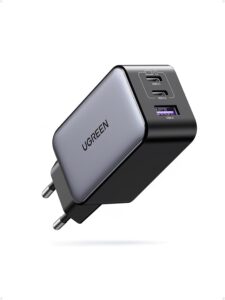 UGREEN Nexode 65 W wall charger (3 ports)Compact charger with three ports to charge a tablet, a phone and another device at once. Its 65 W output leaves headroom for fast charging.AmazonSee at Amazon
- Anker Nano power bank 10,000 mAh 45 W with retractable USB-C cablePortable battery with a built-in retractable USB-C cable to top up a tablet away from a socket. Handy as a backup when the wall charger is out of reach.AmazonSee at Amazon
- Belkin 4-outlet surge protector, 525 joules, 2 m, 2 USB portsPower strip with surge protection that shields chargers and devices from voltage spikes. Its two USB ports also free up a socket.AmazonSee at Amazon
Frequently asked questions
Why is my iPad not charging to 100%?
On recent models, the 80% charge limit may be on: the iPad stops around 80% and resumes at 75%. It exists on the iPad Pro (M4) and later, iPad Air (M2) and later, iPad mini (A17 Pro) and iPad (A16). The software can also block charging above 80% when the battery is outside its temperature range, which is not a fault.
My iPad is not charging but detects the charger: what should I do?
Look at what appears when you plug it in. “Charging on Hold” on the Lock Screen means the temperature is out of range: charging resumes on its own once it returns to normal. A stop around 80% may come from the charge limit, and slow charging from a source that is too weak: use a wall power adapter.
How do I fix an iPad that is not charging?
Start with another cable and another power adapter on a wall outlet, then clean the port and force restart. If the iPad still shows no charge and no image after 10 minutes, a repair may be needed. On the iPad Air (M2) and later, iPad Pro (M4) and later, iPad mini (A17 Pro) and iPad (A16), Apple replaces the USB-C connector for a wired charging fault, or the battery if it is at fault.
What does “Not Charging” mean on an iPad?
Apple does not describe this message in the support pages we consulted. According to third-party sites, it means the power source is too weak, such as a computer’s USB port. Plug the iPad into a wall power adapter to see whether the message goes away.
Why is my iPad charging so slowly?
A computer’s USB port supplies less power than a power adapter, and some adapters do not supply enough. Use a recommended adapter plugged into the wall. Heat also slows charging, or stops it, until the temperature returns to normal.
Share this content: