
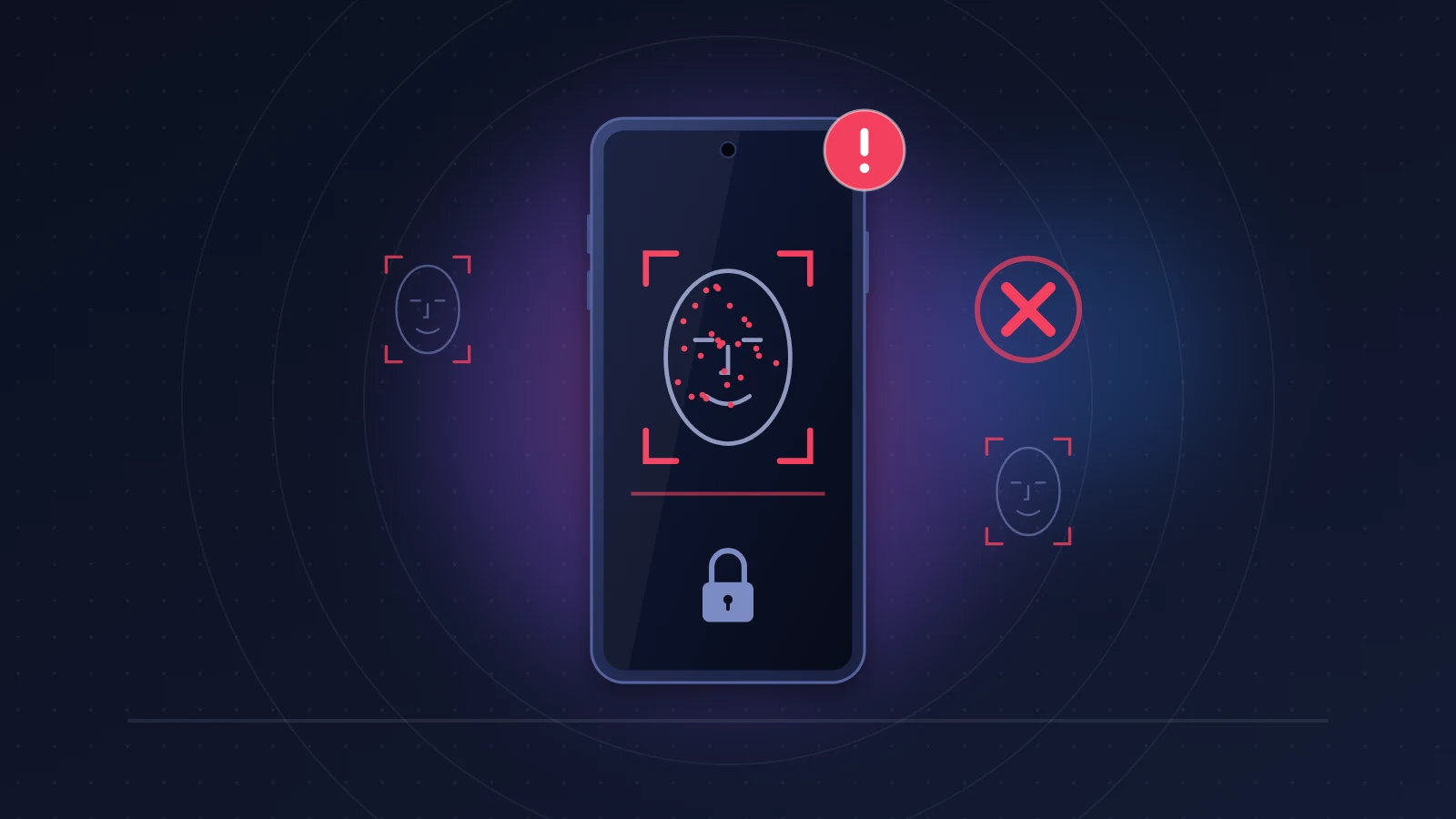
When you find your iPhone 18 Pro Face ID not working, or the same thing on an iPhone 18 Pro Max, the sensor itself is rarely to blame. On both models, the Face ID infrared camera sits under the display, in the top left corner, and anything covering that corner gets in its way: a matte or privacy screen protector, a fingerprint smudge, an air bubble. The freeze followed by a restart after a failed Face ID attempt inside an app is a different story: that was an iOS 27 bug, fixed in iOS 27.0.1. Update, take the protector off, clean the top left corner, and most cases end right there.
The quick fix
- Install the latest version of iOS (Settings > General > Software Update), iOS 27.0.1 at a minimum.
- Remove any matte or privacy screen protector, then test Face ID with nothing on the screen.
- Wipe the top left corner of the display with a dry microfiber cloth.
- Reset Face ID and enroll your face again, adding an alternate appearance if you wear glasses.
- If the “A problem was detected with the TrueDepth camera” message is still there after updating, it needs a repair from Apple.
What are the symptoms?
iPhone 18 Pro and 18 Pro Max owners describe several symptoms, and they do not all share the same cause:
- Face ID fails more often than it used to, especially at night, at an angle or lying down, and the iPhone falls back to the passcode.
- Face ID works on the Lock Screen but fails to open a protected app (Passwords, a private tab in Safari, a banking app).
- The iPhone freezes after Face ID fails inside an app, touch stops responding, then the screen goes dark and the Apple logo comes back.
- Setup gets stuck on “Face ID is not available”, or keeps asking you to move your head forever.
- A “Face ID Issue Detected” alert reads: “A problem was detected with the TrueDepth camera. Face ID has been disabled.”
- Rarer, and more worrying from a security standpoint: the iPhone unlocks when you are not looking at it, even though the attention requirement is turned on.
Why is Face ID worse on the iPhone 18 Pro?
Short answer: the infrared camera reads your face through the display, so it is sensitive to anything sitting on the glass at that spot.
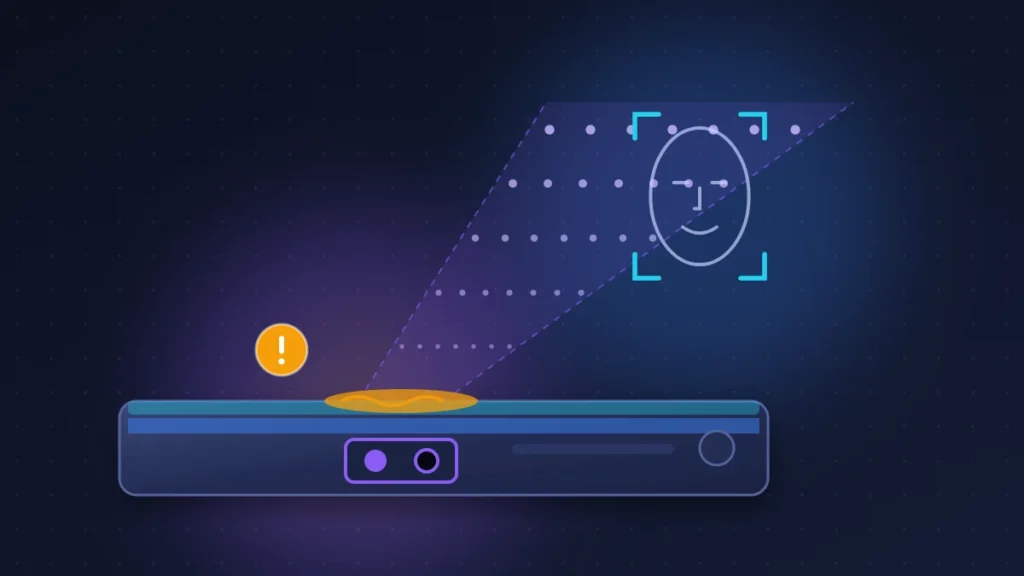
Face ID relies on three parts. A dot projector casts thousands of infrared dots onto your face, a flood illuminator lights it in infrared when it is dark, and an infrared camera reads the result to build a depth map. Apple groups all of this under the name TrueDepth camera.
On earlier lineups, these parts all lived in the Dynamic Island. On the iPhone 18 Pro, teardowns by REWA and iFixit show that the infrared camera has moved under the panel, into the top left corner, connected by its own flex cables. The dot projector and the selfie camera stay in the Dynamic Island, which is now smaller. Apple confirms this on its support page: on iPhone 18 Pro, the TrueDepth camera is located “at the top of the device, toward the left corner.”
Pixels block infrared light. Above the sensor, Apple has removed every other pixel, driven the remaining ones slightly brighter, and added a filter that only lets infrared through. Under a microscope, iFixit can see this sparse grid; with the naked eye, you notice nothing.
The practical consequence: the signal heading back to the camera already has to pass through the panel and its filter. Add a frosted surface, a privacy layer or a greasy smear, and the margin is gone.
Why does my iPhone 18 Pro freeze or restart when Face ID fails?
Short answer: it was an iOS 27 bug, acknowledged by Apple and fixed in iOS 27.0.1.
9to5Mac reproduced it on a European iPhone 18 Pro: open a protected app, cover your face so Face ID fails, then tap the button that tries Face ID again. The screen freezes for a few seconds, then the iPhone restarts. Unlocking from the Lock Screen was not affected.
The iOS 27.0.1 release notes list this issue first: iPhone 18 Pro and iPhone 18 Pro Max may unexpectedly restart when Face ID fails to authenticate. Apple did not explain the cause. Some coverage links it to the way Face ID components are now split between the display and the Dynamic Island; that is a theory, not an official explanation.
The takeaway: if your iPhone restarted after Face ID failures and the problem stopped after updating, your sensor is fine. Swapping your phone for this reason made no sense, and 9to5Mac considered the replacements offered to some users before the fix to be a mistake. If the restarts carry on with no link to Face ID, you are looking at something else: our article on the iPhone 18 Pro restarting on its own explains how to read panic-full files.
Does Face ID work with a screen protector on the iPhone 18 Pro?
Short answer: with clear glass applied properly, Face ID works; with a matte or privacy film, failures are common.
What Apple confirms: its troubleshooting page recommends removing anything covering the TrueDepth camera, and its iPhone 18 Pro section lists removing privacy screen protectors first.
What many users and reviewers report: YouTuber Dave2D lost Face ID on his iPhone 18 Pro Max after applying a matte film. On Reddit, the same complaints keep coming back: random unlocking during the day, near constant failure at night with a privacy glass. The texture of a matte surface scatters light, and the micro louvers of a privacy filter block light arriving at an angle.
What remains a theory: the effect of thick tempered glass, glass that is off center, or glass whose edge lands on the left corner. No published test establishes it, but a bubble or a speck of dust trapped above the sensor should logically have the same effect as a smudge.
| Protector type | Reported effect on Face ID (iPhone 18 Pro) | Confidence level |
|---|---|---|
| Clear tempered glass | Works normally | Several consistent tests |
| Clear anti-glare glass (smooth coating) | Works normally | User reports, manufacturer statements |
| Matte film or glass (frosted anti-glare) | Frequent failures, Face ID sometimes unusable | Reviewers and many users |
| Privacy protector | Failures, especially in the dark or at an angle | Mentioned by Apple on its troubleshooting page |
| Protector made for iPhone 17 Pro, cutout in the wrong place | Edge or cutout over the sensor, unpredictable result | Theory |
Before buying, look for a protector sold specifically for the iPhone 18 Pro and tested with Face ID by its manufacturer. A “camera compatible” label says nothing about the left corner. Test it during the first few days, at night and lying down, so you can still return it.
Before you start
Make a note of your passcode: several steps erase Face ID data. Back up your iPhone (Settings > [your name] > iCloud > iCloud Backup > Back Up Now). If a TrueDepth alert has appeared, take a screenshot of it: it will help with support.
Worth remembering: the iPhone requires the passcode after a restart, after five failed Face ID attempts in a row, and if it has not been unlocked for 48 hours. That is not a fault.
Fix 1: install the latest version of iOS
This is the first move, and it is also what Apple recommends when the TrueDepth alert appears. Go to Settings > General > Software Update. If you are still on iOS 27.0, the update fixes the restarts tied to Face ID failures.
How to check: in the Passwords app, trigger two or three failures on purpose by covering your face. The iPhone should simply offer the passcode.
Fix 2: force restart
A stuck Face ID service does not always recover on its own. Quickly press and release volume up, then volume down, then press and hold the side button until the Apple logo appears. Enter your passcode, then try Face ID again. Your data is not at risk.
Fix 3: clean the top left corner of the screen
A greasy thumb resting on the same spot every time you pick up the phone leaves an invisible film. Wipe the left corner, above the clock, with a dry microfiber cloth. For a stubborn mark, lightly dampen the cloth, never the screen. No glass cleaner, no pure alcohol.
In landscape, watch your hand as well: Apple notes that your palm or a finger can cover the sensor on iPhone 18 Pro. A very wraparound case that overlaps that corner causes the same problem.
Fix 4: remove the screen protector
This is the test that settles it. Remove the protector, clean the screen, then try Face ID about ten times, at least once in the dark. If everything works, the protector was the problem: replace it with clear glass. If nothing changes, put it back if you like, because the problem lies elsewhere.
Fix 5: check the conditions Face ID needs
Apple lists several pitfalls that are easy to forget:
- Hold the iPhone no further than arm’s length, roughly 10 to 20 inches (25 to 50 cm) from your face.
- Your eyes, nose and mouth must be visible.
- Some sunglasses block infrared light: try without them.
- Face ID is not designed to work with a mask and sunglasses worn together.
- Heavy makeup or strong backlighting can cause the scan to fail.
Fix 6: reset Face ID and add an alternate appearance
If recognition has become less reliable, start from scratch. Go to Settings > Face ID & Passcode, enter your passcode, tap Reset Face ID, then Set Up Face ID. Do the enrollment in a well lit room, without a matte protector, turning your head slowly.
Then go back to the same menu and choose Set Up an Alternate Appearance. Use it for your prescription glasses: Apple recommends exactly this on iPhone 18 Pro when Face ID does not recognize you with your glasses on.
If you keep a protector, some users redo the enrollment through it. That can help with clear glass; with a matte film, do not expect miracles.
Fix 7: check Face ID with a Mask and the attention setting
In Settings > Face ID & Passcode, Face ID with a Mask only works in portrait orientation and needs your eyes to be clearly visible. If it is on and recognition feels less reliable, turn it off while you diagnose the problem.
In the same menu, also check Require Attention for Face ID. It should stay on: the iPhone then only unlocks if you are looking at the screen. iPhone 18 Pro users have reported on the MacRumors forums that it was not always respected. If your iPhone unlocks with your eyes closed or while you look away, turn the option off and back on, update iOS, and report it to Apple if it keeps happening.
Fix 8: turn Face ID off and on again for an app
Face ID works for unlocking but not in one particular app? Permissions are often the culprit. In Settings > Face ID & Passcode > Other Apps, turn off the app in question, then turn it back on. Also check the lock setting inside the app itself, then update it from the App Store. For Apple Pay and purchases, check the matching toggles in the same menu.
Fix 9: reset all settings
The last software option: Settings > General > Transfer or Reset iPhone > Reset > Reset All Settings. Your photos and apps stay put. You lose network, Wi-Fi, privacy and Face ID settings, which you will need to set up again. This is mostly useful if the iPhone was restored from a backup of an older model.
“A problem was detected with the TrueDepth camera”: is it a hardware fault?
Short answer: in most cases yes, if the message survives an iOS update.
Apple monitors how the dot projector, which is a laser, is working. If the iPhone detects an anomaly, an impact or a suspicious part, it disables Face ID as a safety measure to protect your eyes. Your iPhone remains usable with the passcode, but Face ID, Animoji and some front camera features become unavailable.
The official procedure has two steps: update iOS, then, if Face ID still will not enroll your face, request a repair. The same logic applies to “Face ID is not available” when it persists after a reset, without a protector and on a clean screen.
Another clue: Settings > General > About. The Parts and Service History section only appears if a part has been replaced. A part flagged as Unknown Part, or a Finish Repair notice next to the TrueDepth camera, points to an unfinished repair or a part that is not genuine.
Summary table: symptom, cause, fix
| Symptom | Likely cause | Fix to try |
|---|---|---|
| Freeze then restart after a failure in an app | iOS 27 bug | Update to iOS 27.0.1 or later |
| Frequent failures, especially at night or at an angle | Matte or privacy protector | Remove the protector, switch to clear glass |
| Intermittent failures with no protector | Dirty left corner, hand over the sensor, glasses | Clean, change your grip, alternate appearance |
| Works for unlocking, not in an app | App permission or setting | Other Apps: turn off, then on again |
| Unlocks without looking at the screen | Attention setting off or ignored | Check the setting, update, report to Apple |
| Persistent “Face ID is not available” | Sensor, flex cable or calibration | Reset, then repair |
| “TrueDepth camera” alert after updating | Hardware fault, impact, non-genuine part | Apple appointment |
Can Face ID be repaired outside Apple?
Short answer: not reliably. Face ID requires genuine parts and a calibration that only Apple and its authorized repairers can complete.
For several generations now, iPhone parts have been paired to the device by serial number. After the front camera is replaced, Face ID stays disabled until calibration is completed in Apple’s Repair Assistant. A non-genuine, previously used or poorly calibrated part triggers a Face ID alert, and on iPhone 14 and later the replaced camera does not work until the repair is finished.
The iPhone 18 Pro adds another hurdle: the infrared camera reads your face through the panel. REWA points out that a replacement screen has to reproduce the sparse pixel window exactly, or Face ID may stop working. A genuine screen fitted by an unauthorized repairer may therefore work, but a cheap compatible screen could cost you Face ID. iFixit also notes that the display’s plastic frame broke on three of the four devices it took apart, which compromises water resistance.
If nothing works: warranty, exchange and appointments
- Bought from Apple less than 14 days ago: return it for a refund or exchange it at an Apple Store, reporting the fault within that window.
- After that, Apple’s one-year limited warranty covers a defective sensor with no impact or liquid damage. Book an appointment through the Apple Support app or in store.
- Consumer law can give you rights on top of Apple’s warranty. In the UK, the Consumer Rights Act lets you claim against the retailer for a faulty product; in other countries, statutory warranties depend on local law. Bought from a carrier or a retailer? Contact them first.
- AppleCare+ also covers accidental damage, subject to a service fee.
At the appointment, bring a screenshot of the alert, a video of Face ID failing on a clean screen with no protector, the iOS version installed and the list of steps you have already tried. Mention that Face ID has been reset and the protector removed: you will avoid being sent home with the same advice. The technician can run an Apple diagnostic to test the TrueDepth camera.
For readers in Africa, repairs go through Apple Authorized Service Providers, listed on Apple’s support site. For an iPhone bought in Europe, Apple’s warranty provides for repair within the European Economic Area and Switzerland: call the service provider before you go, serial number in hand, to find out whether it will accept the device. Be wary of shops promising to “fix Face ID” cheaply: without a genuine part and calibration, the result is temporary at best.
To compare the two models, see our iPhone 18 Pro specs page and the one for the iPhone 18 Pro Max.
How to keep it from happening again
Keep automatic updates on (Settings > General > Software Update > Automatic Updates). Choose a clear protector tested with Face ID on iPhone 18 Pro, and make sure no bubble ends up in the left corner when you apply it. Wipe that corner now and then, as you would the camera lens. Avoid cases with a thick lip along the top of the screen.
FAQ
Why is Face ID not working on my iPhone 18 Pro?
Most often because of a matte or privacy protector, or a smudge on the top left corner of the screen, where the infrared camera sits. A faulty sensor is less common.
Where is the Face ID sensor on the iPhone 18 Pro?
The infrared camera is under the display, at the top left. The dot projector stays in the Dynamic Island.
Does tempered glass work with Face ID on iPhone 18 Pro?
Yes, if it is clear and properly centered. Matte and privacy glass cause problems.
What should I do if my iPhone says “Face ID is not available”?
Update iOS, remove the protector, clean the screen and reset Face ID. If the message persists, book a repair appointment.
Does iOS 27.0.1 fix every Face ID problem?
No. It fixes restarts after a failed Face ID attempt on iPhone 18 Pro and Pro Max, not failures caused by a protector or a faulty sensor.
Can an independent repair shop fix Face ID?
Rarely in a reliable way. It takes genuine parts and Apple calibration, and on iPhone 18 Pro the display itself plays a part in reading your face.
Does Face ID work with a mask on iPhone 18 Pro?
Yes, in portrait orientation only, with your eyes visible, and not while also wearing sunglasses.
Still have your iPhone 18 Pro Face ID not working after these steps, or is one particular screen protector giving you trouble? Share its type and brand in the comments: your feedback will help other readers choose well. And if another fault shows up, our guide to every known iPhone 18 Pro problem and its fix covers the full picture.
Share this content: