
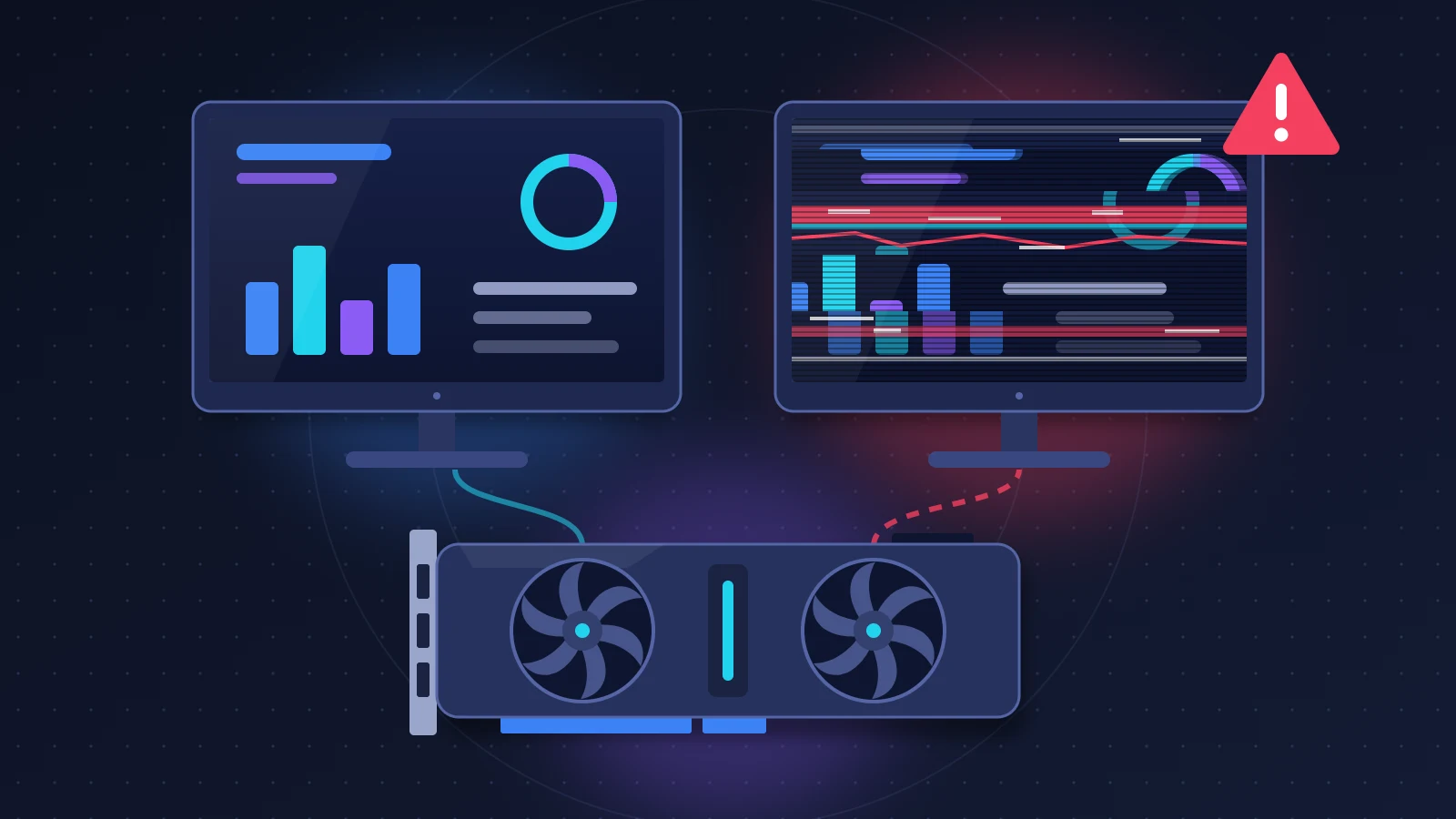
NVIDIA screen flickering that starts right after a GeForce driver update almost always comes from a regression in the driver itself, not from a graphics card on its way out. The picture blinks while you scroll a web page, one monitor goes black for half a second, brightness jumps for no reason. The most reliable cure is still rolling back to the previous driver version. Before you go that far, two settings take a minute and are often enough: switch the video output to 10 bits per color, and restrict G-SYNC to full screen.
In short: the quick fix
- Open Task Manager (Ctrl + Shift + Esc). If it flickers too, the driver is at fault. If it stays steady, look at an app instead.
- In NVIDIA Control Panel, change the output color depth from 8 bpc to 10 bpc if your monitor allows it.
- Set G-SYNC to full screen only and turn off hardware acceleration in your browser and in Discord.
- If the problem persists, reinstall the previous driver, ideally after a cleanup with DDU in Safe Mode.
- Then stop Windows Update and the NVIDIA app from putting the faulty version back.
Recognizing NVIDIA screen flickering
Driver-related flicker does not look like a hardware failure: no fixed colored lines, no stray squares, no crashes. Reports on the NVIDIA forums and r/nvidia keep describing the same scenes:
- a brief black, white or colored flash while scrolling a page or playing a video in a Chromium-based browser (Chrome, Edge, Brave, and Discord too);
- one screen in a multi-monitor setup that switches off for a second and comes back, often the one with the highest refresh rate;
- brightness that pulses in a game’s menus and loading screens;
- a two or three second black screen every time you Alt + Tab out of a full screen game.
The GeForce 616.xx driver branch is a well-documented example. Version 616.56 caused blinking, brief black screens and brightness jumps on the desktop and in browsers, from GTX 16 cards all the way to the RTX 50 series. Two separate bugs were hiding behind the same symptom: flicker on certain websites, fixed by hotfix 616.86 and then by driver 616.92, and flicker specific to displays driven at 8 bits per color, which went away at 10 bits. This kind of regression comes back from one branch to the next, and the way out of it stays the same.
Why it happens
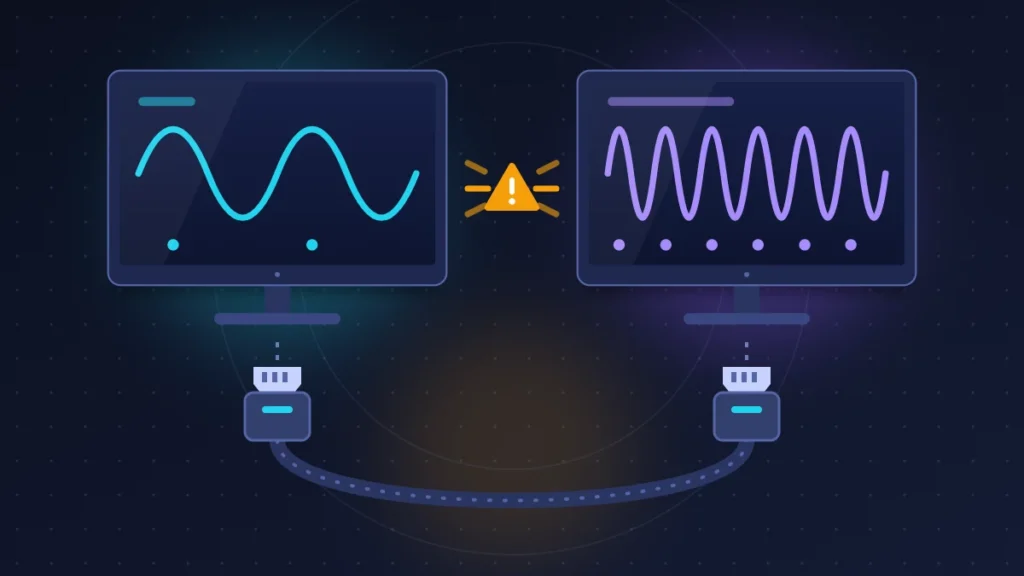
The graphics driver is constantly negotiating with the display: resolution, refresh rate, color depth, signal compression. An update sometimes changes that negotiation, and certain hardware combinations cope badly. Four mechanisms come up again and again.
Variable refresh first. G-SYNC and VRR (Variable Refresh Rate) match the display’s refresh rate to the number of frames the card produces. Applied to a desktop window rather than a game, the feature makes the display follow an app that only draws a few frames per second. On OLED and VA panels, where the rendering of dark tones depends on the refresh rate, brightness starts to shimmer.
Then MPO, for Multiplane Overlay. This Windows feature lets the graphics card display certain surfaces directly, a video for instance. A driver that handles it badly produces black flashes and stutter when windows are resized.
DSC (Display Stream Compression) compresses the signal so that a high resolution at a high refresh rate fits through a cable. Every display mode change then forces the link to renegotiate, hence the few seconds of black screen on Alt + Tab.
Finally, mixed refresh rates. A 144 Hz or 240 Hz monitor next to a 60 Hz one forces Windows and the driver to synchronize two cadences. That is where regressions show the most.
Before you start
Write down the version of the installed driver: right-click the desktop > NVIDIA Control Panel > System Information, at the bottom left. You will need that number to look up other users’ reports and to describe the problem to support.
Download the installer for the driver that worked before the update from NVIDIA’s website now.
Create a restore point before any change to the registry. If BitLocker is on, get your recovery key before booting into Safe Mode.
Fix 1: isolate the cause in two minutes
1. The Task Manager test
Press Ctrl + Shift + Esc and watch the window while the problem is happening. The rule comes from Microsoft: if Task Manager flickers along with everything else on the screen, the display driver is probably responsible. If it stays steady, an app is the cause.
2. The single-monitor test
Physically unplug every monitor but one, then restart. Disabling a display in Windows is not enough, because the link stays negotiated. If the flicker disappears, you are dealing with a refresh rate or bandwidth conflict between displays, and fixes 2, 3 and 5 are the ones to try first.
3. The no-browser test
Leave the desktop on screen for ten minutes with no browser and no Discord. A problem that only shows up with those apps points to fix 4.
Fix 2: switch the output to 10 bits per color
This workaround settled the largest number of cases on the 616.xx branch. It is worth a try on any driver as soon as the flicker affects the desktop.
1. Change the color depth
Right-click the desktop > NVIDIA Control Panel > Display > Change resolution. Select the affected display. In the third section of the page, select “Use NVIDIA color settings”, then set Output color depth to 10 bpc. Click Apply.
2. If the 10 bpc option is missing
Drop the refresh rate one step (from 165 Hz to 144 Hz, for example): some monitors only offer 10-bit below their maximum refresh rate, for lack of bandwidth. Another lead reported by affected users is Windows 11’s automatic color management, under Settings > System > Display > Color profile, when the display supports it.
To check, leave a browser open for several minutes on a page full of videos. The setting can be reversed at any time.
Fix 3: put G-SYNC and VRR back in their place
1. G-SYNC in full screen only
In NVIDIA Control Panel, open Display > Set up G-SYNC. Choose “Enable for full screen mode” rather than windowed and full screen mode. In windowed mode, G-SYNC locks the display to the active window: the others stutter, and a simple video player can make the whole panel shimmer.
2. Turn off Windows VRR
Go to Settings > System > Display > Graphics > Advanced graphics settings, then turn off “Variable refresh rate”. This setting extends VRR to games that do not support it natively. It does nothing useful on the desktop.
3. Match the refresh rates
Under Settings > System > Display > Advanced display, set every monitor to the same refresh rate as a test, 60 Hz for example. If the flicker stops, raise the main display step by step, aiming for a multiple of the secondary one (120 Hz with 60 Hz rather than 144 Hz).
4. Power management mode
Under Manage 3D settings > Global Settings, set Power management mode to “Prefer maximum performance”. The card no longer drops into its low-power states at idle, at the cost of slightly higher power draw.
On an OLED or VA display, shimmer limited to game menus and loading screens is not a driver bug. The panel reacts this way when the frame rate changes abruptly. Cap the frame rate a few frames below the display’s maximum refresh rate, or turn on its anti-flicker mode if it has one.
Fix 4: turn off hardware acceleration in apps
If Task Manager does not flicker and the problem follows Chrome, Edge or Discord, stop them from rendering through the graphics card.
- Chrome: Settings > System > “Use graphics acceleration when available”, then Relaunch.
- Edge: Settings > System and performance, same option.
- Discord: User Settings > Advanced > Hardware Acceleration.
The processor takes over, which you will notice on very high resolution video with a modest machine. Treat it as a stopgap until a fixed driver arrives.
Fix 5: check the cable, the port and the monitor
A driver that is pickier about signal quality exposes a cable that was only just holding up until then. One-second dropouts at a high refresh rate are the telltale sign.
Change the port on the graphics card first, then the cable. For DisplayPort, pick a VESA-certified model (marked DP8K, DP40 or DP80) under two meters long. Remove adapters, extension cables and KVM switches while you diagnose.
Check the monitor maker’s support page: some high refresh rate monitors have received firmware that fixes signal loss. If the monitor’s menu lets you turn off DSC or select a lower DisplayPort version, try it. You will lose the maximum refresh rate, but you will know whether compression is the cause. Dropping from 240 Hz to 120 Hz tells you the same thing.
Fix 6: install a hotfix or a newer driver
NVIDIA publishes so-called hotfix drivers between two official releases. They are based on the latest Game Ready driver and contain only a handful of fixes, shipped without waiting for full validation. Hotfix 616.86, built on driver 616.64, removed the browser flicker before its fixes were folded into version 616.92.
In the release notes and in the GeForce forum feedback thread for your driver, read two sections: fixed issues and open issues. Is your symptom in the first list for a later version? Install it. If it is still in the second, rolling back is the way to go.
The Studio driver is another way out. It is released less often and goes through longer testing. You select it in the NVIDIA app or on the download page, and it brings nothing if it carries the same number as the faulty Game Ready driver.
Fix 7: roll back to the previous driver
1. The quick method
Right-click the Start button > Device Manager > Display adapters. Right-click your card > Properties > Driver tab > Roll Back Driver. The button is grayed out if Windows did not keep the old version.
2. The clean method
Run the installer for the old driver, choose the custom installation and select “Perform a clean installation”. This option wipes NVIDIA profiles and settings before installing. Restart.
On the 616.xx branch, affected users went back to version 610.88 successfully. You lose optimizations for the latest games and, sometimes, security fixes: update again as soon as a version fixes the problem.
Fix 8: clean up with DDU in Safe Mode
When a clean installation is not enough, Display Driver Uninstaller (DDU), from Wagnardsoft, removes everything successive drivers have left behind.
- Download the NVIDIA driver you will install afterwards, and DDU from the Wagnardsoft website only.
- Disconnect from the internet, otherwise Windows Update will install its own driver during the operation.
- Extract DDU to a folder on the local drive and run it. In its options, enable the Safe Mode dialog, relaunch the tool and choose to restart in Safe Mode.
- Once in Safe Mode, select GPU then NVIDIA, and click “Clean and restart”.
- Back in Windows, install the driver, then reconnect to the internet.
The screen drops to a low resolution between the two steps, which is normal. Game profiles and color settings are lost.
Fix 9: disable MPO in the registry
Keep this one for black flashes on the desktop and window stutter that resist everything else. NVIDIA has acknowledged this type of problem and offers two registry files on its support site to turn MPO off and back on. The manual equivalent, in a Command Prompt opened as administrator:
reg add "HKLM\SOFTWARE\Microsoft\Windows\Dwm" /v OverlayTestMode /t REG_DWORD /d 5 /fRestart. To undo it:
reg delete "HKLM\SOFTWARE\Microsoft\Windows\Dwm" /v OverlayTestMode /fA word of caution: experienced users report that this value no longer has any effect on recent versions of Windows 11. If nothing changes after a restart, delete it. Without MPO, VRR in windowed mode may stop working.
Summary table
| Symptom | Likely cause | Fix to try |
|---|---|---|
| Flashes while scrolling in Chrome, Edge or Discord | Driver regression, hardware acceleration, MPO | Fixes 2, 4, then 6 |
| The whole screen blinks, Task Manager included | Display driver | Fixes 2, 7, 8 |
| A single monitor cuts out for a second | Cable, port, bandwidth, DSC | Fix 5 |
| Flicker only with several monitors | Different refresh rates, windowed G-SYNC | Fix 3 |
| Brightness pulsing in a game’s menus | VRR on an OLED or VA panel | Cap the frame rate, fix 3 |
| Black screen for a few seconds on Alt + Tab | Link renegotiation with DSC | Borderless windowed mode, fix 5 |
| The problem returns a few days after the rollback | Windows Update or the NVIDIA app reinstalled the driver | “Stop it from happening again” section |
If nothing works
Run the test that settles software versus hardware: connect the monitor to another computer or a console, and another monitor to your card. A fault that follows the monitor is a matter for the monitor’s warranty. A fault that follows the card with older drivers and shows up as early as the BIOS screen is a matter for the card’s.
Otherwise, report the problem to NVIDIA in the feedback thread for the driver in question, on the GeForce forum. Give the number of the faulty driver and of the last good one, the card model, each monitor’s model with its resolution, refresh rate, color depth and connection type, the state of G-SYNC and HDR, and the steps that trigger the problem. Attach a video shot on your phone: screenshots do not capture flicker.
When you contact the retailer’s support, make it clear that the problem appeared with a given driver version and disappears with the previous one. That avoids a pointless trip to the repair center.
Stop it from happening again
The classic trap: you go back to a good driver, and a few days later Windows Update reinstalls another version.
On Windows Pro, open gpedit.msc then Computer Configuration > Administrative Templates > Windows Components > Windows Update > Manage updates offered from Windows Update, and enable the policy “Do not include drivers with Windows Updates”. On the Home edition, use the registry, as administrator:
reg add "HKLM\SOFTWARE\Policies\Microsoft\Windows\WindowsUpdate" /v ExcludeWUDriversInQualityUpdate /t REG_DWORD /d 1 /fThis setting blocks every driver distributed through Windows Update, not just the graphics card’s. Remove it once the problem is fixed. In the NVIDIA app, turn off automatic driver downloads as well.
Two last habits: wait a few days after a driver comes out and skim the forum feedback thread before installing, and keep the installer for the last driver that worked well on your machine.
Frequently asked questions
Does a flickering screen mean my graphics card is dying?
Rarely, when the problem starts right after an update. A failing card tends to produce fixed artifacts, in-game crashes or a fault that is visible before Windows even loads.
Should I turn G-SYNC off completely?
No. Limit it to full screen. Only turn it off entirely as a test, to find out whether it plays a part in the problem.
Why does the flicker only show up in the browser?
Chromium browsers hand the rendering of pages and videos to the graphics card and rely on MPO. They exercise driver features that the rest of the desktop does not use.
Can HDR cause this blinking?
It increases the bandwidth required, which can trigger the problem on a link that is already borderline. Turn it off for a test under Settings > System > Display > HDR.
If your NVIDIA screen flickering still resists these settings, describe your setup in the comments: card model, monitors, refresh rates and driver number. Those reports often help pin down the faulty combination.
Share this content: