iOS 26 Slow with Liquid Glass: The Complete Guide to a Fast iPhone Again
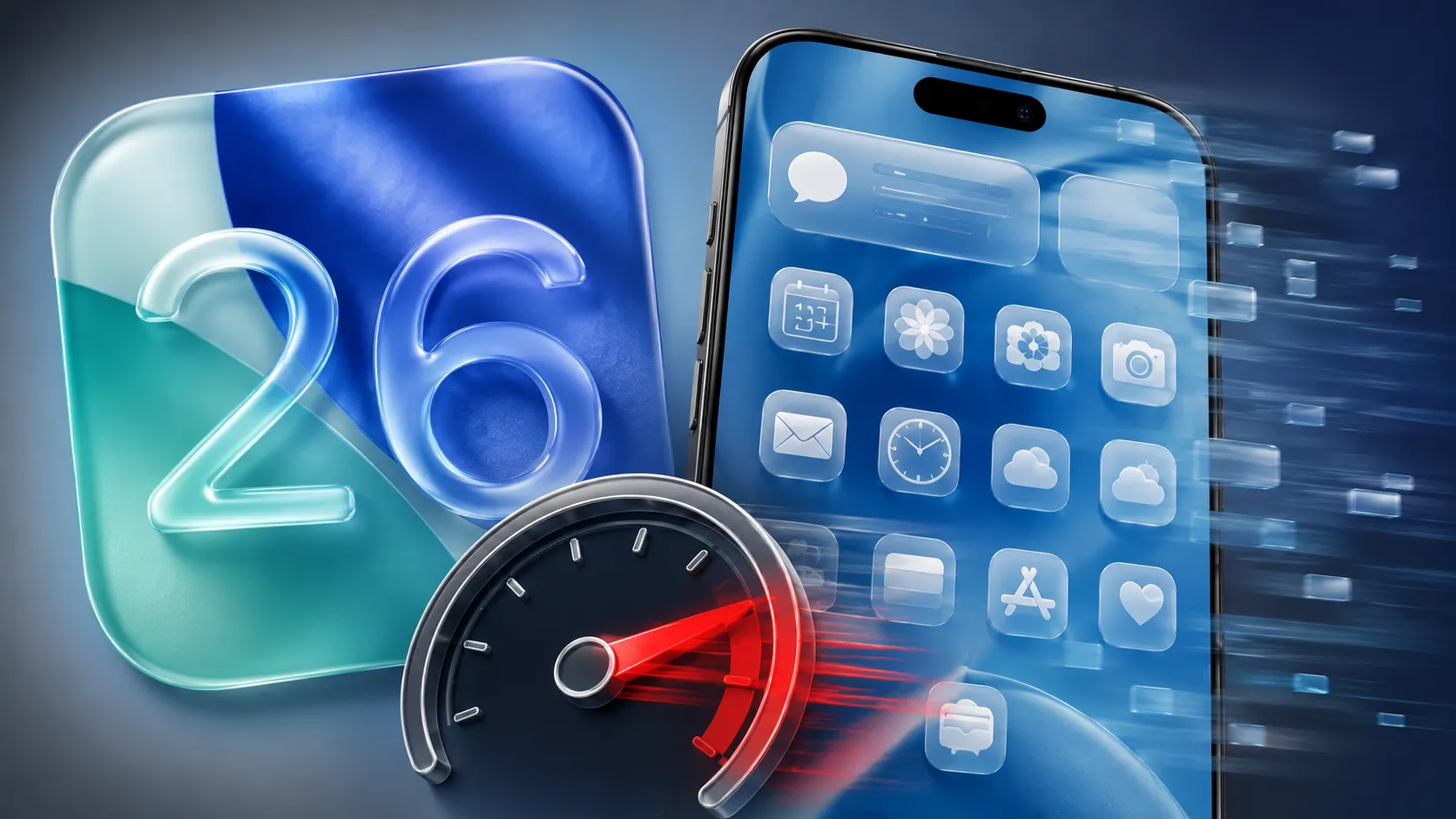
Since the update to iOS 26 and its new Liquid Glass interface, your iPhone feels less responsive: stuttering animations, apps opening in slow motion, a laggy keyboard, less fluid scrolling. You’re not alone — and above all, it’s not inevitable. A large share of this slowdown is temporary (while the phone finishes background tasks) or adjustable in a few minutes. This guide reviews every cause — from Liquid Glass’s translucent visual effects to background indexing, a full storage and memory pressure — to give you back a fast iPhone, on recent models as well as older ones.
Who this guide is for: any iPhone user whose device lags, heats up or responds with a delay since moving to iOS 26, whatever the model (from the iPhone 11 to the newest ones).
Prerequisites: your iPhone on iOS 26, about ten minutes, and ideally Wi-Fi and some battery for any updates. No technical skills required.

Why is iOS 26 slow? Understand it in one minute
Three main causes often combine. First, Liquid Glass: this translucent interface, which blurs and reflects in real time whatever sits behind menus, demands more work from the graphics processor. On recent models the impact is negligible; on an iPhone that’s a few years old, it becomes noticeable.
Second, post-update background tasks: after installation, the iPhone re-indexes your photos (scene and people recognition), rebuilds the Spotlight search index, re-downloads data and updates apps. These invisible but heavy operations slow everything down for 24 to 48 hours, sometimes longer with a large photo library.
Finally, the classic factors: nearly full storage, memory (RAM) saturated by too many apps, or a specific app poorly optimized for iOS 26. The good news: you can act on each of these levers.
Step 1: restart your iPhone (the move that fixes a third of cases)
Before any setting, force a full restart. It clears the RAM, closes ghost processes and cleanly relaunches the system — often enough after a big update.
- On an iPhone with Face ID: briefly press volume up, then volume down, then hold the side button until the Apple logo appears.
- On an iPhone with a Home button: hold the side (or top) button until the power-off slider appears, switch off, then back on.
Tip: a restart once a week keeps the iPhone fluid day to day. It’s no myth: it purges memory and temporary caches.
Step 2: let the iPhone finish its background tasks
If the slowdown is less than two days old, the most likely cause is indexing in progress. The remedy is active patience. Plug the iPhone into power, connect it to Wi-Fi, and leave it resting, screen locked, overnight. Under these conditions iOS finishes analyzing photos and rebuilding the index fastest.
You can check progress in Settings → Photos: a message sometimes indicates that analysis is under way. Once finished, fluidity often returns on its own, with no further action.
Good to know: avoiding heavy use during this phase paradoxically speeds the return to normal, because iOS then reserves more resources for background tasks.
Step 3: reduce Liquid Glass’s visual effects
This is the single most effective setting for models that struggle. iOS lets you tone down transparency and animations without losing the essence of the experience.
1. Open Settings → Accessibility → Display & Text Size.
2. Turn on Reduce Transparency: Liquid Glass’s translucent backgrounds become opaque, which greatly eases the graphics processor’s load.
3. Turn on Increase Contrast too if you want maximum legibility.
Then, still in Accessibility, open Motion and turn on Reduce Motion. Transitions become more sober and, above all, faster: opening apps and switching screens feels instant.
Tip: these two settings combined make the iPhone feel markedly quicker, especially on models over three years old. You can turn them back on at any time if you miss the look.

Step 4: free up storage space
An iPhone with nearly full storage slows sharply: iOS needs free space for virtual memory and temporary files. Aim for at least 10% free space.
Go to Settings → General → iPhone Storage. iOS offers recommendations there: offload unused apps, delete large videos, clear bulky conversations. The heaviest items are usually photos/videos, downloaded podcasts and some apps’ cache.
- Turn on Offload Unused Apps: they free up space while keeping your data.
- Delete videos already backed up elsewhere, or turn on Optimize iPhone Storage in Settings → Photos if you use iCloud.
Warning: never delete an app whose data you haven’t backed up elsewhere. “Offload” keeps documents; “Delete” erases them.
Step 5: control Background App Refresh
Too many apps constantly refreshing consume memory and processor. Trim the list to what’s strictly useful.
Open Settings → General → Background App Refresh. You can disable it all, or — more precisely — leave active only what matters (messaging, navigation apps). Turn it off for social networks and games: you’ll gain fluidity and battery life.
Good to know: limiting background refresh doesn’t stop you receiving notifications; it only prevents apps from working quietly when you’re not using them.
Step 6: identify a culprit app
Sometimes a single program poorly optimized for iOS 26 makes everything lag. To spot it, open Settings → Battery and look at the consumption list: an app appearing with abnormally high background activity is suspect.
First update that app from the App Store: developers release compatibility fixes quickly after a major iOS version. If the problem persists, delete then reinstall it; as a last resort, uninstall it temporarily until a fix arrives.
Tip: constantly force-closing apps is useless, even counterproductive: iOS manages memory by itself, and relaunching a “killed” app uses more energy. Only manually close an app that’s visibly frozen.
Step 7: update iOS (fixes arrive fast)
Apple regularly releases minor updates (iOS 26.1, 26.2…) that fix the performance issues of the first versions. Go to Settings → General → Software Update and install what’s available.
Good to know: turn on Automatic Updates so you never miss these fixes. A patched version often resolves slowdowns that no amount of tweaking could erase.
Step 8: reset settings (without losing your data)
If the iPhone stays sluggish, resetting settings clears system parameters that are sometimes inconsistent after an update, without erasing your photos, apps or messages.
Go to Settings → General → Transfer or Reset iPhone → Reset → Reset All Settings. You’ll then need to reconfigure Wi-Fi, wallpaper and a few preferences, but your content stays intact.
Warning: note your Wi-Fi passwords first, as they’ll be forgotten. It’s a safe operation, but it takes a little reconfiguration.
Step 9: check temperature and charging
An overheating iPhone deliberately throttles its performance to protect itself. If the device is hot (heavy charging, direct sun, a demanding game, an insulating case), it will slow down until the temperature drops.
Remove the case for a few minutes, stop charging, move it away from heat sources, and let it cool. After an update, a passing heat spike is normal (indexing): it subsides once background tasks finish.
Good to know: check battery health in Settings → Battery → Battery Health & Charging. A low maximum capacity (under 80%) can explain slowdowns and unexpected shutdowns; a battery replacement then gives the device a second youth.
Step 10: adjust expectations on older models
On an iPhone several generations old, iOS 26 stays usable but won’t recover the snappiness of a recent model. The settings in Steps 3, 5 and 6 are then your best allies: reduced transparency, reduced motion, limited refresh. Combining them recovers most of the lost responsiveness.
Avoid animated wallpapers and too many widgets, which weigh on the home screen. A clean iPhone is a faster iPhone.
Step 11: as a last resort, restore the iPhone
If nothing works after several days, a restore starts from a clean system and removes installation leftovers. Back up the iPhone first (iCloud or computer), then restore it and set it up as a new iPhone rather than from an old backup, so you don’t re-import a corrupted setting.
It’s the most radical and effective option, but it takes time and a good backup. Reserve it for cases where everything else has failed.
Warning: never restore without a verified backup beforehand. Check that your latest iCloud backup is recent in Settings → your name → iCloud → iCloud Backup.
Common special cases
- The keyboard lags as you type: turn off Reduce Motion and test; otherwise the culprit is often a third-party keyboard — remove it in Settings → General → Keyboard.
- Scrolling stutters in a single app: it’s an optimization problem specific to that app; updating it usually fixes everything.
- The device lags right after unlocking: typical of indexing in progress (Step 2). Leave it plugged in overnight.
- Slowdowns and battery dropping together: see our dedicated guide [iPhone battery draining fast on iOS 26](internal link to a Wanda-techs article on: “iPhone battery draining fast on iOS 26”).
Frequently asked questions
Can Liquid Glass be fully disabled? No, it’s the iOS 26 interface. But “Reduce Transparency” (Step 3) neutralizes most of its impact on performance.
How long does the iPhone stay slow after the update? Generally 24 to 48 hours, the time indexing takes. Beyond that, apply this guide’s settings.
Does Reduce Motion damage anything? No, it’s a simple accessibility setting, reversible at any time. It makes the interface faster and more sober.
Should I close background apps to speed up the iPhone? No. iOS manages memory automatically; mass-closing apps speeds up nothing and drains more battery.
My iPhone was fluid before: can I roll back? Reverting to an earlier iOS version is only possible very briefly after an update and isn’t recommended. Better to apply the settings above and wait for fixes.
Best practices to keep an iPhone fluid over time
A few habits stop you reliving these slowdowns with every update. Wait a few days before installing a major iOS version: let early adopters take the first hit and Apple ship its first patch. Always update your apps right after an iOS version bump, because that’s when developers fix incompatibilities. Keep 10% of storage free at all times: a cramped iPhone is a slow iPhone, whatever the iOS version.
Do some housekeeping regularly too: delete apps you no longer open, clear big conversations and forgotten downloads, and restart the device once a week. Finally, if you keep an iPhone for several years, adopt the accessibility settings from the start (reduced transparency and motion): they extend the feeling of speed well beyond the warranty period.
Tip: before installing a future big update, check that your model appears without caveats in the list of fully supported devices. An iPhone near the end of its cycle sometimes benefits from staying one version behind.
In summary
An iPhone that lags on iOS 26 is fixed in order: restart (Step 1), let indexing finish (Step 2), then reduce Liquid Glass’s transparency and animations (Step 3) — the most effective setting. Next, free up storage (Step 4), limit Background App Refresh (Step 5) and hunt the culprit app (Step 6). Keep iOS updated (Step 7) and, as a last resort, reset settings (Step 8) or restore the device (Step 11). In the vast majority of cases, fluidity returns.
Which setting brought your iPhone back to life? Tell us in the comments on Wanda-techs.com — we enrich this guide based on your feedback.
\n\nShare this content:






Post Comment