
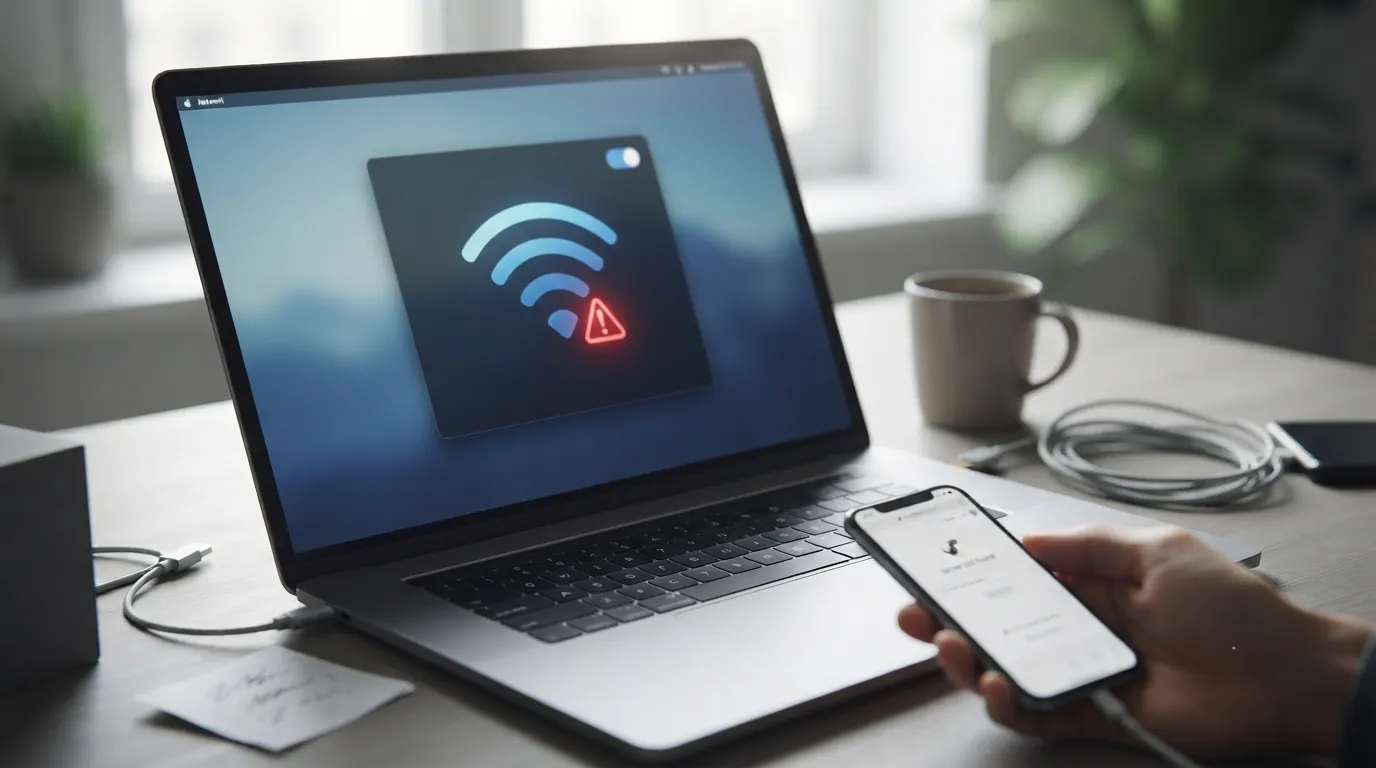
Your device shows “Connected” to Wi-Fi, the icon is right there, and yet no page loads, apps spin endlessly, an exclamation mark appears on the network symbol. This very common problem means the link between your device and the router works, but that something blocks farther down: the router, the internet provider, DNS, a badly assigned IP address or a setting on your device. This guide gives you a complete, ordered checklist, from the simplest move to the advanced setting, to restore internet quickly, on a computer as on a smartphone.
Who this guide is for: any user whose device is connected to Wi-Fi but has no internet access, on Windows, Mac, Android or iPhone.
Prerequisites: your device, physical access to your internet router, about ten minutes. No technical skills needed for most steps.

Understand the problem in one minute
“Wi-Fi connected, no internet” means your device communicates fine with the router (the local network works), but data doesn’t flow out to the rest of the world. Three areas can be at fault. The router and the provider: an outage, an unplugged cable, a line cut. The network configuration: unreachable DNS, a badly assigned IP address, an expired lease. Your device: a corrupted network setting, a firewall, a VPN, a wrong date.
The method is to first test whether the problem affects all your devices (so the router/provider) or just one (so that device), then go up the chain. Follow the checklist in order.
Step 1: is it one device or all of them?
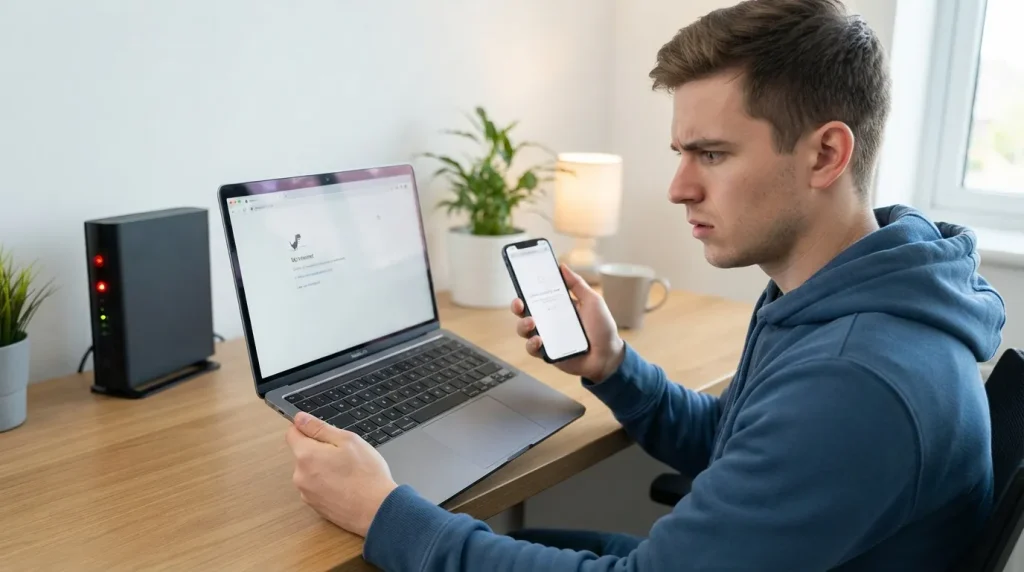
The fastest and most decisive test. Try opening a site from another device on the same Wi-Fi (a smartphone if the trouble is on the computer).
- If no device has internet: the problem is the router or the provider. Go to Step 2.
- If only one device lacks internet while others work: the problem is on that device. Go to Step 5.
Tip: also check whether a warning light (often red or orange) is on at the router: it immediately signals a line cut or a provider-side outage.
Step 2: restart the router (the top solution)
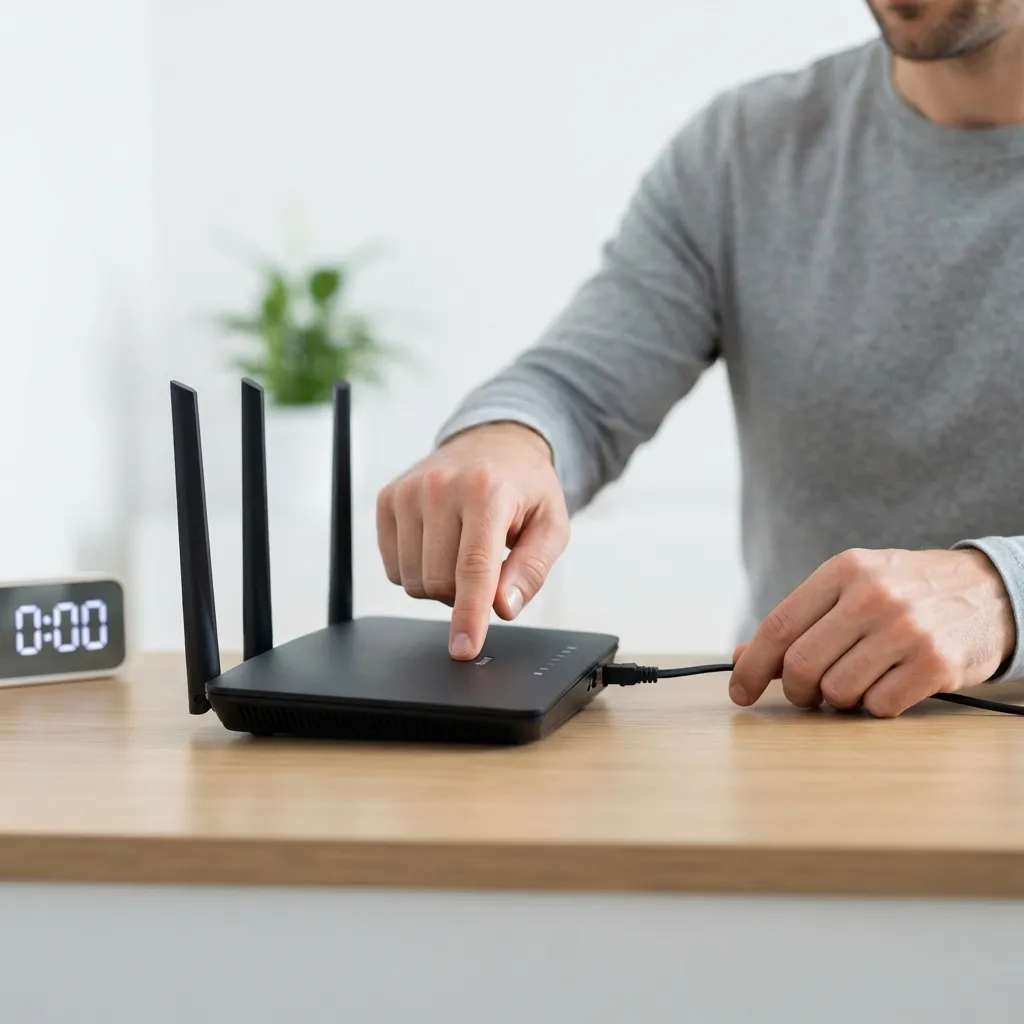
When no device has internet, restarting the router fixes most cases. Switch it off completely (button or plug), wait 30 seconds to 1 minute, then turn it back on and wait for all lights to stabilize (2 to 5 minutes).
This restart renews the connection with the provider, reassigns addresses and clears the router’s internal caches. It’s the move to always try first when the whole home is cut off.
Good to know: while you’re at it, check the cables are firmly seated, especially the line cable (fiber, DSL, coax) and the power. A half-unplugged cable is a frequent, sneaky cause.
Step 3: check for a provider-side outage

If restarting the router isn’t enough and the lights don’t return to green, the outage may be at your internet provider.
- Check your provider’s account area or app (via mobile data): an outage in your area is often reported there.
- Use an outage detector or search “[your provider] down” to see if other subscribers are affected.
- Make sure it isn’t a payment issue or a line suspension.
Warning: with a confirmed provider outage, there’s nothing to fix on your end. Avoid changing your network settings — you could create a problem that persists after recovery.
Step 4: DNS, the invisible cause of “Wi-Fi with no internet”

Often the connection works but the DNS — the directory that translates site names into addresses — is unreachable. Typical symptom: an app using a direct address works, but no site opens by its name.
The fix is to change your device’s or router’s DNS to well-known, reliable public DNS. On the router, this is done in the admin interface (often reachable via a local address); on the device, in the network’s advanced Wi-Fi settings.
Tip: testing the DNS change on a single device first confirms it’s indeed the cause before changing the router for the whole household.
Step 5: repair an isolated device’s connection
If only one device is affected, act on it. Here’s the chain, from simplest to most effective.
1. Turn Wi-Fi off then on (or Airplane Mode for a few seconds), to force a new connection.
2. Forget the network then reconnect, re-entering the password: this starts from a clean config.
3. Restart the device: it clears memory and resets the network stack.
4. Check the date and time: if wrong, security fails and sites no longer open. Set them to automatic.
5. Temporarily disable VPN, proxy and third-party firewall: they sometimes block all traffic.
Good to know: on a computer, the built-in network diagnostics tool (Windows and Mac) automatically repairs many of these problems; run it before advanced steps.
Step 6: renew the IP address and flush the network cache

A device can receive an invalid IP address or keep a corrupted DNS cache. Renewing one and flushing the other often unblocks access.
- Renew the IP: forgetting/reconnecting the network (Step 5) forces a new assignment. On a computer, you can also release then renew the address via network tools.
- Flush the DNS cache: on a computer, a dedicated command clears the corrupted local directory; on mobile, a restart or Airplane Mode usually suffices.
- Check automatic assignment (DHCP): make sure the device gets its IP and DNS automatically, unless you’ve configured it on purpose.
Warning: don’t manually set a “random” IP address; an address that conflicts with another device or is out of range prevents all access.
Step 7: improve a weak or congested signal
Sometimes the connection “gets through” but the signal is so weak or the network so crowded that nothing loads, especially far from the router. Two levers.
Reduce interference: move the router away from thick walls, electronics and the microwave; change the Wi-Fi channel in the router interface if your neighborhood is saturated (common in apartments); favor the 5 GHz band up close for speed, and 2.4 GHz from afar for range.
Extend coverage: in a large home or with thick walls, a repeater or a Wi-Fi system eliminates the dead zones where the signal is too weak to carry data.
- The TP-Link RE650 (AC2600) Wi-Fi repeater extends coverage on two bands and removes no-signal zones, ideal for large homes.
As an Amazon Associate, Wanda-techs earns from qualifying purchases. This affects neither our independent analysis nor the price you pay.
Step 8: reset network settings (before the last resort)

If the device still lacks internet despite everything, a network settings reset zeroes out corrupted Wi-Fi, Bluetooth and VPN configurations, without touching your personal files.
- On mobile: Settings → System (or General) → Reset → Reset network settings.
- On a computer: an equivalent option reinstalls the network adapters with their default settings.
You’ll then need to re-enter your Wi-Fi passwords, but this operation resolves the most stubborn cases tied to a corrupted configuration.
Warning: note your Wi-Fi passwords first, they’ll all be erased from the device.
Step 9: what if it’s the router itself?
If no device has internet, the provider reports no outage and restarting changed nothing, the router may be at fault.
- Reset the router to factory settings (hold the reset button) as a last resort: you’ll then need to reconfigure the Wi-Fi.
- Test with a wire: plug a computer into the router by Ethernet directly. If wired works but Wi-Fi doesn’t, the router’s wireless module is at fault. If even wired fails, it’s the router or the line.
- Contact the provider if the problem persists: a router replacement or a line intervention may be needed.
Good to know: an Ethernet test is the best way to tell whether the problem is the Wi-Fi or the connection itself. It’s a quick, unambiguous diagnosis.
Common special cases
- “Connected, secure” but only one site won’t load: it’s not a Wi-Fi problem but the service; see [is a service down or is it you](internal link to a Wanda-techs article on: “telling whether a service is down or the problem is on your end”).
- It only drops on some old devices: they sometimes don’t handle new Wi-Fi security protocols; adjust the router’s security mode.
- Wi-Fi drops after a few minutes: often overly aggressive power management on the network card; disable sleep for the Wi-Fi adapter.
- A captive portal (hotel, airport) won’t open: open a plain http site to force the login page to appear.
Best practices to avoid drops in the future
A few habits sharply reduce how often these disconnections happen. Place the router in a central, open spot, up high, away from load-bearing walls, the microwave and big electronics that disrupt the signal. Restart the router once a month: this prevents the buildup of small internal glitches. Keep the router’s firmware updated (most do it automatically, but an occasional check doesn’t hurt).
If your home is large or has thick walls, invest in good coverage from the start rather than suffering dead zones: a well-placed repeater or a mesh system stabilizes the connection lastingly. Finally, note the Wi-Fi password and the router’s admin credentials somewhere safe: on the day of a reset, you’ll save precious time.
Tip: separate or clearly name the 2.4 GHz (range) and 5 GHz (speed) bands if your router allows it. You’ll pick the right one for each room and stop devices constantly switching between them.
Frequently asked questions
Why does my device say “connected” with no internet? Because the link with the router works, but data doesn’t reach the rest of the network: router, provider, DNS or IP are at fault.
Should I restart the router or the device first? First, determine whether all devices are affected (Step 1). If yes, the router; if not, the isolated device.
Is changing DNS risky? No, if you use well-known public DNS. It’s reversible at any time by returning to “automatic.”
Does a Wi-Fi repeater fix everything? It solves range and dead-zone problems, not a router or provider outage. Useful when the signal is weak far from the router.
Wired works but Wi-Fi doesn’t, what should I do? The router’s Wi-Fi module or its setting is at fault: restart, change the channel, or reset the router (Step 9).
My phone’s hotspot says connected but there’s no internet, why? The phone sharing the connection may have run out of mobile data, lost signal, or hit a carrier limit on tethering. Check the host phone’s own data connection first, then restart the hotspot.
Is public Wi-Fi (café, hotel) different? Yes: these networks often require you to accept terms on a login page (captive portal) before granting internet. If it doesn’t appear, open a plain http site to trigger it, and be cautious with sensitive data on open networks.
In summary
Facing Wi-Fi connected with no internet, go in order: determine whether one or all devices are affected (Step 1). If everything is cut off, restart the router (Step 2), check for a provider outage (Step 3) and test the DNS (Step 4). If only one device is affected, repair its connection (Step 5), renew the IP and flush the cache (Step 6). Improve a weak signal if needed (Step 7), then reset network settings (Step 8). As a last resort, test with a wire and reset the router (Step 9). In the vast majority of cases, restarting the router or repairing the device is enough.
Which step got you back online? Tell us in the comments on Wanda-techs.com.
Share this content: