
Unlike the old mechanical hard drive that clicked before giving up, an SSD can stop working overnight, with no warning signs at all. Several recent waves of failures tied to firmware bugs have driven this home: SSDs — sometimes recent ones — suddenly become unreadable after an update or once a certain volume of data has been written. The good news is that with two simple habits — monitoring the drive’s health and backing up — you’ll never lose your data, even if the SSD dies.
Why an SSD Fails Differently
An SSD has no moving parts: it stores data in flash memory driven by a controller and its firmware. When failure comes from the electronics or a firmware software bug, the drive can go from working normally to completely inaccessible in a fraction of a second. There’s no noise, no gradual slowdown — which is exactly what makes this kind of failure so treacherous.
Habit 1: Monitor Your SSD’s Health
Most SSDs report S.M.A.R.T. indicators that let you anticipate wear.
- Install a free utility like CrystalDiskInfo (Windows), which shows a health status as a percentage and a “Good”, “Caution” or “Bad” rating.
- Watch especially the total bytes written (TBW) and the reallocated sectors: an abnormal rise is a warning sign.
- Use the manufacturer’s tool (Samsung Magician, Crucial Storage Executive, WD Dashboard…) to check and update the firmware, since firmware is exactly what’s behind the recent failures.
Habit 2: Keep the Firmware Updated… Carefully
Firmware updates often fix the bugs behind these failures. But like any low-level update, it carries a risk.
- Back up your data before any firmware update.
- Only install the manufacturer’s official firmware, never a file found on a forum.
Habit 3: The Rule That Will Save You — 3-2-1
No amount of monitoring replaces a backup. The reference rule is 3-2-1:
\n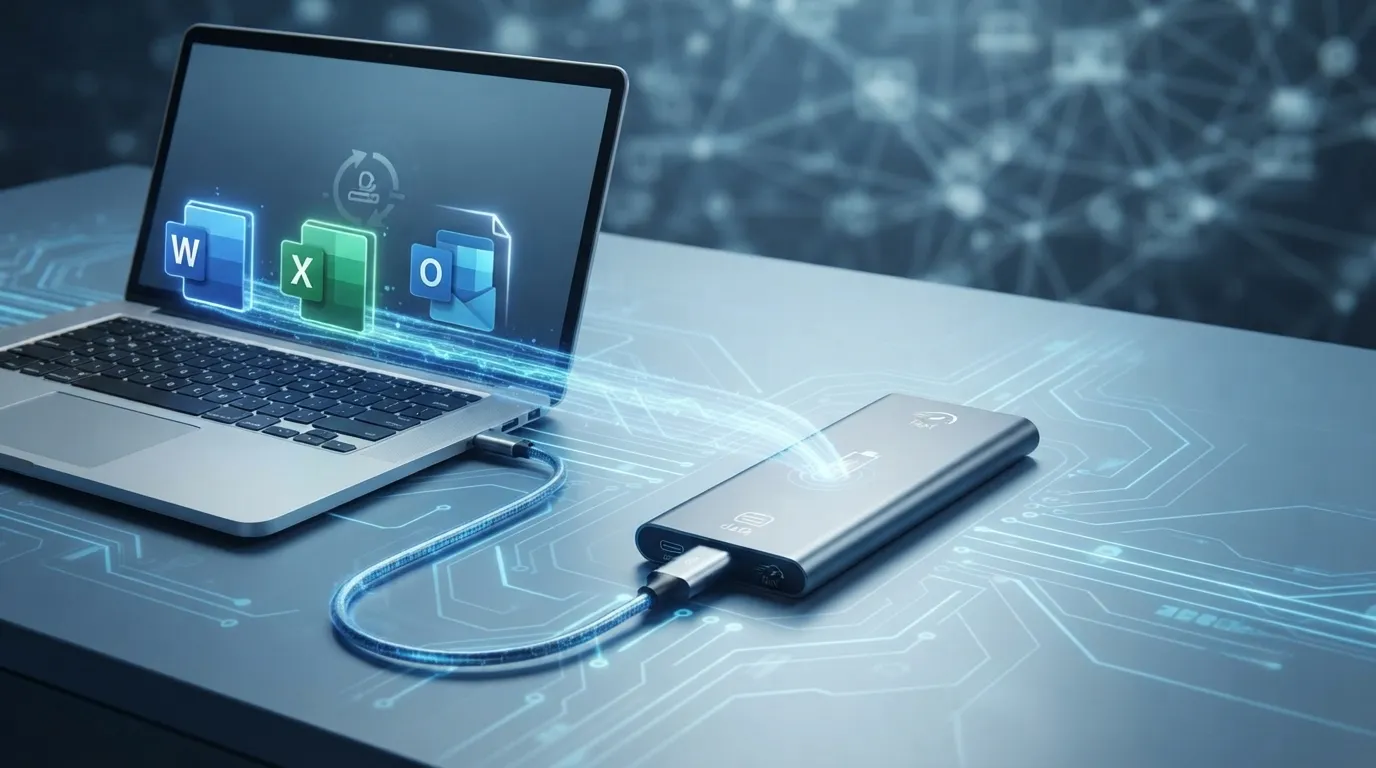
- 3 copies of your important data,
- on 2 different media (for example your internal SSD + an external drive),
- with 1 copy off-site (in the cloud, or a drive kept elsewhere).
In practice, a simple regular copy of your essential folders onto an external SSD or drive, plus a cloud backup, is enough to absorb the total failure of a drive. On Windows, File History automates this copy; on Mac, Time Machine does the job.
To keep a physical copy of your data safe from an internal-drive failure, an external SSD is the most convenient medium: fast, rugged and with no moving parts.
What It Means for You
An SSD failure isn’t a question of “if” but “when.” Since it strikes without warning, the only real protection is upstream: monitor the drive’s health with a S.M.A.R.T. utility, keep the firmware up to date, and above all back up using the 3-2-1 rule. A drive is replaced in an hour; lost photos or documents, never.
\n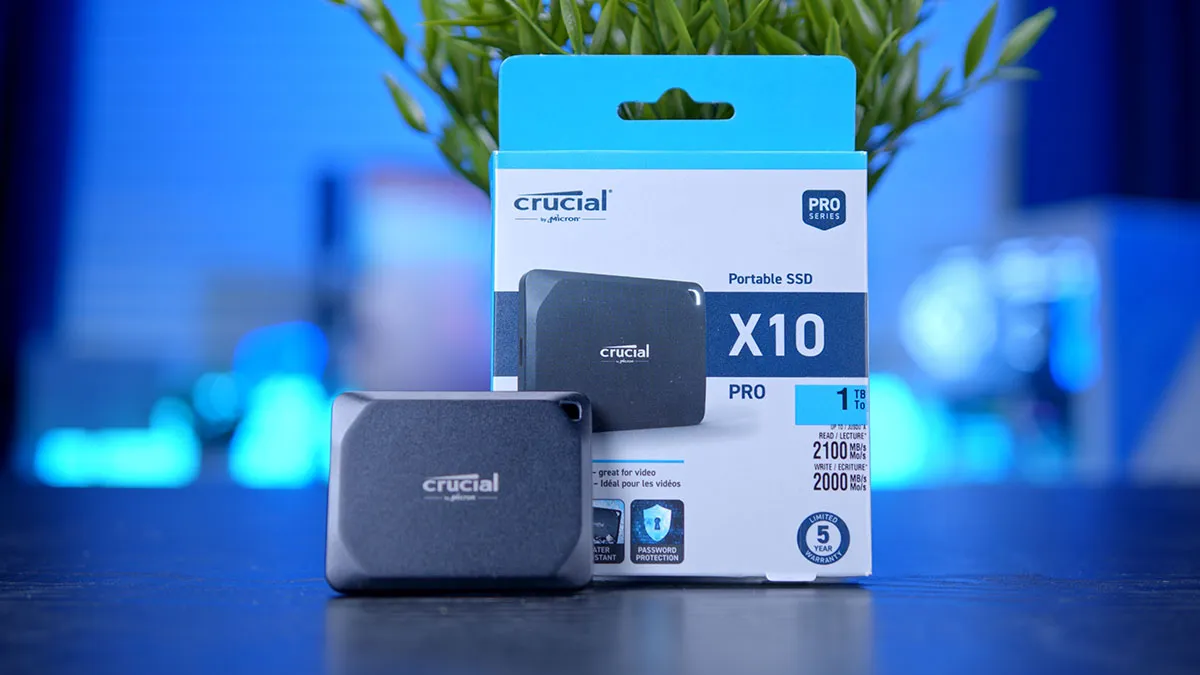
Have you ever lost an SSD without warning? Share your experience in the comments, and follow Wanda-techs to protect your data.
\n\nShare this content: