
Updated on November 27, 2026
This article contains affiliate links: if you buy through them, Wanda-techs earns a commission at no extra cost to you.
Setting up a Fire TV Stick takes three moves: plug it into an HDMI port on the TV, power it from the supplied mains adapter, and pick the right HDMI input. The remote pairs itself on first start, then the screen walks you through Wi-Fi and your Amazon account.
Remote not responding? Check the distance and the batteries, then re-pair it with the Home button, in the order Amazon gives.
This guide follows Amazon’s help pages as read on 27 November 2026. Still unsure which device to buy? Our guide to turning your TV into a smart TV covers the boxes on the market.
Common symptoms and causes
- The remote is not paired: orange light in diagnostic mode, or a message saying the remote is not detected.
- The batteries are low: the light blinks red slowly.
- The remote is too far from the Fire TV Stick, more than 3 metres (about 10 feet) away.
- The remote is faulty: the light blinks red quickly.
- Seven controllers and remotes are already paired, the maximum allowed.
- Setup stalls on a forgotten Amazon password or on the Wi-Fi password.
Before you start
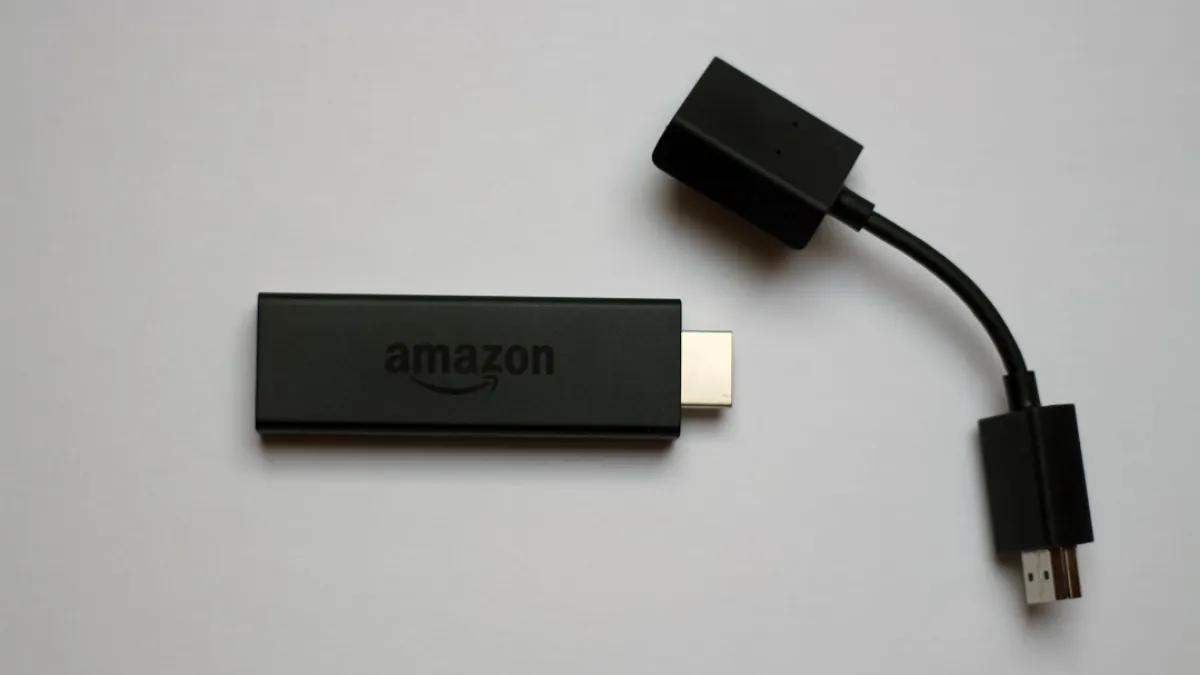
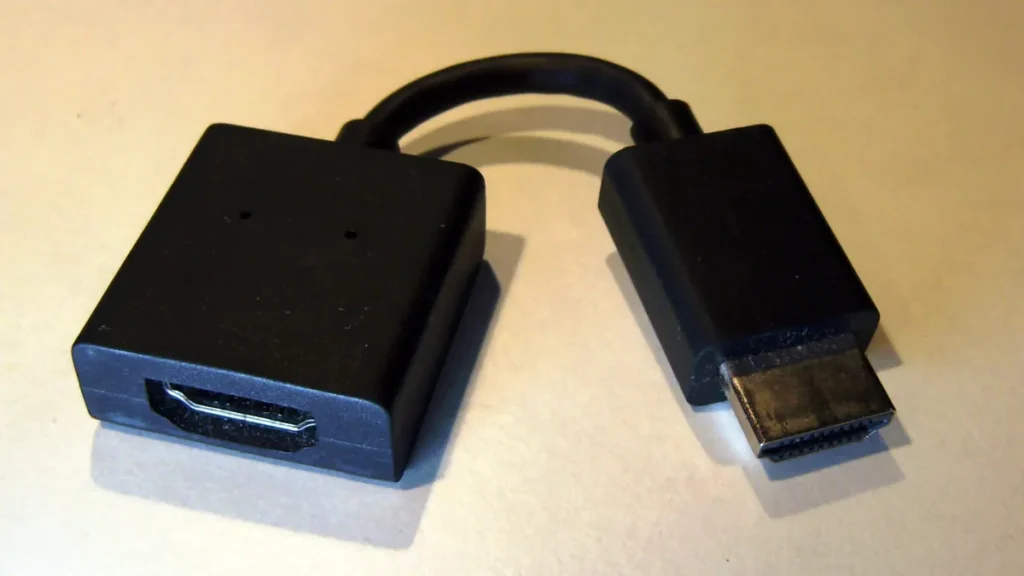
According to Amazon’s page, the box holds the Fire TV Stick, the Alexa Voice Remote, a USB cable, a power adapter, two AAA batteries and an optional HDMI extender. Get these ready too:
- a TV with a free HDMI port;
- your Amazon account: email address or phone number, and password;
- the name and password of your Wi-Fi network;
- alkaline AAA batteries, the ones Amazon recommends;
- for the backup app, a phone connected to the same Wi-Fi as the Fire TV Stick.
Good to know: the resets in steps 3 and 5 only unpair the remote. They erase nothing on the Fire TV Stick or in your Amazon account.
Step 1: set up the Fire TV Stick on the TV
- Put the two AAA batteries into the remote.
- Connect the power adapter to the Fire TV Stick with the USB cable.
- Plug the Fire TV Stick into an HDMI port on the TV; if space is tight, use the HDMI extender.
- Plug the power adapter into a wall outlet, not into the TV’s USB port.
- Turn on the TV and select the HDMI input the Fire TV Stick is plugged into.
With the batteries in and the TV on, the remote pairs by itself. A confirmation message appears at the bottom right of the screen. If you get a failure message, or nothing at all, go to step 3.
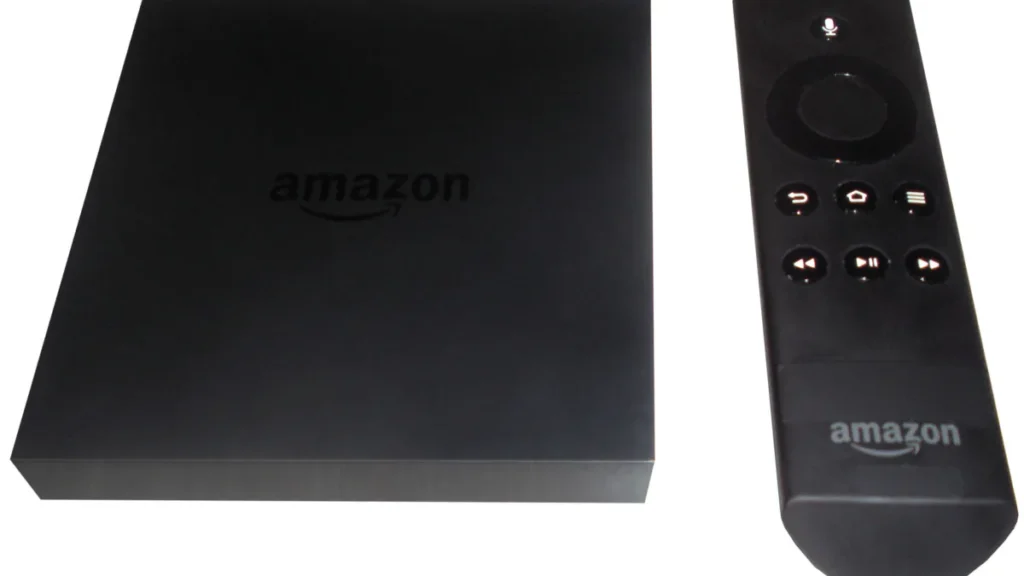
Tip: the wall outlet is not a detail. Amazon asks you to plug the adapter into mains power, not into the TV’s USB port.
Step 2: connect Wi-Fi and your Amazon account
- Connect the Fire TV Stick to Wi-Fi: scan the QR code on screen with your phone, or pick your network with the remote and follow the on-screen instructions.
- Sign in to your Amazon account or create one: scan the QR code, or open the /code address on your country’s Amazon site (amazon.co.uk/code on the UK page) and enter the activation code shown on screen.
- Answer the questions about controlling your devices, a soundbar for example.
Once setup is done, you get apps, TV control (power and volume), Alexa Home Theater with Echo speakers, and live TV. According to Amazon’s UK page, no app downloads unless a default payment method is saved in your Amazon account’s payment settings.
Amazon password refused or forgotten? Reset it with Amazon’s Forgot password link. If the Wi-Fi password will not go through, contact your internet provider.
Step 3: the Fire TV Stick remote stopped working
Amazon gives these checks in this order. Move to the next one only if the previous one did nothing.
- Bring the remote within 3 metres (about 10 feet) of the Fire TV Stick.
- Hold the Home button for about 10 seconds, until the screen asks you to press Play/Pause to begin.
- Take the batteries out for 30 seconds, put them back, then hold Home again.
- Fit new alkaline batteries, then hold Home.
- Warning: this move resets the remote and unpairs it. Hold Left, Menu and Back together for 12 seconds, then hold Home to pair it again.
- Unplug the Fire TV Stick for 5 seconds, then plug it back in.
A paired remote brings up a confirmation message at the bottom right of the screen.
If the batteries are the culprit, here are alkaline AAA batteries, the type Amazon recommends.
Duracell Plus AAA (LR03) alkaline batteries, pack of 24
1.5 V alkaline AAA batteries for remote controls, thermostats and other low-drain devices. The large pack covers several changes.
- AmazonSee at Amazon
Good to know: do not mix up the durations. 30 seconds without batteries in step 3, 5 seconds unplugged here, 60 seconds for the full reset in step 5.
Step 4: read the remote’s light
Remotes with a light have a diagnostic mode. It is only available if the top light blinks when you press the Alexa button.
- Hold Rewind and the right side of the directional pad together for 3 seconds.
- Press Menu: the light turns green, diagnostic mode is on.
- Press any button and watch the colour of the light.
The colour tells you what to do, according to Amazon:
- red, slow blink: low batteries, replace them with alkaline AAA batteries;
- red, fast blink: remote fault, reset it (step 5);
- orange: remote not paired, restart the Fire TV Stick, wait for the message saying the remote is not detected, then hold Home for 10 seconds;
- white: the Fire TV Stick may be off, check its power and restart it;
- blue: the remote works, restart the Fire TV Stick.
To leave this mode, hold Play/Pause and the up button for 3 seconds. Press Menu, then take the batteries out and put them back.
Step 5: reset and pair the Fire Stick remote
Warning: this procedure resets the remote and unpairs it. It erases nothing on the Fire TV Stick and applies to the standard remote.
- Unplug the Fire TV Stick, power and HDMI, for 60 seconds.
- Hold Left, Menu and Back together for 12 seconds.
- Release the buttons and wait 5 seconds.
- Take the batteries out of the remote.
- Plug the Fire TV Stick back in and wait for the screen to say the remote is not detected.
- Put the batteries back.
- Press Home.
The blue light blinks when the remote is paired; not every remote has a light. With no confirmation, hold Home for 10 seconds.
Good to know: on the 1st-generation Alexa Voice Remote, hold only Left and Menu for 12 seconds in step 2.
The Basic Edition remote follows a different procedure. Hold Home, press Menu three times, release, press Menu nine times, take out the batteries and unplug the Fire TV Stick for 60 seconds. Then put the batteries back, plug the device in again, hold Home for 40 seconds on the home screen and wait 60 seconds.
A Fire TV accepts seven paired controllers and remotes at most: remove one before adding another. You can also add a remote from the menu, along the path Amazon gives: Settings > Controllers & Bluetooth Devices > Amazon Fire TV Remotes > Add New Remote.
Step 6: use the Fire TV app as a backup remote
- Install the free Amazon Fire TV app on your phone; on iPhone and iPad it needs iOS or iPadOS 15.1 or later.
- Connect the phone to the same Wi-Fi network as the Fire TV Stick.
- Open the app and sign in with your Amazon account.
The app then controls the Fire TV Stick over Wi-Fi, launches content and lets you type with the phone’s keyboard. It also sets up a new Fire TV device and pairs a remote by the same path as the menu.
According to user reviews on the App Store, it has no volume or power buttons. Keep the TV’s own remote within reach.
If nothing works
If pairing still fails after step 5, Amazon points to Fire TV support and the Fire TV forum. Our advice before you contact them: note the model of your Fire TV Stick and its remote, the purchase date, the light colour in diagnostic mode and the steps you already tried.
For an account or Wi-Fi problem during setup, resetting your Amazon password and your internet provider remain the right contacts. And if it is the TV itself that lags, see our slow smart TV guide.
Get more from your Fire TV Stick: our toolbox
Here are a few products useful to anyone setting up a Fire TV Stick: a model to give or replace, and a surge-protected power strip.
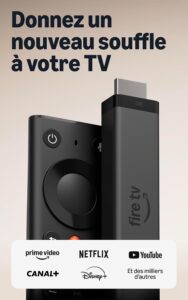 Amazon Fire TV Stick 4K (2026)Clé HDMI 4K HDR10+, Wi-Fi 6, décodage AV1, système Vega OS.AmazonSee at Amazon
- Amazon Fire TV Stick 4K Plus4K streaming stick with Wi-Fi 6, Dolby Vision and an Alexa voice remote. It suits TVs that support Dolby Vision.AmazonSee at Amazon
- Amazon Fire TV Stick 4K Select4K streaming stick with HDR10+, supplied with its Alexa voice remote. It adds streaming apps to any HDMI TV.AmazonSee at Amazon
- Belkin surge protector power strip, 4 sockets, 525 joules, 2 m, 2 USB portsFour sockets with surge protection rated 525 joules, plus two USB ports. An indicator shows when the earth connection is missing.AmazonSee at Amazon
Frequently asked questions
How do I set up a Fire TV Stick on my TV?
Plug the Fire TV Stick into an HDMI port on the TV, connect it to the power adapter with the USB cable and plug the adapter into a wall outlet. Turn on the TV, choose the matching HDMI input, then follow the screen for Wi-Fi and your Amazon account.
Why has my Fire TV remote stopped responding?
Amazon’s listed causes are low batteries, a remote too far away, or one that is unpaired or faulty. Move within 3 metres (about 10 feet), hold Home for 10 seconds, then swap in new alkaline batteries. The light’s diagnostic mode narrows down the cause on remotes that have one.
How do I re-pair a Fire TV Stick remote?
Hold the Home button for about 10 seconds, until the prompt to press Play/Pause. If that is not enough, reset the remote by holding Left, Menu and Back for 12 seconds, then hold Home.
How many remotes can I pair with a Fire TV Stick?
Seven controllers and remotes at most, according to Amazon. Beyond that, remove one before pairing a new one.
Can I use my phone as a Fire TV remote?
Yes, with the free Amazon Fire TV app, on a phone connected to the same Wi-Fi as the Fire TV Stick and signed in to your Amazon account. It replaces the remote for navigating and typing. According to user reviews, volume and power buttons are not in it.
Photo credits: Fire-TV Stick and HDMI-Adapter by www.hdmi-experte.com, licence CC BY 4.0; Amazon Fire TV with remote by Ixfd64, licence CC BY-SA 3.0; File:TV remote control in hand.jpg by Santeri Viinamäki, licence CC BY-SA 4.0; Fire TV Stick HDMI extender by Elmepi, licence CC BY-SA 4.0
Share this content: