
The iPhone 16, with its advanced features and refined design, stands out as one of the best smartphones on the market. However, like any technological device, it is not exempt from minor inconveniences. Software bugs, battery life concerns, or connectivity issues can quickly frustrate users. In this article, we explore the most common iPhone 16 problems and offer practical solutions to help you get the most out of your device.
My iPhone 16 Screen is Unresponsive: Key Solutions
A common complaint is that the screen does not respond correctly or performs unexpected actions. This issue may be linked to an overly aggressive algorithm designed to reject accidental touches, especially near the display edges. To fix this:
- Update iOS: Ensure your iPhone is running the latest version of iOS, as updates often patch bugs related to screen sensitivity. Go to Settings > General > Software Update.
- Use a Case: While it may seem surprising, using a case is very effective. It prevents direct contact with the edges of the screen, reducing ghost touches and responsiveness issues.
- Adjust Touch Sensitivity: This is a helpful temporary fix. Go to Settings > Accessibility > Touch and enable “Touch Accommodations” to adjust how the screen responds to your touch.
Solving Battery Life Issues on iPhone 16: Easy Tips
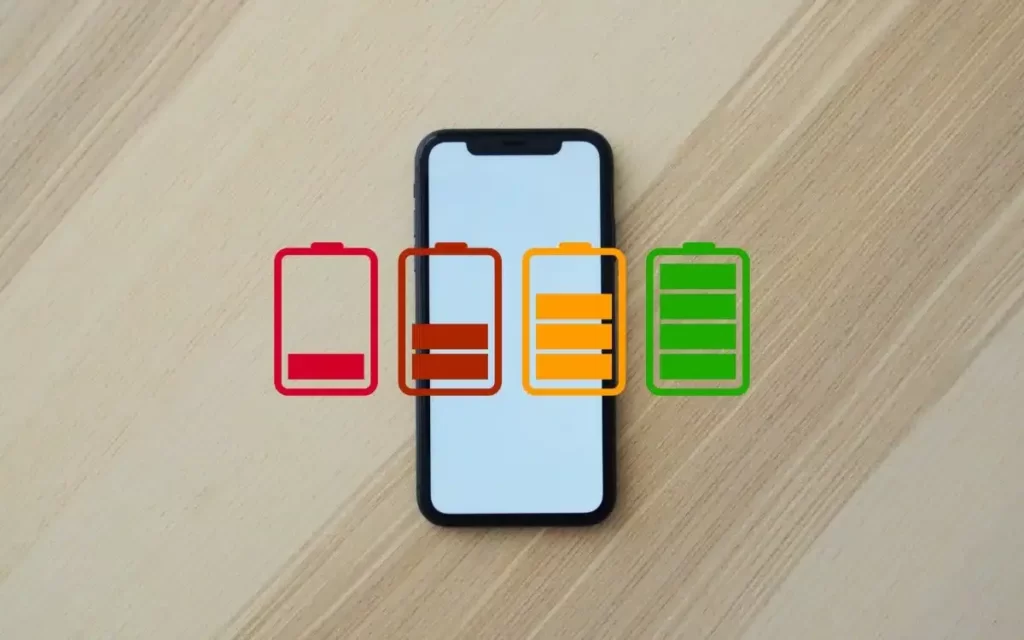
Certain versions of iOS 18 consume excessive resources, affecting battery longevity. You might find your phone dropping from 100% to 50% in just 3 hours or shutting down unexpectedly at 20%. To resolve this:
- Update to the Latest iOS Version: Currently, aim for iOS 18.2 or newer. Update via Settings > General > Software Update.
- Optimize Settings: Disable Background App Refresh by going to Settings > General > Background App Refresh and selecting Off.
- Use Dark Mode & Auto-Brightness: Enable these to adjust light intensity based on your environment and save power.
- Enable 5G Auto: Go to Settings > Cellular > Cellular Data Options > Voice & Data and choose 5G Auto. This uses 5G only when necessary for performance, switching back to LTE/4G otherwise to save battery.
My iPhone 16 Restarts Unexpectedly: How to Fix It
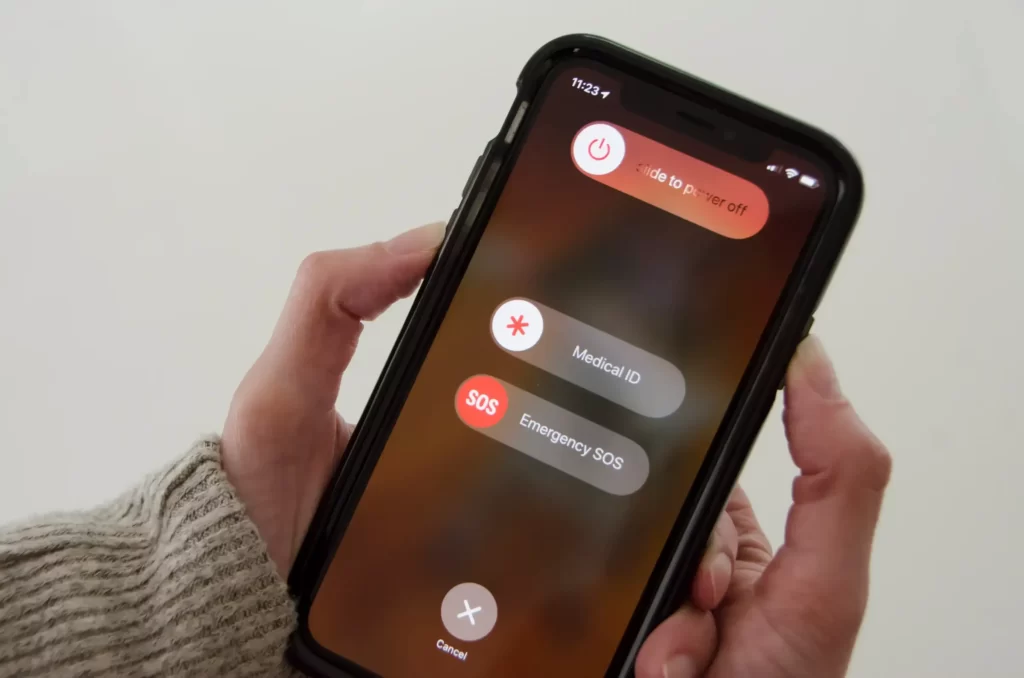
Sometimes, the screen may go black and the device restarts during a gaming session or even when idle. This is usually due to a software bug in iOS 18 affecting background process management.
- Update iOS and Apps: New updates generally fix restart loops. Ensure your apps are also updated via the App Store, as a simple developer patch can often resolve these bugs.
- Force Restart: To resolve internal conflicts, perform a forced restart.
- Factory Reset: If other methods fail, back up your data to iCloud or iTunes first. Then, go to Settings > General > Transfer or Reset iPhone > Erase All Content and Settings.Warning: This method completely reinstalls iOS and deletes all your personal data.
How to Resolve Camera Issues on iPhone 16
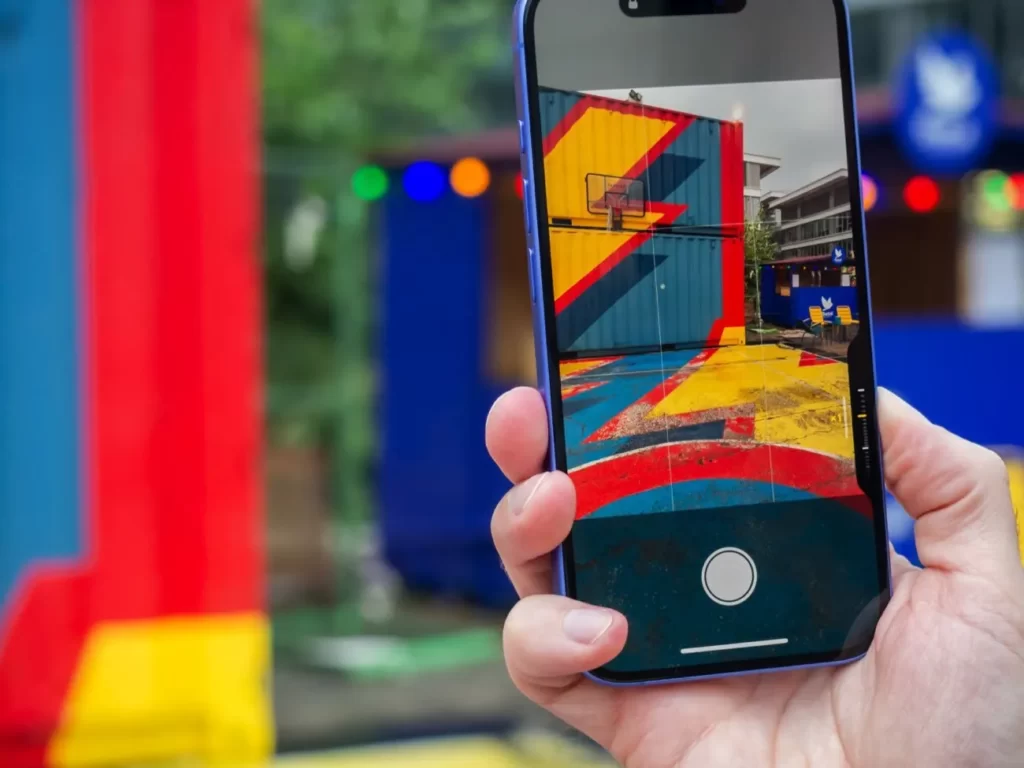
You may encounter an error when trying to save edited photos or experience lag when saving media. This bug usually occurs with high-resolution photos or third-party editors.
- Duplicate Before Editing: This allows editors to save photos without errors. Before modifying a photo, tap Share > Duplicate.
- Reset Photo Settings: This can fix saving bugs. Go to Settings > Photos and reset options where applicable.
- Update Third-Party Apps: Ensure your editing apps are up to date via the App Store.
- Patience is Key: If your phone is brand new, slight lag may occur during the initial system optimization phase. Give your device a few days to index and adjust settings.
My iPhone 16 Feels Too Fragile: What to Do?
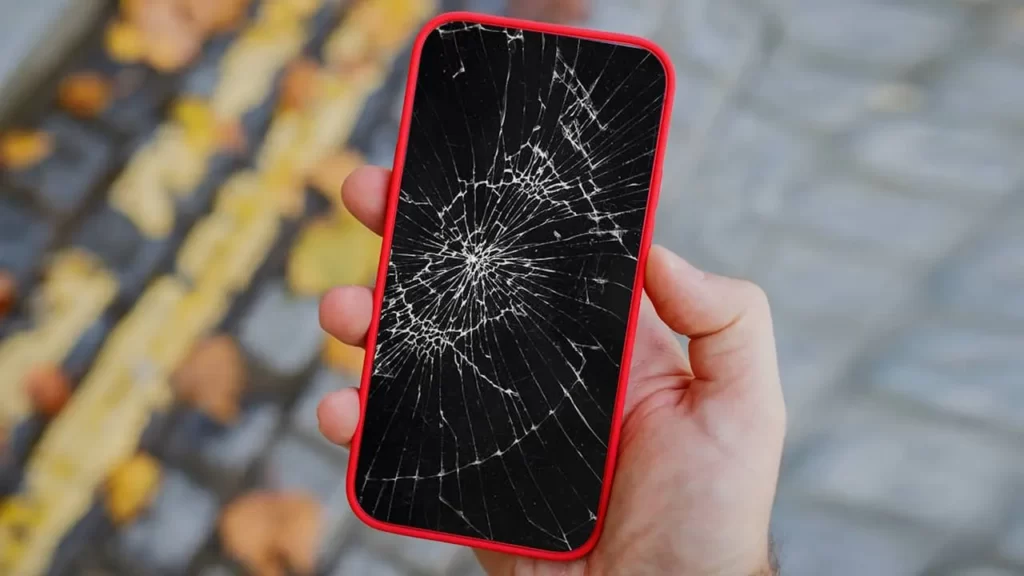
Thin bezels make the iPhone 16 more vulnerable to impact. You might notice scratches after a minor drop or cracks if it slips from your pocket.
- Rugged Protection: Equip your iPhone with a heavy-duty case and a screen protector to provide excellent defense while maintaining the device’s elegance.
- AppleCare+: To cover accidental damage and expensive repairs, it is highly recommended to subscribe to AppleCare+.
Camera Opening Unexpectedly: Quick Fixes
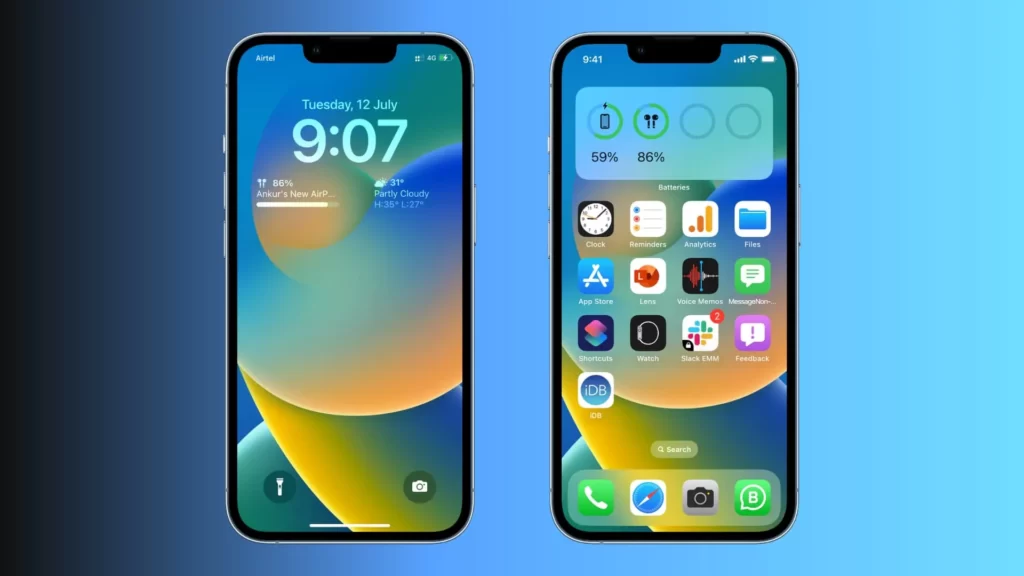
It can be annoying when the camera opens during a call or in your pocket.
- Change Your Case: Your current case might be accidentally pressing the Camera Control button. Opt for a case specifically designed for the iPhone 16.
- Adjust Camera Control Settings: Set the button to require a double-click to launch the app. Go to Settings > Camera > Camera Control and select Double-click under “Launch Camera.”
- Disable Camera Control: If you don’t use the physical button, you can disable it entirely in the same settings menu.
Difficulties Using Apple Pay or Reading NFC Cards
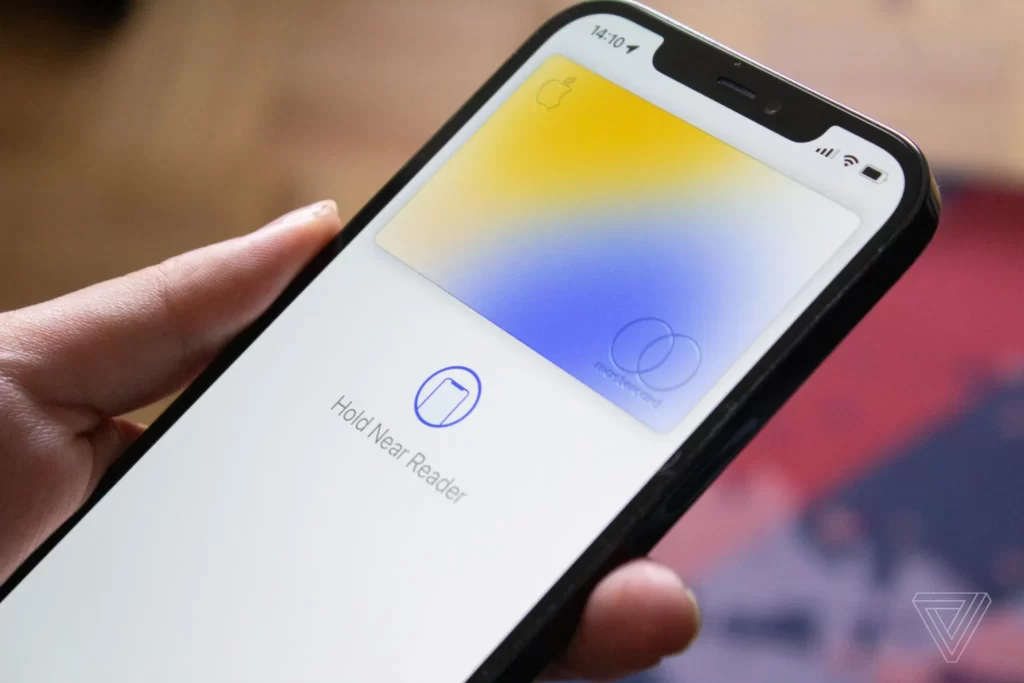
If your iPhone fails to recognize NFC tags or Apple Pay terminals:
- Test with an NFC App: Use an app like NFC Tools from the App Store to determine if the issue is software-based or a hardware failure.
- Restart the iPhone: A simple reboot often clears NFC glitches.
- Toggle Connectivity: Switching Airplane Mode or Cellular Data on and off can sometimes “wake up” the NFC reader.
- Reset Network Settings: Go to Settings > General > Transfer or Reset iPhone > Reset > Reset Network Settings.
Contact Apple Support if Problems Persist

If these tips do not resolve your issues, Apple Support can help diagnose hardware or deep-seated software faults. Visit the Apple Support website or contact them directly by phone.
Read also:
Share this content: