
Updated on October 26, 2026
This article contains affiliate links: if you buy through them, Wanda-techs earns a commission at no extra cost to you.
Doctolib not working: the page stays blank, the login code never arrives or the camera won’t turn on during a video consultation. Three causes come up most often: a service outage, an outdated app, or a camera or microphone permission that was denied. Allow 15 minutes to check everything.
Common symptoms and causes
- The app or the website no longer loads, for you and for other users: a service outage.
- The Doctolib app crashes or refuses to open: the version is too old, or the iPhone runs something older than iOS 15.1.
- The verification code does not arrive: the message went to spam, or the account still has an old phone number.
- Doctolib video calls fail, the screen stays black or the practitioner cannot hear you: the browser or the app was denied the camera or microphone.
- Appointment reminders stop reaching you, or a cancellation is refused: the rules are set by the practitioner.
Before you start
- On iPhone and iPad, the Doctolib app requires iOS 15.1 or iPadOS 15.1 at minimum. It is free and weighs about 113.5 MB.
- On a computer, excerpts of the Doctolib help center, which could not be read in full, recommend a recent version of Chrome and a stable connection, on Wi-Fi or 4G.
- Never share your verification code, neither by phone nor by message.
Warning: uninstalling the app or clearing its data erases data. You lose the open session and the app’s local data on the phone, and you will have to sign in again. Before that, make sure you can reach the phone number on your account and note down your login details.
Solution 1: is Doctolib down today? Check for an outage
If the service is down for everyone, no setting on your side will change anything. Start there.
- Open an outage-tracking site, such as Downdetector, to see whether other users are reporting a problem at the same time.
- If an outage is reported, wait until it is fixed before changing any settings.
- On iPhone or iPad, check that the device runs iOS 15.1 or iPadOS 15.1 at minimum.
- Open the app’s page on the App Store or Google Play from the links at the bottom of the doctolib.fr page.
General tip, not confirmed by Doctolib’s help center: if the page offers an update, install it, then relaunch the app and retry the action that failed. The app should open on your account and show your appointments.
Good to know: outage-tracking sites are not run by Doctolib. They rely on user reports. They show a trend, not an official confirmation.
Solution 2: login code not received or sign-in impossible
According to user reports, the code can get lost in spam or be sent to an old number.
- Open the junk (spam) folder of your mailbox and look for the message from Doctolib.
- Check that the phone number saved on your account is still yours: an old number receives the code in your place.
- Enter the code yourself, without telling anyone.
The code should arrive and open your account.
If the app stays stuck, a general tip, not confirmed by Doctolib, is to uninstall it and reinstall it from the App Store or Google Play. Warning: this erases the open session and the app’s local data. Have your login details and your phone ready first, then sign in again.
Solution 3: Doctolib video call, camera or microphone not working
A teleconsultation is a video appointment with a practitioner, booked from the app or the website. It needs the camera and the microphone. The browser or the phone may have blocked them.
- On a computer, open the teleconsultation page in a recent version of Chrome.
- When Chrome asks for access to the camera and microphone, click Allow while visiting the site or Allow this time, never Don’t allow.
- If you refused, open Chrome’s More menu, then Settings > Privacy and security > Site settings > Camera / Microphone.
- Look for doctolib.fr under the blocked sites and choose Allow, or delete the exception with the trash icon.
- On Android, open Settings > Apps > Doctolib > Permissions; if Doctolib is not listed, tap See all apps.
- Tap Camera, then Allow only while using the app; do the same for Microphone.
- If the camera stays black, open Settings > Security and privacy > Privacy > Privacy controls and check that Camera access and Microphone access are on; the Permission manager in the same menu also lets you check these permissions.
- Before the appointment time, run the equipment test if it is offered at the start.
Once access is granted, the teleconsultation page can use the camera and the microphone: rerun the test or join the consultation. The equipment test only appears in excerpts of the Doctolib help center, which were not read in full.
On iPhone, the path to the camera and microphone settings could not be checked on an official Apple page.
Tip: close other video-call software before the consultation. A webcam already in use by another app often stays black in the browser.
Tip: according to excerpts of Doctolib’s help center, the practitioner may call you back by phone if the video drops. Keep your phone charged and within reach.
Solution 4: Doctolib alerts not working, appointment to cancel
The app sends automatic reminders before each appointment and lets you write to practitioners. The conditions for cancelling or changing an appointment depend on the practitioner, not on the app.
- Open the Doctolib app and check that the appointment appears in your account: the automatic reminders apply to that appointment.
- For a question about this appointment, write to the practitioner through Doctolib’s messaging.
You then know whether the appointment is saved, and the practitioner has your question.
The path to the notification settings in the app could not be checked. To cancel or move an appointment, the rules depend on the practitioner. If the app does not allow it, contact the practice directly.
If nothing works
Stop if the problem persists after an update and a reinstall, or if your account stays locked. Open the Help Center from the bottom of the doctolib.fr page, under “Des questions ?” (“Questions?”), which also gives the contact link. For an upcoming appointment, call the practitioner’s practice.
Have ready the model of your phone or computer, the version of the system and of the app, and the date of the appointment concerned. A screenshot of the error message helps too.
The same habits apply to other services: see for example our guide on the McDonald’s app not working or the one on DoorDash no longer working.
Get more from your video consultations: our toolbox
A good camera, a clear microphone and a charged phone prevent most hiccups during a video consultation.
- Logitech C920 HD Pro, Full HD 1080p webcam with two microphonesA webcam with two built-in microphones that plugs in over USB. It gives video calls a second, separate microphone and a sharper image.AmazonSee at Amazon
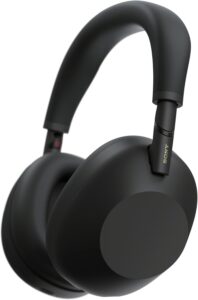 Sony WH-1000XM6Casque Bluetooth circum-auriculaire à réduction de bruit, pliable, jusqu’à 30 h d’autonomie.AmazonSee at Amazon
- Anker Nano power bank 10,000 mAh 45 W with retractable USB-C cablePortable battery with a built-in retractable USB-C cable to top up a tablet away from a socket. Handy as a backup when the wall charger is out of reach.AmazonSee at Amazon
- Anker 140 W braided USB-C to USB-C cable, 1.2 mCharges and syncs USB-C iPads and laptops. The braided sheath resists daily bending.AmazonSee at Amazon
Frequently asked questions
Why is Doctolib not working today?
Most often, the service is having an incident or your app is out of date. Check an outage-tracking site to see whether other users report the same problem. If there is no outage, a general tip is to install the update offered on the App Store or Google Play.
How do I allow the camera for a Doctolib video consultation?
Allow the camera when the browser or the phone asks. In Chrome, the setting is under Settings > Privacy and security > Site settings > Camera / Microphone. On Android, open Settings > Apps > Doctolib > Permissions.
I’m not getting my Doctolib login code. What can I do?
Look in your junk folder first, then check the phone number saved on your account. An old number receives the code in your place. Never give this code to anyone who asks for it.
How do I contact Doctolib if something goes wrong?
Use the Help Center at the bottom of the doctolib.fr home page, under “Des questions ?” (“Questions?”). The contact link is in the same place. For a specific appointment, also contact the practitioner’s practice.
Share this content: