
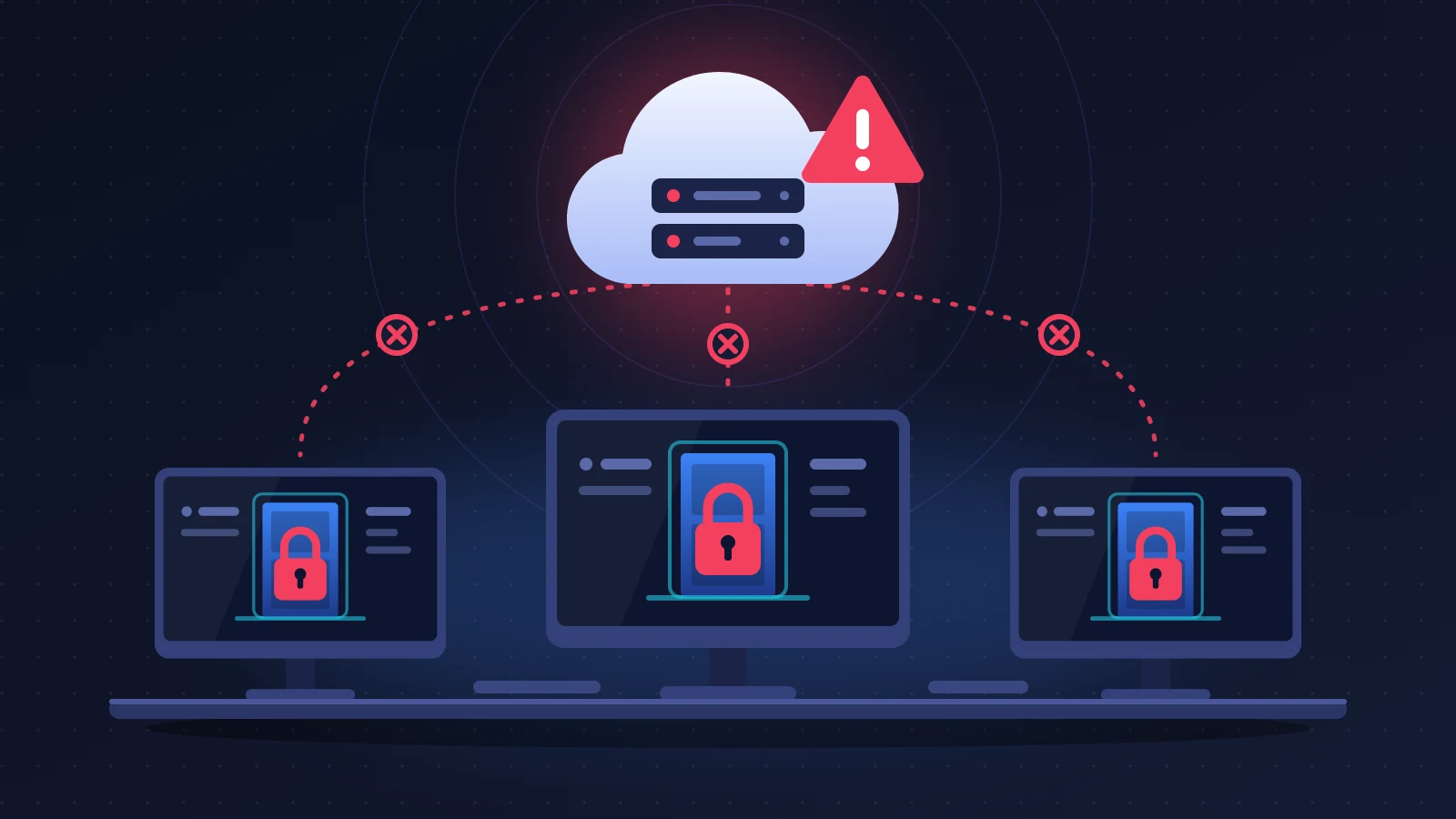
Salesforce down? You can confirm it in a minute at status.salesforce.com by searching for your domain name: if your instance shows “Service Disruption”, nothing you change on your side will help and it is time to switch to your fallback procedures. If it shows green, the blockage almost always comes from somewhere else: the identity provider handling SSO, an IP address restriction, a locked account or a cluttered browser. In that case, logging in through your company’s My Domain URL in a private window fixes most situations.
In short: the quick fix
- Open status.salesforce.com on your phone over mobile data and search for your domain or instance. Red or orange: it is Salesforce, so wait and warn the team.
- Instance green: log in through your My Domain address (something like
https://yourcompany.my.salesforce.com) in a private browsing window. - If the company login page (SSO) spins forever, an admin can try the My Domain address followed by
/?loginto sign in with a Salesforce password. - On the integration side, queue the calls and let the retries space themselves out. Hammering the API during an outage only delays the return to normal.
- Log anything that can’t wait in a spreadsheet. You will re-enter it afterwards.
Recognizing the problem
The login page loads, you submit, and the browser churns until it lands on a blank page or a 503 error. Colleagues who were already logged in sometimes keep working for a few minutes, then get kicked out in turn. The tools plugged into the CRM throw errors one after another. And when you try to open a case, the help portal asks for the very login that has stopped responding.
Three families of causes sit behind these symptoms, and the right course of action is different for each.
| Message or behavior | Where it appears | What it usually means |
|---|---|---|
| Blank page, timeout, HTTP 502 or 503 error | Browser, everyone at once | Salesforce instance or login service unavailable or overloaded |
| “Please check your username and password. If you still can’t log in, contact your Salesforce administrator.” | Login page | Wrong username or password, locked account, or login refused by an IP or time restriction (the message is deliberately vague) |
| “We can’t log you in because you’re only allowed to use single sign-on” | Salesforce login page | Your account is restricted to SSO: go through the company portal |
| Error shown on a page that isn’t Salesforce’s (Microsoft, Okta, Google portal…) | Before you reach Salesforce | Problem at the identity provider, not at Salesforce |
REQUEST_LIMIT_EXCEEDED (HTTP 403) | Integration logs | API call quota or concurrent request limit exceeded |
SERVER_UNAVAILABLE (HTTP 503) | Integration logs | A server needed for the call is unavailable or saturated |
UNABLE_TO_LOCK_ROW | Imports, automations, API | Two processes are modifying the same records at the same time |
Interface labels change with the language and the release. Remember the uppercase codes, which never move.
Why it happens
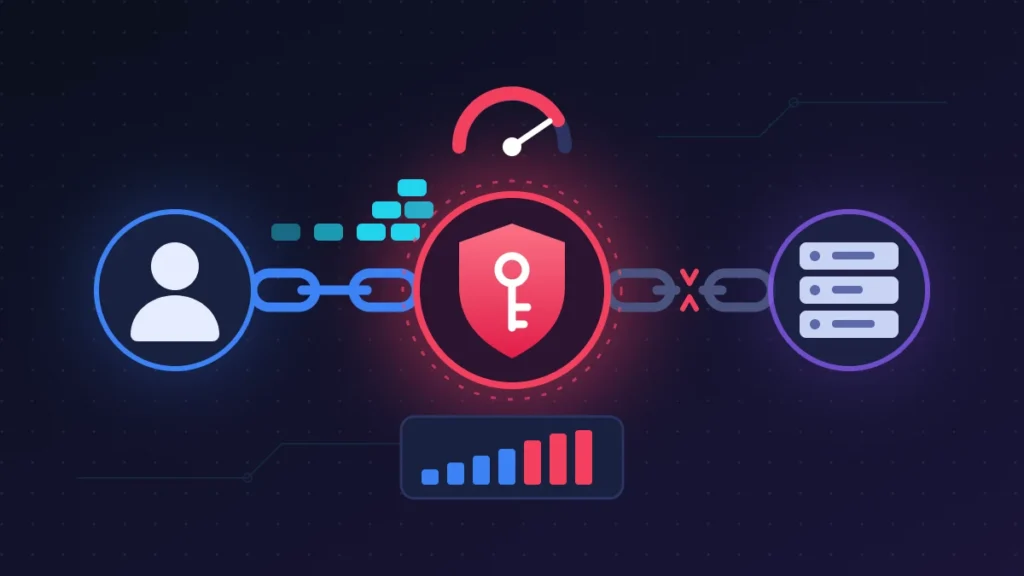
Salesforce is not a single block. Every customer is hosted on an instance, meaning a group of servers shared with other companies. Legacy instances have short names (NA, EU, AP prefixes, CS for sandboxes); those on Hyperforce, the Salesforce infrastructure built on the public cloud, are named after a country followed by a number. An outage rarely hits the whole planet: it strikes one instance, one region or one specific service.
The authentication service is the most sensitive link. If it saturates, your data is intact but nobody can get in: not people, not integrations whose token has just expired, not you on the help portal.
The second cause, very common in companies, is SSO (single sign-on). You authenticate with an identity provider, which vouches for you to Salesforce. If that provider goes down, or if its certificate has expired, Salesforce runs perfectly and you stay outside.
The last family is the most mundane: the local side. Corrupted cookies, a corporate proxy, an IP address not allowed by your profile, an attempt outside login hours, an account locked after too many tries.
Before you start
Gather three pieces of information, ideally written down somewhere other than Salesforce: your My Domain address, the name of your instance, and the name of an admin you can reach by phone. The instance is shown in Setup > Company Information, or you can find it by typing your domain into the search on the Trust site.
Don’t reset your password by reflex during an outage. The email may never arrive, and you will add a second problem to the first.
Solution 1: Salesforce down? Check your instance on Salesforce Trust
Do this first, whoever you are. No risk.
1. Find your instance
Open status.salesforce.com. Type your domain (the part before .my.salesforce.com) or the instance name into the search field, then click the result.
2. Read the status
There are four states. “Available”: the service is working. “Performance Degradation”: it responds, but slowly. “Service Disruption”: it is unavailable. “Maintenance”: planned work.
3. Allow for the lag
Salesforce aims to post on Trust within ten minutes of detecting a critical incident, then to update at least every thirty minutes. In the first few minutes, the page can therefore stay green while everything is already blocked. If ten colleagues get kicked out at the same time on different networks, treat it as an outage and reload Trust a quarter of an hour later.
Solution 2: go through your My Domain URL
For users, when Trust is green. No risk.
Plenty of people still log in through login.salesforce.com, out of habit or from an old bookmark. An admin can close that entrance in the My Domain settings (the “Prevent login from https://login.salesforce.com” option). The symptom is confusing: the password is right, the login fails.
Type https://yourcompany.my.salesforce.com directly. If you don’t know your domain, look for it in an old Salesforce notification email.
How to check: the page shows your company’s logo or SSO button.
Solution 3: rule out the browser and the network
Try this when you are the only one affected. No risk, apart from losing saved sessions if you clear everything.
1. Private browsing
Open a private window (Ctrl+Shift+N in Chrome and Edge, Ctrl+Shift+P in Firefox) and log in again. If it works, a cookie or an extension is to blame.
2. Site cookies
Delete the cookies and cache for the salesforce.com and force.com domains, then test a second browser.
3. Another network
Switch to your phone’s hotspot. There are two possible outcomes, both informative. If it works on mobile data and not at the office, the corporate proxy or firewall is blocking you. If it works at the office and not on mobile data, your profile is probably restricted to a range of IP addresses: that is intentional, and only the admin can relax it.
Solution 4: the mobile app and the session that is already open
When only authentication is down, a session that is already open often stays usable. Don’t log out, don’t close the tab, don’t clear anything.
The Salesforce mobile app also keeps recently viewed records in its cache, provided the admin has left offline caching enabled and you opened the app before the incident. Enough to recover a phone number or an amount, not to enter a full day’s work.
Solution 5 (admin): bypass SSO
Use this when the identity provider is down and Trust is green.
1. Log in without the identity provider
Add /?login to the end of your My Domain address: https://yourcompany.my.salesforce.com/?login. The page then shows the standard form, with Salesforce username and password. The ?login=true variant is also in circulation.
2. Understand why it sometimes fails
The bypass only works for accounts that do not have the “Is Single Sign-On Enabled” permission in their profile or permission set. Everyone else sees the refusal quoted in the table. That is why best practice is never to federate system administrators: they keep a strong Salesforce password, protected by multi-factor authentication.
3. Reopen access for users
Once you are in, you can temporarily remove the SSO permission from a group of key users and send them a password reset link. You are lowering the security level by doing so: log the change and reverse it as soon as the identity provider is back.
Warning: if no admin account is exempt from SSO, there is no back door. Only Salesforce support can help you, after verifying your identity.
Solution 6 (admin): IP restrictions, login hours, locked account
When a single user or a single team is blocked.
1. Read the login history
In Setup, type “Login History” into Quick Find. Every attempt is listed with its status, IP address and login type. The vague message from the login page becomes explicit there: invalid password, restricted IP address, lockout.
2. Check IP ranges and hours
Setup > Profiles > the profile in question > Login IP Ranges. Outside these ranges, the login is refused with no option to get through with a verification code. A classic case: the internet provider has changed the office’s public IP address. The ranges defined in Setup > Network Access work differently: outside the range, the user simply has to confirm their identity with a code. Look at the profile’s Login Hours as well.
3. Unlock the user
Setup > Users, then open the user record: the Unlock button only appears if the account is locked. The lockout duration and the number of attempts are set in Setup > Password Policies.
Solution 7: protect integrations and APIs
For admins and integration partners, during and after the outage.
- Spaced retries: when faced with
SERVER_UNAVAILABLE, Salesforce recommends retrying with exponential backoff (1 second, 2, 4, 8…). Add a cap and a little jitter so that all your jobs don’t restart in the same second. - Queueing: store outbound messages (web forms, orders, leads) instead of losing them.
- Idempotency: so that a retry doesn’t create a duplicate, use an external ID and the upsert operation rather than a plain create.
- Quotas: a wave of retries can drain the 24-hour API call quota and trigger
REQUEST_LIMIT_EXCEEDEDonce the outage is over. Watch the REST resource/services/data/vXX.X/limits/and theSforce-Limit-Inforesponse header. The limit on concurrent long-running requests (20 seconds or more) is 25 in production. - Locks:
UNABLE_TO_LOCK_ROWshows up during catch-up, when several batches modify records attached to the same parent in parallel. Process in serial mode, or sort the batches by parent account.
Solution 8: reach support when the portal is unreachable
During an authentication outage, the help portal is unusable because it relies on the same login. That leaves the phone and your account executive. Salesforce lists a phone number for each country on its regional contact pages.
Have this ready before you call: the organization ID (15 or 18 characters starting with 00D), the instance name, the start time, the number of users affected and the business impact in figures. During a widespread incident, don’t expect an individual diagnosis: support will point you to Trust. The main purpose of the call is to put your report on record.
Summary table
| Symptom | Likely cause | Solution to try |
|---|---|---|
| Everyone is blocked, Trust is red | Instance or authentication outage | Solution 1, then fallback procedures |
| Stuck on the company identity portal | Identity provider or SSO certificate | Solution 5 |
| Correct password, login refused by login.salesforce.com | Generic login disabled | Solution 2 |
| A single user blocked, everywhere | Locked account, password, MFA | Solution 6 |
| Login works at the office, not outside | Profile IP ranges | Solution 6 |
503 errors or SERVER_UNAVAILABLE in the flows | Saturated servers | Solution 7, spaced retries |
REQUEST_LIMIT_EXCEEDED after the outage | API quota used up by retries | Solution 7, staggered recovery |
If nothing works
Accept the outage and organize the work without the CRM. A shared spreadsheet is enough, as long as everyone uses the same columns: date and time, account name, contact, action taken, amount, next step.
Once the service is back, proceed in order. Re-enter or import the fallback spreadsheet. Then check the automations: scheduled flows that didn’t run, queued emails, scheduled Apex jobs, third-party syncs. Look for duplicates created by the retries. Then ask Salesforce for the incident report.
On compensation, it is better to be clear-eyed. The standard contract commits Salesforce to commercially reasonable efforts to keep the service available 24 hours a day, with no guaranteed rate and no automatic credit. A credit is only due if your contract includes a negotiated service level commitment. Reread your order form, then send your request in writing to your account manager, with the times recorded on Trust.
Keeping it from happening again
Subscribe to Trust notifications for your instance: no license is needed, and a shared team address works fine.
Schedule the data export: Setup > Data Export > Schedule Export. The frequency is weekly in Enterprise, Performance and Unlimited editions, monthly in Professional. The download link expires after 48 hours, so make someone responsible for collecting the files. This export restores nothing on its own. For real recovery, look at Salesforce’s paid backup option or a third-party tool.
Keep two admin accounts outside SSO and keep an eye on the expiry of the SSO certificate.
Finally, write a one-page continuity sheet: who declares the outage, which channel is used to warn the team, where the fallback spreadsheet lives, who calls support, who runs the catch-up. Print it.
Frequently asked questions
Is my data lost during an outage?
No, in the vast majority of cases. An access outage keeps you from getting in; it deletes nothing. What does get lost is unsaved work in progress and integration messages that had no queue.
Trust is green but nobody can log in. Why?
Either the incident hasn’t been posted yet, or the problem lies with your identity provider or your network. Test the My Domain address with /?login from an admin account.
Can you log in through login.salesforce.com if My Domain isn’t responding?
Only if your admin hasn’t closed that entrance. And if the instance itself is down, no address will work.
Do integrations need to be restarted by hand after the outage?
First check what has restarted on its own. Then rerun the rest in small batches, watching the API quotas and lock errors.
A Salesforce down situation is mostly handled ahead of time: a My Domain address everyone knows, an admin outside SSO, a recent export and a fallback sheet. If you ran into an error message missing from this guide, or found a workaround that got your team out of trouble, describe it in the comments.
Share this content: