
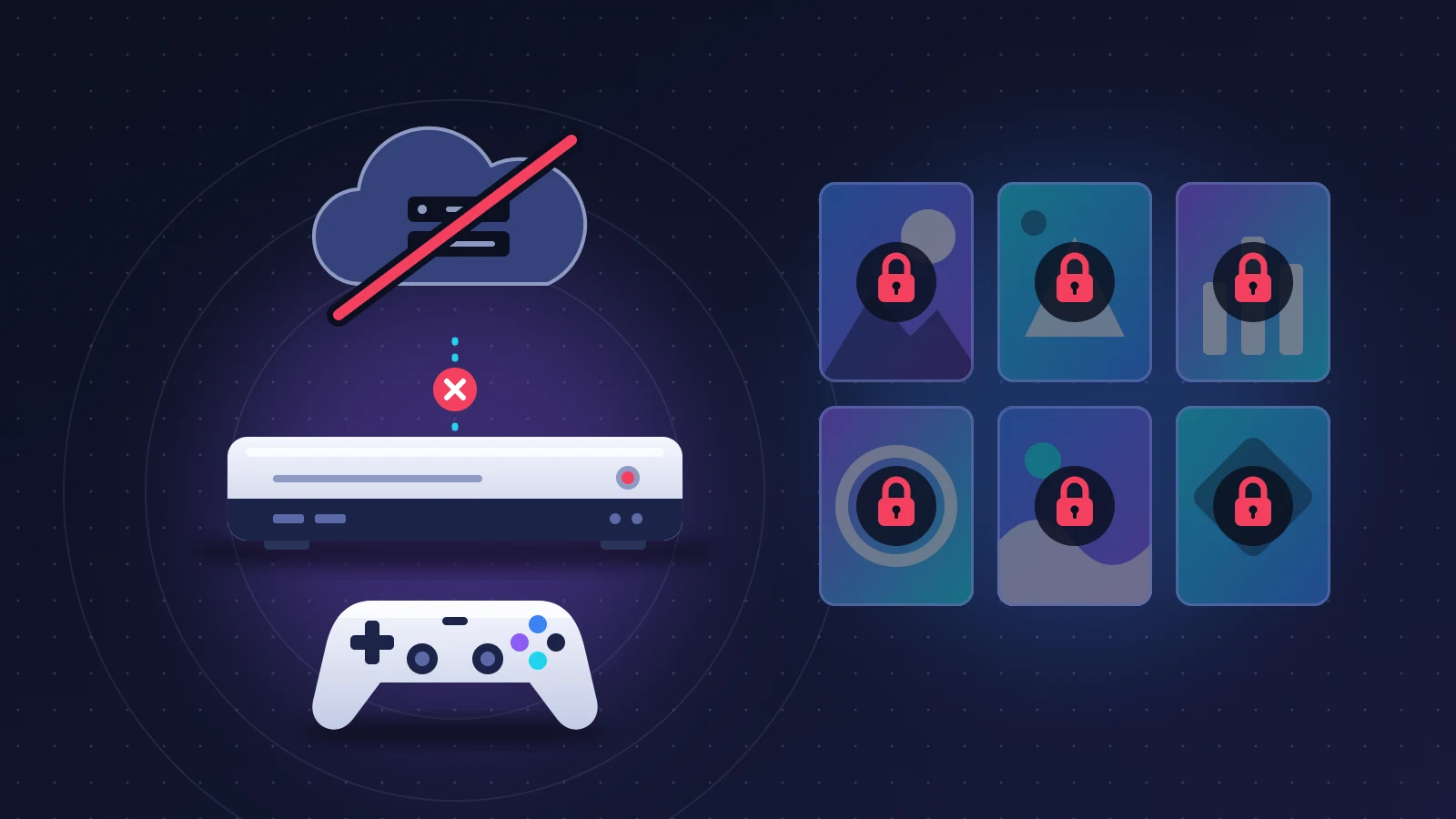
PSN down, Xbox network unreachable: when either happens, a game you bought digitally can refuse to start even though it is fully installed on the console. The reason is simple. Before launching a digital game, the console asks the platform’s servers whether your account really holds the license. If those servers do not answer, it refuses as a precaution. Both platforms have a setting that prevents this. It is called “Console Sharing and Offline Play” on PS5, “Primary PS4” on PS4 and “My home Xbox” at Microsoft. It stores a copy of your rights on the console itself. Its drawback: it can only be switched on while you are online, so ideally before the outage.
At a glance: the quick fix
- Open the official status page on a phone using mobile data: status.playstation.com for Sony, support.xbox.com/xbox-live-status for Microsoft. If a service is flagged as down, no setting at home will repair the servers.
- Power the console off completely (not rest mode), unplug your modem and router for a few minutes, then turn everything back on.
- On PlayStation, run Restore Licenses as soon as signing in to your account works again.
- Check that your console is registered as the primary console for your account, then go offline on Xbox if the servers stay silent.
- Do not reset the console and do not buy the game again. Both reflexes make things worse.
PSN down or Xbox outage: how to recognize the problem
The scenario repeats itself from one outage to the next. The console boots normally and the home screen appears, but signing in to the account fails or spins forever. On PlayStation, the tiles of digital games carry a small padlock. On Xbox, the game launches for a second and then drops back to the home screen with a message asking whether you own this game. Disc games, on the other hand, usually start without any fuss. That contrast is the best clue: when discs work and digital games do not, the console is not at fault.
The most common error codes
Sony and Microsoft publish the meaning of their codes. These are the ones that come up most often during maintenance or an authentication outage.
| Console | Code | What it means | Where the problem comes from |
|---|---|---|---|
| PS5 | WS-116449-5, WS-116521-6 | Service undergoing maintenance | Sony servers |
| PS5 | NP-103105-0, NP-103109-4, NP-103111-7, NP-103117-3 | Service under maintenance | Sony servers |
| PS5 | NP-104291-7 | License information for the content cannot be confirmed | Servers, or wrong account signed in |
| PS5 | CE-109245-1 | Content license not confirmed | Account, or console sharing not enabled |
| PS5 | CE-107255-0, CE-116799-3 | PlayStation Plus subscription cannot be confirmed | Servers or expired subscription |
| PS5 | NW-102636-8 | Connection to PlayStation timed out | Servers or home network |
| PS4 | WS-37504-9, NP-35000-8 | PlayStation service under maintenance | Sony servers |
| PS4 | WS-37397-9, WS-37469-9 | Cannot connect to the server | Servers, sometimes a blocked IP address |
| PS4 | CE-33950-0 | Cannot connect to the server to verify the license | Sony servers |
| PS4 | NP-34958-9 | The game is locked (padlock) | License needs restoring |
| PS4 | CE-34703-7 | Console not activated | PS4 not set as primary |
| PS4 | NW-31253-4, NW-31254-5 | DNS server response slow or unstable | Home network |
| PS4 | CE-33992-6, CE-33986-9 | Internet connection test failed | Home network or servers |
| Xbox | 0x803F8001 | The console cannot find usage rights for this game | License not verified, console not set as home Xbox |
| Xbox | 0x803F9006 | The person who bought the game needs to sign in | Buyer signed out, console not set as home Xbox |
| Xbox | 0x87DD0006, 0x87DD0019, 0x87DD0033 | Cannot sign in to the profile | Most often, Xbox servers |
A handy rule of thumb: on PlayStation, NW- points to the network, WS- and NP- to the servers and the account, CE- to the console or the content. On Xbox, 0x87DD codes concern profile sign-in, 0x803F codes concern the rights to a game.
Why it happens
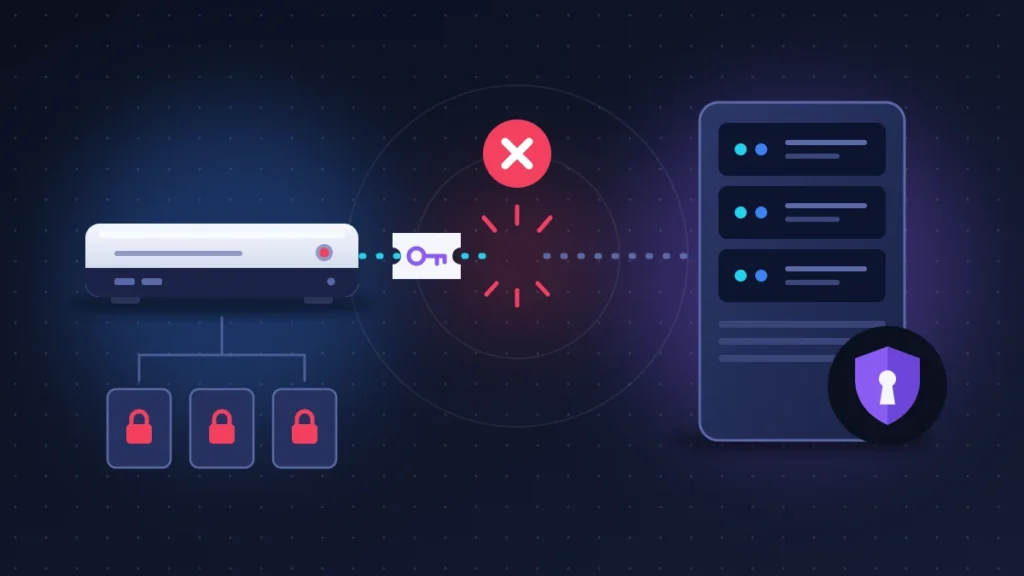
A digital game is not a file you own. It is a right of use, a license, tied to your account. The console checks that right at every launch. It has two ways of doing so: querying the authentication servers, or reading a local copy of your licenses. That local copy only exists on the console registered as the primary one for your account.
The authentication servers are the front door to everything else. They go down for three recurring reasons: scheduled maintenance, a rush of sign-ins when a major game or a long-awaited patch launches, or a technical incident on the platform holder’s side.
Things are harsher on a secondary console. A player who uses a friend’s or relative’s games through account sharing depends entirely on the online check. During outages, that is the player who finds the whole library locked.
Subscription games follow a similar rule: the console has to re-check regularly that the subscription is active. For Game Pass, the commonly quoted limit is around thirty days without a connection.
Before you start
None of the fixes below erases your games or your saves. Keep the account’s email address and password within reach, along with the phone that receives your two-step verification codes: you are sometimes asked to sign in again once the service returns.
What not to do during an outage
Resetting the console. A console wiped to factory state has to reach the servers to recover the account, the licenses and its primary activation. In the middle of an outage it becomes unusable, and you will have everything to download again.
Changing your password over and over. A failed sign-in during an outage does not mean the account has been hacked. Repeated attempts and back-to-back resets can trigger a temporary lock on the account that will outlast the outage.
Buying the game again. The “buy this game in the Store” message that comes with some Xbox errors is misleading: your purchase has not vanished.
Deactivating the primary console or removing the profile. Those settings can only be put back while online.
Fix 1: find out in one minute where the outage comes from
Always do this first. Three checks are enough.
1. Look at the official status page
From a phone on mobile data, open status.playstation.com or support.xbox.com/xbox-live-status. Each family of services (account management, gaming and social, store) has its own indicator. Pay particular attention to the line covering account and sign-in: license validation depends on it.
One known trap: these pages often lag behind at the start of an incident. If everything is green while nothing works, check the official support accounts on social media and a crowdsourced outage-reporting site. A sudden spike in reports is as good as a confirmation.
2. Run the console’s connection test
- PS5: Settings > Network > Connection Status > Test Internet Connection.
- PS4: Settings > Network > Test Internet Connection.
- Xbox: Settings > General > Network settings > Test network connection.
On PlayStation, read the result line by line. IP address obtained and Internet connection successful, but PlayStation Network sign-in failed: the outage is on Sony’s side. Failure as early as the IP address or the Internet connection: the problem is at home.
3. Try another device
Load a web page on a computer connected to the same router. If it displays, your Internet access works. Then try signing in to your account from the platform’s website or mobile app: a failure there as well points to the servers. In that case, go straight to fixes 4 and 5, which let you play regardless.
Fix 2: fully restart the console and the router
When to use it: once the service is back, or if the connection test fails at home. Rest mode does not count.
- On PlayStation, hold the power button until the indicator light goes out completely. On Xbox, hold the Xbox button on the console for about ten seconds.
- Unplug the console’s power cable for one minute.
- Turn off the modem and the router. Sony recommends waiting at least five minutes before turning them back on.
- Switch the modem and router back on, wait until their lights are steady, then start the console.
Risk: none. Check: run the connection test from fix 1 again.
Fix 3: restore licenses on PlayStation
This is the official remedy for the padlock. It tells the console to download the list of your rights from your account again.
- PS5: Settings > Users and Accounts > Other > Restore Licenses. For a single game, highlight its tile, press the Options button and choose Restore License.
- PS4: Settings > Account Management > Restore Licenses.
Sony states that the operation does not touch your data. It takes less than a minute.
Its limit: it queries the servers. As long as authentication is down, the restore fails or changes nothing. It becomes useful as soon as account sign-in comes back, the moment when many players still see padlocks even though the service is officially restored. Also check that you are signed in with the account that bought the game, and that your PlayStation Plus subscription has not expired if the game came from it.
Fix 4: enable Console Sharing and Offline Play (PS5) or the primary PS4
This setting allows the console to launch your digital games without querying the servers.
- PS5: Settings > Users and Accounts > Other > Console Sharing and Offline Play, then Enable.
- PS4: Settings > Account Management > Activate as Your Primary PS4, then Activate.
If the option offers “Don’t Disable” or “Disable”, it is already on: leave it alone. An account can have only one PS5 and one PS4 in this role. If the activation is still attached to an old console you no longer have, remote deactivation is done through account management on the PlayStation website, in the Device Management section. It removes every console at once and is only allowed once every six months.
Risk: if you lend your account to a friend or relative, enabling sharing on your console removes it from theirs. Check: cut the console’s connection and launch a digital game.
Fix 5: set your home Xbox and go offline
On Xbox, two settings work together.
1. Register the console as your home Xbox
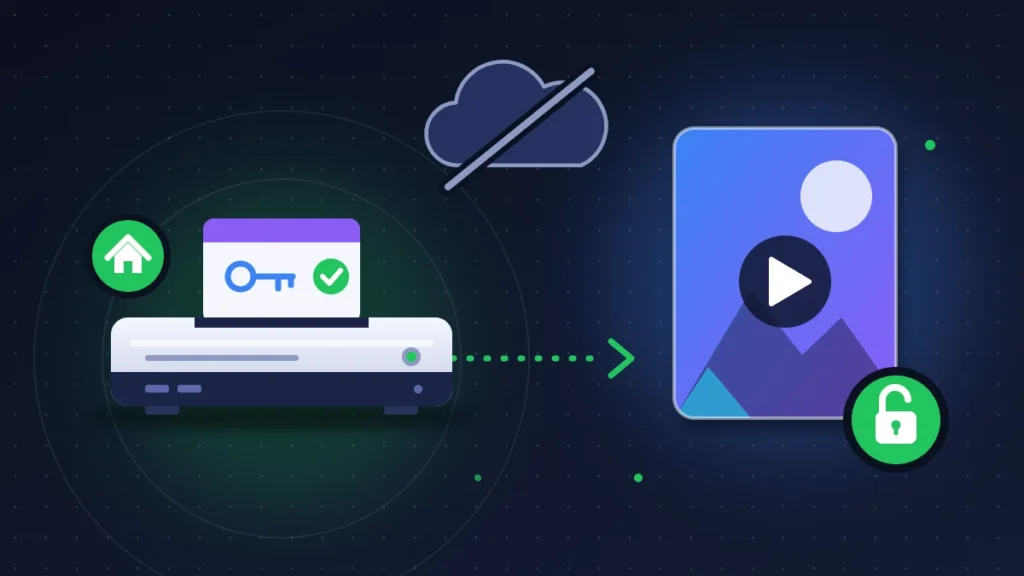
Settings > General > Personalization > My home Xbox > Make this my home Xbox. The console then keeps your licenses and shares them with every profile on it. Microsoft limits this change to five times per year per account: do not waste it on experiments.
2. Go offline
Settings > General > Network settings > Go offline. The console stops looking for the servers and relies on its local licenses. Remember to go back online afterwards through the same menu.
What works this way: games bought and installed on the home Xbox, and Game Pass games already downloaded, as long as the subscription was verified within the allowed period. What does not: any secondary console, games that require a permanent connection, cloud gaming.
One caveat. During some Xbox outages, games have refused to start even on a home console. Going offline is still the best card to play, with no guarantee.
Fix 6: repair the home network (cable, DNS, NAT, MAC address)
Keep this one for when the status page is green.
1. Switch to a wired connection
An Ethernet cable between the console and the router rules out Wi-Fi trouble in one go. If the error disappears, you have found the culprit.
2. Change DNS servers
DNS is the directory that turns a server name into an address. When your Internet provider’s DNS falters, the console can no longer find the platform’s servers even though they are running. Codes NW-31253-4 and NW-31254-5 on PS4 say so explicitly.
- PS5: Settings > Network > Settings > Set Up Internet Connection, select your connection, then Advanced Settings > DNS Settings > Manual.
- PS4: Settings > Network > Set Up Internet Connection, choose Wi-Fi or LAN cable, then Custom.
- Xbox: Settings > General > Network settings > Advanced settings > DNS settings > Manual.
Enter a public DNS, for example 1.1.1.1 and 1.0.0.1 (Cloudflare) or 8.8.8.8 and 8.8.4.4 (Google). This change never repairs a server-side outage.
3. Clear the alternate MAC address on Xbox
Settings > General > Network settings > Advanced settings > Alternate MAC address > Clear. The console restarts with a clean network configuration. No risk to your data.
4. Check the NAT type
NAT is the mechanism your router uses to share a single public address among your devices. A strict NAT (Type 3 on PlayStation) gets in the way of multiplayer and voice chat, rarely of license validation. On Xbox, the test is under Settings > General > Network settings > Test NAT type. If the result is strict, enable UPnP in the router’s admin interface before considering port forwarding.
Fix 7: rebuild the database on PlayStation
Try this when the service is back and a padlock or a ghost tile lingers despite restoring licenses.
- Turn the console off completely.
- Hold the power button and release it at the second beep, about seven seconds after the first.
- Connect the controller with its USB cable and press the PS button.
- On PS5, choose Clear Cache and Rebuild Database, then Rebuild Database. On PS4, choose Rebuild Database.
The option’s position in the list changes with the system software version, so go by its name. The operation reorganizes the content index without deleting anything. The options labeled Reset, further down the same menu, erase everything: do not mix them up.
Summary table
| Symptom | Likely cause | Fix to try |
|---|---|---|
| Padlock on every digital game, disc games working | Authentication servers unavailable | Fixes 1, 4 or 5 |
| Padlock still there after the service returns | Licenses not resynchronized | Fix 2, then 3 |
| Maintenance message (WS-116449-5, WS-37504-9) | Scheduled maintenance or outage | Wait, fix 1 |
| Xbox: 0x803F8001 or 0x803F9006 at launch | Usage rights not verified, console not set as home Xbox | Fix 5 |
| Xbox: 0x87DD0006, 0x87DD0019, 0x87DD0033 | Cannot sign in to the profile | Fixes 1, 2, then 5 |
| Connection test fails at the IP address step | Router, Wi-Fi or cable | Fixes 2 and 6 |
| DNS error (NW-31253-4, NW-31254-5) | Internet provider’s DNS | Fix 6 |
| A single game locked, the others start | Wrong account, expired subscription, isolated license | Fix 3 on that game |
| Ghost tile or padlock on a game you paid for | Inconsistent console index | Fix 7 |
| Secondary console entirely locked | Total dependence on the online check | Wait for the service to return |
If nothing works
If the service has been back for several hours and a game is still locked, contact PlayStation or Xbox support. Have the exact error code ready, along with the name of the game, the account ID, the transaction number of the purchase (visible in your transaction history) and the list of steps you have already tried. Mention whether the console is set as primary.
On compensation, practices differ. After long outages, Sony has previously extended PlayStation Plus subscriptions by a few days, automatically and without any action from players. That gesture is not an entitlement. Microsoft does not publish a compensation scale for Game Pass. In both cases, you can write to support if a paid subscription stayed unusable for a long time: state the dates of the downtime, attach a screenshot of the status page or the error message, and explicitly ask for an extension.
Keeping it from happening again
Ten minutes of preparation, on a day when everything works, is all it takes.
- Enable Console Sharing and Offline Play on the PS5, the primary PS4 setting, or My home Xbox on the console you actually use.
- Do a dry run: unplug the network cable or turn off the console’s Wi-Fi and launch two or three digital games. Better to discover a lock on that day.
- Connect the console regularly if you play subscription games, to renew their verification.
- Keep one or two disc games close at hand.
- Turn on two-step verification and write down the backup codes. After an outage, you are sometimes required to sign in again.
Frequently asked questions
Can you play a digital game during a PSN outage?
Yes, if the console is the one where Console Sharing and Offline Play (PS5) or primary activation (PS4) is in place for the account that bought the game. Otherwise, the game stays locked until the service returns.
Does the padlock mean I have lost my purchase?
No. The purchase is still recorded in your account. The padlock only means the console could not verify it at that moment.
How many times can you change your home Xbox?
Five times per year per account. On PlayStation, remotely deactivating all consoles is only possible once every six months.
Should you reset the console if the outage drags on?
No, that is the worst option. The console will have to reach the servers to reactivate itself anyway, and you will have lost your installed games in the meantime.
The next time the status page shows PSN down or the Xbox network in trouble, a console prepared this way will keep playing through most of it. If you ran into an error code missing from the table, or a game that stayed locked despite these settings, describe your case in the comments: it will help the readers who come after you.
Share this content: